> ## Documentation Index
> Fetch the complete documentation index at: https://cal.id/docs/llms.txt
> Use this file to discover all available pages before exploring further.
# Team Appearance Settings
> Customize your team's public booking page in Cal ID with light or dark themes, layout choices, and button visibility for a consistent look.
Customize the visual theme and button visibility for your team's public booking page so every guest sees a consistent, on-brand experience.
## Steps to customize team appearance
Access your account dashboard.
Click on the **Teams** icon in the left-hand sidebar.
Locate the team you wish to edit, click the **three horizontal dots**, and select **Edit team**.
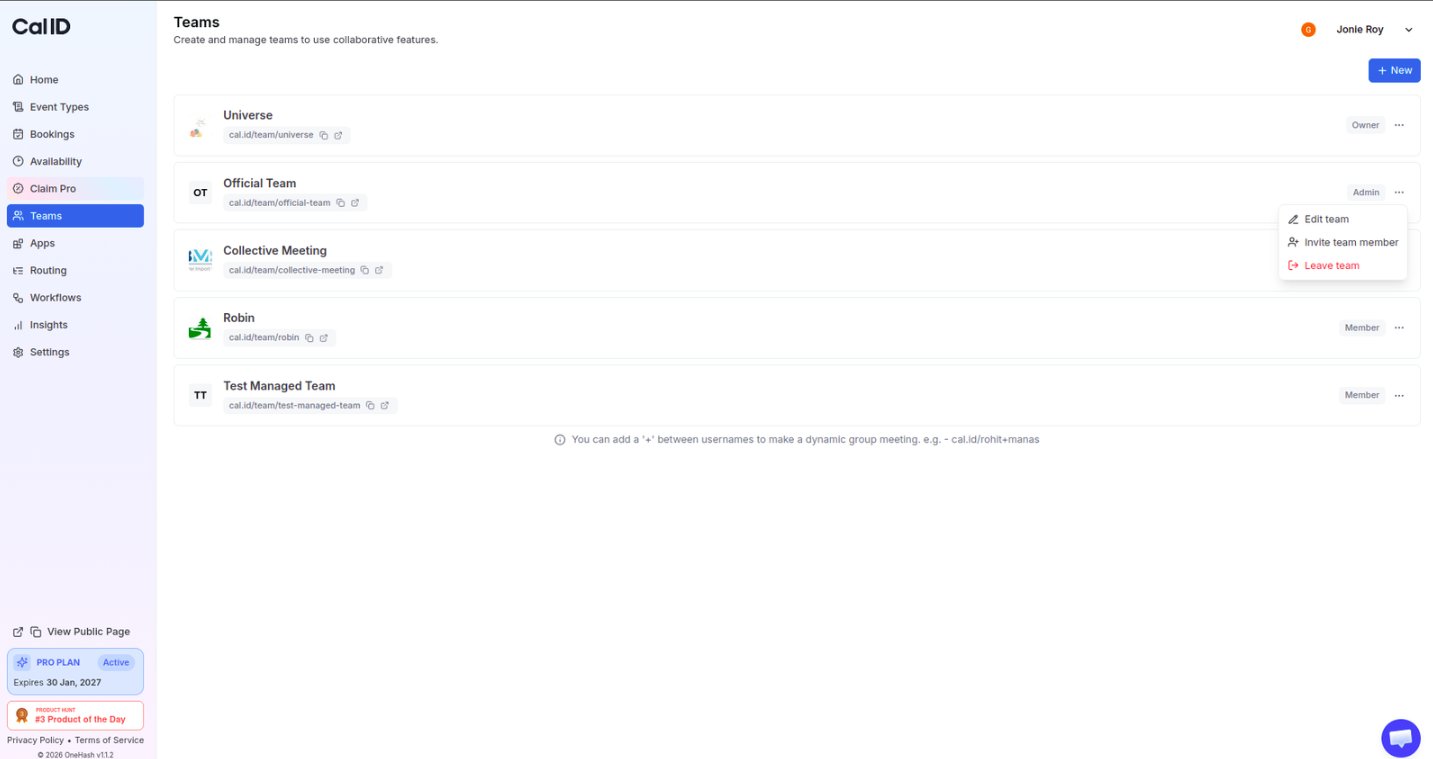 Click on the **Appearance** tab at the top of the settings page.
Configure the options described below.
## Booking page theme
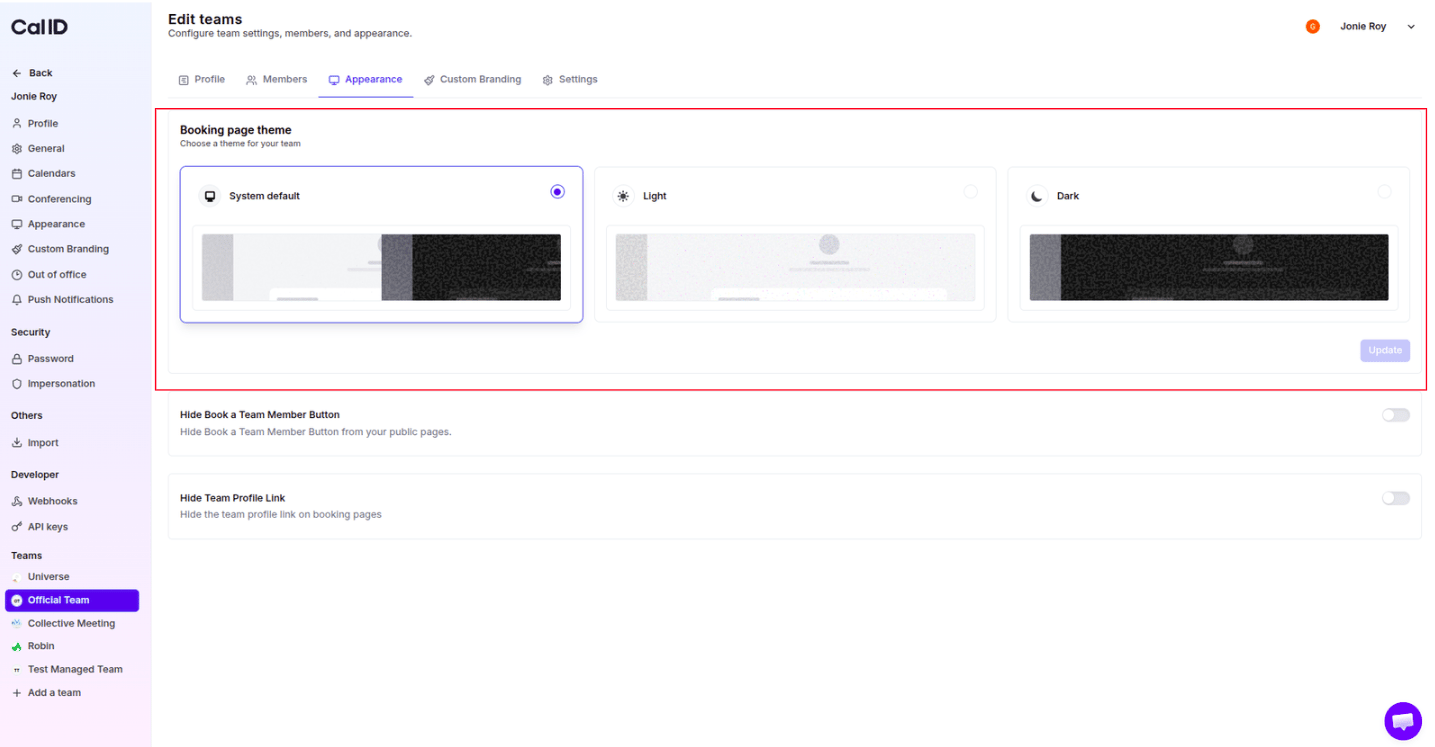
Select the theme your clients will see when visiting your public page: **System default**, **Light**, or **Dark**.
The theme selection determines the background and text colors your client interacts with when they view your team's public page. Choosing a specific theme ensures a consistent experience regardless of the user's personal browser settings.
Click on the **Appearance** tab at the top of the settings page.
Configure the options described below.
## Booking page theme
Select the theme your clients will see when visiting your public page: **System default**, **Light**, or **Dark**.
The theme selection determines the background and text colors your client interacts with when they view your team's public page. Choosing a specific theme ensures a consistent experience regardless of the user's personal browser settings.
 ## Hide book a team member button
Toggle this to **ON** to remove the shortcut button from your public page.
## Hide book a team member button
Toggle this to **ON** to remove the shortcut button from your public page.
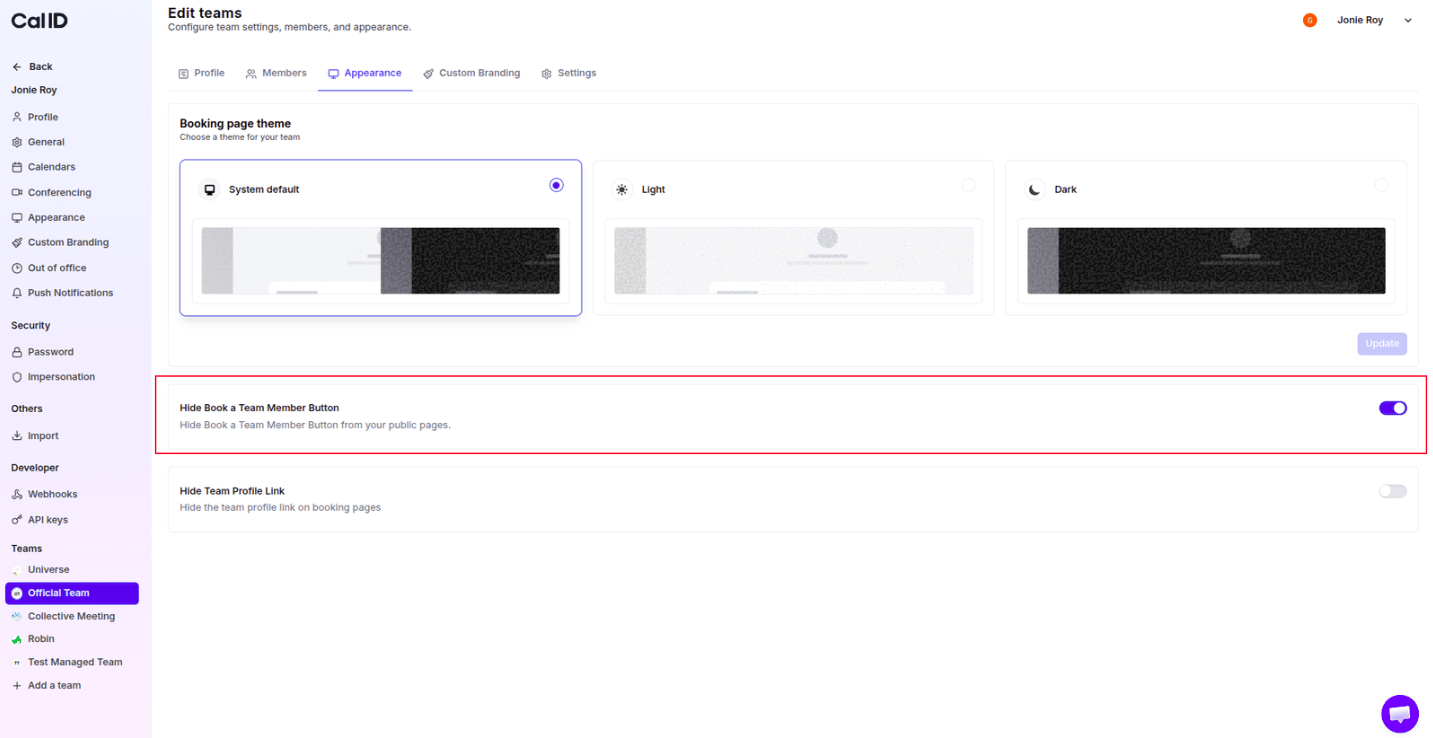 By default, when a user opens your team's public booking page, they will see a button labeled **Book a team member instead** at the very bottom of the page, following the list of available event types.
| Toggle | Result |
| ----------------- | ----------------------------------------------------------------------------------------------------------------------------------------------------------------------------------------- |
| **OFF** (default) | The button is visible, allowing guests to bypass team events and book with individuals directly. |
| **ON** | The button is hidden—useful when you want all bookings to follow your team's specific **Round Robin** or **Collective** logic rather than letting guests pick a specific person manually. |
By default, when a user opens your team's public booking page, they will see a button labeled **Book a team member instead** at the very bottom of the page, following the list of available event types.
| Toggle | Result |
| ----------------- | ----------------------------------------------------------------------------------------------------------------------------------------------------------------------------------------- |
| **OFF** (default) | The button is visible, allowing guests to bypass team events and book with individuals directly. |
| **ON** | The button is hidden—useful when you want all bookings to follow your team's specific **Round Robin** or **Collective** logic rather than letting guests pick a specific person manually. |
 ## Hide team profile link
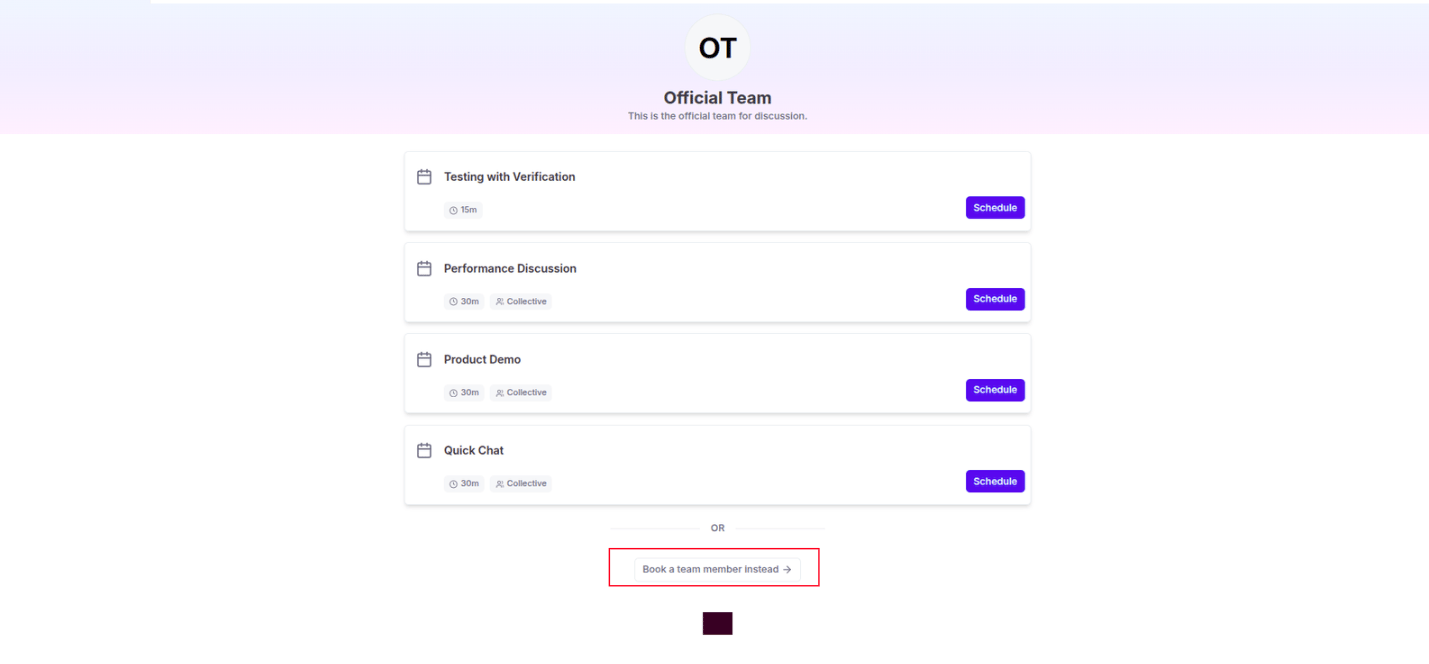
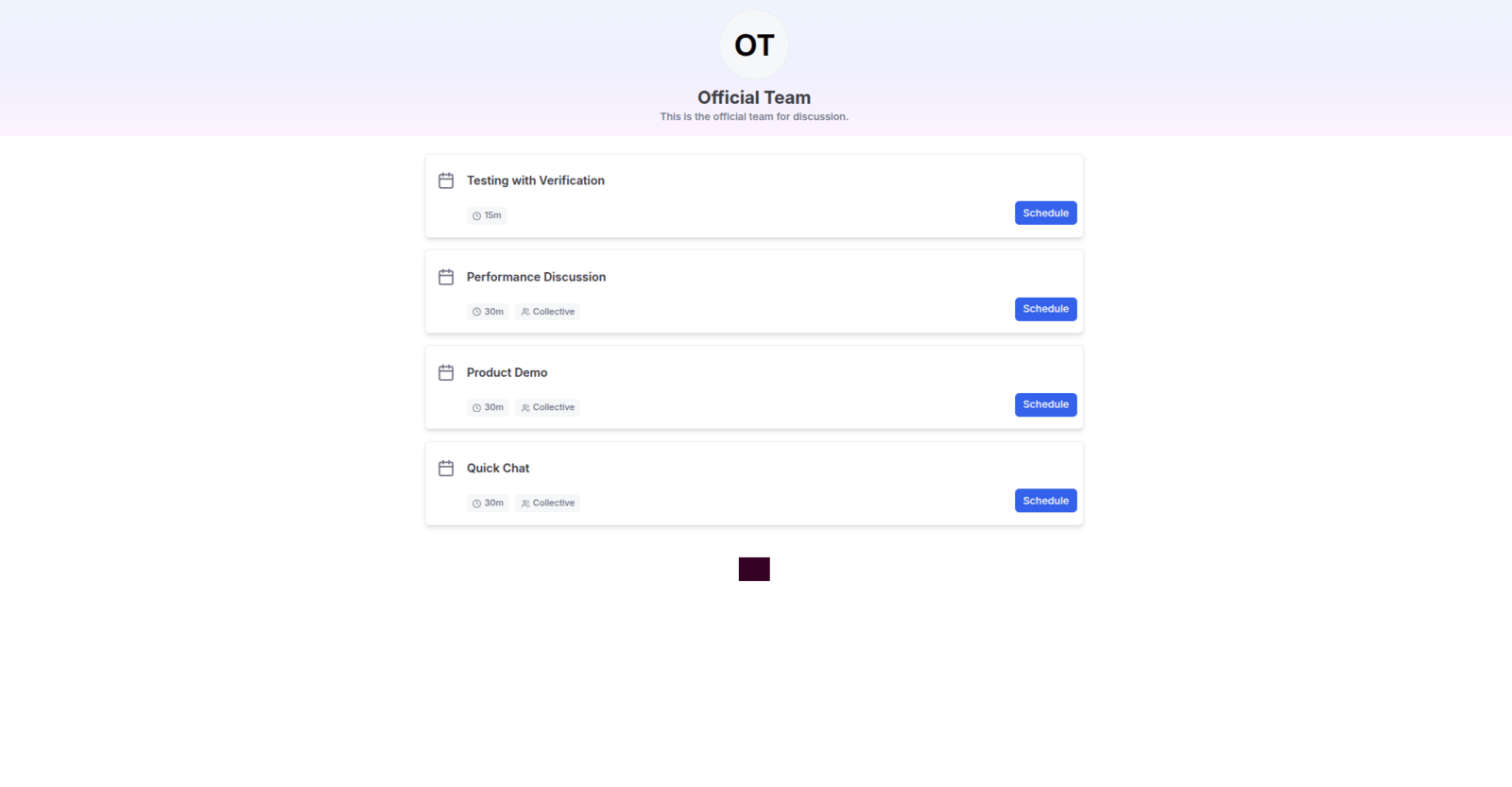
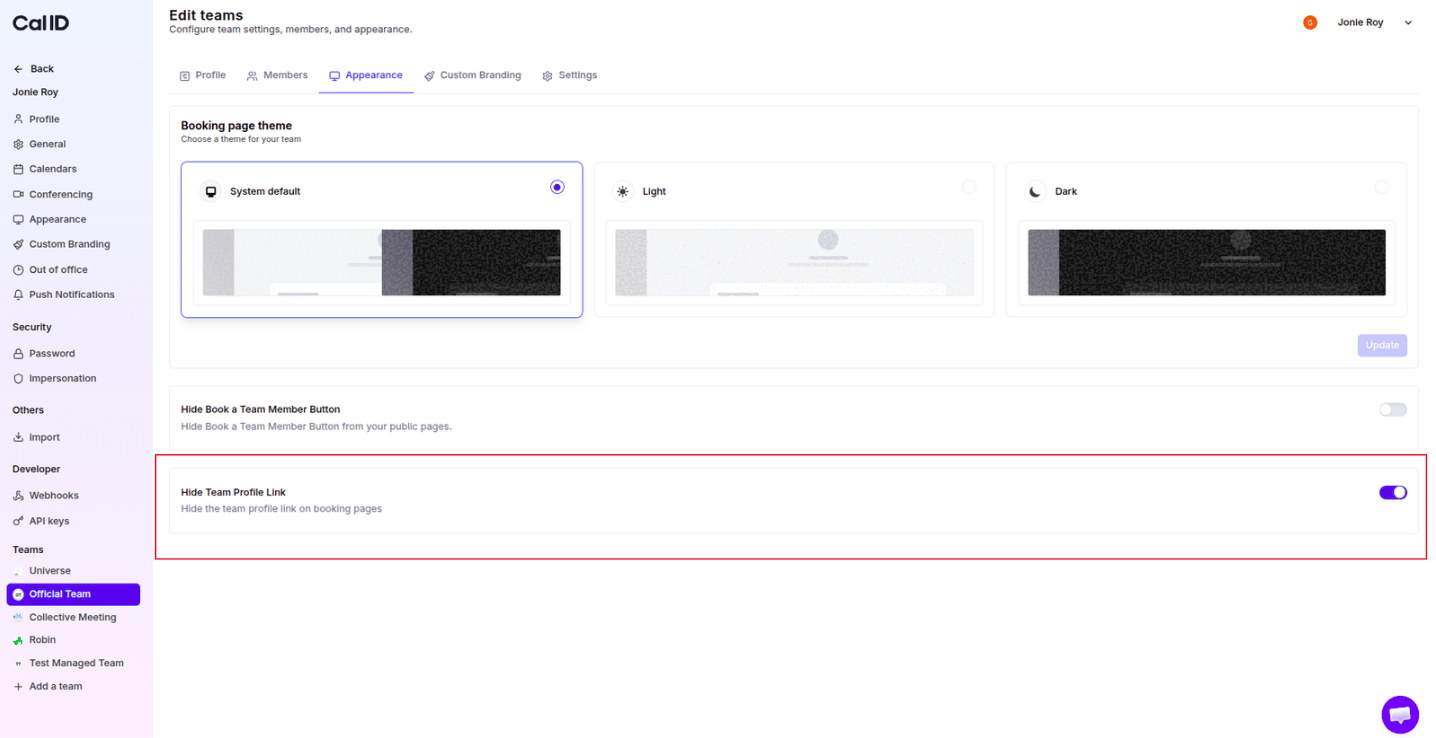
Toggle this to **ON** to hide the link to your team's profile on all booking pages.
## Hide team profile link
Toggle this to **ON** to hide the link to your team's profile on all booking pages.
 ## Next steps
Set the theme and booking layout for your own personal booking page.
Add your team's logo, banner, and brand colors.
## Related topics
- [Customizing Your Appearance in Cal ID](/docs/appearance/appearance.md)
- [Custom Branding For Teams](/docs/branding/teams.md)
- [Managing Custom Brand Colors in Cal ID for Team](/docs/branding/brand-colors-team.md)
- [Customize Your Brand Logo and Favicon in Cal ID for Team](/docs/branding/logo-favicon-team.md)
## Next steps
Set the theme and booking layout for your own personal booking page.
Add your team's logo, banner, and brand colors.
## Related topics
- [Customizing Your Appearance in Cal ID](/docs/appearance/appearance.md)
- [Custom Branding For Teams](/docs/branding/teams.md)
- [Managing Custom Brand Colors in Cal ID for Team](/docs/branding/brand-colors-team.md)
- [Customize Your Brand Logo and Favicon in Cal ID for Team](/docs/branding/logo-favicon-team.md)