> ## Documentation Index
> Fetch the complete documentation index at: https://cal.id/docs/llms.txt
> Use this file to discover all available pages before exploring further.
# AI Notetaker
> Record meetings automatically with the Cal ID AI Notetaker — join calls, generate transcripts and AI summaries, send the bot to any meeting, and configure recording, language, and retention.
AI Notetaker automatically joins your meetings, records the conversation, generates a transcript, and creates an AI-powered summary — so you can focus on the discussion instead of taking notes. Whether it's customer calls, internal meetings, interviews, or sales demos, it captures the important information and organizes it into readable notes.
After each meeting, AI Notetaker gives you a complete recording, a speaker-separated transcript, an AI summary, key discussion points, decisions, action items, meeting chapters, and follow-up tasks — all stored on the **AI Notetaker** page for review any time.
## Requirements
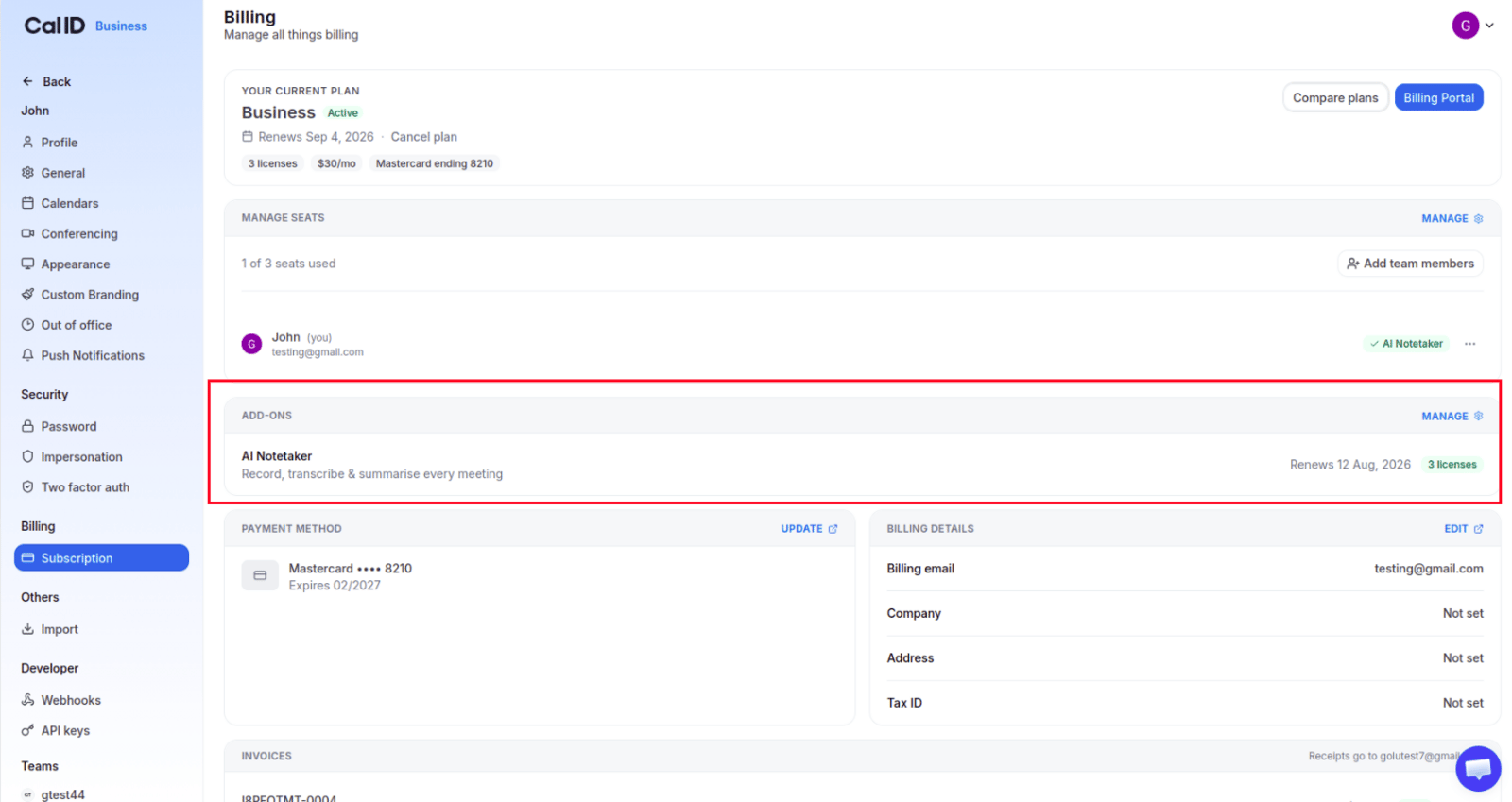
AI Notetaker is a separate paid **add-on subscription**. Being on a Business or Enterprise plan does not include it automatically — your account must have an active AI Notetaker add-on to record meetings, generate transcripts, or create summaries.
To check your license, go to **Settings → Subscription**, scroll to the **Add-ons** section, and find **AI Notetaker** to confirm it's active and how many licenses are assigned.
 **Supported platforms:** Google Meet, Zoom, and Microsoft Teams. Other platforms aren't supported — an unsupported link shows the error "Unsupported meeting link."
## How it works
For a supported meeting, AI Notetaker joins and waits in the lobby until the host admits it.
Once admitted, it records the meeting and captures the conversation.
After the meeting ends, Cal ID processes the recording, generates a speaker-labeled transcript, and creates the AI summary.
The finished meeting — recording, transcript, summary, key points, decisions, action items, and chapters — appears on the AI Notetaker page.
## Open AI Notetaker
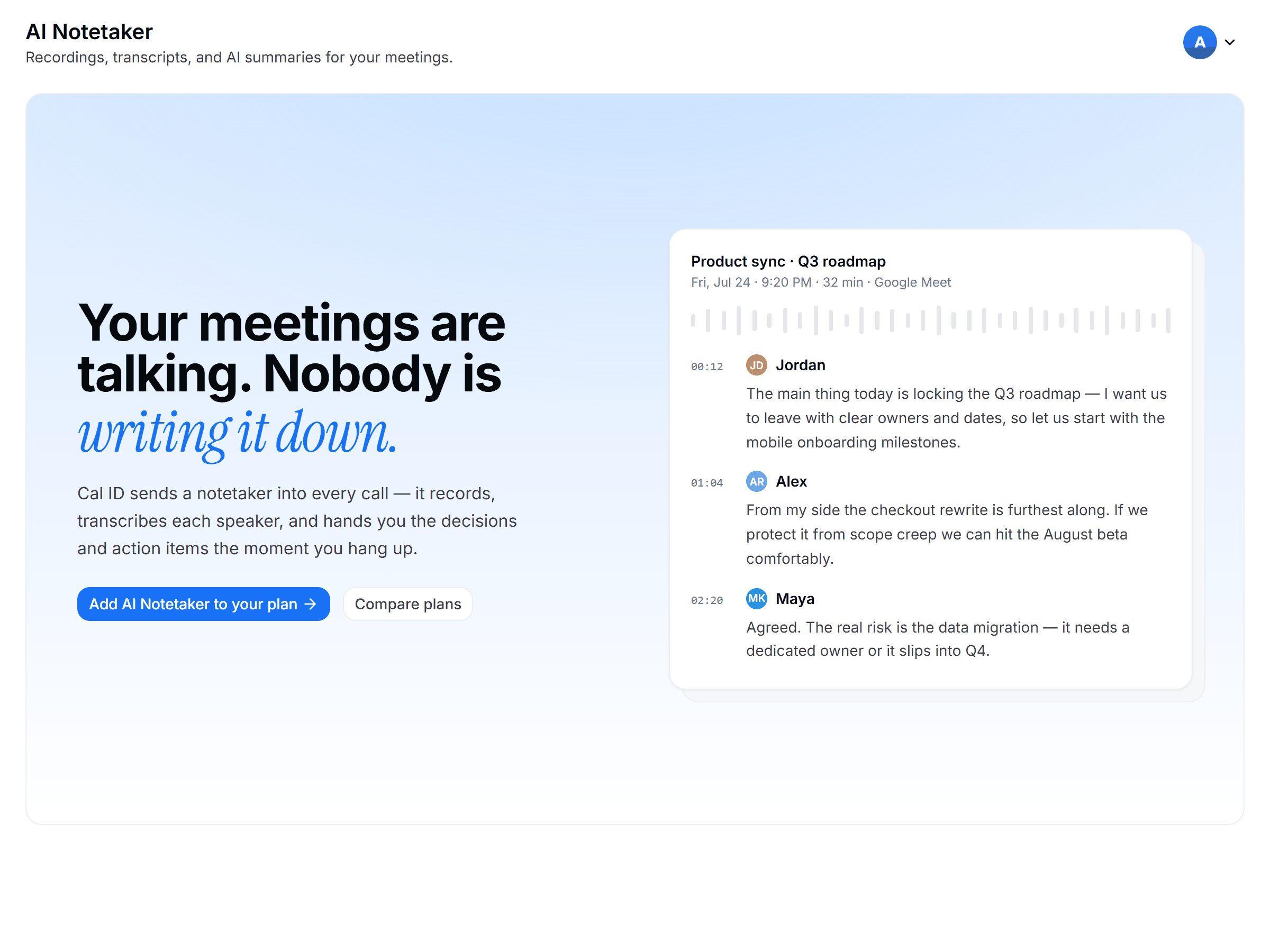
Sign in to Cal ID and click **AI Notetaker** in the left navigation menu. The dashboard has three tabs.
**Supported platforms:** Google Meet, Zoom, and Microsoft Teams. Other platforms aren't supported — an unsupported link shows the error "Unsupported meeting link."
## How it works
For a supported meeting, AI Notetaker joins and waits in the lobby until the host admits it.
Once admitted, it records the meeting and captures the conversation.
After the meeting ends, Cal ID processes the recording, generates a speaker-labeled transcript, and creates the AI summary.
The finished meeting — recording, transcript, summary, key points, decisions, action items, and chapters — appears on the AI Notetaker page.
## Open AI Notetaker
Sign in to Cal ID and click **AI Notetaker** in the left navigation menu. The dashboard has three tabs.
 | Tab | Purpose |
| ------------------- | ---------------------------------------------------- |
| Meetings | View past recordings, transcripts, and AI summaries. |
| Send Bot to Meeting | Invite AI Notetaker to any meeting. |
| Settings | Configure how AI Notetaker behaves. |
## Meetings tab
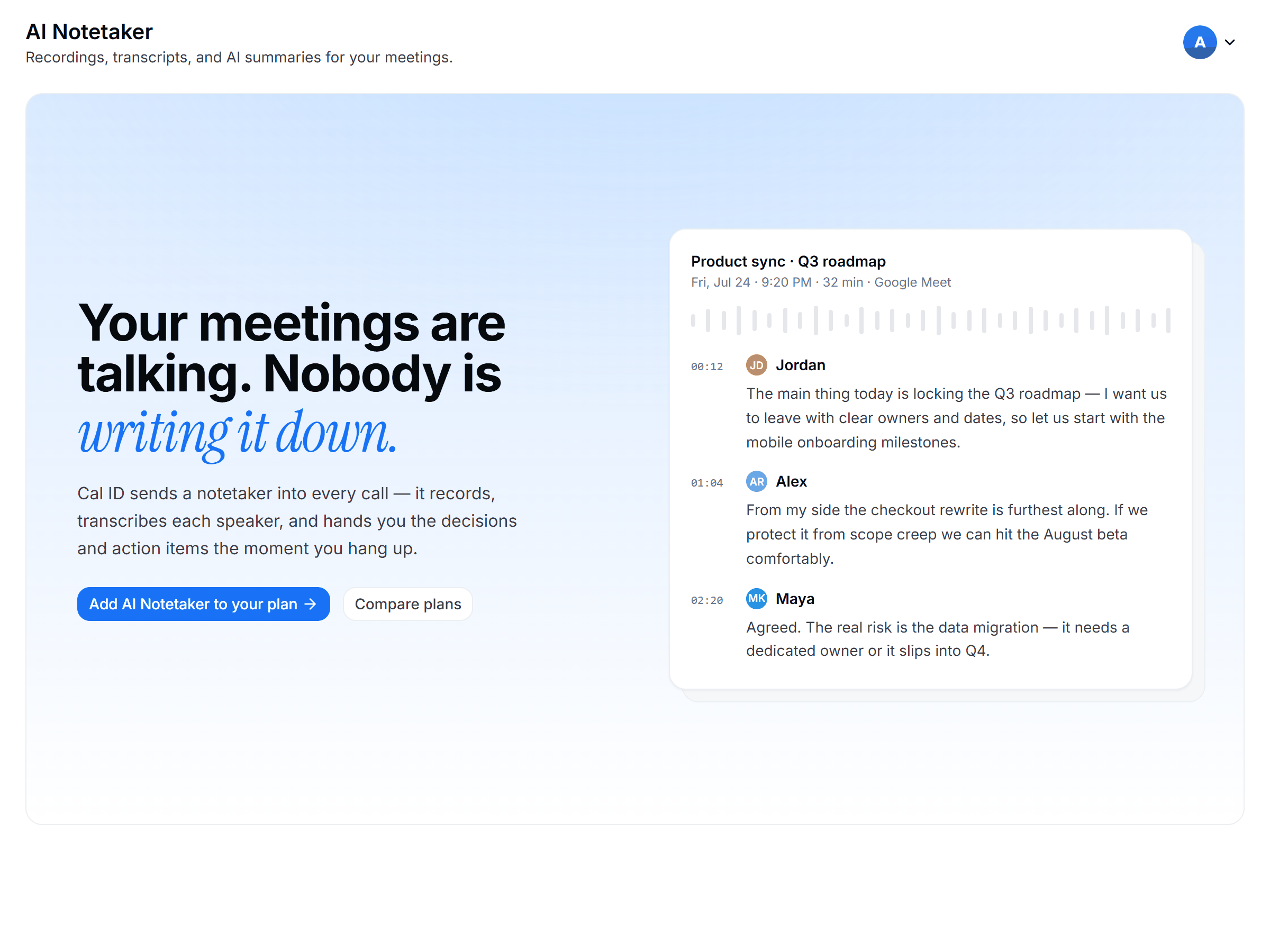
The Meetings tab stores every meeting AI Notetaker records. Each card shows the title, date, time, platform, and current status. Use the search bar to find a meeting by title or keyword, then click it to open the summary, transcript, and recording.
| Tab | Purpose |
| ------------------- | ---------------------------------------------------- |
| Meetings | View past recordings, transcripts, and AI summaries. |
| Send Bot to Meeting | Invite AI Notetaker to any meeting. |
| Settings | Configure how AI Notetaker behaves. |
## Meetings tab
The Meetings tab stores every meeting AI Notetaker records. Each card shows the title, date, time, platform, and current status. Use the search bar to find a meeting by title or keyword, then click it to open the summary, transcript, and recording.
 ### Meeting statuses
| Status | What it means |
| ----------------- | ---------------------------------------------------------------------------------------------------------------------------------------------------------- |
| **Processing** | The meeting has ended and Cal ID is processing the recording. The transcript and summary appear automatically when it finishes. |
| **Summarized** | The meeting was recorded successfully — summary, recording, chapters, key points, decisions, action items, download, and transcript are all available. |
| **Access Denied** | The notetaker waited in the lobby but was never admitted, so nothing was recorded. Admit it when it appears, or turn off the waiting room for the meeting. |
| **Failed** | The meeting ended without any usable content, so no transcript or summary could be generated. |
### Meeting statuses
| Status | What it means |
| ----------------- | ---------------------------------------------------------------------------------------------------------------------------------------------------------- |
| **Processing** | The meeting has ended and Cal ID is processing the recording. The transcript and summary appear automatically when it finishes. |
| **Summarized** | The meeting was recorded successfully — summary, recording, chapters, key points, decisions, action items, download, and transcript are all available. |
| **Access Denied** | The notetaker waited in the lobby but was never admitted, so nothing was recorded. Admit it when it appears, or turn off the waiting room for the meeting. |
| **Failed** | The meeting ended without any usable content, so no transcript or summary could be generated. |
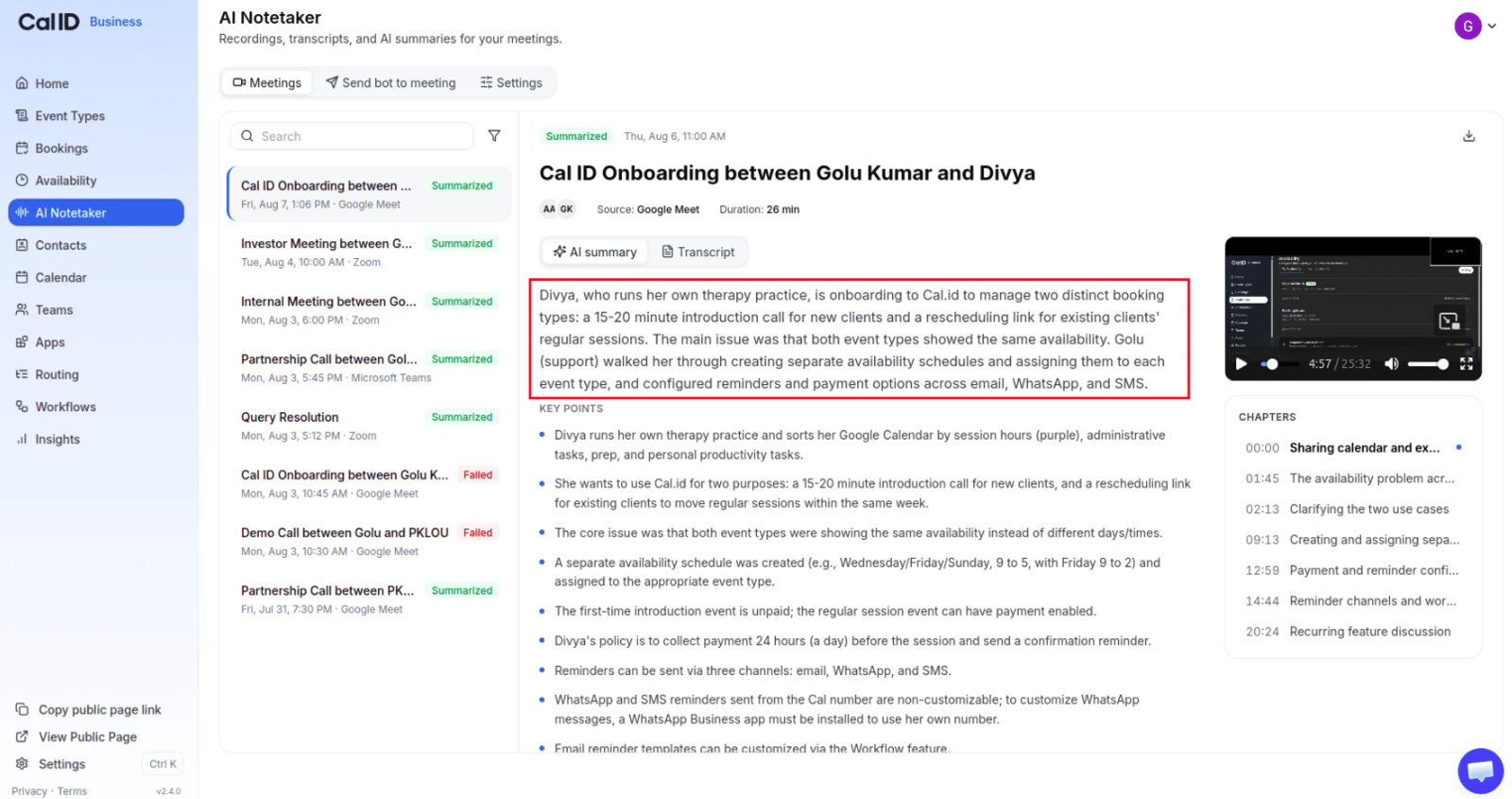 Completed meetings include a **Download** button for the recording (available after processing) and two tabs: **AI Summary** and **Transcript**.
## Send the notetaker to a meeting
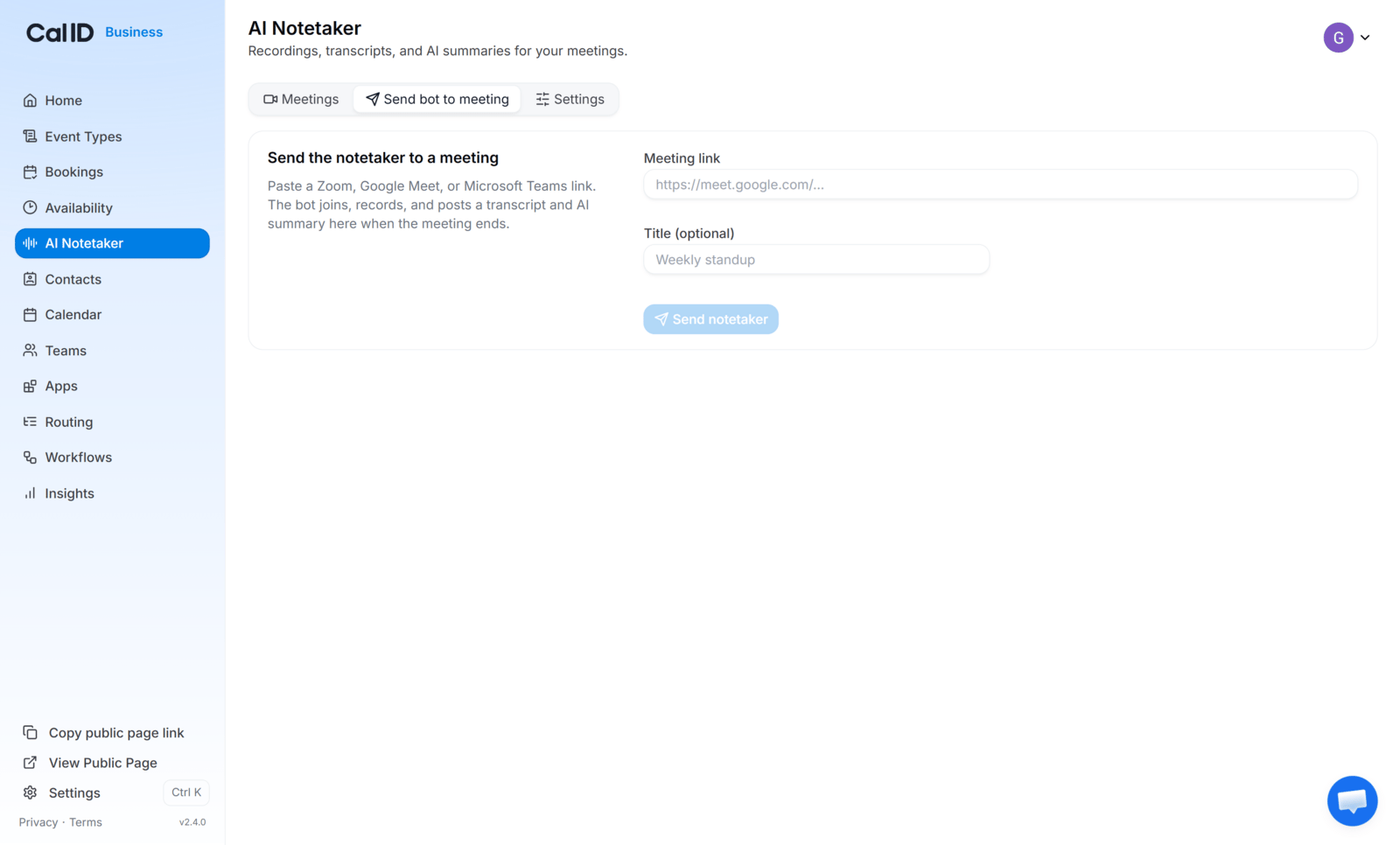
**Send Bot to Meeting** invites AI Notetaker to a meeting you didn't book through Cal ID — useful for meetings scheduled elsewhere or created by someone else.
Open **AI Notetaker** and click the **Send Bot to Meeting** tab.
Paste the meeting link (Google Meet, Zoom, or Microsoft Teams) into the field.
Click **Send Notetaker**. It prepares to join at the meeting time.
Completed meetings include a **Download** button for the recording (available after processing) and two tabs: **AI Summary** and **Transcript**.
## Send the notetaker to a meeting
**Send Bot to Meeting** invites AI Notetaker to a meeting you didn't book through Cal ID — useful for meetings scheduled elsewhere or created by someone else.
Open **AI Notetaker** and click the **Send Bot to Meeting** tab.
Paste the meeting link (Google Meet, Zoom, or Microsoft Teams) into the field.
Click **Send Notetaker**. It prepares to join at the meeting time.
 The notetaker waits in the lobby and records only after the host admits it. It can't bypass the lobby. If the host never admits it, nothing is recorded. Only the host can remove it mid-meeting; if that happens, recording stops but any conversation captured before removal is preserved and summarized.
## Settings
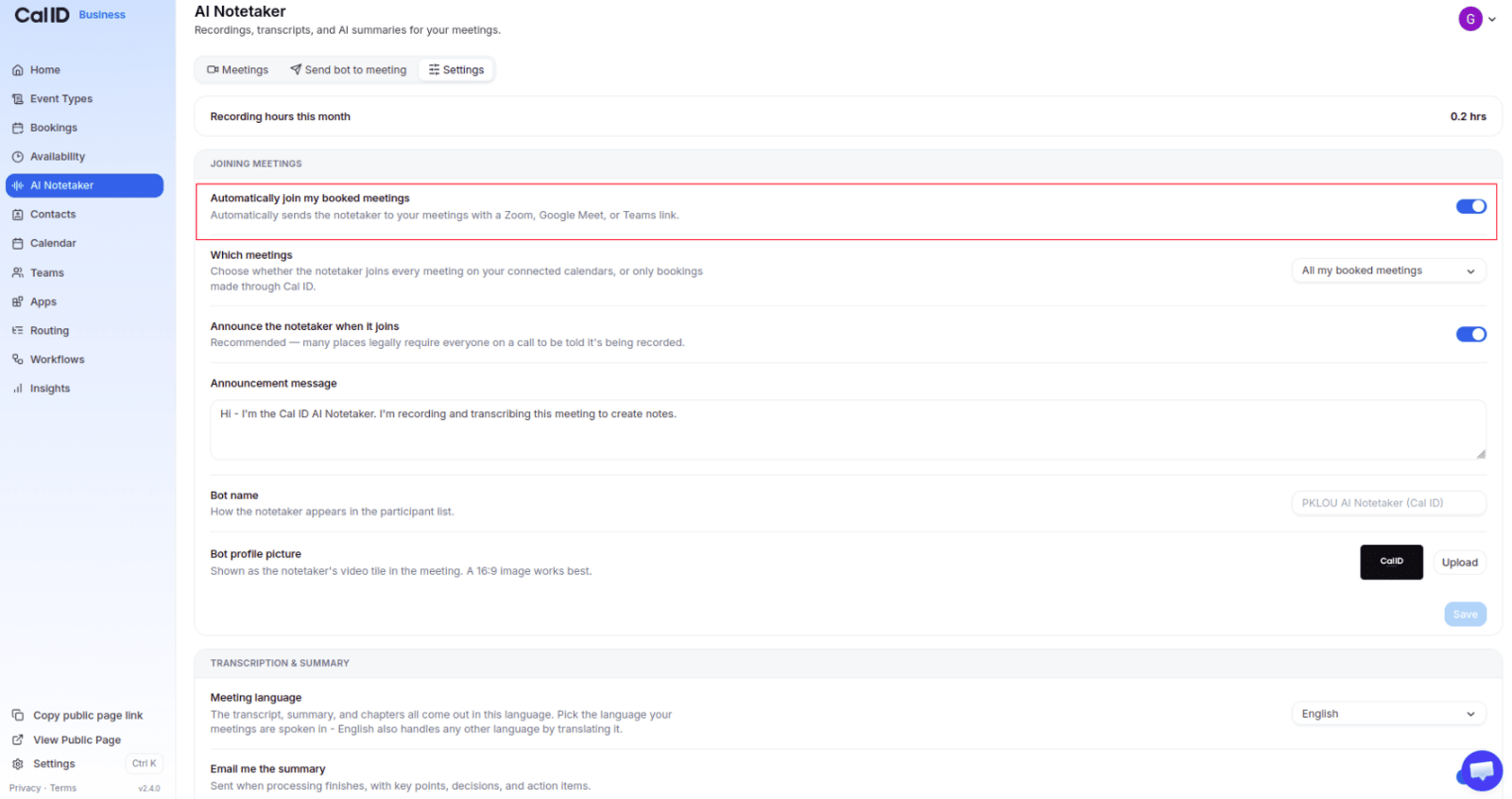
The **Settings** page controls how the notetaker behaves before, during, and after meetings.
* **Recording hours this month** — the total meeting time recorded this month (for example, **2.5 hrs**), updated automatically.
* **Automatically join my booked meetings** — when on, the notetaker joins eligible meetings without being invited each time.
* **Which meetings** — appears only when auto-join is on: **All my booked meetings**, or **Only bookings made through Cal ID** (recommended).
* **Announce the notetaker** and **Announcement message** — show a custom message to attendees when it joins.
* **Bot name** and **Bot profile picture** — customize the display name and avatar (PNG, JPG, or SVG; a 16:9 image works best).
* **Meeting language** — the language used for transcription.
* **Email me the summary** / **Email attendees the summary** — send the AI summary to the organizer and, optionally, the attendees after processing.
* **Delete recordings after** — retention: **Keep forever**, **30 days**, **90 days**, **6 months**, or **1 year**.
The notetaker waits in the lobby and records only after the host admits it. It can't bypass the lobby. If the host never admits it, nothing is recorded. Only the host can remove it mid-meeting; if that happens, recording stops but any conversation captured before removal is preserved and summarized.
## Settings
The **Settings** page controls how the notetaker behaves before, during, and after meetings.
* **Recording hours this month** — the total meeting time recorded this month (for example, **2.5 hrs**), updated automatically.
* **Automatically join my booked meetings** — when on, the notetaker joins eligible meetings without being invited each time.
* **Which meetings** — appears only when auto-join is on: **All my booked meetings**, or **Only bookings made through Cal ID** (recommended).
* **Announce the notetaker** and **Announcement message** — show a custom message to attendees when it joins.
* **Bot name** and **Bot profile picture** — customize the display name and avatar (PNG, JPG, or SVG; a 16:9 image works best).
* **Meeting language** — the language used for transcription.
* **Email me the summary** / **Email attendees the summary** — send the AI summary to the organizer and, optionally, the attendees after processing.
* **Delete recordings after** — retention: **Keep forever**, **30 days**, **90 days**, **6 months**, or **1 year**.
 Once a recording is deleted under the retention period, it may no longer be available for playback or download.
### Recommended settings
| Setting | Recommendation |
| --------------------------- | ---------------------------------------------------------------------------------- |
| Automatically join meetings | On |
| Which meetings | Only bookings made through Cal ID (or All my booked meetings for broader coverage) |
| Announce the notetaker | On |
| Meeting language | Match the primary spoken language |
| Email me the summary | On |
| Delete recordings after | A retention period that meets your needs |
## Best practices
* Admit the notetaker as soon as it joins, and tell the host in advance that it will request access.
* Let the meeting finish and processing complete before expecting a transcript.
* Use descriptive meeting titles so they're easy to search later.
## Get the most from the notetaker
See how the AI Notetaker add-on is licensed and priced.
Connect the calendar that schedules the meetings you record.
Add Zoom as a meeting location for your event types.
Discover the other apps you can connect to Cal ID.
## Related topics
- [Cal ID App Store](/docs/apps/app-store.md)
- [Subscription & Pricing Plans](/docs/getting-started/subscription-and-pricing.md)
- [Connect Google Calendar](/docs/apps/google-calendar.md)
- [Integrate Cal ID with Zoom](/docs/apps/zoom.md)
Once a recording is deleted under the retention period, it may no longer be available for playback or download.
### Recommended settings
| Setting | Recommendation |
| --------------------------- | ---------------------------------------------------------------------------------- |
| Automatically join meetings | On |
| Which meetings | Only bookings made through Cal ID (or All my booked meetings for broader coverage) |
| Announce the notetaker | On |
| Meeting language | Match the primary spoken language |
| Email me the summary | On |
| Delete recordings after | A retention period that meets your needs |
## Best practices
* Admit the notetaker as soon as it joins, and tell the host in advance that it will request access.
* Let the meeting finish and processing complete before expecting a transcript.
* Use descriptive meeting titles so they're easy to search later.
## Get the most from the notetaker
See how the AI Notetaker add-on is licensed and priced.
Connect the calendar that schedules the meetings you record.
Add Zoom as a meeting location for your event types.
Discover the other apps you can connect to Cal ID.
## Related topics
- [Cal ID App Store](/docs/apps/app-store.md)
- [Subscription & Pricing Plans](/docs/getting-started/subscription-and-pricing.md)
- [Connect Google Calendar](/docs/apps/google-calendar.md)
- [Integrate Cal ID with Zoom](/docs/apps/zoom.md)