> ## Documentation Index
> Fetch the complete documentation index at: https://cal.id/docs/llms.txt
> Use this file to discover all available pages before exploring further.
# Managing Installed Apps
> View, filter, disconnect, and manage the calendar, video, payment, and automation integrations you have already installed in your Cal ID account.
Your **Installed Apps** page is the central hub for the tools and integrations you've already added to Cal ID — view them, filter by category, adjust their settings, or disconnect the ones you no longer need.
## Steps to view installed apps
Open your account dashboard at [Cal ID](https://cal.id/home).
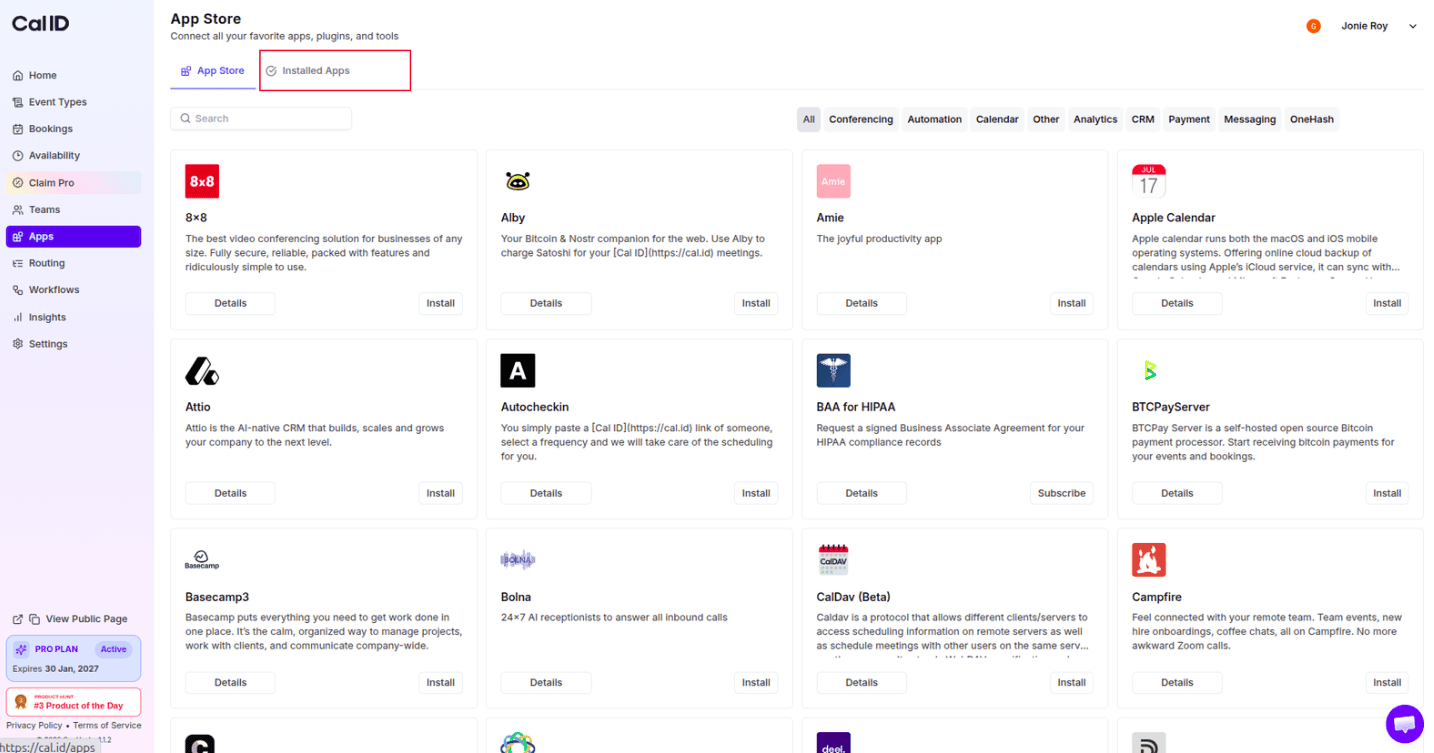
Click on the [**Apps**](https://cal.id/apps) icon in the left-hand sidebar menu.
Click on the **Installed Apps** tab at the top of the page.
 ## Managing your apps
The **Installed Apps** section is your central hub for managing your active integrations:
* **Filter by Category**: Once you are on the Installed Apps page, you will see various categories (such as Calendar, Conferencing, or Payment). Click on a specific category to see only the installed apps within that group.
## Managing your apps
The **Installed Apps** section is your central hub for managing your active integrations:
* **Filter by Category**: Once you are on the Installed Apps page, you will see various categories (such as Calendar, Conferencing, or Payment). Click on a specific category to see only the installed apps within that group.
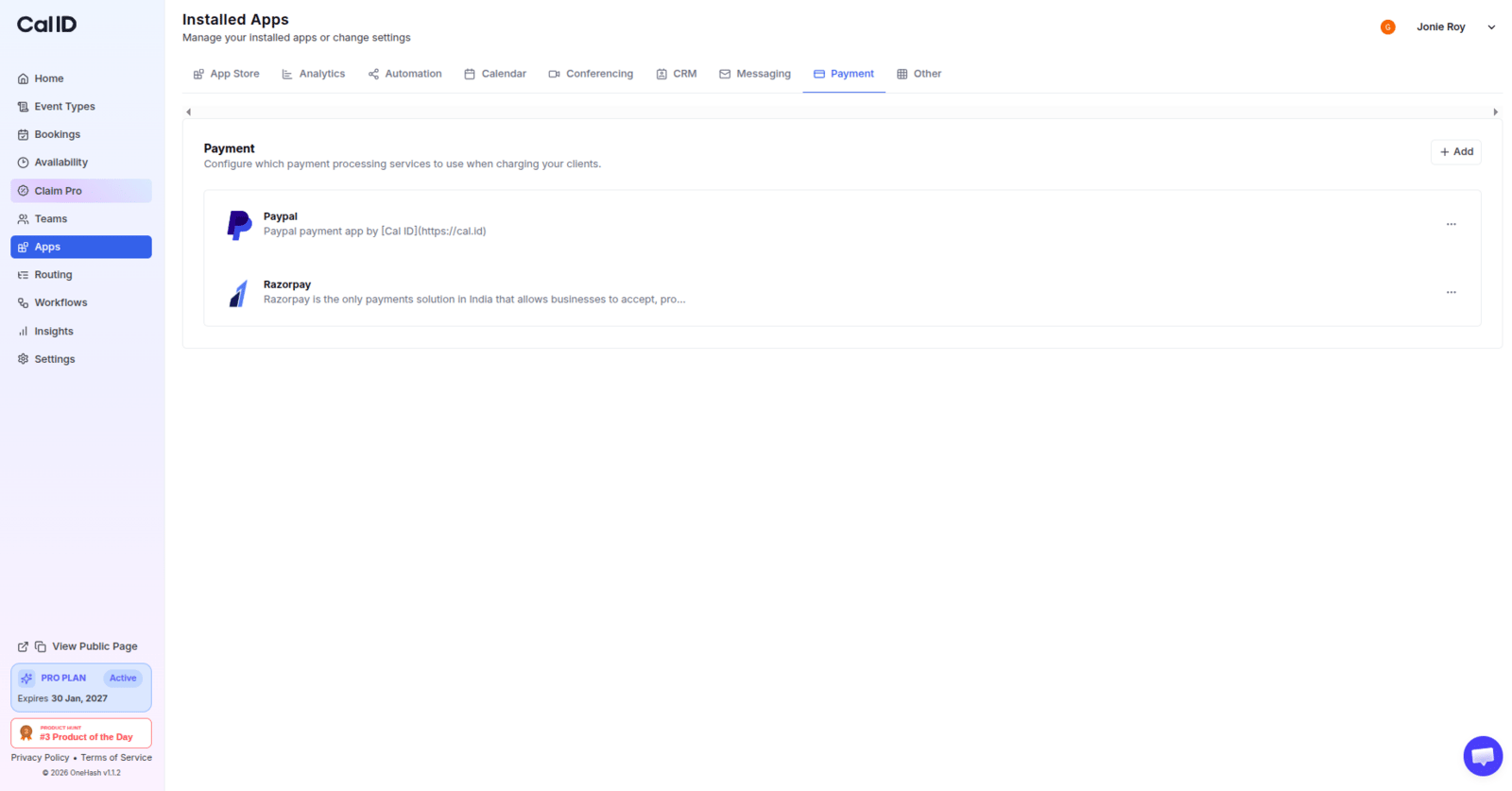 * **Manage App Settings**: Click on any app in the list to adjust its specific configurations, such as choosing which calendars to check for conflicts or disconnecting the app entirely.
* **Set Default Locations**: If you have multiple video conferencing apps installed, you can use this section to set your preferred one as the default for new meetings.
Disconnecting or uninstalling an app also removes it from any event types that rely on it. For example, uninstalling a video conferencing app can leave those events without a meeting location, and disconnecting a calendar stops Cal ID from checking it for conflicts. Review where an app is used before removing it.
## Related topics
- [Install New App on Cal ID](/docs/apps/install-app.md)
- [App Store](/docs/apps/app-store.md)
- [Setting Necessary Permission for Google Calendar Integration](/docs/apps/google-calendar.md)
- [Cal ID to Zoom Integration](/docs/apps/zoom.md)
- [Integrate Cal ID with Stripe](/docs/apps/stripe.md)
* **Manage App Settings**: Click on any app in the list to adjust its specific configurations, such as choosing which calendars to check for conflicts or disconnecting the app entirely.
* **Set Default Locations**: If you have multiple video conferencing apps installed, you can use this section to set your preferred one as the default for new meetings.
Disconnecting or uninstalling an app also removes it from any event types that rely on it. For example, uninstalling a video conferencing app can leave those events without a meeting location, and disconnecting a calendar stops Cal ID from checking it for conflicts. Review where an app is used before removing it.
## Related topics
- [Install New App on Cal ID](/docs/apps/install-app.md)
- [App Store](/docs/apps/app-store.md)
- [Setting Necessary Permission for Google Calendar Integration](/docs/apps/google-calendar.md)
- [Cal ID to Zoom Integration](/docs/apps/zoom.md)
- [Integrate Cal ID with Stripe](/docs/apps/stripe.md)