> ## Documentation Index
> Fetch the complete documentation index at: https://cal.id/docs/llms.txt
> Use this file to discover all available pages before exploring further.
# How to Get Notified on Slack When an Event is Booked?
> Connect Cal ID to Slack through Zapier, Pabbly, Make, or ViaSocket to receive instant booking notifications in the channels where your team works.
Stay on top of your schedule by getting instant alerts where you already work. By connecting **Cal ID** to **Slack** via **Zapier**, **Pabbly**, **Make** or **ViaSocket** you can stop checking your email and get notified the moment a booking happens.
### Why use this?
* **Instant Alerts:** Know immediately when a new client books you.
* **Team Sync:** Send notifications to a shared channel so your team stays updated.
* **All-in-One Place:** Track new bookings, reschedules, and cancellations without leaving Slack.
To post into a channel, your automation tool (Zapier, Pabbly, Make, or ViaSocket) needs permission to your Slack workspace. When you connect Slack, you'll be asked to authorize it — if you want alerts in a private or shared channel, make sure you have permission to add apps to that workspace, or ask a Slack workspace admin to approve the connection.
## Step 1: Install Zapier (any automation tool) in Cal ID
Log in to your **Cal ID** account.
Go to the **App Store** in the sidebar.
Find the **Zapier** app and click **Install**.
**Generate** the API key and **Copy** it.
## Step 2: Create your automation (the Zap)
Log in to your [Zapier account](https://zapier.com) and follow these 3 mini-steps.
### A. The trigger (when this happens...)
* **App:** Choose **Cal ID**.
* **Event:** Select **Booking Created**.
* **Account:** Connect your Cal ID account (you may be asked for your API Key).
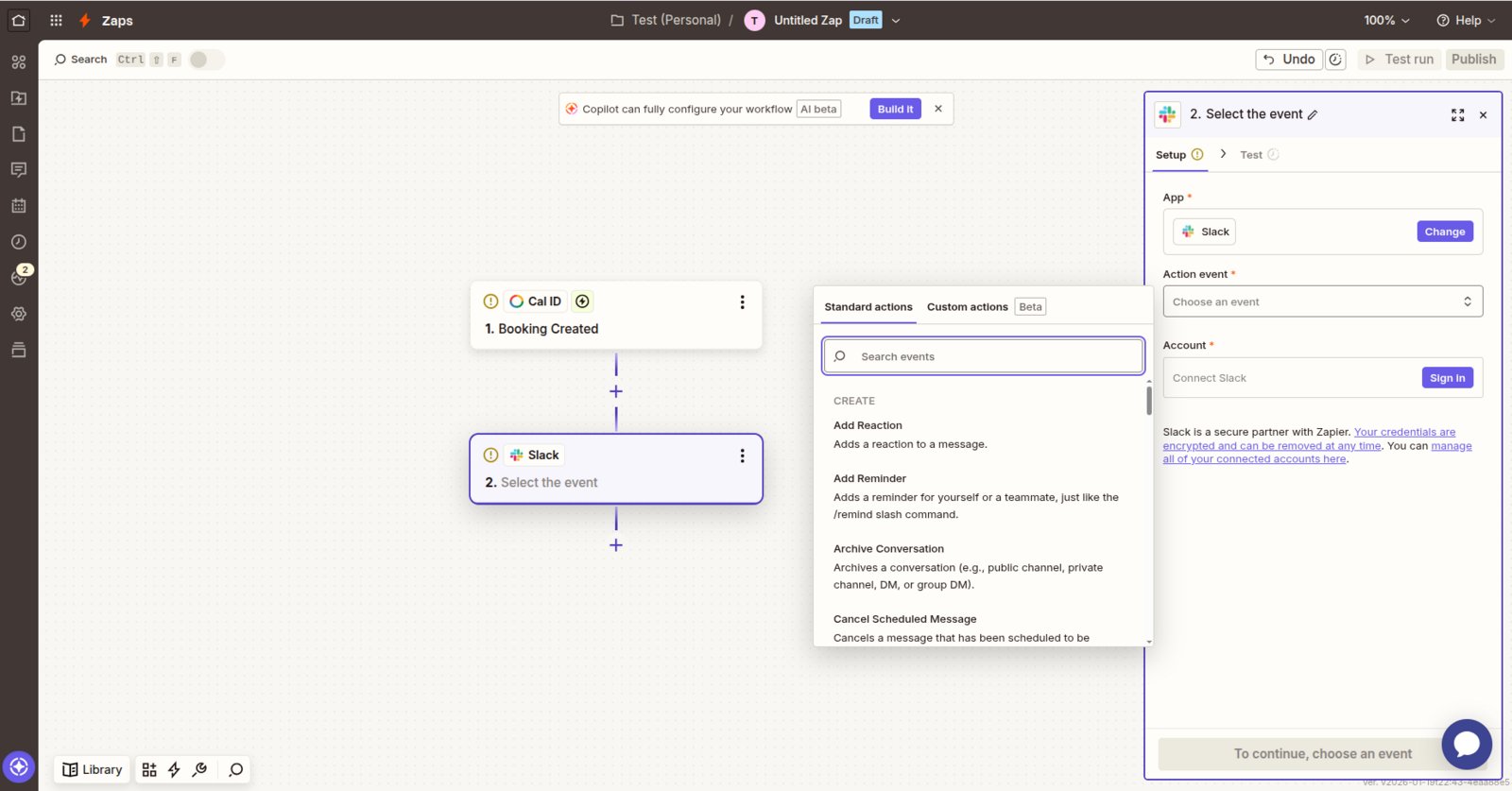
### B. The action (do this...)
* **App:** Choose **Slack**.
* **Event:** Select **Send Channel Message** (to alert a team) or **Send Direct Message** (to alert only yourself).
* **Message:** Type what you want the alert to say. You can click the "Insert Data" button to include the **Booker's Name** and **Meeting Time**.
 ### C. The finish
* Click **Test** to see a sample message appear in Slack.
* If it looks good, click **Publish**.
That's it — new bookings will now post to Slack automatically.
## Other useful triggers
You can create separate **Zaps** for these other common events:
* **Booking Rescheduled:** Get an alert if a client moves the meeting.
* **Booking Cancelled:** Know instantly if a slot has opened back up.
* **Meeting Ended:** Get a reminder in Slack to send a follow-up email right after the call.
## Related topics
- [Integrating Cal ID with Make](/docs/apps/make.md)
- [Integrating Cal ID with Pabbly](/docs/apps/pabbly.md)
- [Cal ID to Zoom Integration](/docs/apps/zoom.md)
- [App Store](/docs/apps/app-store.md)
- [Workflows Setup to Cal ID](/docs/workflows/overview.md)
### C. The finish
* Click **Test** to see a sample message appear in Slack.
* If it looks good, click **Publish**.
That's it — new bookings will now post to Slack automatically.
## Other useful triggers
You can create separate **Zaps** for these other common events:
* **Booking Rescheduled:** Get an alert if a client moves the meeting.
* **Booking Cancelled:** Know instantly if a slot has opened back up.
* **Meeting Ended:** Get a reminder in Slack to send a follow-up email right after the call.
## Related topics
- [Integrating Cal ID with Make](/docs/apps/make.md)
- [Integrating Cal ID with Pabbly](/docs/apps/pabbly.md)
- [Cal ID to Zoom Integration](/docs/apps/zoom.md)
- [App Store](/docs/apps/app-store.md)
- [Workflows Setup to Cal ID](/docs/workflows/overview.md)