> ## Documentation Index
> Fetch the complete documentation index at: https://cal.id/docs/llms.txt
> Use this file to discover all available pages before exploring further.
# Integrate Cal ID with Stripe
> Configure an event type in Cal ID to collect payments through Stripe so attendees pay upfront when they book a paid meeting on your calendar.
Connect Stripe to [**Cal ID**](https://cal.id/home) to collect payments upfront when someone books your paid event type. Cal ID offers Razorpay, Stripe, and PayPal for this, and this guide covers Stripe.
You'll need a Stripe account to complete the connection. During install you'll be redirected to Stripe to authorize the link with Cal ID.
## Set up an event type to receive payments
Go to the [**Cal ID apps**](https://cal.id/apps), search for Stripe (Payment gateway), and click **Install**.
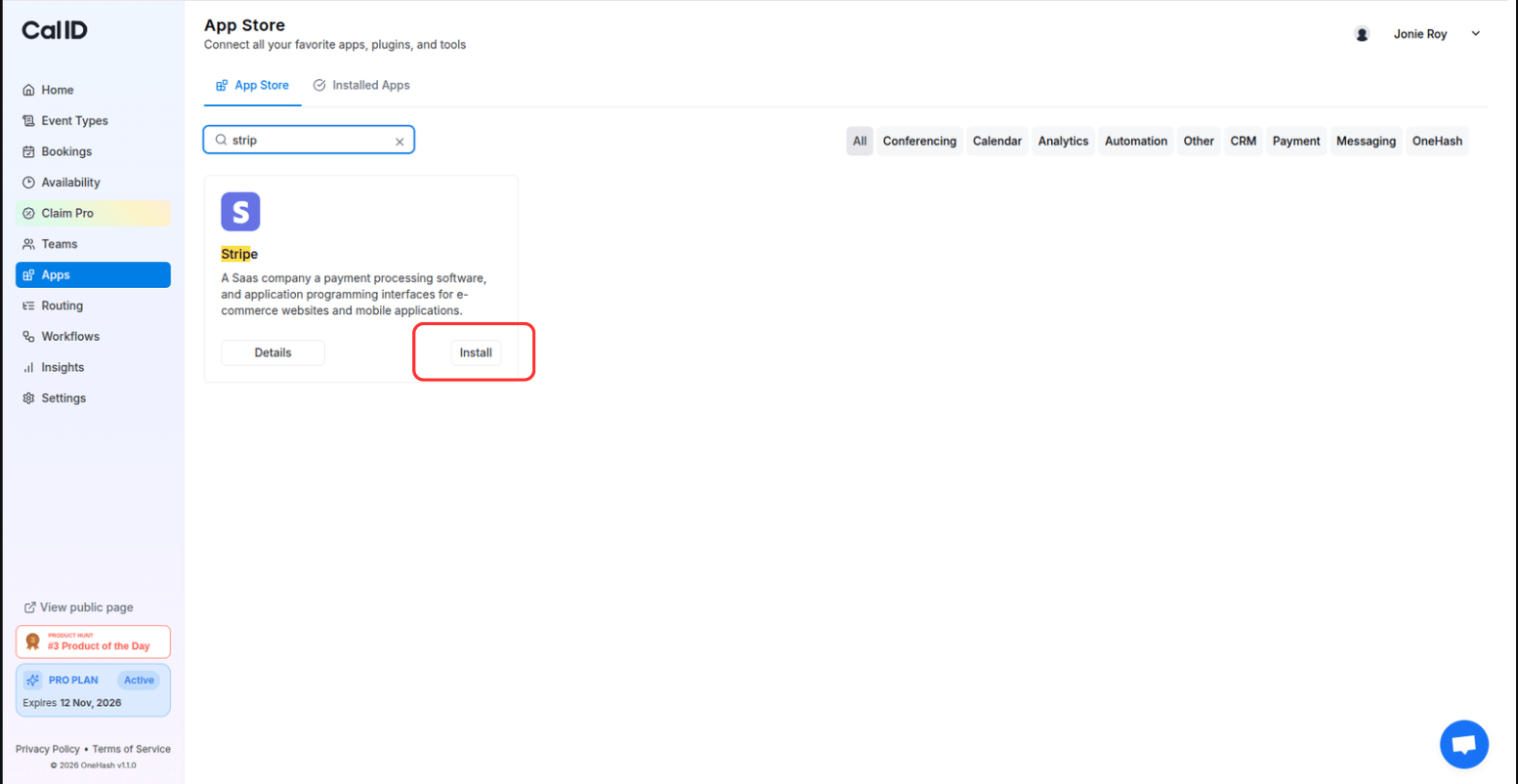 Proceed through to connect your Stripe account with **Cal ID**. Now that Stripe is connected to your account, you can either open an existing event type or create a new one.
Go to the **Event Types** section and select the event type in which you want to set the payment method. Go to the **Apps** tab, toggle the payment method, and simply confirm the price you wish your bookers to pay, then click on **Save**.
That's it. You will receive payments as soon as someone books you using this event type.
## Next steps
See how paid bookings work and compare payment processors.
Review or remove the apps connected to your account.
## Related topics
- [Paid Bookings](/docs/apps/paid-bookings.md)
- [Integrate Cal ID with Razorpay](/docs/apps/razorpay.md)
- [Integrate Cal ID with PayPal](/docs/apps/paypal.md)
- [App Store](/docs/apps/app-store.md)
- [Managing Installed Apps](/docs/apps/manage-installed.md)
Proceed through to connect your Stripe account with **Cal ID**. Now that Stripe is connected to your account, you can either open an existing event type or create a new one.
Go to the **Event Types** section and select the event type in which you want to set the payment method. Go to the **Apps** tab, toggle the payment method, and simply confirm the price you wish your bookers to pay, then click on **Save**.
That's it. You will receive payments as soon as someone books you using this event type.
## Next steps
See how paid bookings work and compare payment processors.
Review or remove the apps connected to your account.
## Related topics
- [Paid Bookings](/docs/apps/paid-bookings.md)
- [Integrate Cal ID with Razorpay](/docs/apps/razorpay.md)
- [Integrate Cal ID with PayPal](/docs/apps/paypal.md)
- [App Store](/docs/apps/app-store.md)
- [Managing Installed Apps](/docs/apps/manage-installed.md)