> ## Documentation Index
> Fetch the complete documentation index at: https://cal.id/docs/llms.txt
> Use this file to discover all available pages before exploring further.
# Cal ID to Zoom Integration
> Install the Zoom integration from the Cal ID App Store, authenticate your account, and set Zoom as the meeting location for any event type.
Install the Zoom app from the Cal ID App Store and set it as the meeting location for an event type, so every booking automatically includes a unique Zoom link.
You'll need a Zoom account to authorize the integration. If you're not already signed in, you'll be prompted to log in during setup.
## Add Zoom as the meeting location for an event type
First, you need to visit the [**Cal ID App store**](https://cal.id/apps).
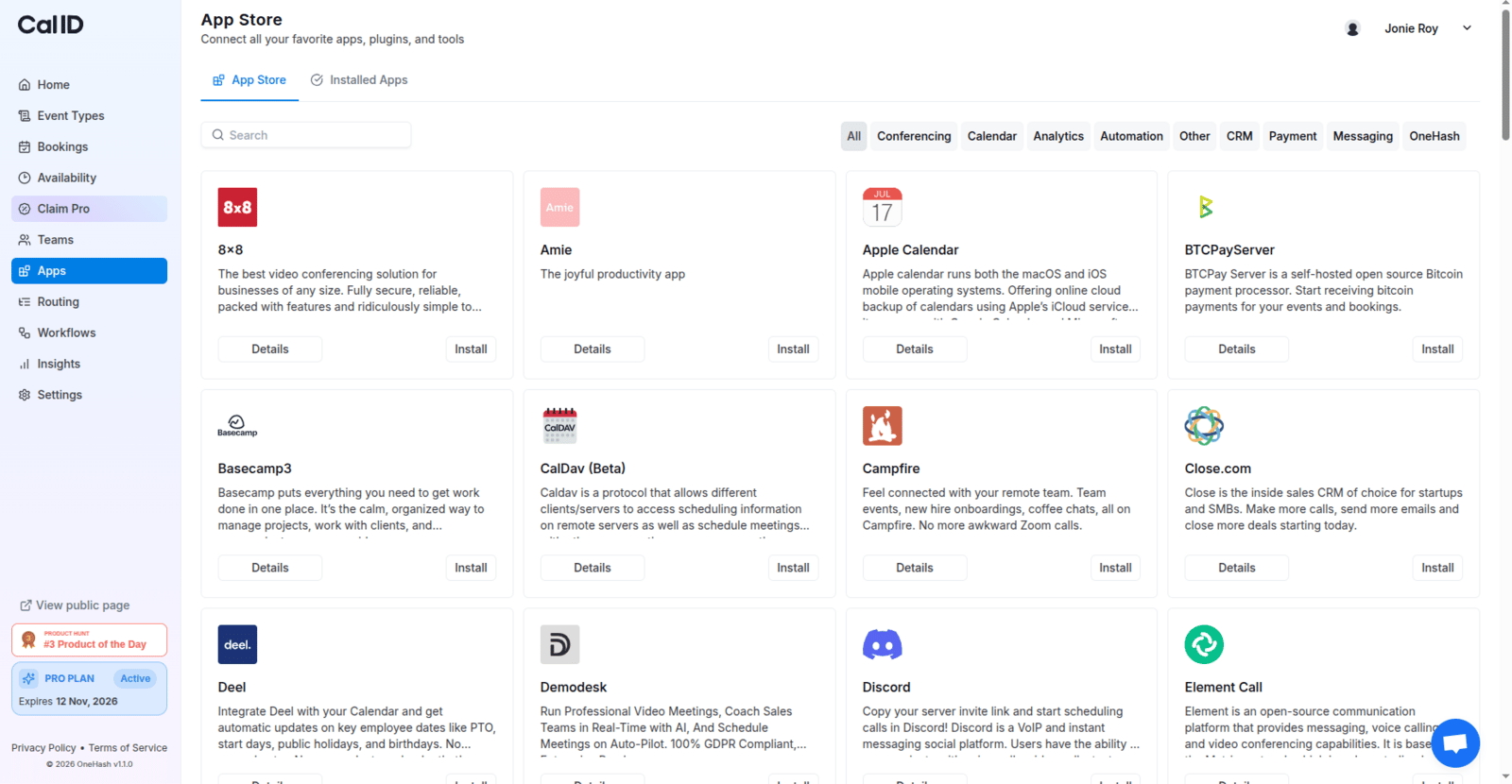 Search for Zoom and click on **Details**.
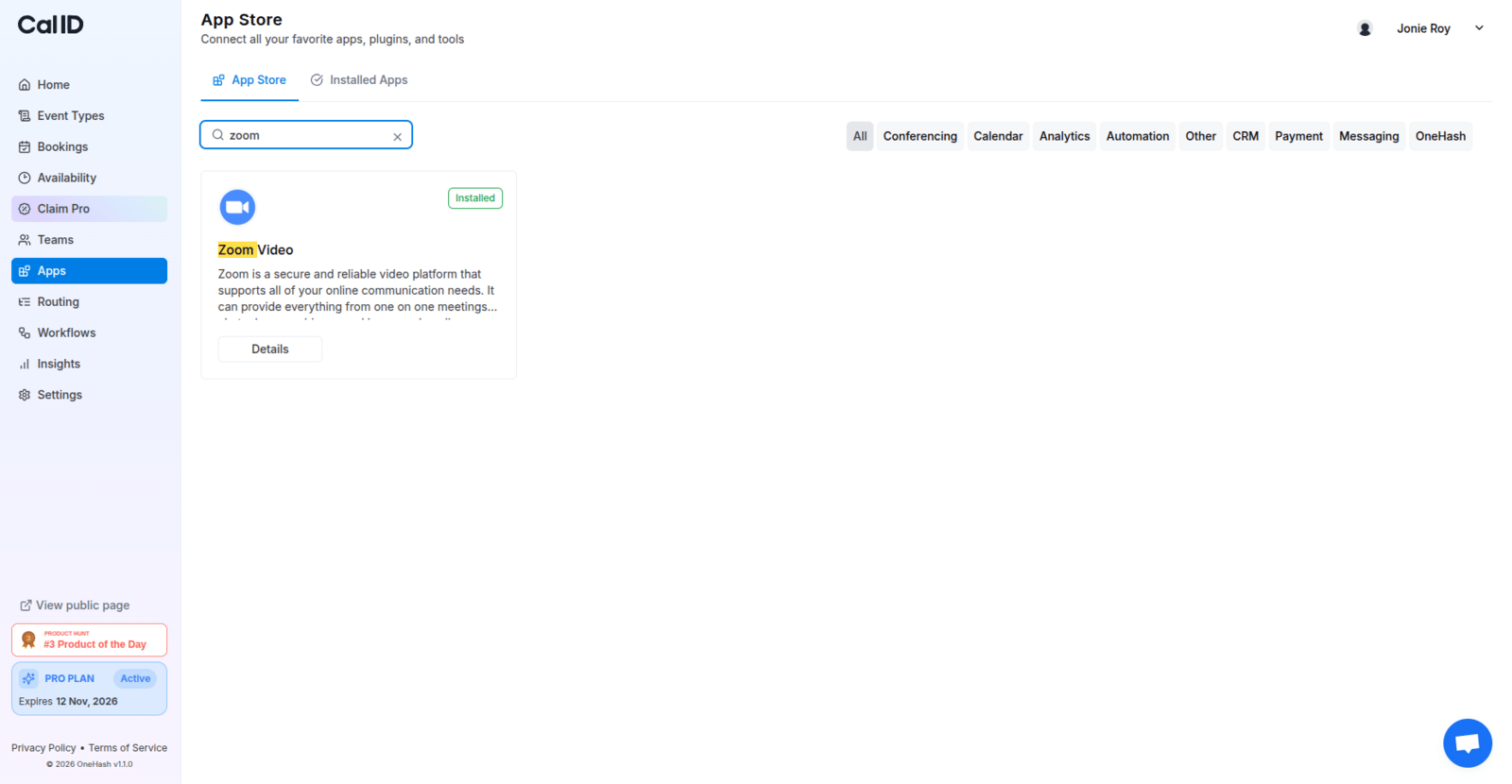 Once the Cal ID Zoom app page opens up, click on **Install App**.
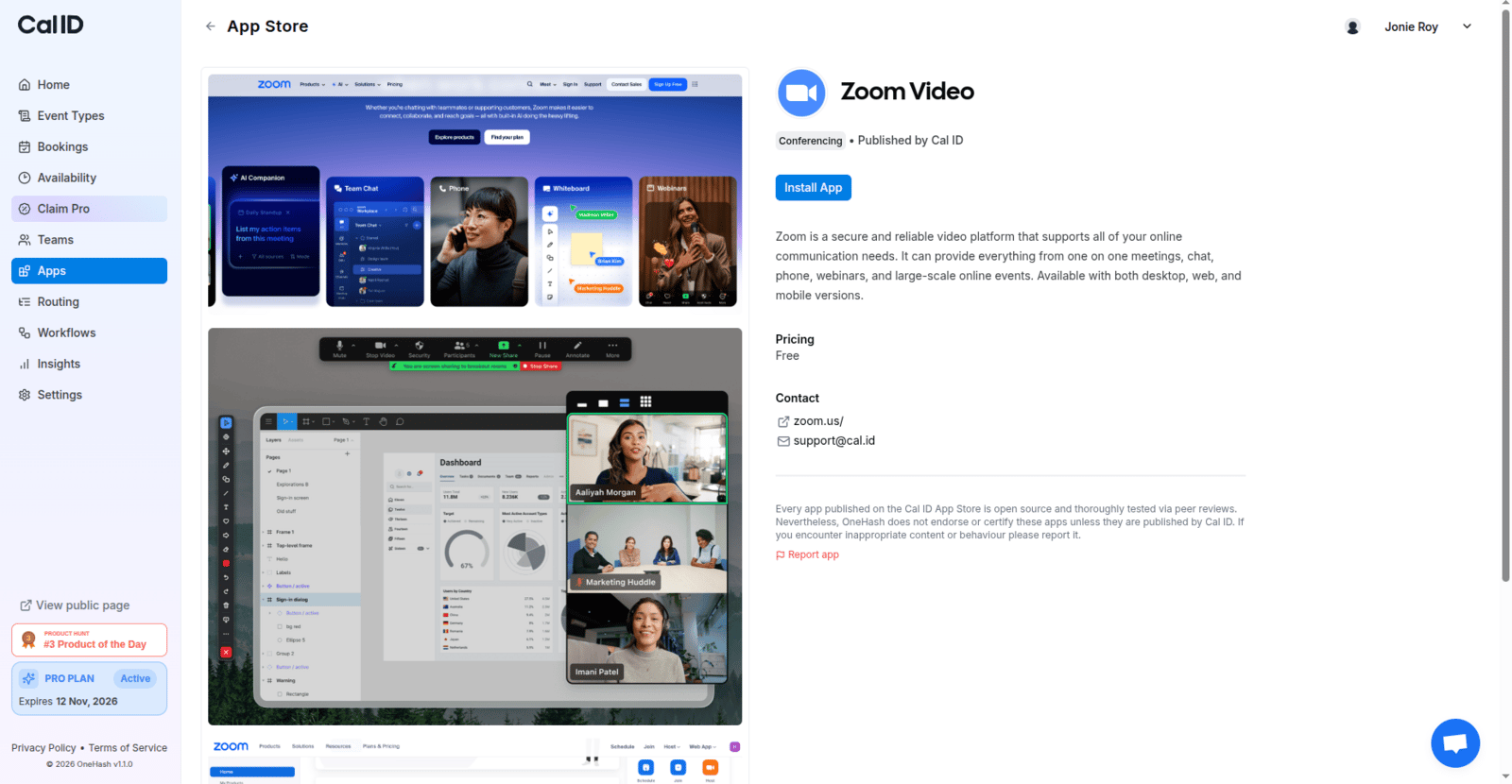 Once you click on Install, you'll be redirected to your Zoom account (sign in if you haven't already) and allow the necessary permissions.
Now, you should be redirected to Cal ID's Installed Apps page with the Conferencing tab selected, and you should see Zoom Video in the list. Zoom Video is now successfully installed in your Cal ID account.
Once you click on Install, you'll be redirected to your Zoom account (sign in if you haven't already) and allow the necessary permissions.
Now, you should be redirected to Cal ID's Installed Apps page with the Conferencing tab selected, and you should see Zoom Video in the list. Zoom Video is now successfully installed in your Cal ID account.
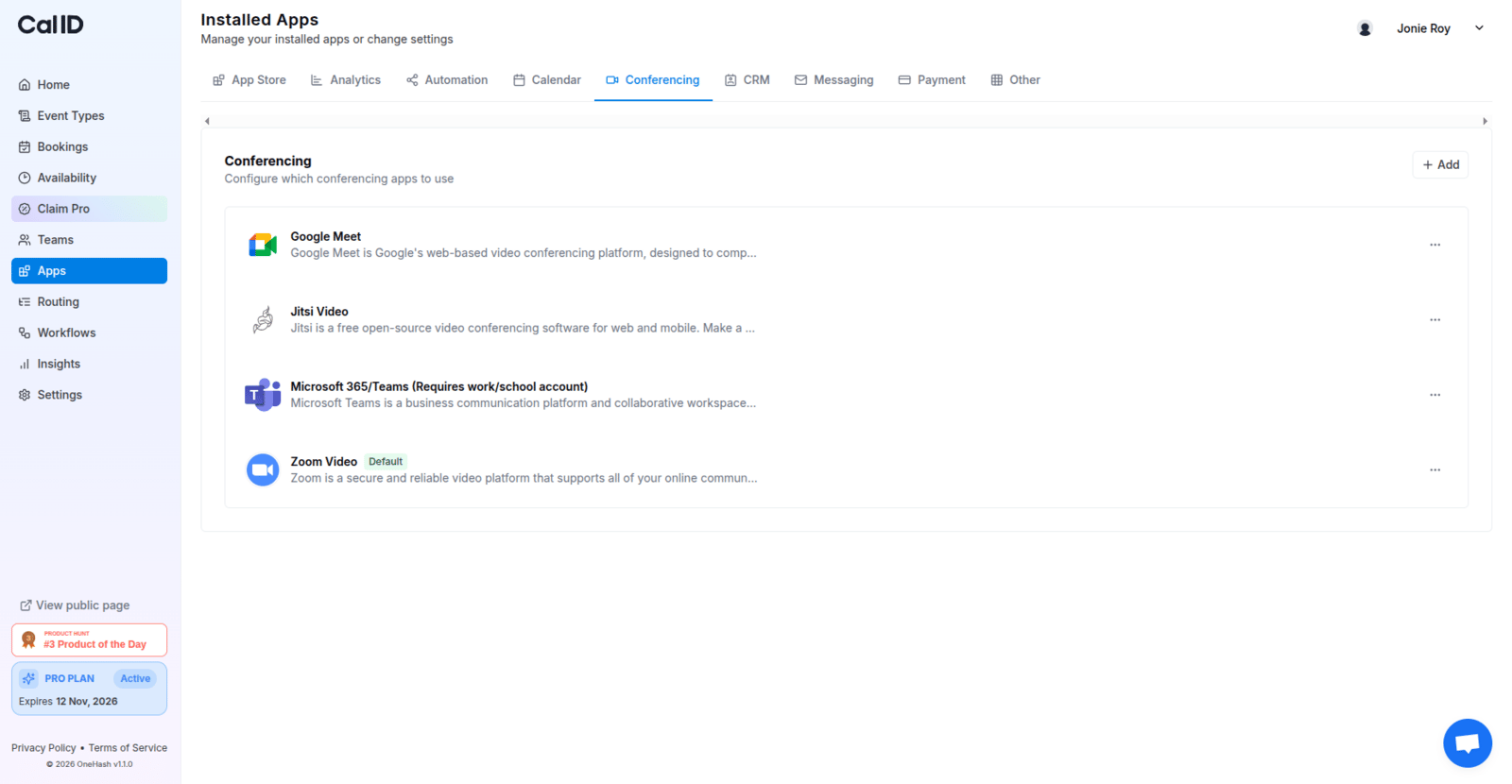 If you want to make any video conferencing app your default, click on the three dots (on the right side) of that app and set it as default. Once you do this, every new event you create in the future will automatically use this video conferencing app, unless you change it again later.
Now, you can head to your event type settings page and add a location following [this guide](/docs/event-types/setup/location). Once you have added Zoom Video as your event-type location, you will see it as shown in the image below. Click on **Save** and all your meetings should now have Zoom video as the default location.
If you want to make any video conferencing app your default, click on the three dots (on the right side) of that app and set it as default. Once you do this, every new event you create in the future will automatically use this video conferencing app, unless you change it again later.
Now, you can head to your event type settings page and add a location following [this guide](/docs/event-types/setup/location). Once you have added Zoom Video as your event-type location, you will see it as shown in the image below. Click on **Save** and all your meetings should now have Zoom video as the default location.
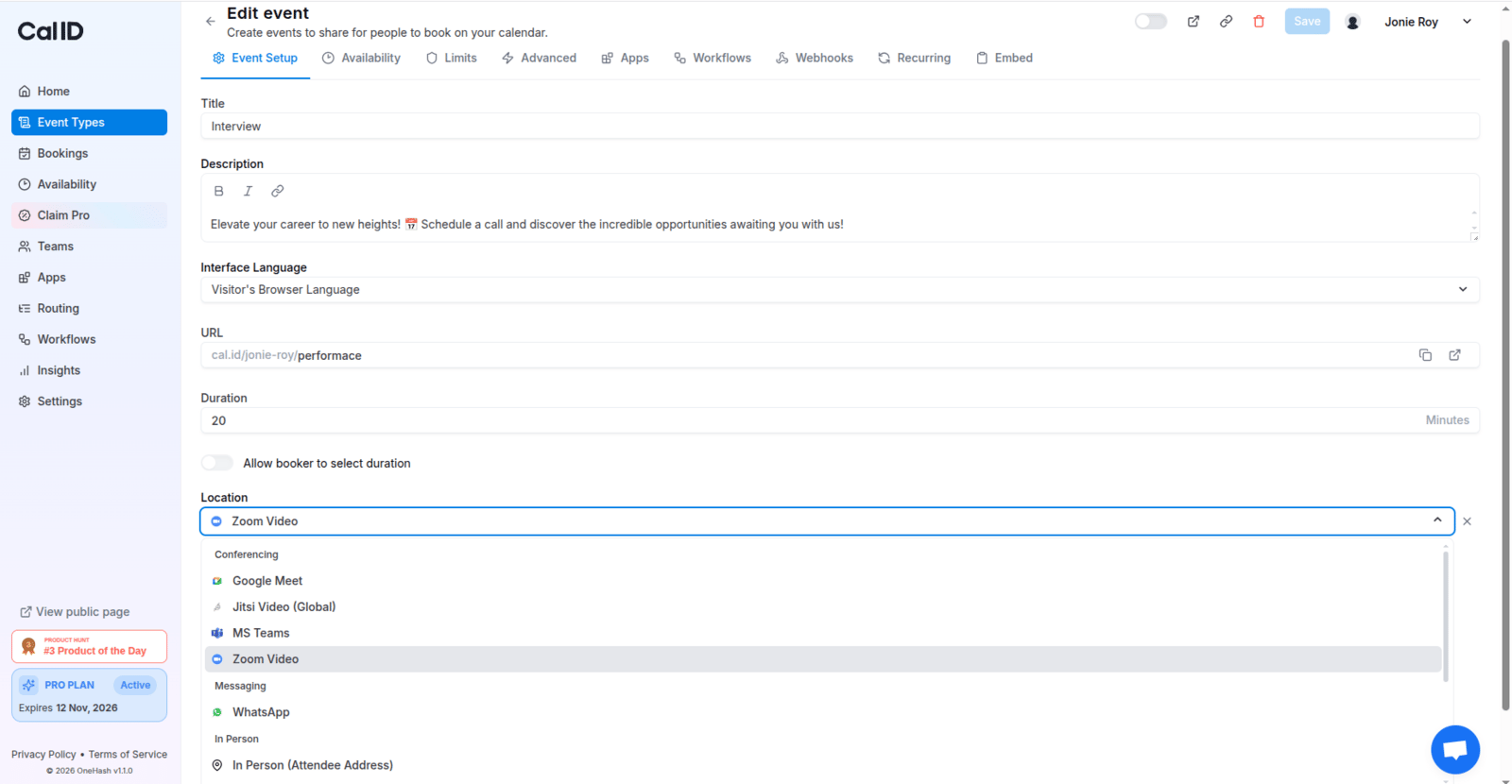 That's it! Zoom is now the meeting location for your event type.
## Related topics
- [Setting Necessary Permission for Google Calendar Integration](/docs/apps/google-calendar.md)
- [Connect Apple Calendar with Cal ID](/docs/apps/apple-calendar.md)
- [How to Get Notified on Slack When an Event is Booked?](/docs/apps/slack.md)
- [App Store](/docs/apps/app-store.md)
- [Set Event Location](/docs/event-types/setup/location.md)
That's it! Zoom is now the meeting location for your event type.
## Related topics
- [Setting Necessary Permission for Google Calendar Integration](/docs/apps/google-calendar.md)
- [Connect Apple Calendar with Cal ID](/docs/apps/apple-calendar.md)
- [How to Get Notified on Slack When an Event is Booked?](/docs/apps/slack.md)
- [App Store](/docs/apps/app-store.md)
- [Set Event Location](/docs/event-types/setup/location.md)