> ## Documentation Index
> Fetch the complete documentation index at: https://cal.id/docs/llms.txt
> Use this file to discover all available pages before exploring further.
# Create Availability in Cal ID
> Define your active hours in Cal ID by creating a weekly availability schedule so meetings only appear when you're free and personal time stays blocked.
Your **Availability Schedule** is the foundation of your calendar. By defining your "Active Hours," you stay in total control of your time—meetings only happen when you're available, while your personal time stays protected for family, breaks, and rest.
You aren't limited to a single set of hours. You can use one availability schedule across all event types, share a schedule between a few of them, or give each event type its own schedule to keep things organized.
## Set up your availability
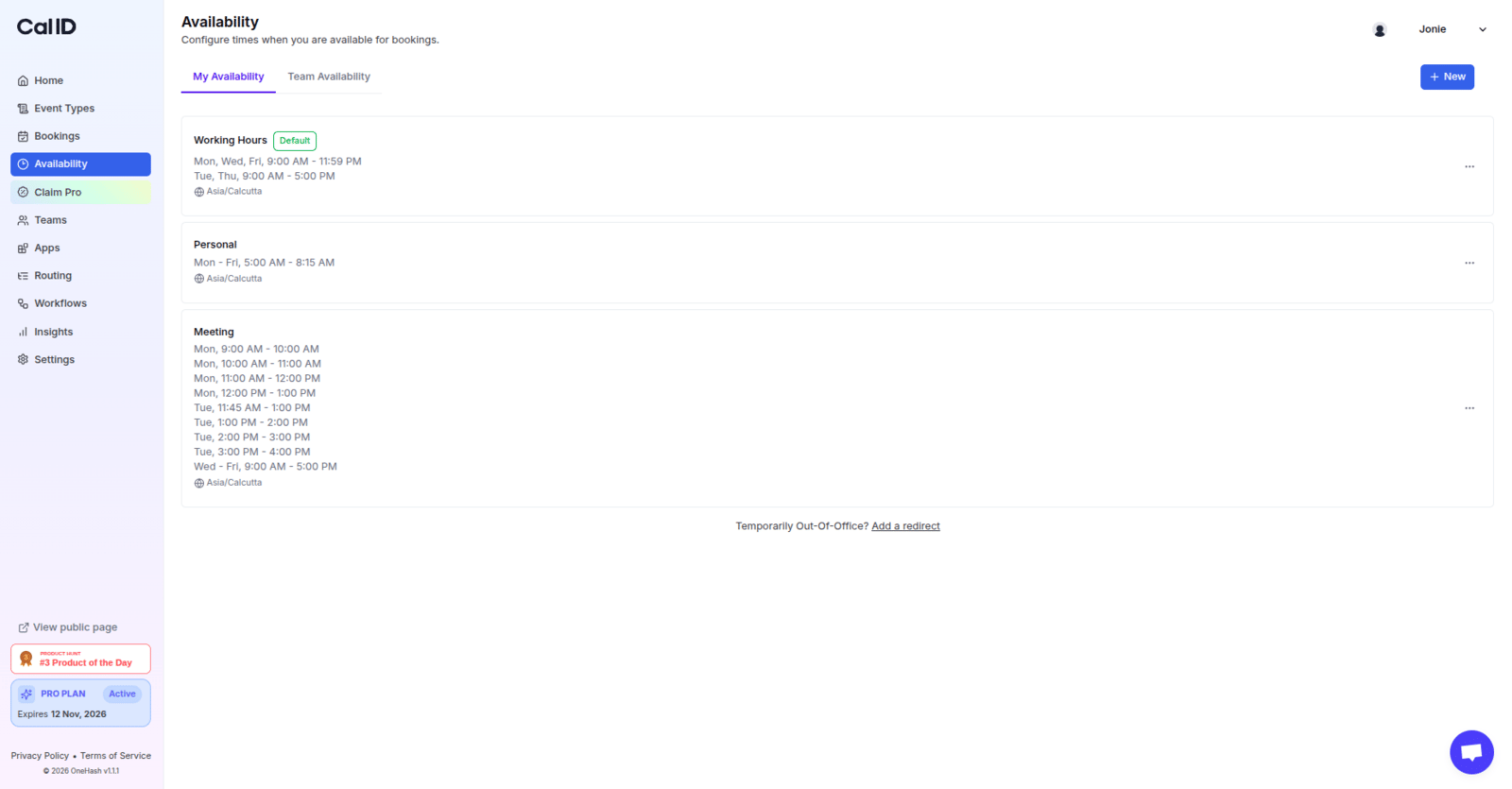
On your main dashboard, locate the left-hand menu and click on **Availability**.
You can create **multiple schedules** to fit different needs.
* **Create:** Click the **+ New** button to create a specific schedule.
* **Edit:** To change an existing one, click on the name of the schedule you want to update.
 Before setting your hours, verify the **Timezone** at the top of the page. This ensures that when a client books a time, it aligns perfectly with your local clock.
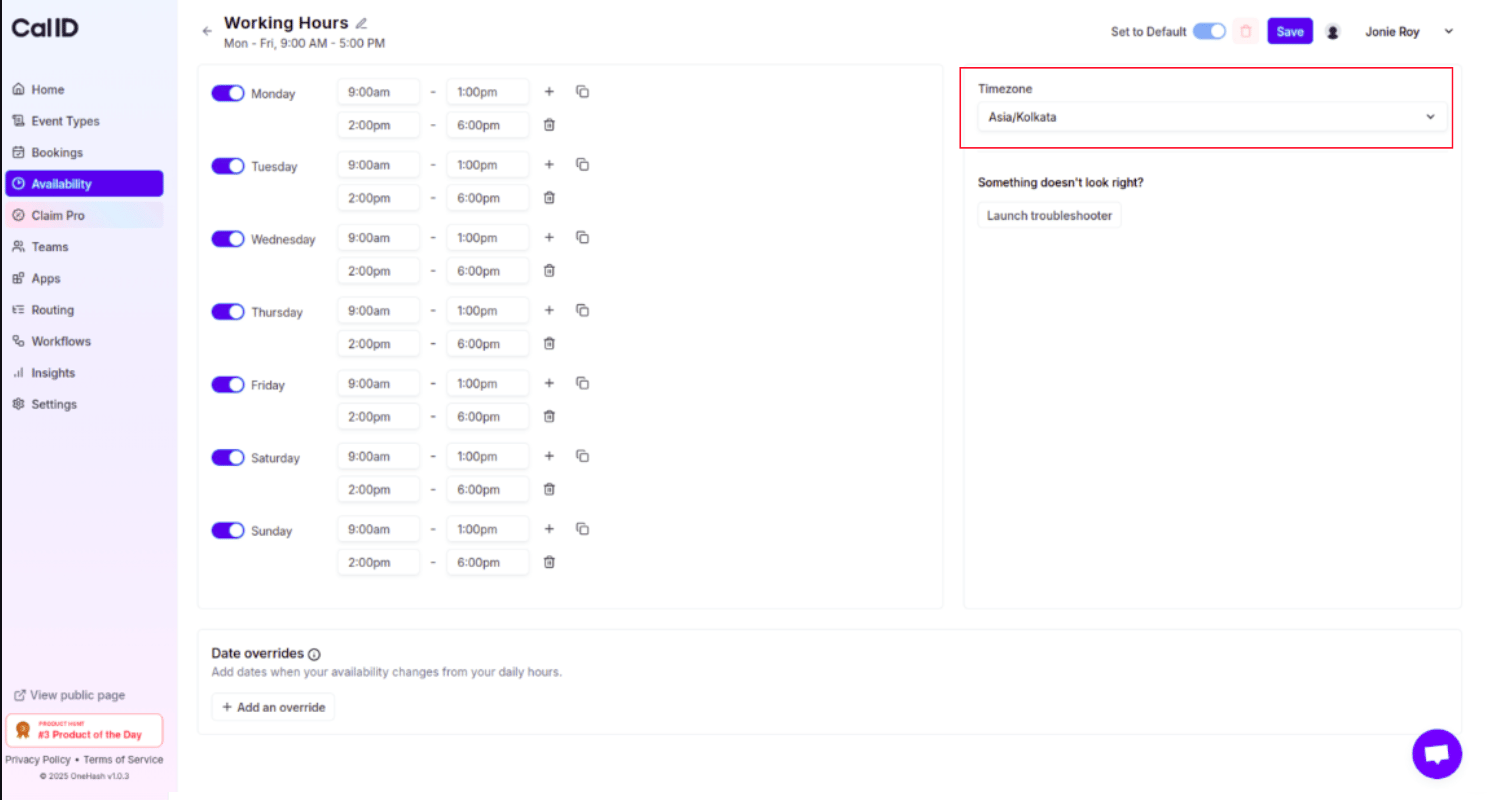 This is where you define your availability:
* **Toggle days:** Use the switches next to each day to set them to **ON** or **OFF**.
* **Set time slots:** Enter your start and end times (e.g., 9:00 AM to 5:00 PM).
* **Add a break (split-shift):** To block out a lunch break or school run, click the **"+" icon** to add a second time slot on the same day.
* **Example:** Set **9:00 AM – 12:00 PM** and **1:00 PM – 5:00 PM**. The system will automatically keep you unbookable during that 12:00–1:00 hour.
This is where you define your availability:
* **Toggle days:** Use the switches next to each day to set them to **ON** or **OFF**.
* **Set time slots:** Enter your start and end times (e.g., 9:00 AM to 5:00 PM).
* **Add a break (split-shift):** To block out a lunch break or school run, click the **"+" icon** to add a second time slot on the same day.
* **Example:** Set **9:00 AM – 12:00 PM** and **1:00 PM – 5:00 PM**. The system will automatically keep you unbookable during that 12:00–1:00 hour.
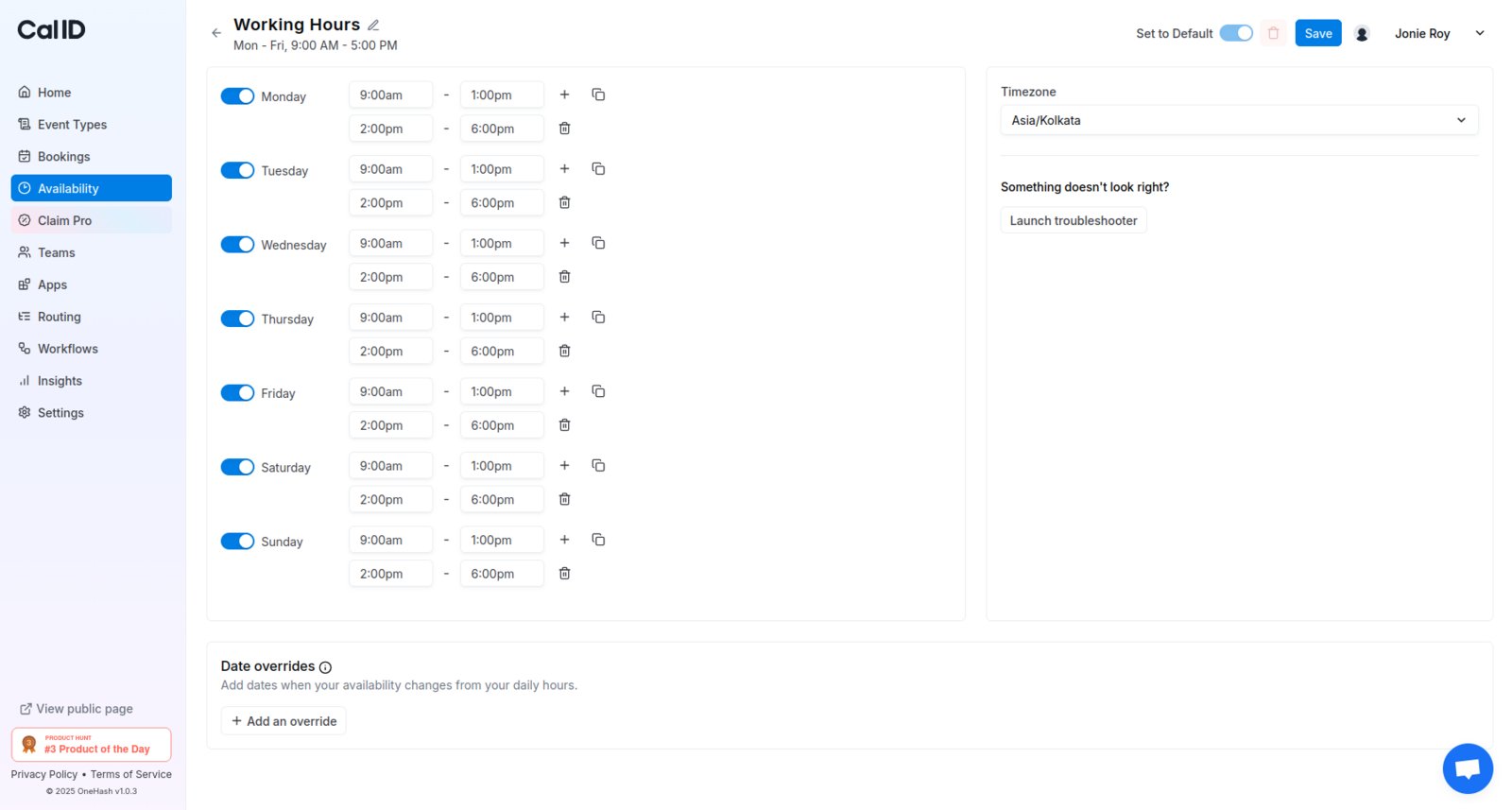 Once you have organized your hours, click the **Save** button. Your schedule is now ready to be linked to your event types.
Your schedule is saved and ready to link to any event type.
## Next steps
Create separate schedules and assign the right one to each event type.
Change your hours for a specific day without touching your weekly routine.
Split a single day into multiple slots to carve out breaks.
Link a schedule to an individual event type.
## Related articles
* [**Date Overrides or Set Unavailable**](/docs/availability/date-overrides)
* [**Team Availability**](/docs/availability/team-availability)
* [**Multiple Schedules**](/docs/availability/multiple-schedules)
* [**Multiple Time Slots per Day**](/docs/availability/multiple-time-slots)
* [**How to set Availability for an Event type?**](/docs/event-types/setup/event-availability)
## Related topics
- [Multiple Schedules](/docs/availability/multiple-schedules.md)
- [Date Overrides or Set Unavailable](/docs/availability/date-overrides.md)
- [Multiple Time Slots per Day](/docs/availability/multiple-time-slots.md)
- [How to set Availability for an Event type?](/docs/event-types/setup/event-availability.md)
- [Complete your Cal ID Onboarding](/docs/getting-started/onboarding.md)
Once you have organized your hours, click the **Save** button. Your schedule is now ready to be linked to your event types.
Your schedule is saved and ready to link to any event type.
## Next steps
Create separate schedules and assign the right one to each event type.
Change your hours for a specific day without touching your weekly routine.
Split a single day into multiple slots to carve out breaks.
Link a schedule to an individual event type.
## Related articles
* [**Date Overrides or Set Unavailable**](/docs/availability/date-overrides)
* [**Team Availability**](/docs/availability/team-availability)
* [**Multiple Schedules**](/docs/availability/multiple-schedules)
* [**Multiple Time Slots per Day**](/docs/availability/multiple-time-slots)
* [**How to set Availability for an Event type?**](/docs/event-types/setup/event-availability)
## Related topics
- [Multiple Schedules](/docs/availability/multiple-schedules.md)
- [Date Overrides or Set Unavailable](/docs/availability/date-overrides.md)
- [Multiple Time Slots per Day](/docs/availability/multiple-time-slots.md)
- [How to set Availability for an Event type?](/docs/event-types/setup/event-availability.md)
- [Complete your Cal ID Onboarding](/docs/getting-started/onboarding.md)