> ## Documentation Index
> Fetch the complete documentation index at: https://cal.id/docs/llms.txt
> Use this file to discover all available pages before exploring further.
# Date Overrides or Set Unavailable
> Use date overrides in Cal ID to change your hours for a specific day or mark yourself unavailable without editing your regular weekly availability.
**Date Overrides** are for when your schedule needs to be different for just one or two days. They let you change your hours for a specific date without touching your regular routine. Pick any date you're currently available and set specific hours for that day, or **mark yourself entirely unavailable**. Taking a half day next Thursday and Friday to do some last-minute shopping? Simply set an override on those specific days to block yourself off.
## When to use this
* **Taking a day off:** If you are going on a holiday.
* **A one-time appointment:** If you need to be busy for 2 hours on a specific day.
* **Special hours:** If you want to work on a holiday just for a few hours.
## How to add an override
Click on the schedule you want to adjust.
Scroll down to the bottom to the **Date Overrides** section.
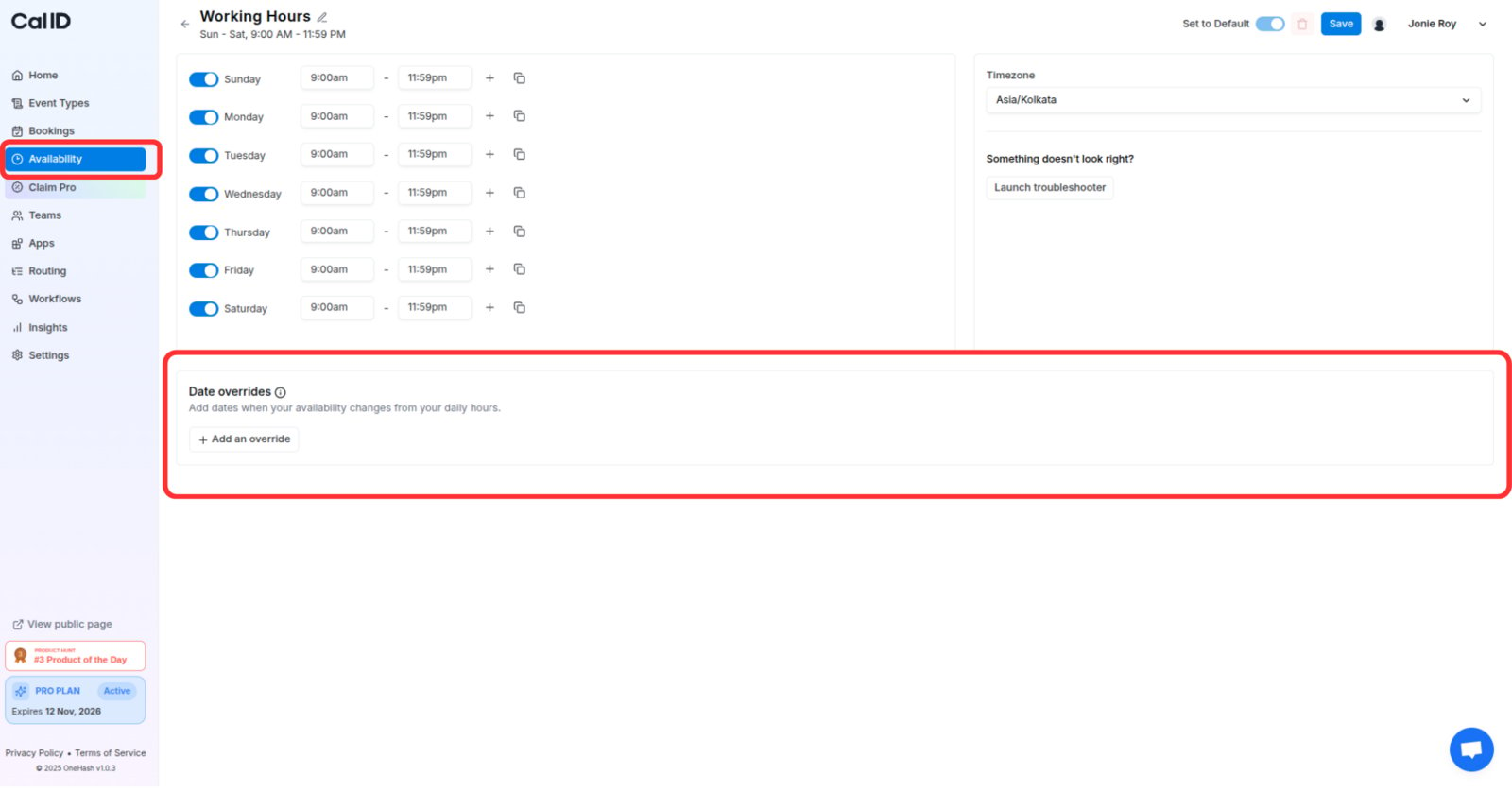 Click **"+ Add an override"** and pick the date. Select the specific day on the calendar you want to change.
* **To be busy all day:** Toggle ON the Mark unavailable (All day) field.
* **To change the time:** Select which hours you are free for that specific day only.
Click **"+ Add an override"** and pick the date. Select the specific day on the calendar you want to change.
* **To be busy all day:** Toggle ON the Mark unavailable (All day) field.
* **To change the time:** Select which hours you are free for that specific day only.
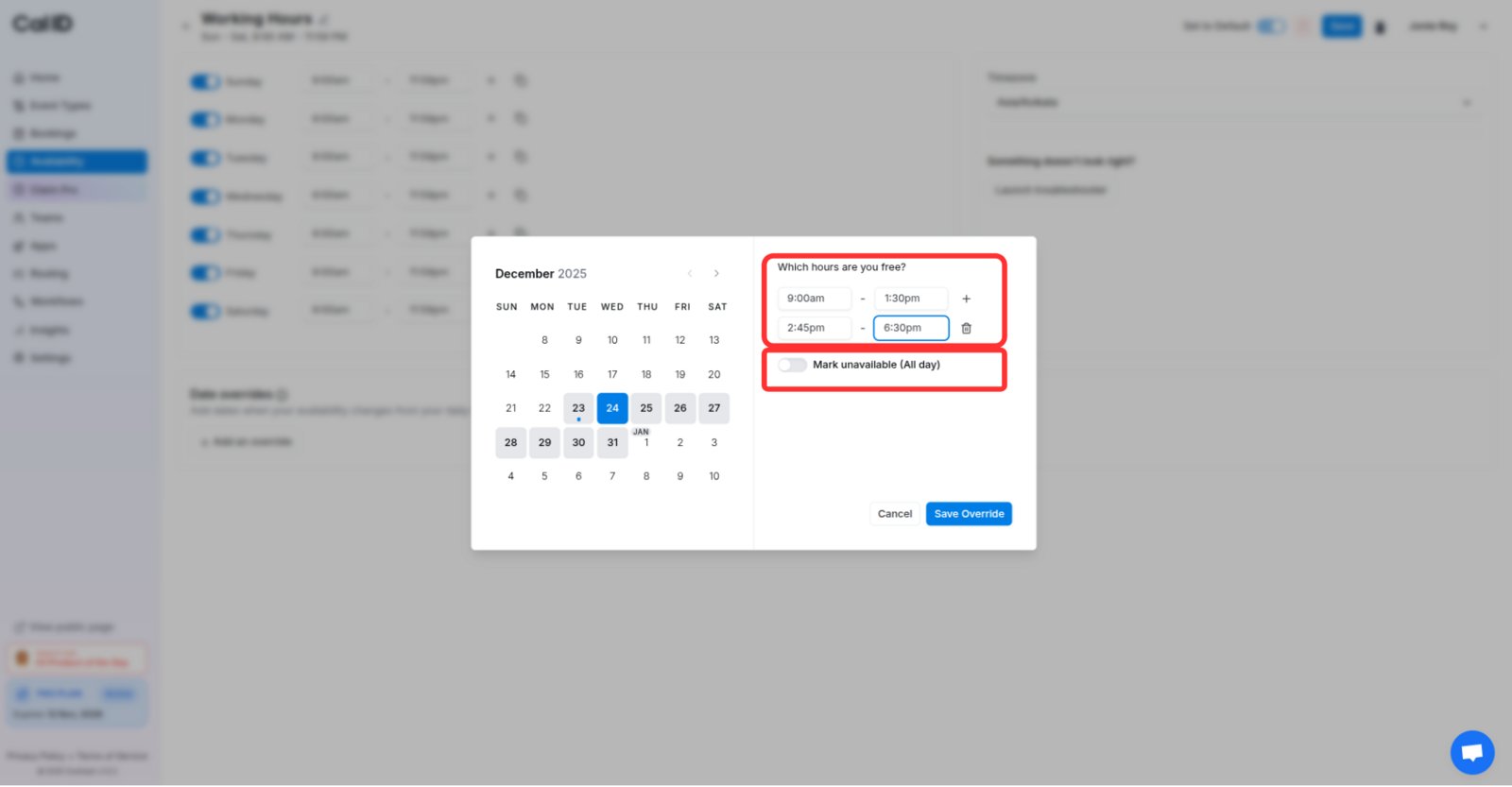 Click **Save Overrides** and then click the main **Save** button at the top of the page.
## How it works
**Overrides take priority.** If your regular schedule says you are free, but your override says you are busy, Cal ID will show you as **Busy** for that date.
* **Temporary:** Once the date has passed, your calendar goes back to its normal weekly schedule automatically.
## Learn more about
* [**Create Availability in Cal ID**](/docs/availability/create)
* [**Team Availability**](/docs/availability/team-availability)
* [**Multiple Schedules**](/docs/availability/multiple-schedules)
* [**Multiple Time Slots per Day**](/docs/availability/multiple-time-slots)
* [**How to set Availability for an Event type?**](/docs/event-types/setup/event-availability)
## Related topics
- [Create Availability in Cal ID](/docs/availability/create.md)
- [Out of Office](/docs/availability/out-of-office.md)
- [Multiple Time Slots per Day](/docs/availability/multiple-time-slots.md)
- [Multiple Schedules](/docs/availability/multiple-schedules.md)
- [How to set Availability for an Event type?](/docs/event-types/setup/event-availability.md)
Click **Save Overrides** and then click the main **Save** button at the top of the page.
## How it works
**Overrides take priority.** If your regular schedule says you are free, but your override says you are busy, Cal ID will show you as **Busy** for that date.
* **Temporary:** Once the date has passed, your calendar goes back to its normal weekly schedule automatically.
## Learn more about
* [**Create Availability in Cal ID**](/docs/availability/create)
* [**Team Availability**](/docs/availability/team-availability)
* [**Multiple Schedules**](/docs/availability/multiple-schedules)
* [**Multiple Time Slots per Day**](/docs/availability/multiple-time-slots)
* [**How to set Availability for an Event type?**](/docs/event-types/setup/event-availability)
## Related topics
- [Create Availability in Cal ID](/docs/availability/create.md)
- [Out of Office](/docs/availability/out-of-office.md)
- [Multiple Time Slots per Day](/docs/availability/multiple-time-slots.md)
- [Multiple Schedules](/docs/availability/multiple-schedules.md)
- [How to set Availability for an Event type?](/docs/event-types/setup/event-availability.md)