> ## Documentation Index
> Fetch the complete documentation index at: https://cal.id/docs/llms.txt
> Use this file to discover all available pages before exploring further.
# Out of Office
> Manage your Cal ID availability during vacation or absence by blocking your calendar completely or redirecting incoming bookings to a colleague.
In **Cal ID**, the **Out of Office (OOO)** feature lets you manage your availability during absences. Depending on your preference, you can either block your calendar entirely or redirect bookers to a colleague.
## Set up out of office
Sign in at [Cal ID](https://cal.id/home).
Go to your profile settings and select the [**Out of office**](https://cal.id/settings/my-account/out-of-office) tab.
Click the **+ Add** button to start.
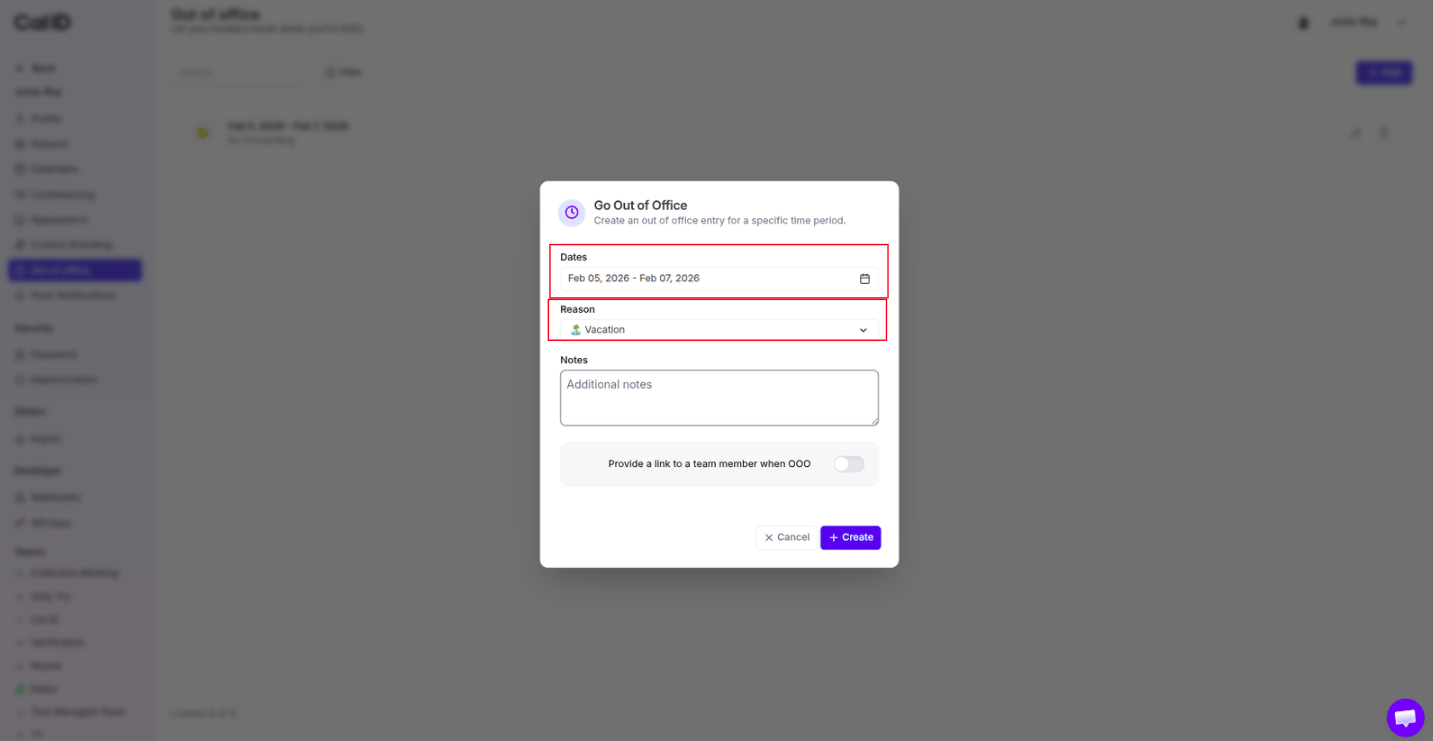
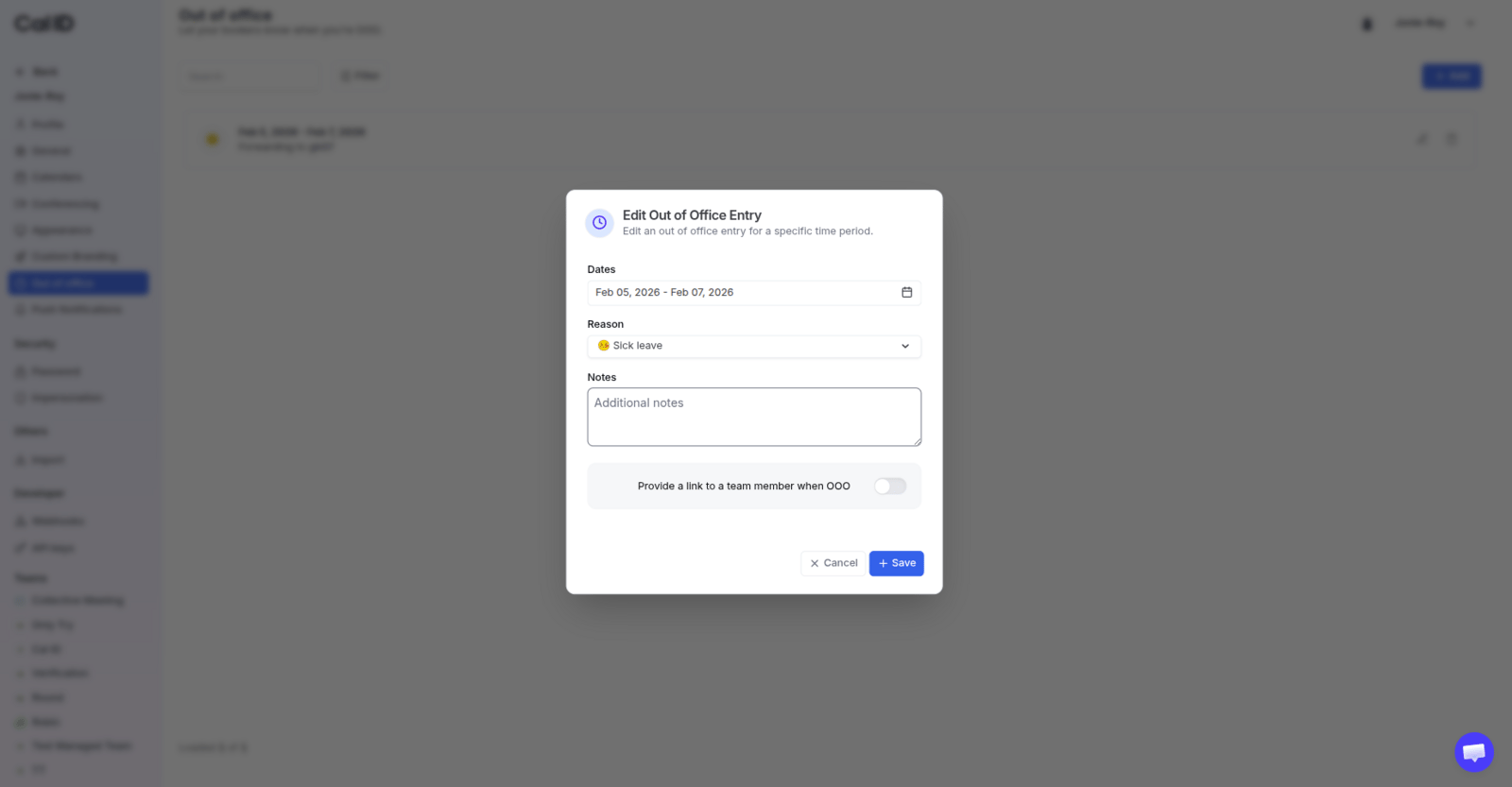
Select the **Dates** for your absence (e.g., Feb 05 - Feb 07).
Choose a reason from the dropdown, such as **Unspecified**, **Vacation**, **Sick leave**, **Public holiday**, or **Others**, and add optional notes.
 ## Choose what happens while you're away
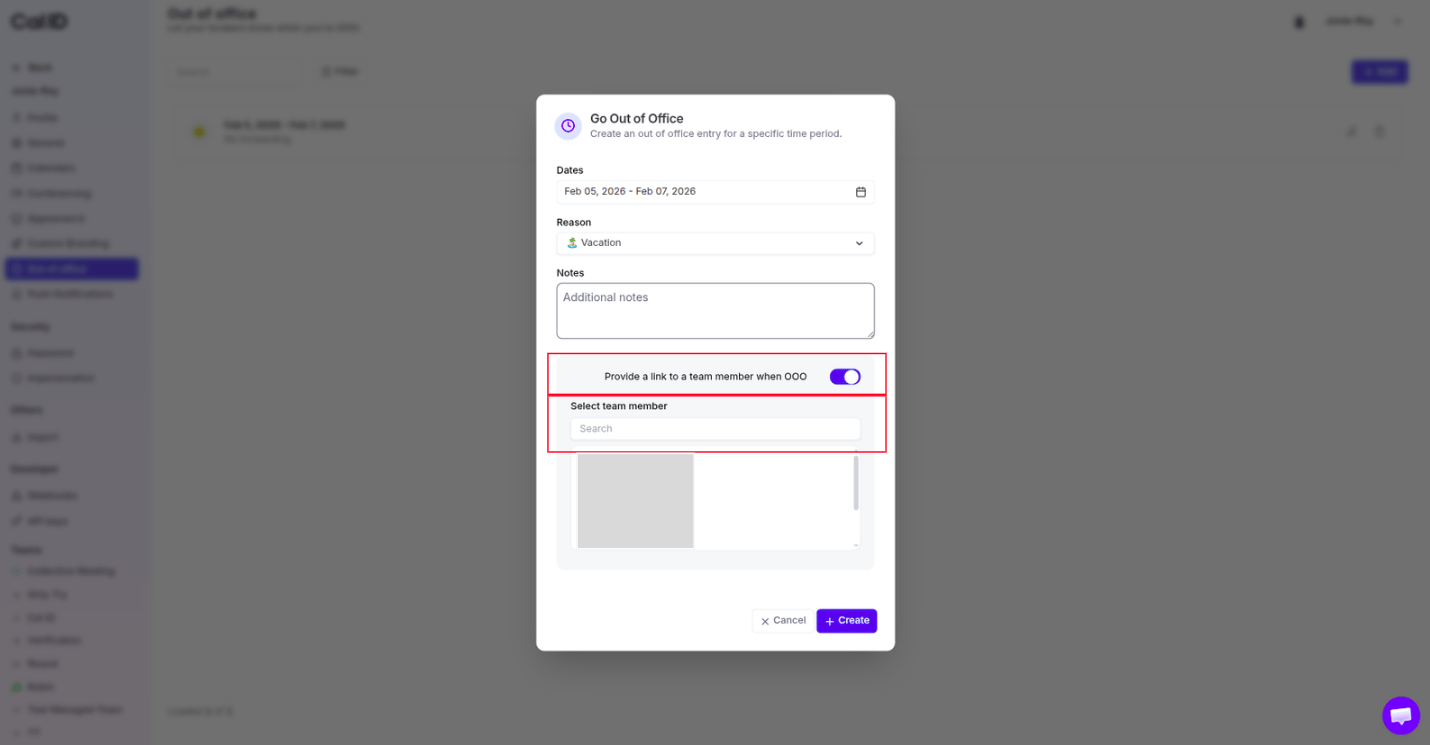
You can hand your meetings to a teammate or simply close your calendar. The **"Provide a link to a team member when OOO"** toggle decides which: **ON** forwards bookers to a colleague, **OFF** makes your calendar unavailable for those dates.
When you want a colleague to handle your meetings while you are away, use the redirection tool.
* **Setup:** Toggle **ON** the switch "Provide a link to a team member when OOO".
* **Selection:** Use the search bar to select the specific team member you want to forward bookings to.
## Choose what happens while you're away
You can hand your meetings to a teammate or simply close your calendar. The **"Provide a link to a team member when OOO"** toggle decides which: **ON** forwards bookers to a colleague, **OFF** makes your calendar unavailable for those dates.
When you want a colleague to handle your meetings while you are away, use the redirection tool.
* **Setup:** Toggle **ON** the switch "Provide a link to a team member when OOO".
* **Selection:** Use the search bar to select the specific team member you want to forward bookings to.
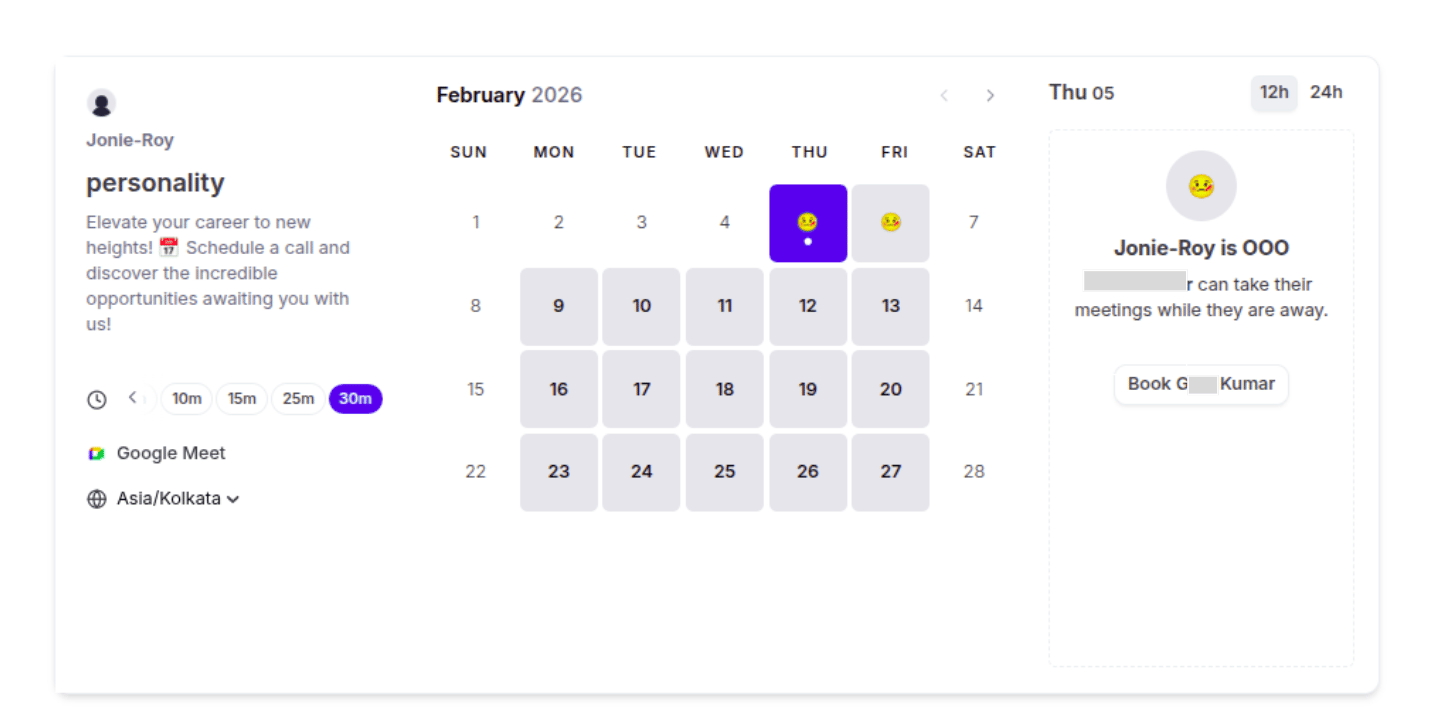
 * **Booker experience:** Your public page will show a notice: **"\[Your Name] is OOO. \[Team Member] can take their meetings while they are away."**
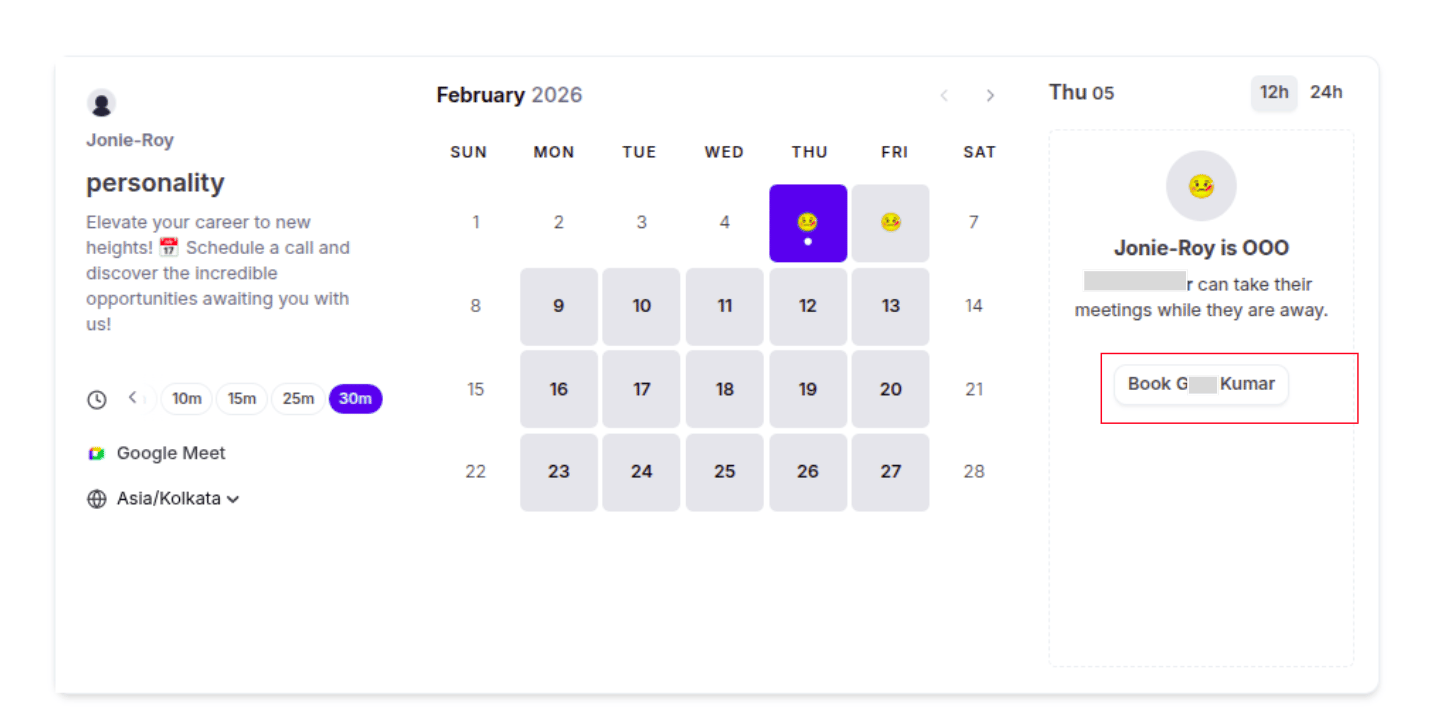
 * **Action:** A prominent **"Book \[Team Member Name]"** button will appear, allowing the guest to schedule with your backup immediately.
 If you do not toggle ON the "Provide a link to a team member when OOO" option, your calendar will simply be unavailable.
* **Setup:** Ensure the redirection toggle remains **OFF** before clicking **Create**.
If you do not toggle ON the "Provide a link to a team member when OOO" option, your calendar will simply be unavailable.
* **Setup:** Ensure the redirection toggle remains **OFF** before clicking **Create**.
 * **Booker experience:** Your public booking page will show the calendar with your OOO dates greyed out.
* **Visual cues:** A status emoji representing your reason (e.g., 🤒) will appear on the blocked dates.
* **Booker experience:** Your public booking page will show the calendar with your OOO dates greyed out.
* **Visual cues:** A status emoji representing your reason (e.g., 🤒) will appear on the blocked dates.
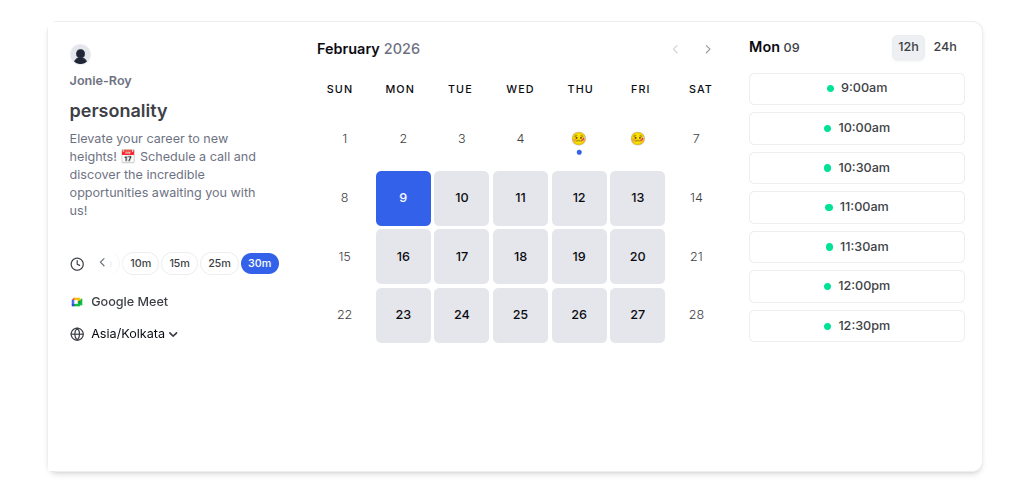 * **Action:** Guests will be unable to click or select any time slots for those days; they must wait until your return date to book.
**Pre-Leave Review:** Before your OOO period begins, check your **Bookings** dashboard to manage active appointments:
* **Upcoming:** Reschedule or cancel any confirmed meetings that conflict with your leave.
* **Unconfirmed:** Clear your pending requests so guests aren't left waiting for an approval.
* **Past:** If a guest missed a meeting just before you left, use the **Mark no-show** button to keep your records accurate.
## Related topics
- [Date Overrides or Set Unavailable](/docs/availability/date-overrides.md)
- [Create Availability in Cal ID](/docs/availability/create.md)
- [Team Availability](/docs/availability/team-availability.md)
- [Multiple Schedules](/docs/availability/multiple-schedules.md)
- [How to See Booking Details](/docs/bookings/view-details.md)
* **Action:** Guests will be unable to click or select any time slots for those days; they must wait until your return date to book.
**Pre-Leave Review:** Before your OOO period begins, check your **Bookings** dashboard to manage active appointments:
* **Upcoming:** Reschedule or cancel any confirmed meetings that conflict with your leave.
* **Unconfirmed:** Clear your pending requests so guests aren't left waiting for an approval.
* **Past:** If a guest missed a meeting just before you left, use the **Mark no-show** button to keep your records accurate.
## Related topics
- [Date Overrides or Set Unavailable](/docs/availability/date-overrides.md)
- [Create Availability in Cal ID](/docs/availability/create.md)
- [Team Availability](/docs/availability/team-availability.md)
- [Multiple Schedules](/docs/availability/multiple-schedules.md)
- [How to See Booking Details](/docs/bookings/view-details.md)