> ## Documentation Index
> Fetch the complete documentation index at: https://cal.id/docs/llms.txt
> Use this file to discover all available pages before exploring further.
# Monitoring Notification Delivery with Workflow Status
> Track every email, WhatsApp, and SMS notification sent for a Cal ID booking so you always know whether attendees received meeting details on time.
The **Workflow Status** tool shows you exactly what happens after a meeting is booked. It tracks every email, WhatsApp, or SMS message sent by the system or by your custom workflows—so you always know whether your attendee got the information.
## How to check the status
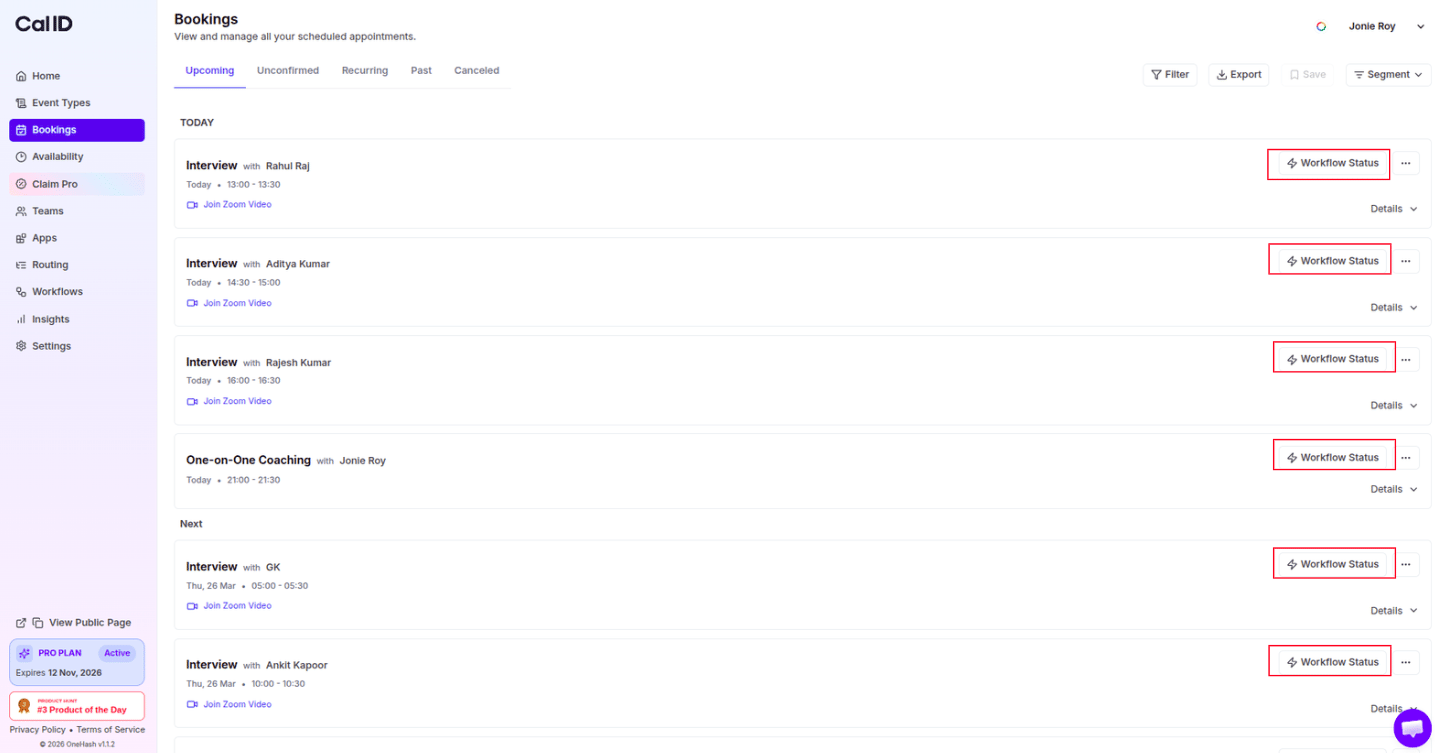
Click **Bookings** in the left menu.
Look for the specific meeting in your list.
Click the **Workflow Status** button (it has a lightning bolt icon) on the right side of the booking.
 ## What the status words mean
When you open the status window, you'll see a list of messages, each at one of these stages:
| Status | What it means |
| ---------------------- | --------------------------------------------------------------------------------------------------------- |
| **Scheduled / Queued** | The message is waiting and will be sent at the right time (for example, "30 minutes before the meeting"). |
| **Delivered** | The message was successfully sent and reached the person's inbox or phone. |
| **Read** | The person has opened and looked at the message. |
| **Bounced** | The message could not be delivered—usually because the email address is wrong or the inbox is full. |
| **Failed** | An error occurred and the message could not be sent. |
| **Cancelled** | The meeting was cancelled, so the system automatically stopped all future messages. |
### Scheduled / Queued
The message is waiting and will be sent at the right time.
## What the status words mean
When you open the status window, you'll see a list of messages, each at one of these stages:
| Status | What it means |
| ---------------------- | --------------------------------------------------------------------------------------------------------- |
| **Scheduled / Queued** | The message is waiting and will be sent at the right time (for example, "30 minutes before the meeting"). |
| **Delivered** | The message was successfully sent and reached the person's inbox or phone. |
| **Read** | The person has opened and looked at the message. |
| **Bounced** | The message could not be delivered—usually because the email address is wrong or the inbox is full. |
| **Failed** | An error occurred and the message could not be sent. |
| **Cancelled** | The meeting was cancelled, so the system automatically stopped all future messages. |
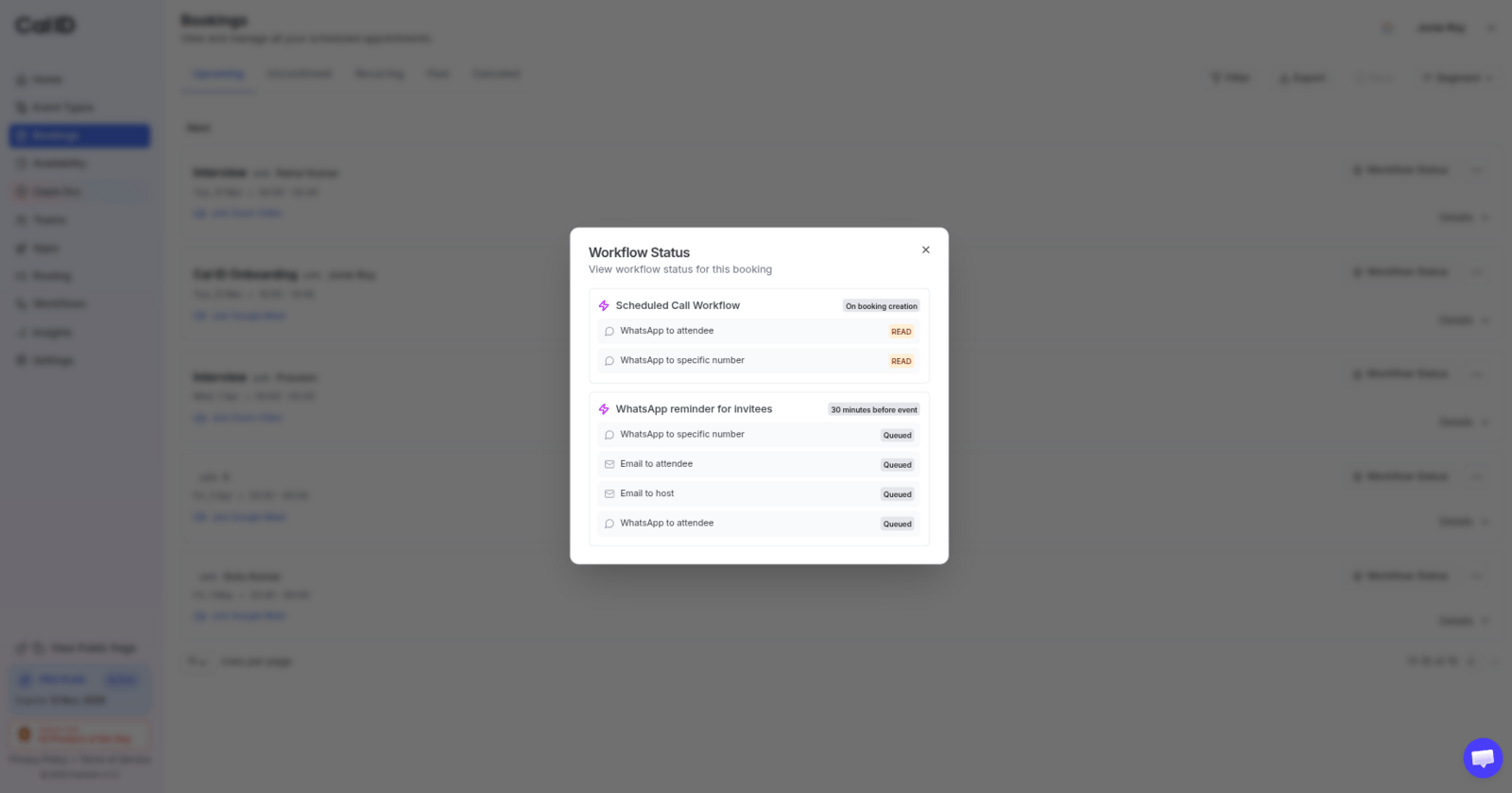
### Scheduled / Queued
The message is waiting and will be sent at the right time.
 ### Delivered
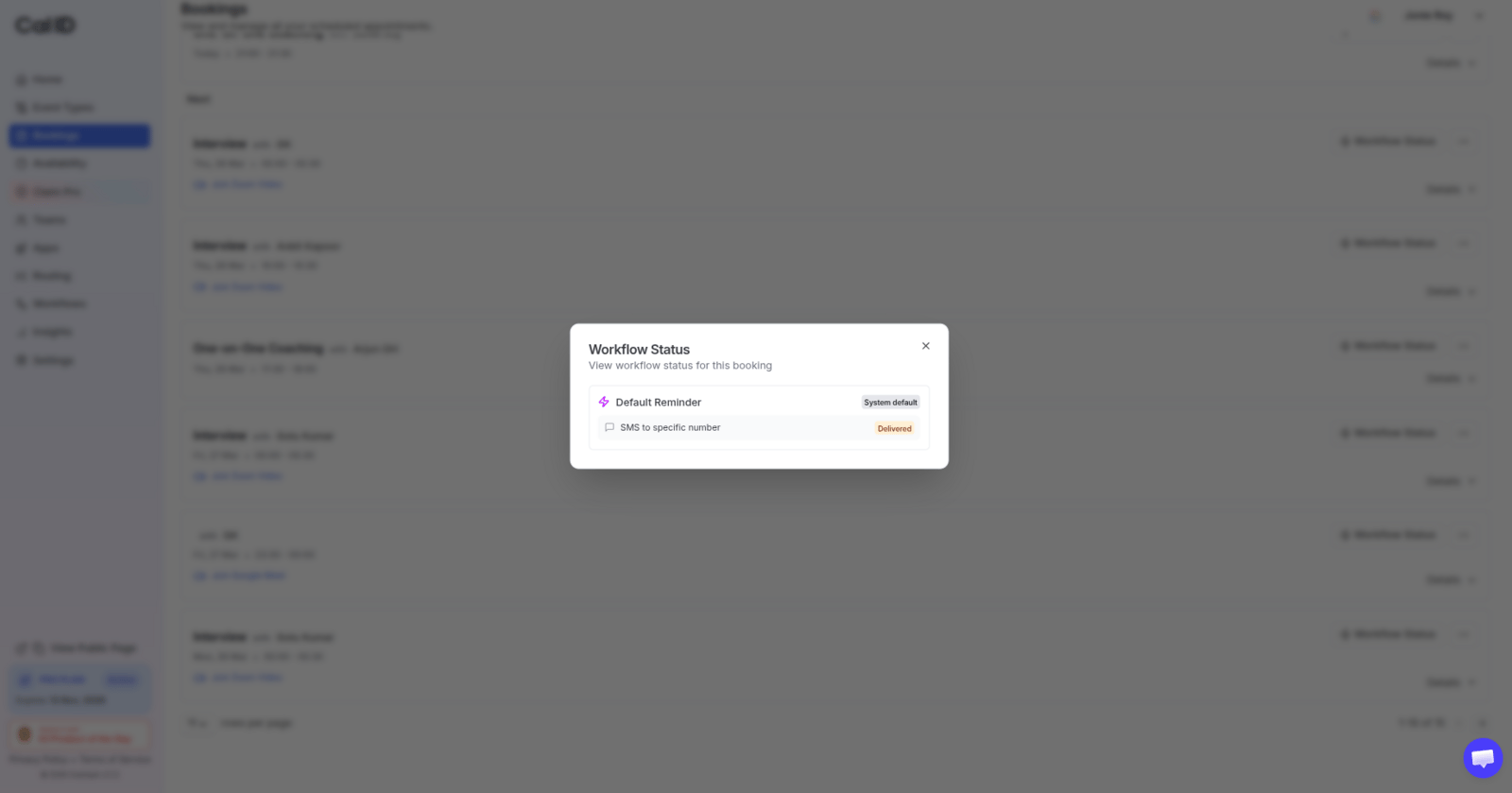
The message was successfully sent and reached the person's inbox or phone.
### Delivered
The message was successfully sent and reached the person's inbox or phone.
 ### Read
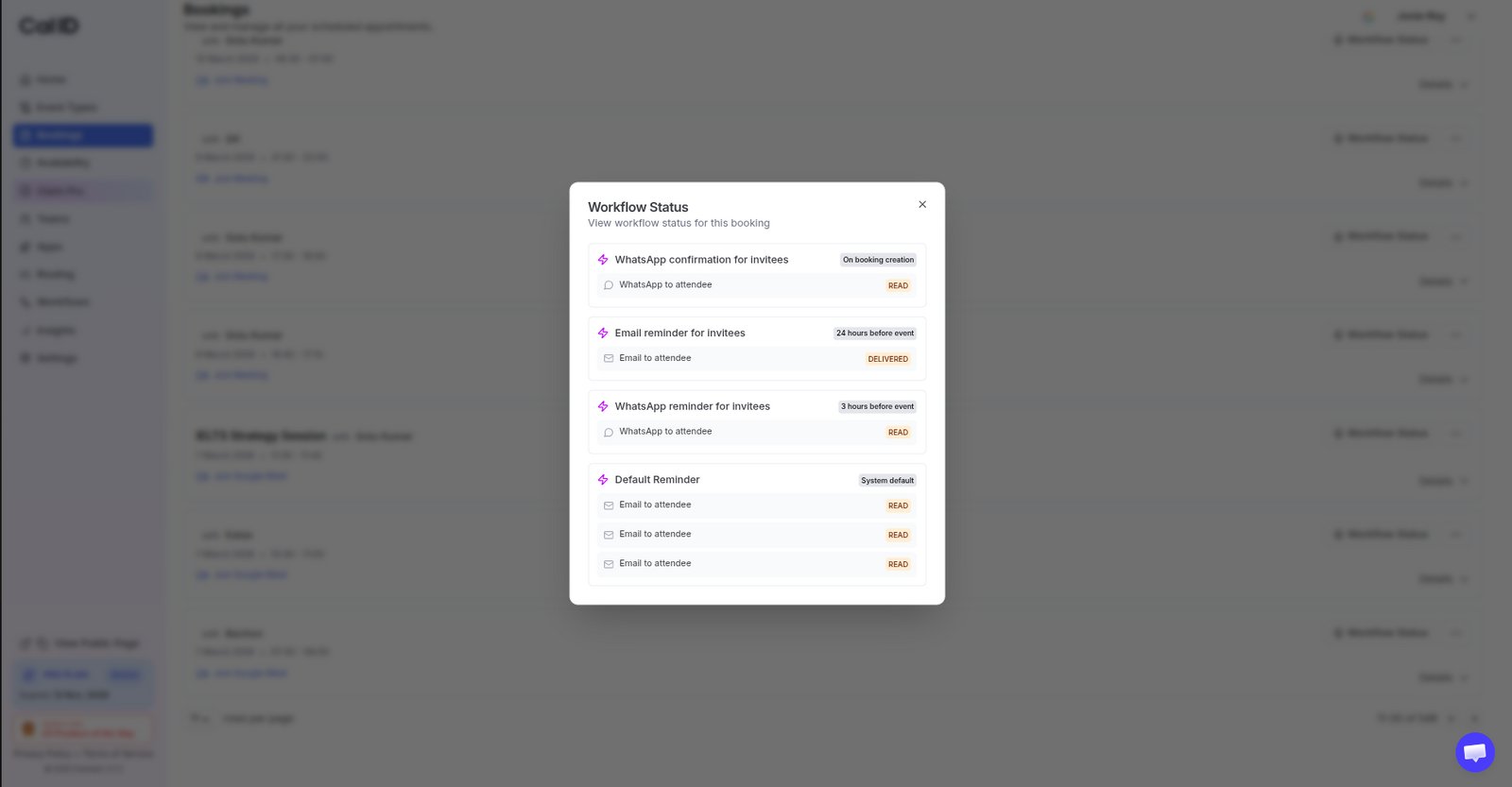
The person has opened and looked at the message.
### Read
The person has opened and looked at the message.
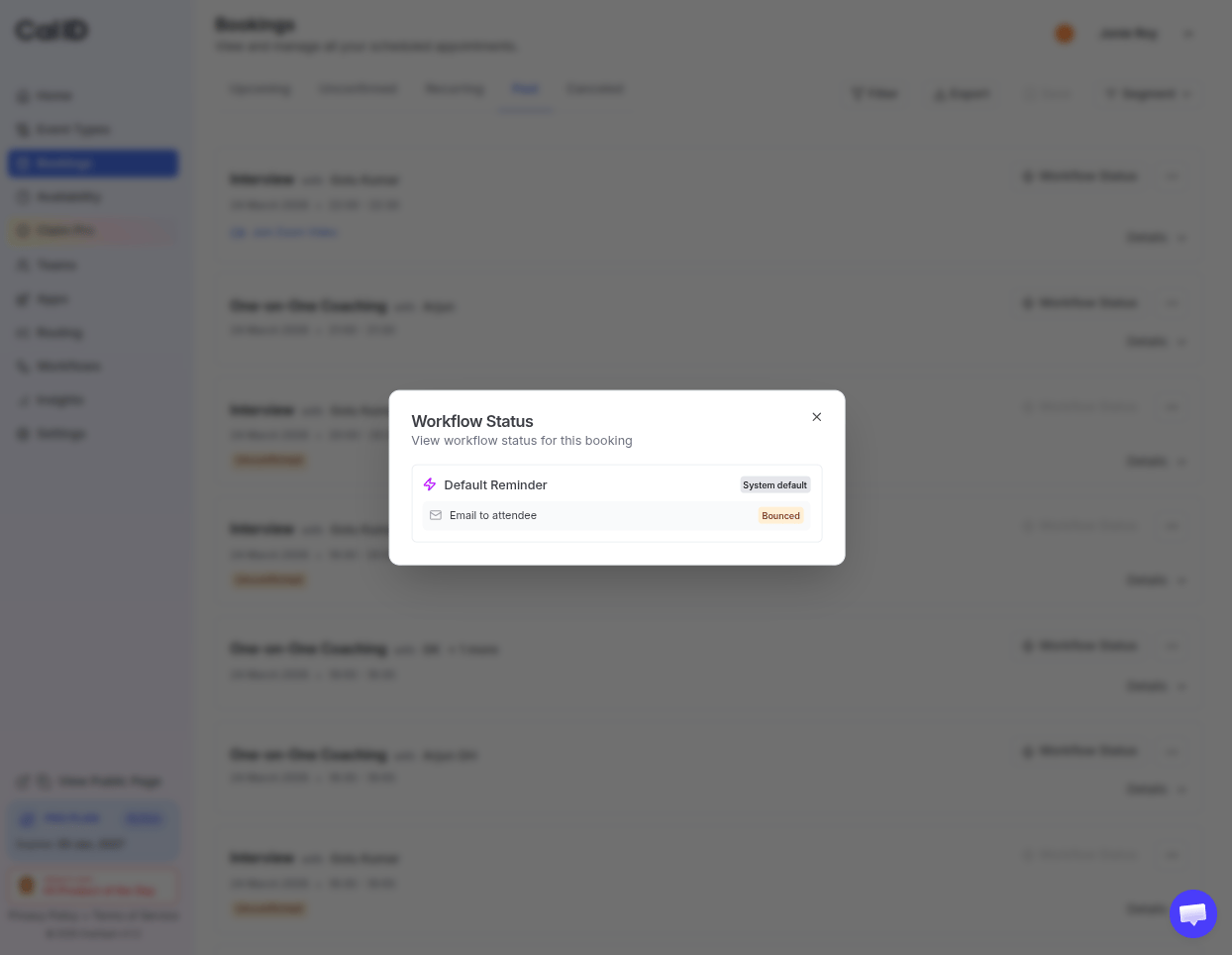
 ### Bounced
The message could not be delivered. This usually happens if the email address is wrong or the inbox is full.
### Bounced
The message could not be delivered. This usually happens if the email address is wrong or the inbox is full.
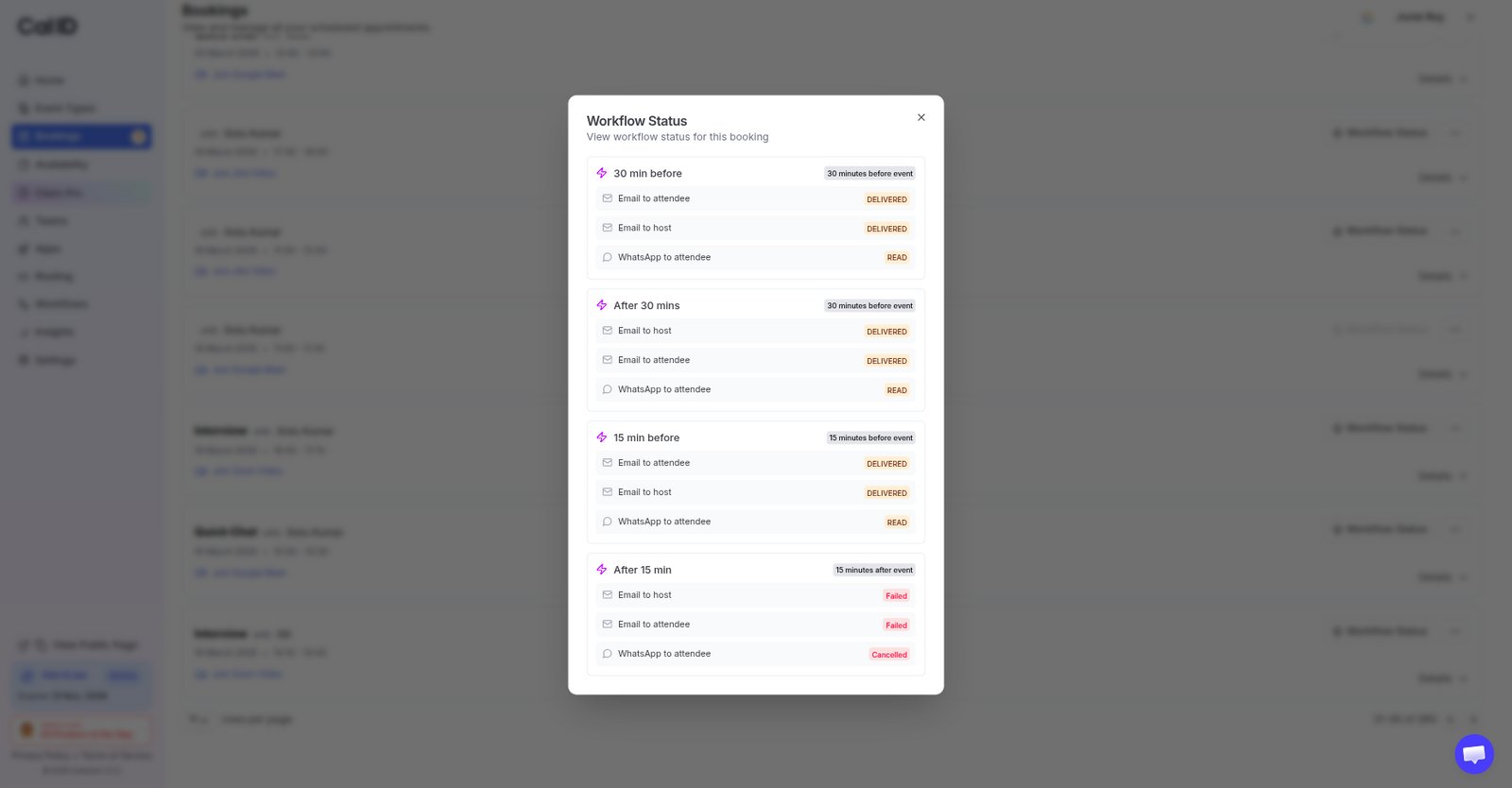
 ### Failed
There was an error, and the message could not be sent.
### Failed
There was an error, and the message could not be sent.
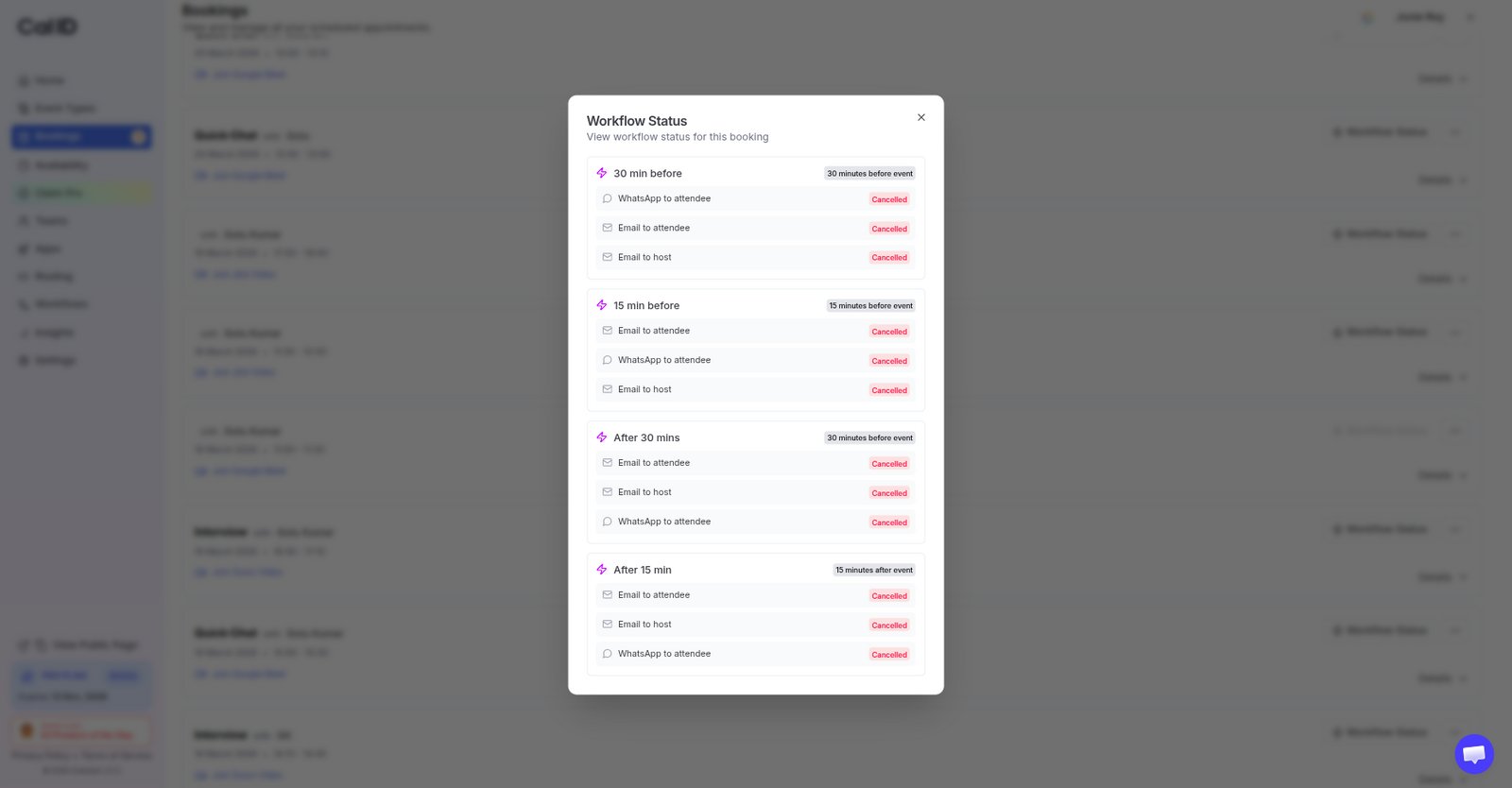
 ### Cancelled
If you cancel the meeting, the system automatically stops all future messages and marks them as "Cancelled".
### Cancelled
If you cancel the meeting, the system automatically stops all future messages and marks them as "Cancelled".
 ## Why this is helpful
* **No more guessing**: If a client says they didn't get the link, you can check here to see if it **Bounced** or was **Delivered**.
* **Check attendance**: If the status shows **Read**, you know the attendee is aware of the meeting.
* **Automatic cleanup**: You don't have to worry about reminders going out for a cancelled meeting; the system handles the **Cancellation** for you.
## Next steps
Set up the automated reminders and notifications tracked here.
Tailor the text of the emails and messages your workflows send.
## Related topics
- [How to See Booking Details](/docs/bookings/view-details.md)
- [Workflows Setup to Cal ID](/docs/workflows/overview.md)
- [Mark Guests as No Show](/docs/bookings/no-show.md)
- [Customizing Your Workflow Messages](/docs/workflows/custom-messages.md)
- [Analyzing Workflow Performance in Cal ID Insights](/docs/insights/workflow-performance.md)
## Why this is helpful
* **No more guessing**: If a client says they didn't get the link, you can check here to see if it **Bounced** or was **Delivered**.
* **Check attendance**: If the status shows **Read**, you know the attendee is aware of the meeting.
* **Automatic cleanup**: You don't have to worry about reminders going out for a cancelled meeting; the system handles the **Cancellation** for you.
## Next steps
Set up the automated reminders and notifications tracked here.
Tailor the text of the emails and messages your workflows send.
## Related topics
- [How to See Booking Details](/docs/bookings/view-details.md)
- [Workflows Setup to Cal ID](/docs/workflows/overview.md)
- [Mark Guests as No Show](/docs/bookings/no-show.md)
- [Customizing Your Workflow Messages](/docs/workflows/custom-messages.md)
- [Analyzing Workflow Performance in Cal ID Insights](/docs/insights/workflow-performance.md)