> ## Documentation Index
> Fetch the complete documentation index at: https://cal.id/docs/llms.txt
> Use this file to discover all available pages before exploring further.
# Customize Your Brand Logo and Favicon in Cal ID for Team
> Replace the default Cal ID branding on your team's booking page with your own logo and browser tab favicon for a fully white-labeled experience.
Give your team a fully white-labeled booking experience. The **Custom brand logo and favicon** section replaces the Cal ID branding on your team's booking page with your organization's logo and browser icon.
Have your files ready before you start:
* **Logo** — a **600 x 400 px** image. A transparent-background `.PNG` is strongly recommended.
* **Favicon** — an icon file under **1 MB**.
## Step-by-step configuration
Access your account dashboard.
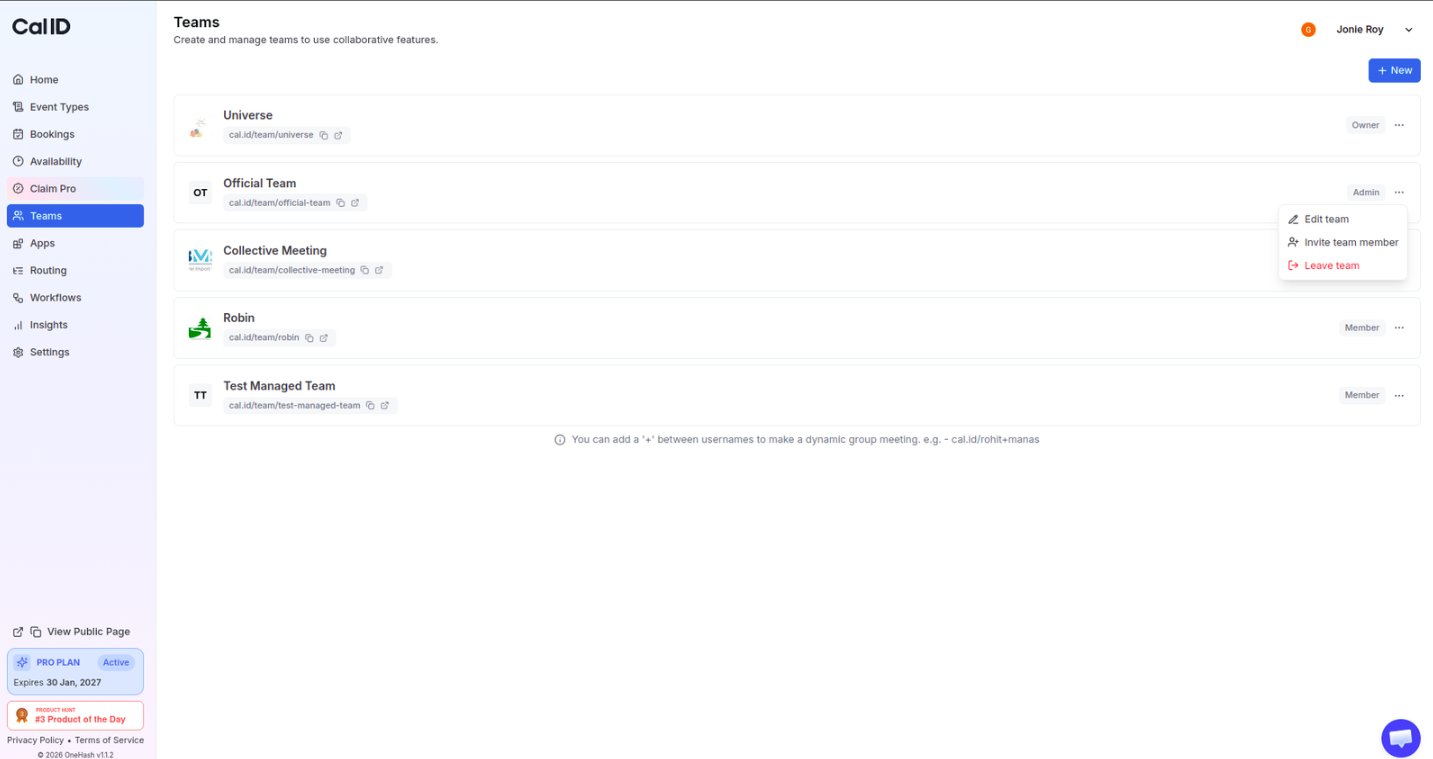
Click the **Teams** icon in the left-hand sidebar.
Locate the team, click the **three horizontal dots**, and select **Edit team**.
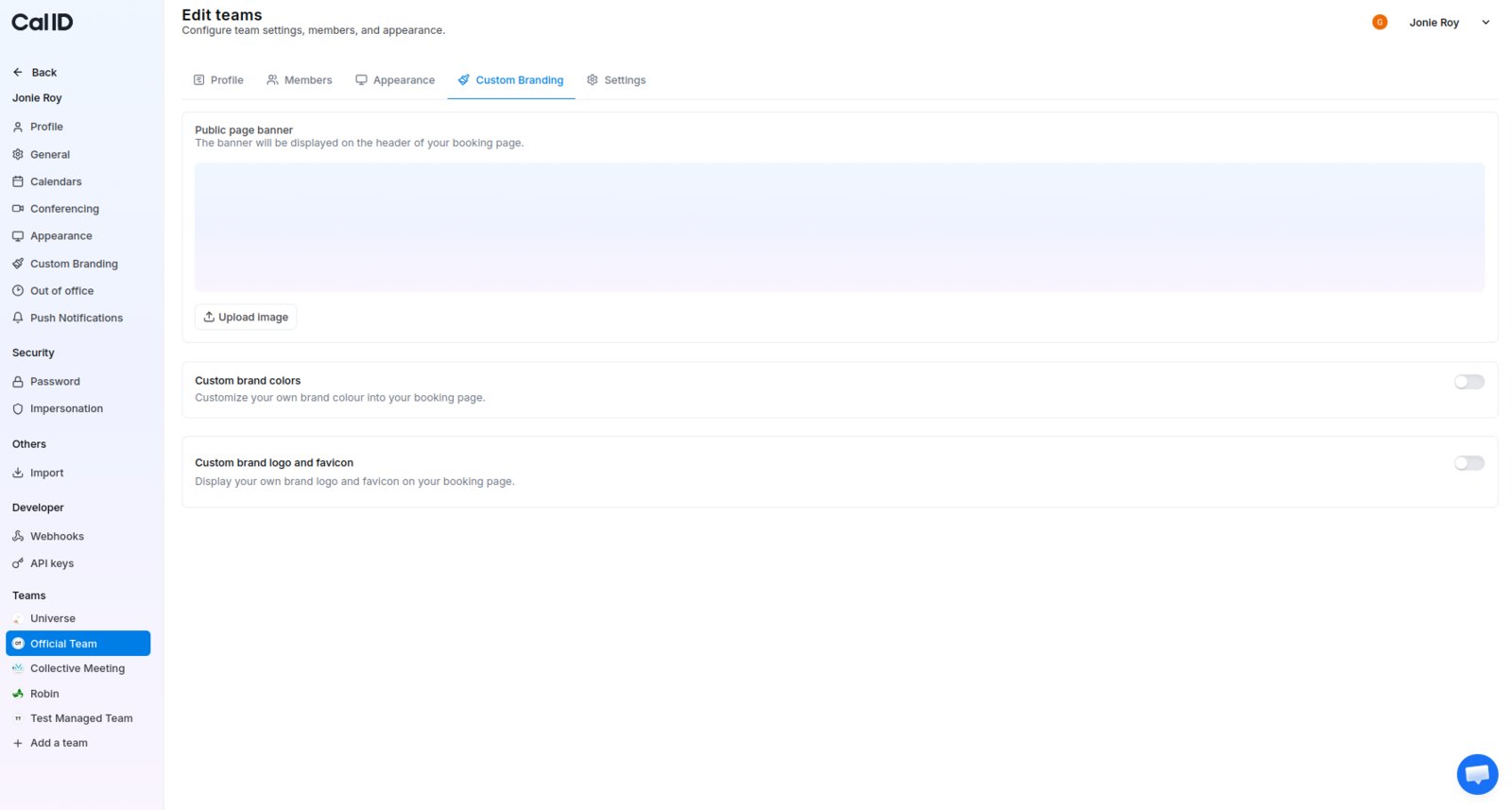
 Click the **Custom Branding** tab at the top of the page.
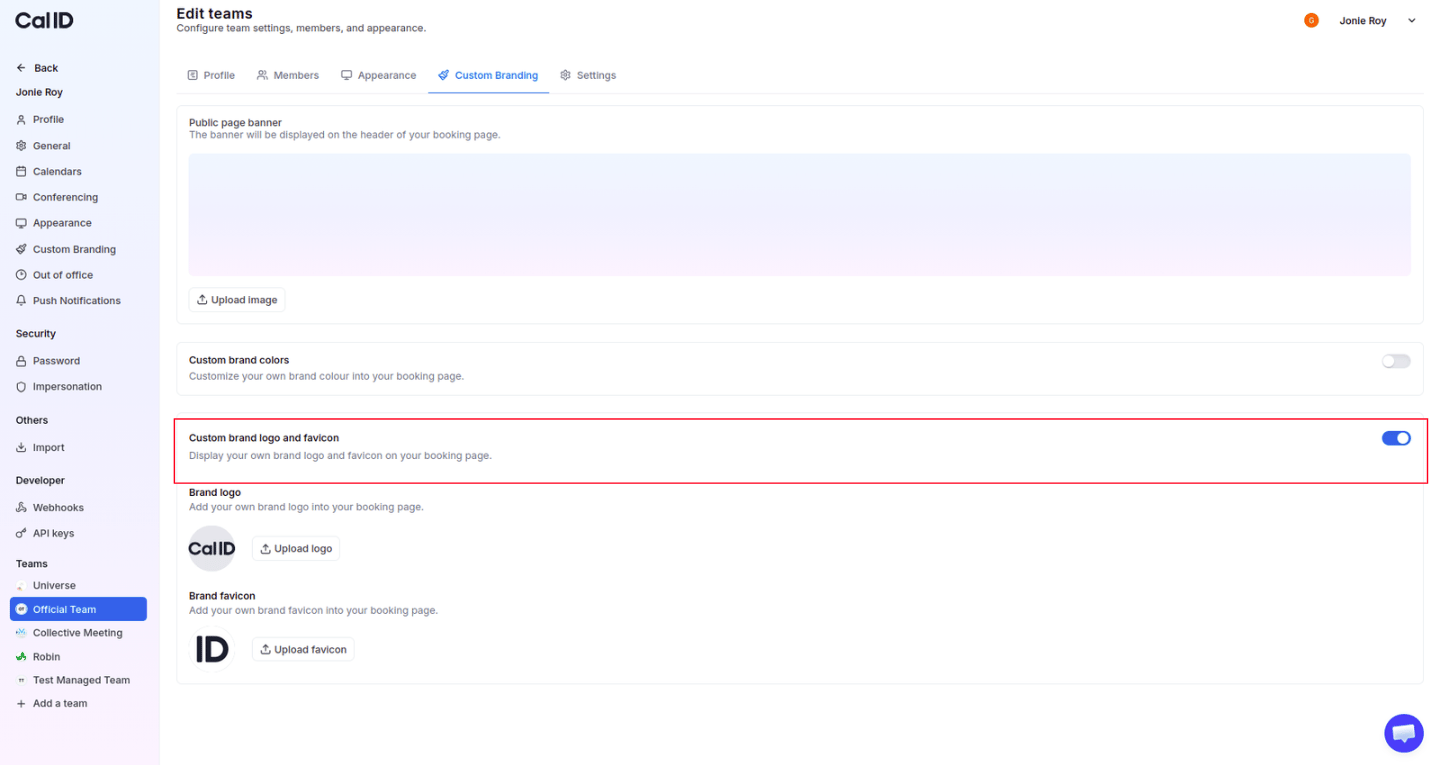
 Scroll to **Custom brand logo and favicon** and switch the section toggle to **ON**.
 Click the **Upload logo** button, then select your **600 x 400 px** image.
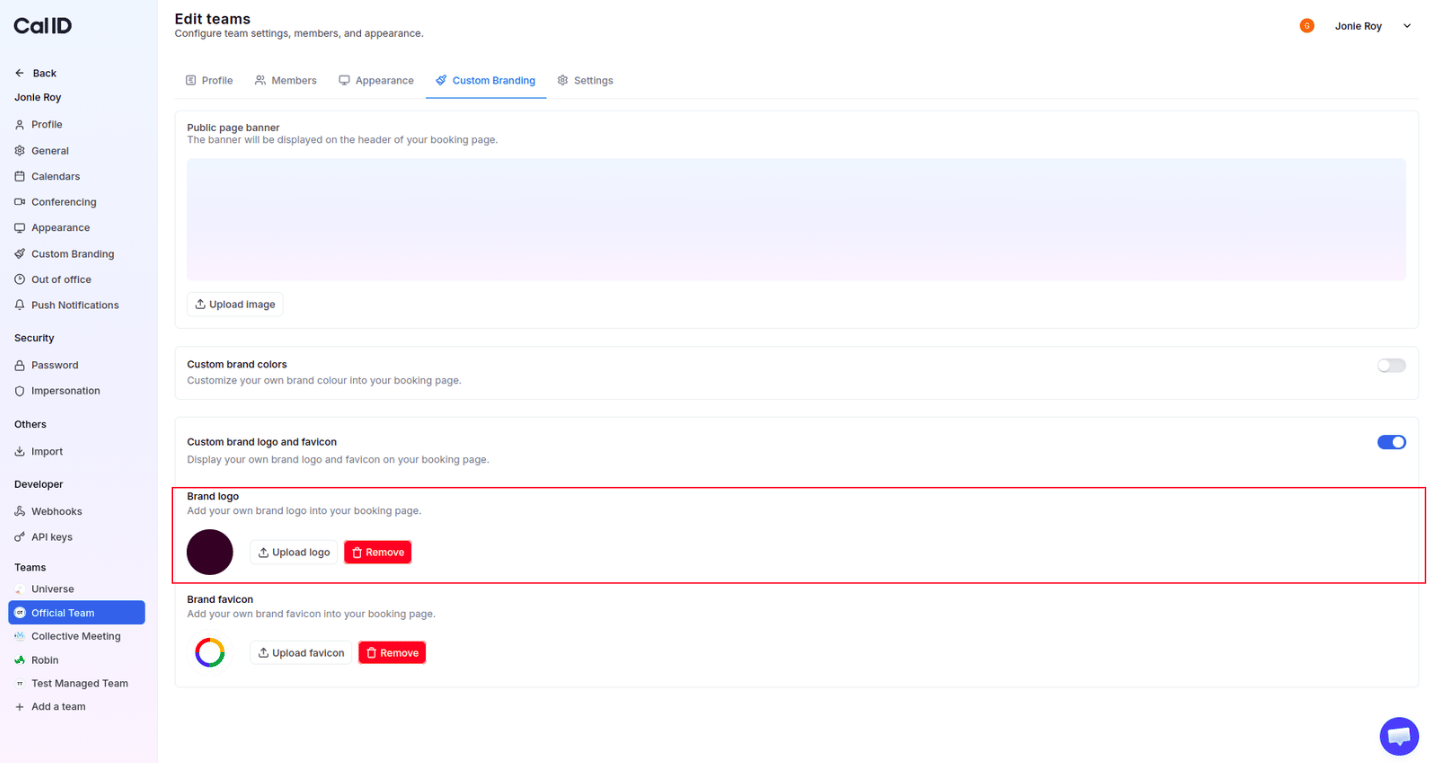 Click the **Upload favicon** button, then select your icon file (ensure it is under **1 MB**).
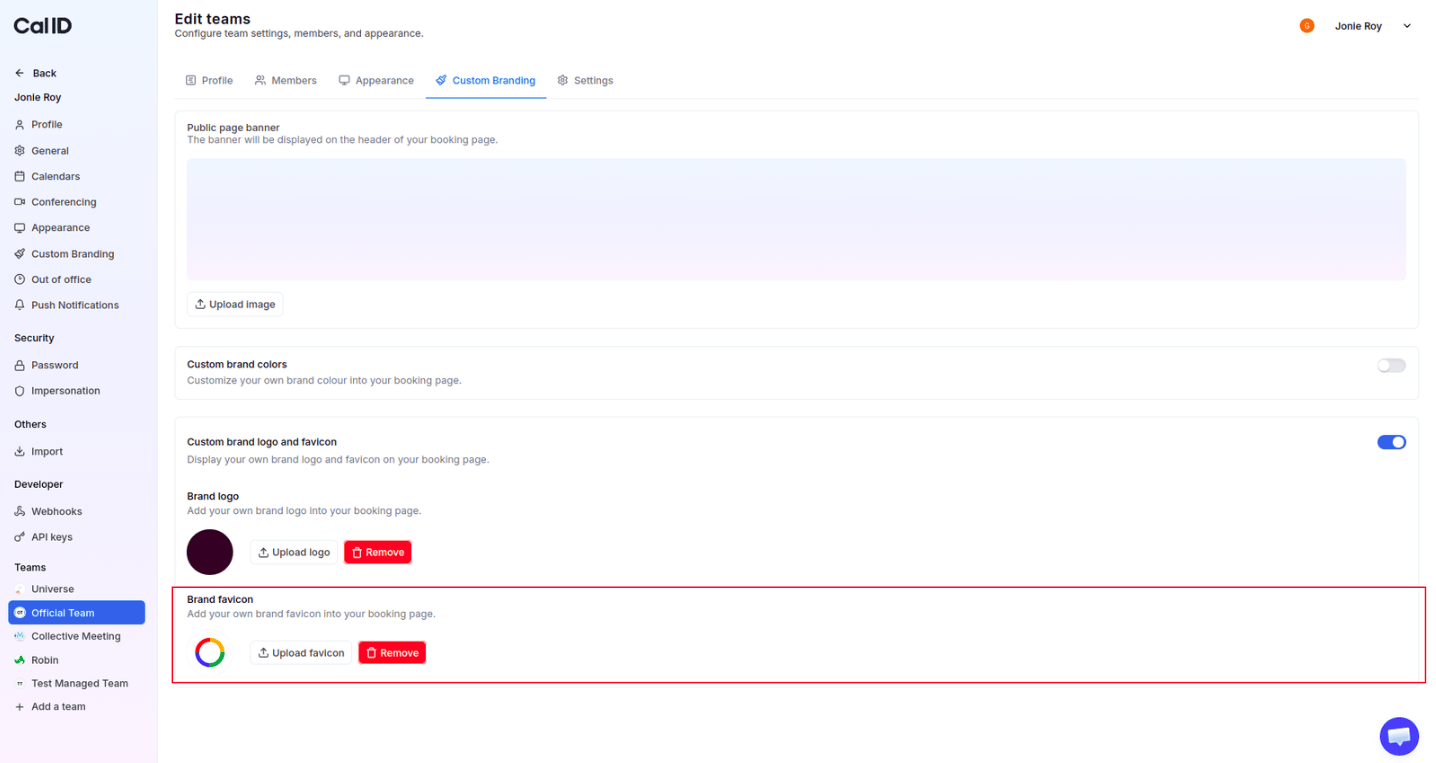 Click the **Update** button (if visible) to apply the changes.
For the **brand logo**, using a file with a transparent background (like a `.PNG`) is highly recommended. This ensures your logo looks natural whether your guest is viewing your page in **Light** or **Dark** mode.
## Visible changes for your team's public booking page
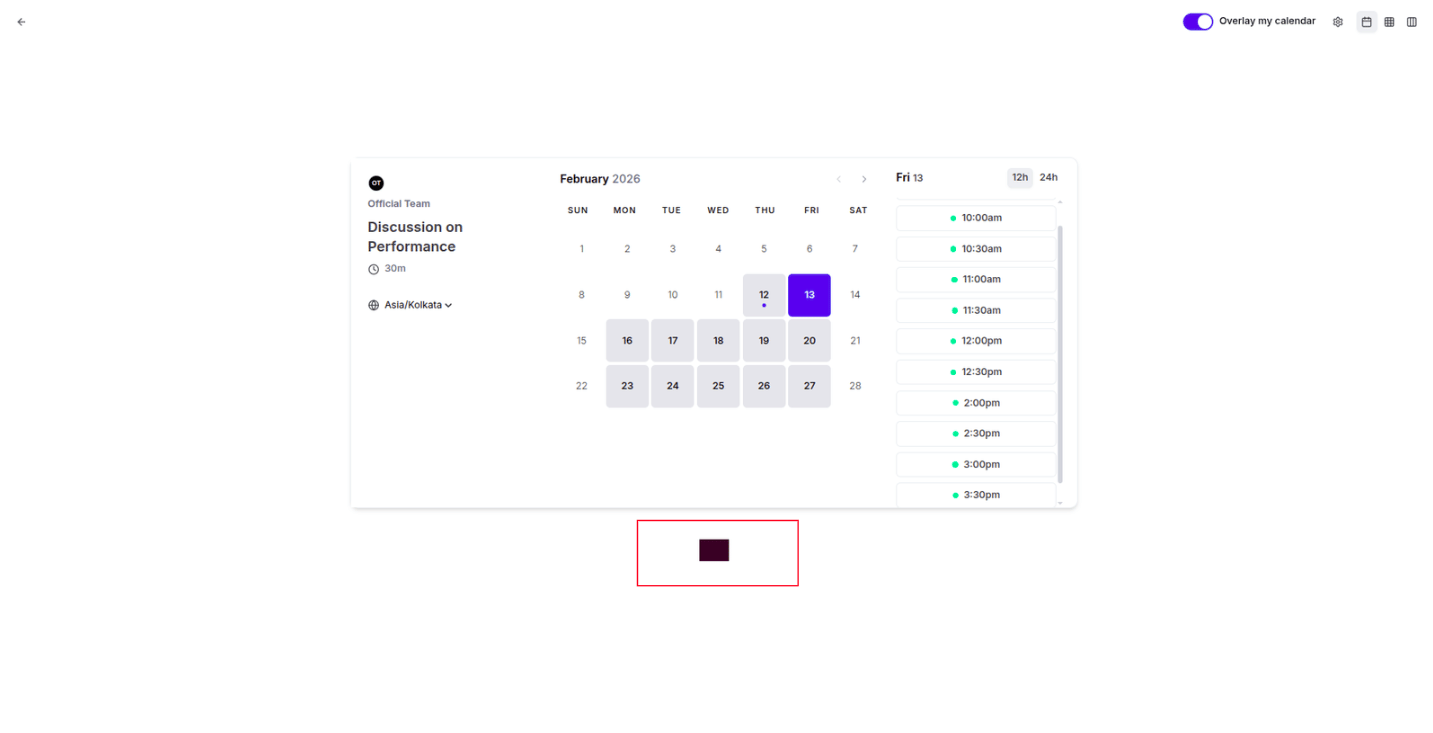
* **Public booking page** — your custom logo appears clearly at the bottom of your booking interface, replacing the default branding.
Click the **Update** button (if visible) to apply the changes.
For the **brand logo**, using a file with a transparent background (like a `.PNG`) is highly recommended. This ensures your logo looks natural whether your guest is viewing your page in **Light** or **Dark** mode.
## Visible changes for your team's public booking page
* **Public booking page** — your custom logo appears clearly at the bottom of your booking interface, replacing the default branding.
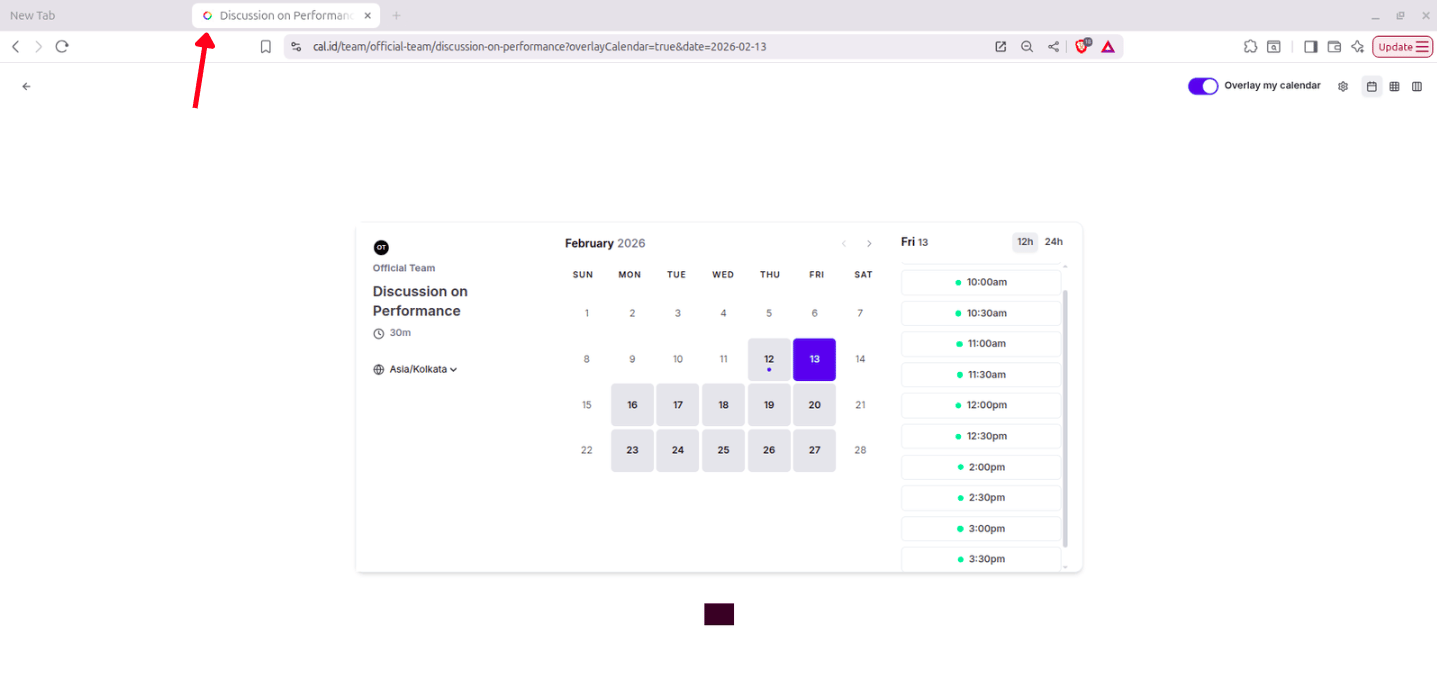
 * **Browser tab** — your uploaded favicon is displayed in the browser tab whenever a guest opens your booking link.
 ## Next steps
Configure custom branding on your personal booking page.
## Related topics
- [Customize Your Brand Logo and Favicon in Cal ID](/docs/branding/logo-favicon.md)
- [Custom Branding For Teams](/docs/branding/teams.md)
- [Managing Custom Brand Colors in Cal ID for Team](/docs/branding/brand-colors-team.md)
- [Public Page Banner for Team](/docs/branding/banner-team.md)
- [Team Appearance Settings](/docs/appearance/team-appearance.md)
## Next steps
Configure custom branding on your personal booking page.
## Related topics
- [Customize Your Brand Logo and Favicon in Cal ID](/docs/branding/logo-favicon.md)
- [Custom Branding For Teams](/docs/branding/teams.md)
- [Managing Custom Brand Colors in Cal ID for Team](/docs/branding/brand-colors-team.md)
- [Public Page Banner for Team](/docs/branding/banner-team.md)
- [Team Appearance Settings](/docs/appearance/team-appearance.md)