> ## Documentation Index
> Fetch the complete documentation index at: https://cal.id/docs/llms.txt
> Use this file to discover all available pages before exploring further.
# Custom Branding For Personal
> Personalize your Cal ID booking experience with a banner image, connected social profiles, custom brand colors, and your own logo and browser favicon.
The **Custom Branding** section lets you personalize your booking experience and align it with your business identity—a banner, social links, brand colors, and your own logo and favicon.
These settings apply to your **personal** public booking page. To brand a team's page instead, see [Custom Branding For Teams](/docs/branding/teams).
## Open Custom Branding
Sign in to your account.
Click the **Settings** icon in the sidebar.
Select the **Custom Branding** tab, then configure the features below.
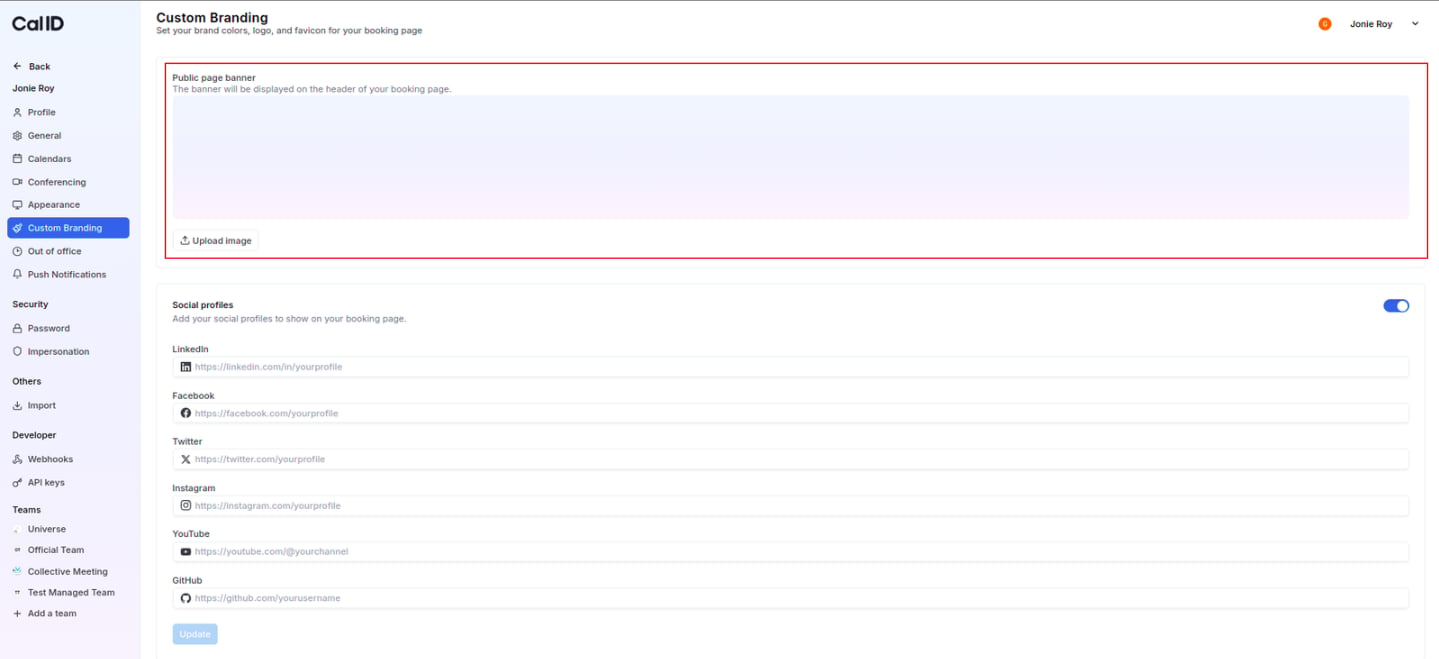
## Public page banner
Upload a professional header image with exact **3200 x 320 px** dimensions. **For more detail, visit:** [**Public Page Banner**](/docs/branding/banner)
 ## Social profiles
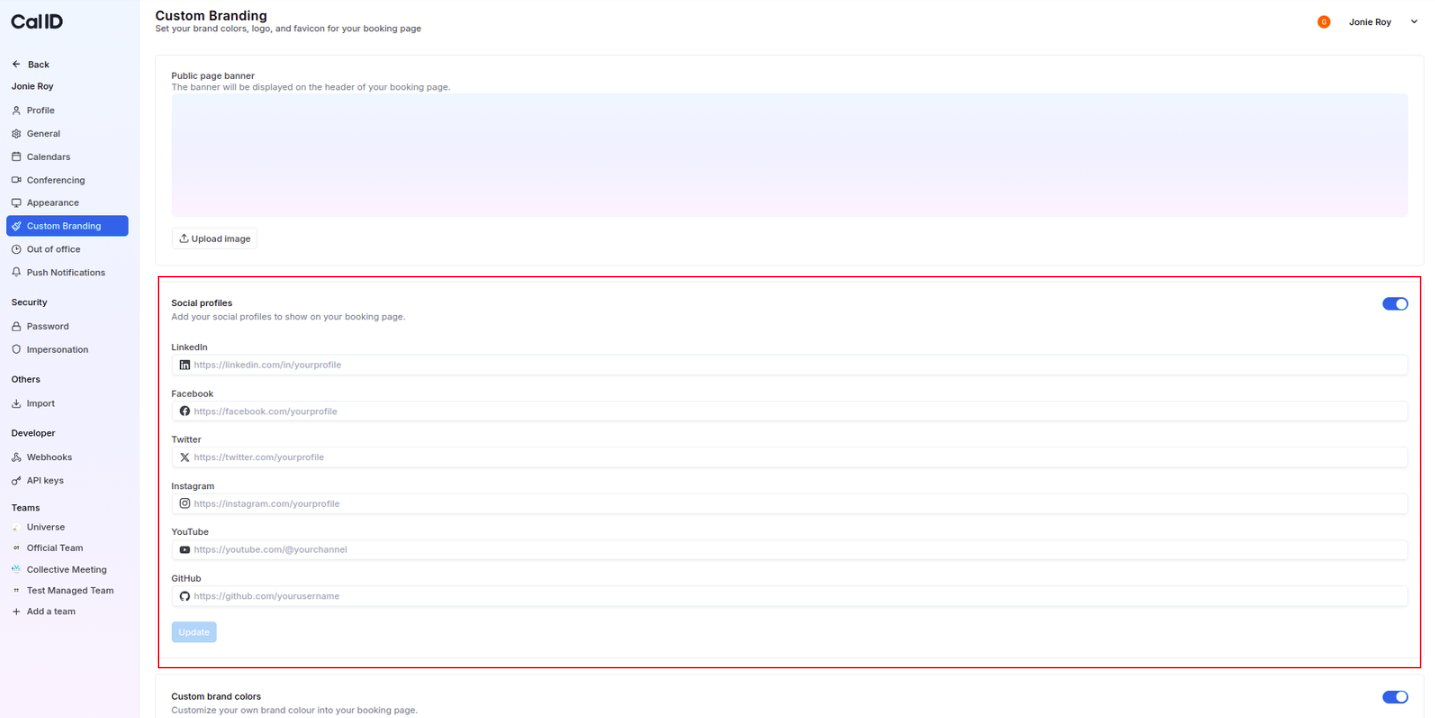
Enable and link your **LinkedIn, Facebook, YouTube,** and other professional profiles. **For more detail, visit:** [**Social Profiles**](/docs/branding/social-profiles)
## Social profiles
Enable and link your **LinkedIn, Facebook, YouTube,** and other professional profiles. **For more detail, visit:** [**Social Profiles**](/docs/branding/social-profiles)
 ## Custom brand colors
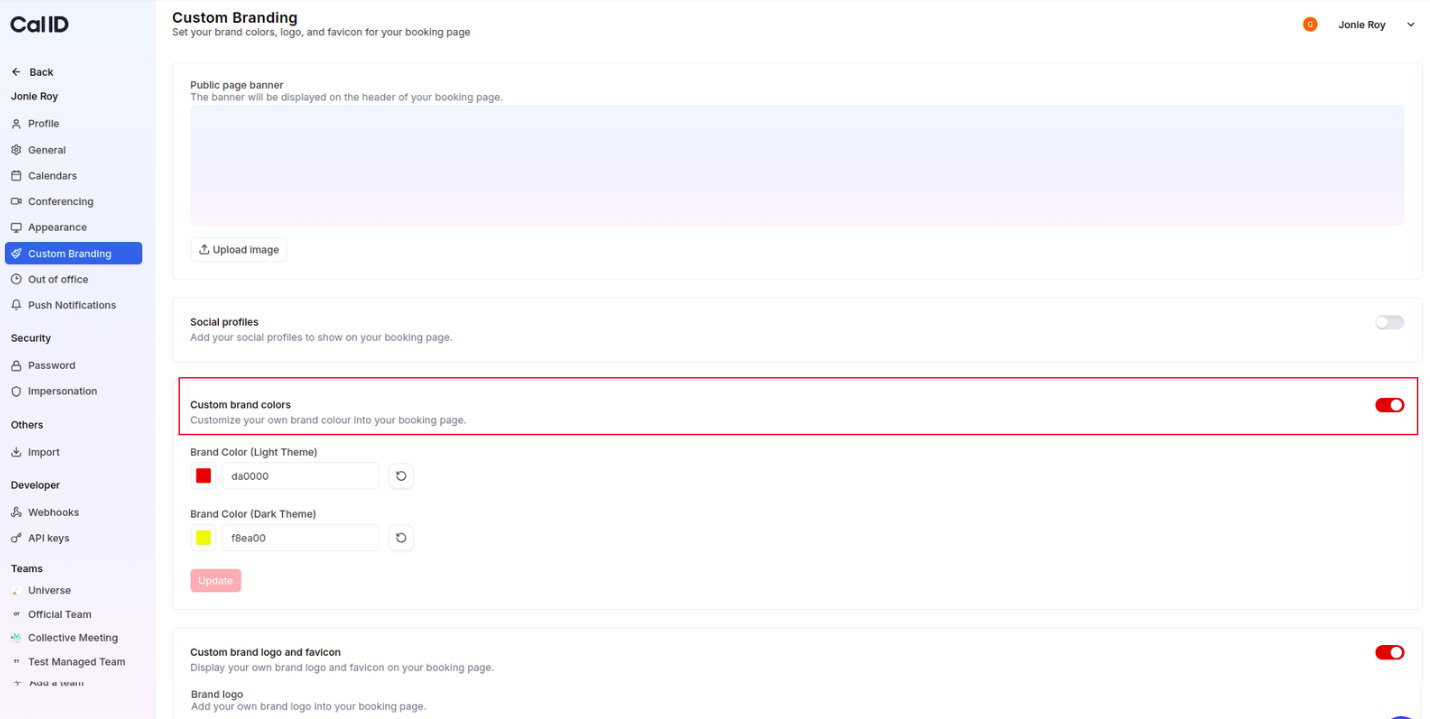
Set specific **Hex codes** for both light and dark themes to match your brand palette. **For more detail, visit:** [**Custom Brand Colors**](/docs/branding/brand-colors)
## Custom brand colors
Set specific **Hex codes** for both light and dark themes to match your brand palette. **For more detail, visit:** [**Custom Brand Colors**](/docs/branding/brand-colors)
 ## Custom brand logo and favicon
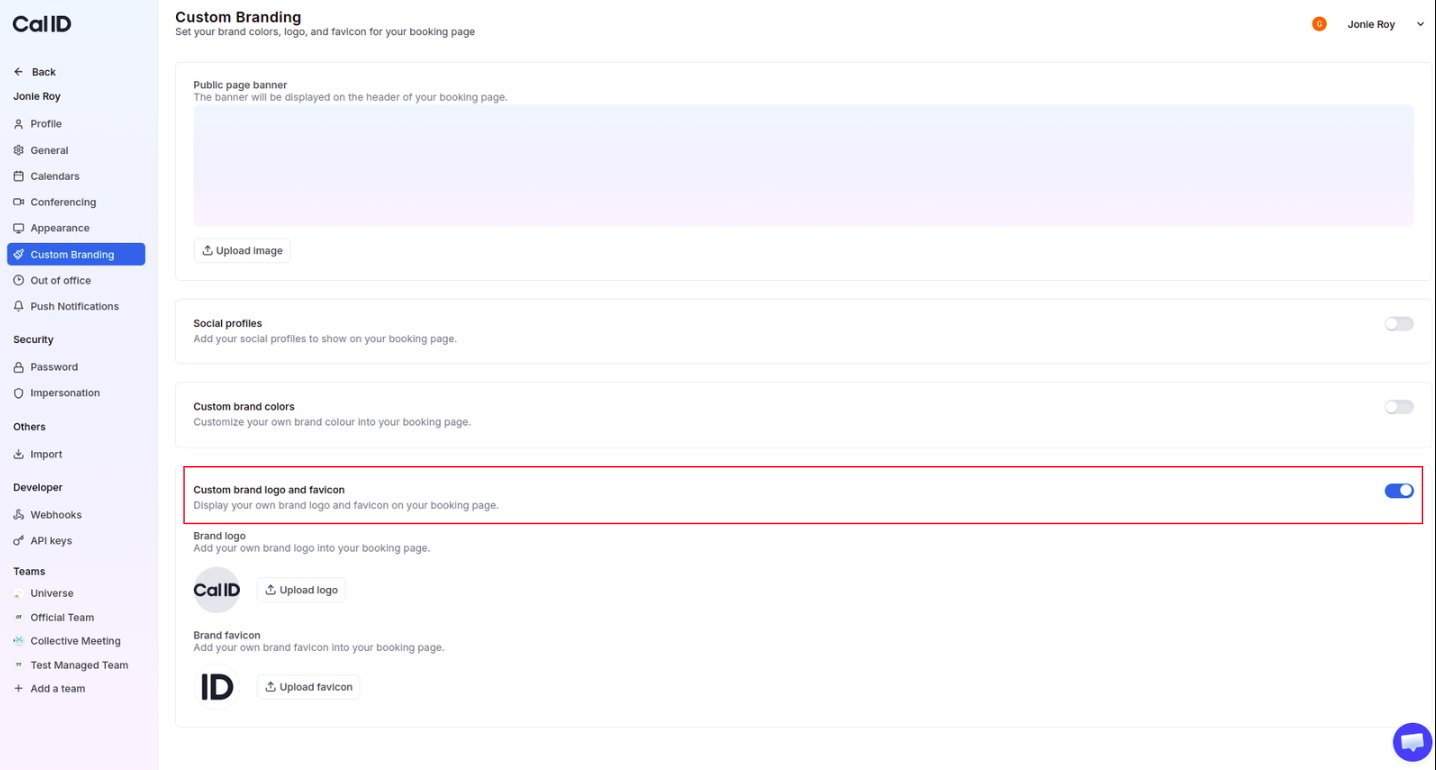
Upload your **600 x 400 px** logo and browser tab icon to fully customize your page. **For more detail, visit:** [**Custom Brand Logo and Favicon**](/docs/branding/logo-favicon)
## Custom brand logo and favicon
Upload your **600 x 400 px** logo and browser tab icon to fully customize your page. **For more detail, visit:** [**Custom Brand Logo and Favicon**](/docs/branding/logo-favicon)
 ## Next steps
Apply logos, colors, and banners to a team's booking page.
Set the theme and booking layout for your personal page.
## Related topics
- [Custom Branding For Teams](/docs/branding/teams.md)
- [Public Page Banner](/docs/branding/banner.md)
- [Managing Custom Brand Colors in Cal ID](/docs/branding/brand-colors.md)
- [Customize Your Brand Logo and Favicon in Cal ID](/docs/branding/logo-favicon.md)
- [Customizing Your Appearance in Cal ID](/docs/appearance/appearance.md)
## Next steps
Apply logos, colors, and banners to a team's booking page.
Set the theme and booking layout for your personal page.
## Related topics
- [Custom Branding For Teams](/docs/branding/teams.md)
- [Public Page Banner](/docs/branding/banner.md)
- [Managing Custom Brand Colors in Cal ID](/docs/branding/brand-colors.md)
- [Customize Your Brand Logo and Favicon in Cal ID](/docs/branding/logo-favicon.md)
- [Customizing Your Appearance in Cal ID](/docs/appearance/appearance.md)