> ## Documentation Index
> Fetch the complete documentation index at: https://cal.id/docs/llms.txt
> Use this file to discover all available pages before exploring further.
# How to Add Social Profiles in Cal ID
> Add clickable social media icons for LinkedIn, X, Instagram, and more to your Cal ID public booking page to build trust with prospective guests.
Add clickable icons for your professional social media accounts directly to your public booking page. It is a great way to build trust and let clients explore your work before they book a meeting.
## Supported platforms
You can link the following platforms to your profile:
* **LinkedIn**
* **Facebook**
* **Twitter**
* **Instagram**
* **YouTube**
* **GitHub**
## Step-by-step configuration
Sign in to your dashboard.
Click the **Settings** icon in the sidebar.
Select the **Custom Branding** tab.
Scroll down to the **Social profiles** section.
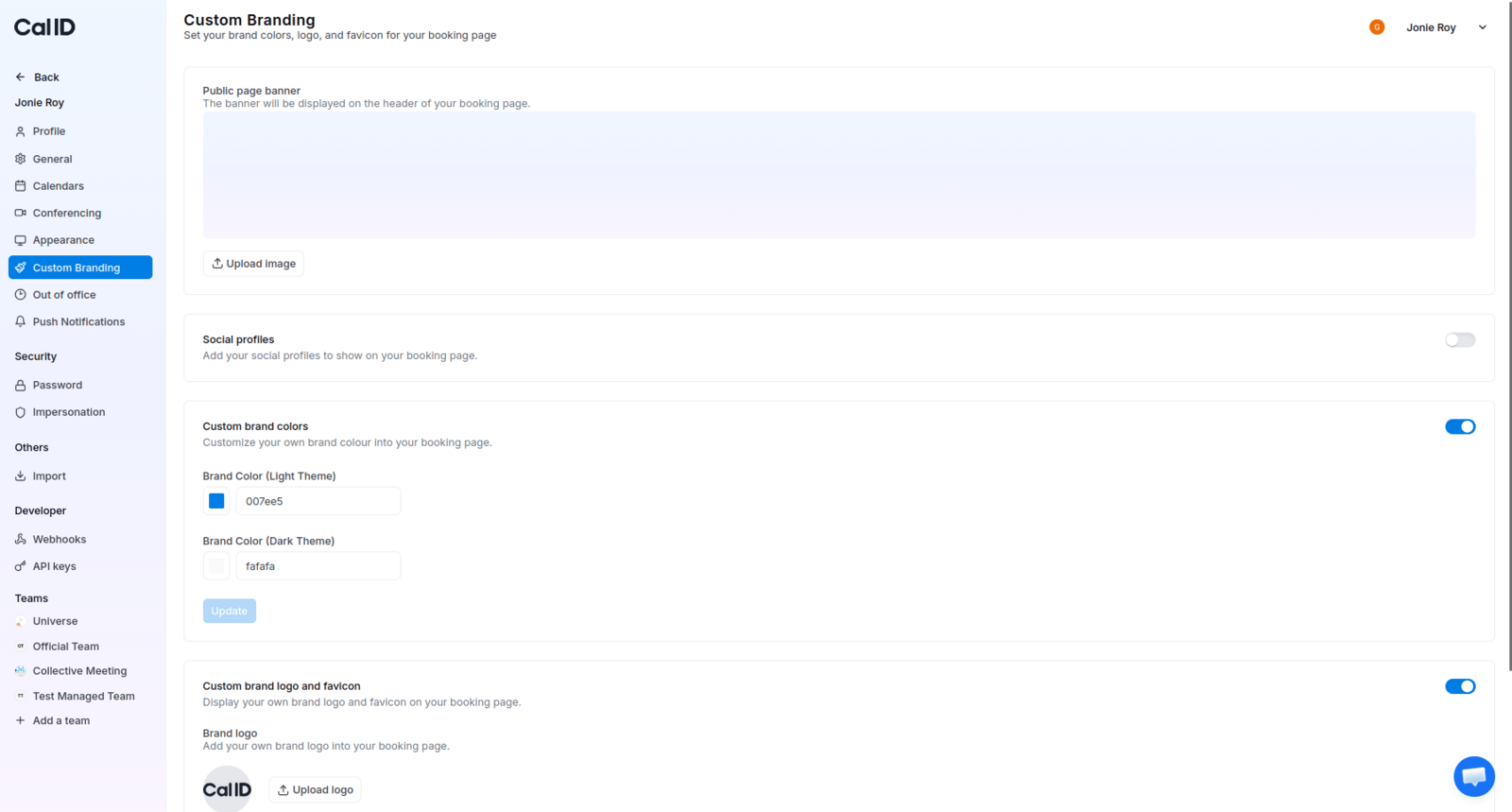 Ensure the toggle at the top-right of this section is switched **ON**.
If the toggle is off, your social icons will not appear on your booking page even if you add links.
Copy the full URL of your social profile (e.g., `https://linkedin.com/in/yourname`) and paste it into the corresponding field for each platform.
Ensure the toggle at the top-right of this section is switched **ON**.
If the toggle is off, your social icons will not appear on your booking page even if you add links.
Copy the full URL of your social profile (e.g., `https://linkedin.com/in/yourname`) and paste it into the corresponding field for each platform.
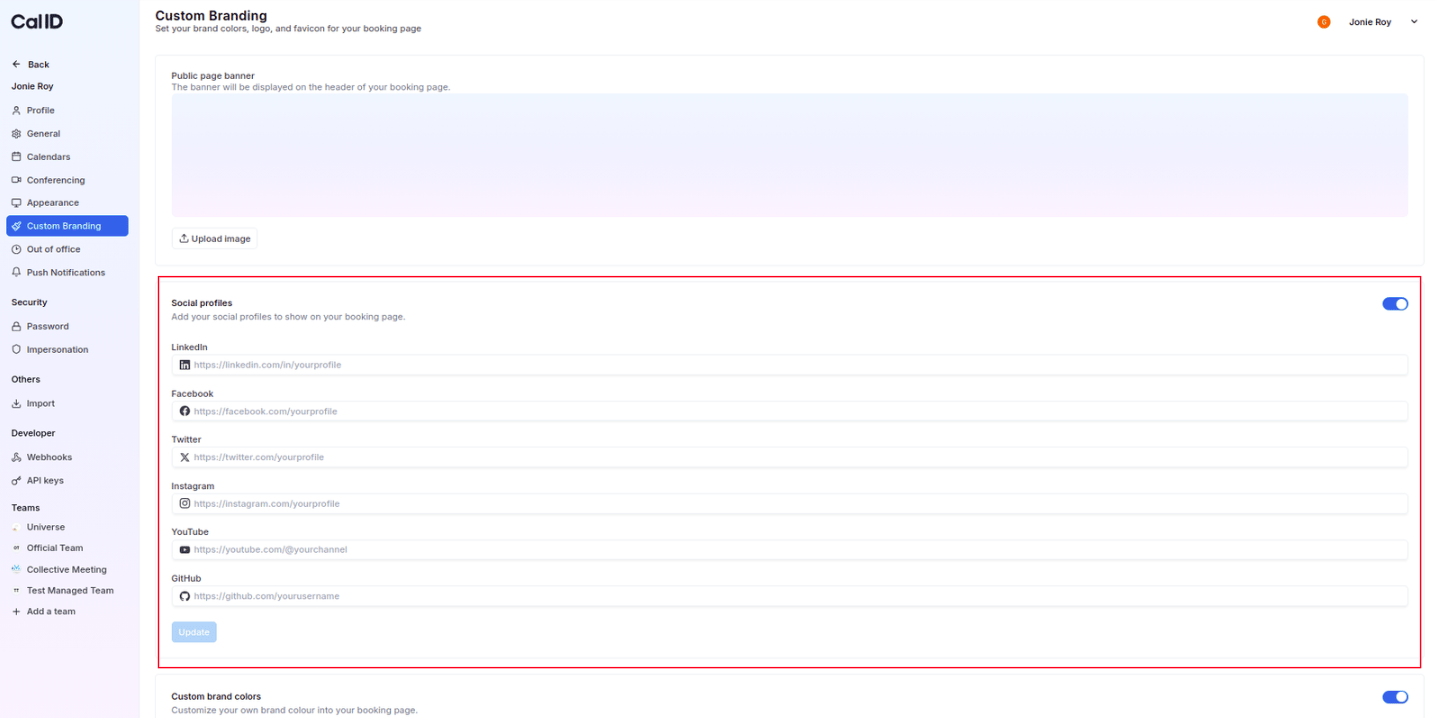 Click the blue **Update** button at the bottom of the Social profiles box to save your changes.
## Visible changes on your page
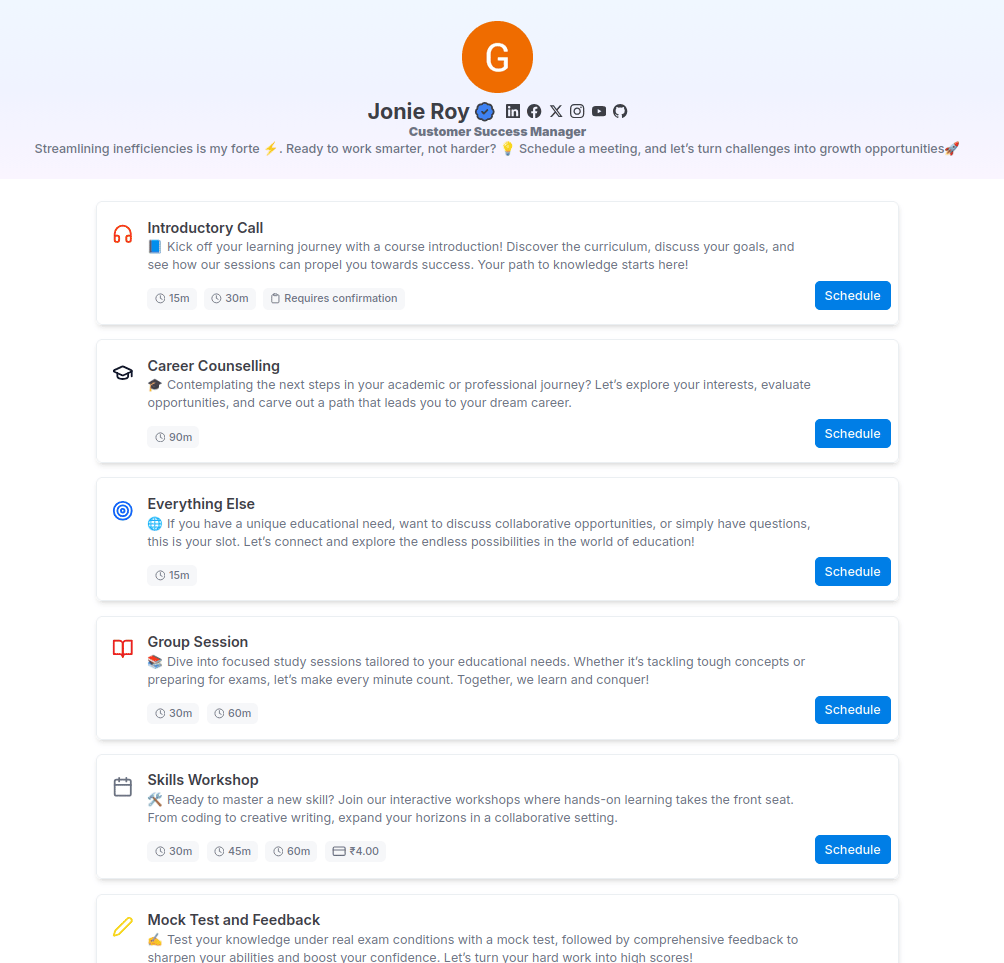
Once enabled and updated, small, professional icons for each platform will appear on your public booking page.
* **Automatic icons**: You don't need to upload icons; Cal ID automatically generates the correct logo for each link you provide.
* **Clickable links**: When a guest clicks an icon, your social profile opens in a new tab, keeping your booking page open in the background.
Click the blue **Update** button at the bottom of the Social profiles box to save your changes.
## Visible changes on your page
Once enabled and updated, small, professional icons for each platform will appear on your public booking page.
* **Automatic icons**: You don't need to upload icons; Cal ID automatically generates the correct logo for each link you provide.
* **Clickable links**: When a guest clicks an icon, your social profile opens in a new tab, keeping your booking page open in the background.
 Only link the profiles that are relevant to your professional brand. If your Instagram is personal, it's best to leave that field blank and only link professional platforms like LinkedIn or GitHub.
## Next steps
See every branding option for your personal booking page.
Add a wide header image to the top of your page.
## Related topics
- [Custom Branding For Personal](/docs/branding/personal.md)
- [Managing Your Cal ID Profile Settings](/docs/settings/profile.md)
- [Public Page Banner](/docs/branding/banner.md)
- [Customize Your Brand Logo and Favicon in Cal ID](/docs/branding/logo-favicon.md)
Only link the profiles that are relevant to your professional brand. If your Instagram is personal, it's best to leave that field blank and only link professional platforms like LinkedIn or GitHub.
## Next steps
See every branding option for your personal booking page.
Add a wide header image to the top of your page.
## Related topics
- [Custom Branding For Personal](/docs/branding/personal.md)
- [Managing Your Cal ID Profile Settings](/docs/settings/profile.md)
- [Public Page Banner](/docs/branding/banner.md)
- [Customize Your Brand Logo and Favicon in Cal ID](/docs/branding/logo-favicon.md)