> ## Documentation Index
> Fetch the complete documentation index at: https://cal.id/docs/llms.txt
> Use this file to discover all available pages before exploring further.
# How to Get Your Cal ID API Key
> Create, secure, and rotate a Cal ID API key so you can connect your scheduling data to external applications and authenticate REST API requests.
The Cal ID API key is a secure credential that connects your scheduling data with external applications, custom websites, or the API docs. It lets different software systems communicate with your Cal ID account safely.
## Create your API key
Log in to your **Cal ID** account, click **Settings**, then scroll the left sidebar to the **Developer** section and click **API Keys**.
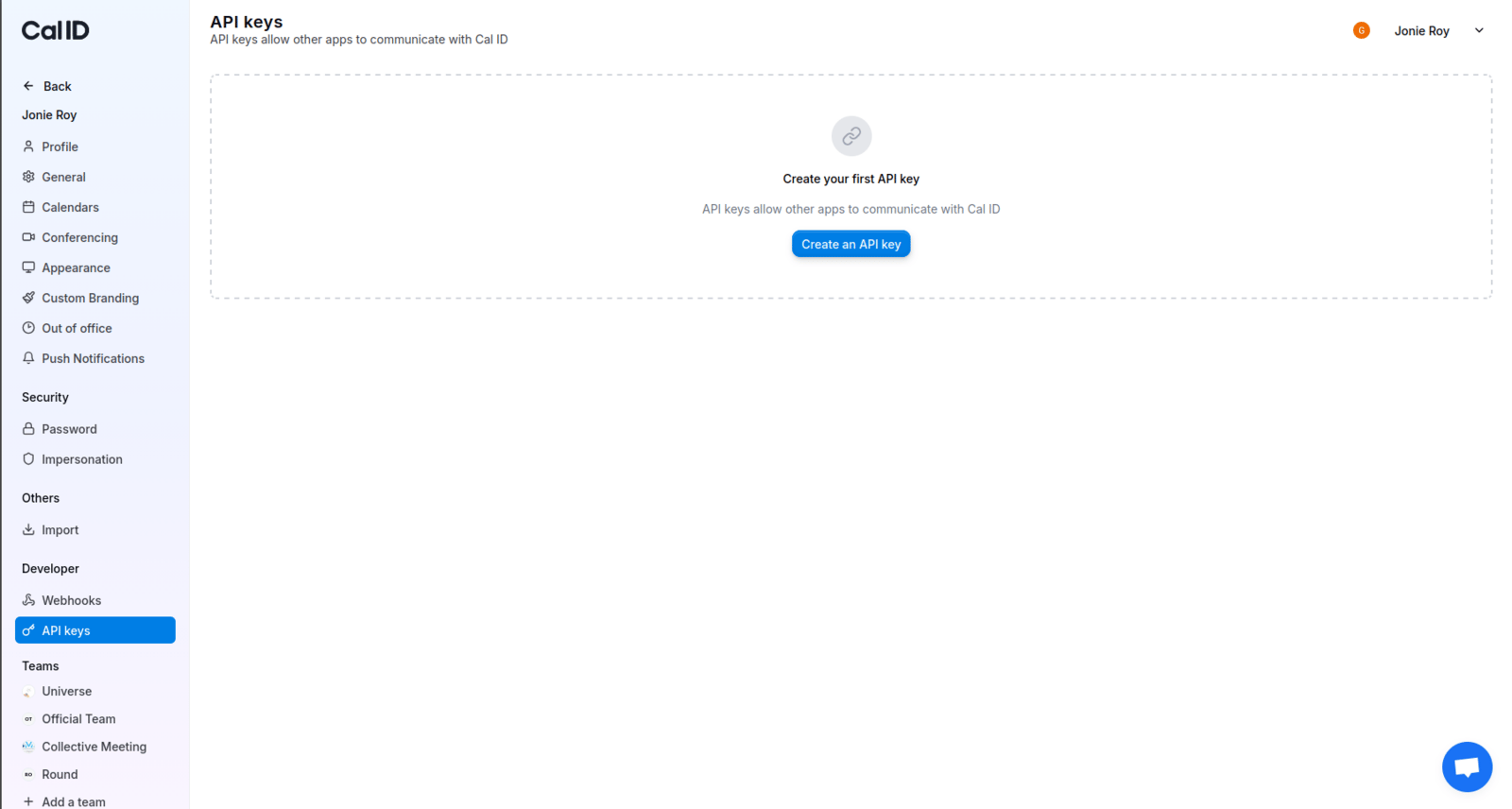 Click **Create an API Key**. A configuration window appears.
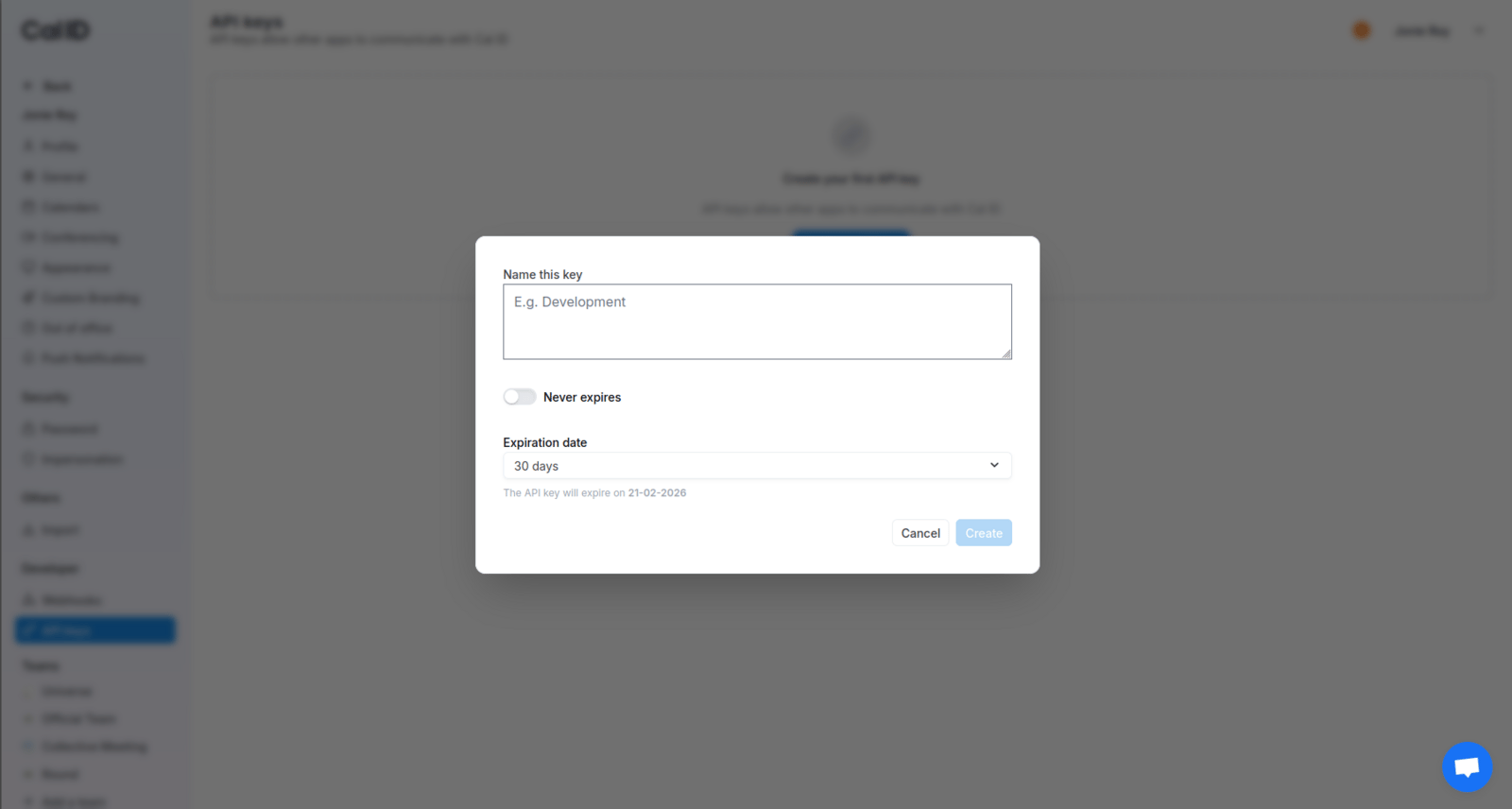 Enter a descriptive name in the **Name this key** field — for example, "My Personal Portfolio" or "Zapier Integration." A clear name makes it easy to tell later which app uses which key.
Decide how long the key stays active.
Switch the **Never expires** toggle **ON**. The key stays active until you manually delete it.
Leave the toggle **OFF**, open the **Expiration date** dropdown, and choose **7 days**, **30 days**, **3 months**, or **1 year**.
Once this date passes, the key expires and the integration stops working until you create a new one.
Click **Create**. Your secret key is shown **once** — click the copy icon and paste it somewhere safe, like a password manager.
For your protection, **Cal ID will never show this key again.** If you close the window without copying it, delete the entry and create a new one.
## Make your first request
Send an authenticated request to the `me` endpoint to confirm your key works — it returns your profile details.
```text theme={null}
GET https://api.cal.id/users/me
```
Here's the same call with `curl`:
```bash theme={null}
curl -X 'GET' \
'https://api.cal.id/users/me' \
-H 'accept: application/json' \
-H 'Authorization: Bearer calid_XXXXXX'
```
Replace `calid_XXXXXX` with your API key.
Prefer to explore interactively? Open the [API Reference](/docs/api-reference/introduction), click **Authorize**, paste your key, and run any endpoint against your live account right from the docs.
## Key security rules
* **Never share** your API key in emails, chat messages, or public code repositories like GitHub.
* **Use separate keys** for different integrations — safer than reusing one key everywhere.
* **Revoke unused keys** from the **API Keys** page with the **Delete** (trash) icon to cut off access instantly.
## Next steps
Authorize once, then try every endpoint against your live account.
A step-by-step recipe for booking through the API.
## Related topics
- [Api Integration](/docs/developers/api-integration.md)
- [Webhook in Cal ID](/docs/developers/webhooks.md)
- [How to Find Your Event Type ID](/docs/developers/event-type-id.md)
- [Integrating Cal ID with Make](/docs/apps/make.md)
Enter a descriptive name in the **Name this key** field — for example, "My Personal Portfolio" or "Zapier Integration." A clear name makes it easy to tell later which app uses which key.
Decide how long the key stays active.
Switch the **Never expires** toggle **ON**. The key stays active until you manually delete it.
Leave the toggle **OFF**, open the **Expiration date** dropdown, and choose **7 days**, **30 days**, **3 months**, or **1 year**.
Once this date passes, the key expires and the integration stops working until you create a new one.
Click **Create**. Your secret key is shown **once** — click the copy icon and paste it somewhere safe, like a password manager.
For your protection, **Cal ID will never show this key again.** If you close the window without copying it, delete the entry and create a new one.
## Make your first request
Send an authenticated request to the `me` endpoint to confirm your key works — it returns your profile details.
```text theme={null}
GET https://api.cal.id/users/me
```
Here's the same call with `curl`:
```bash theme={null}
curl -X 'GET' \
'https://api.cal.id/users/me' \
-H 'accept: application/json' \
-H 'Authorization: Bearer calid_XXXXXX'
```
Replace `calid_XXXXXX` with your API key.
Prefer to explore interactively? Open the [API Reference](/docs/api-reference/introduction), click **Authorize**, paste your key, and run any endpoint against your live account right from the docs.
## Key security rules
* **Never share** your API key in emails, chat messages, or public code repositories like GitHub.
* **Use separate keys** for different integrations — safer than reusing one key everywhere.
* **Revoke unused keys** from the **API Keys** page with the **Delete** (trash) icon to cut off access instantly.
## Next steps
Authorize once, then try every endpoint against your live account.
A step-by-step recipe for booking through the API.
## Related topics
- [Api Integration](/docs/developers/api-integration.md)
- [Webhook in Cal ID](/docs/developers/webhooks.md)
- [How to Find Your Event Type ID](/docs/developers/event-type-id.md)
- [Integrating Cal ID with Make](/docs/apps/make.md)