> ## Documentation Index
> Fetch the complete documentation index at: https://cal.id/docs/llms.txt
> Use this file to discover all available pages before exploring further.
# Add Events to Calendar
> Control which of your connected Google or Outlook calendars stores bookings for a specific event type in Cal ID so meetings land on the right calendar.
Choose exactly which connected calendar stores a specific event type's bookings, so work meetings, side projects, and personal time each land where they belong.
By default, Cal ID adds new bookings to your **Primary** calendar. The **Add Events to Calendar** feature (under the **Advanced** tab) overrides that default per event type, keeping your professional and personal lives cleanly separated.
## Why use "Add Events to Calendar"?
* **Organization:** If you keep separate calendars for "Work," "Side Projects," and "Personal," you can ensure each booking lands exactly where it belongs.
* **Team management:** In a team environment, direct specific event types to a shared team calendar rather than your private one.
* **Visibility:** See your availability at a glance by ensuring your most relevant calendar is the one being populated with new meetings.
## How to set it up
Click on **Event Types** in the left sidebar.
Click the specific event you want to customize.
Click on the **Advanced** tab in the top navigation bar.
Look for the dropdown menu labeled **Add events to calendar**.
Select the specific connected calendar (e.g., Google, Outlook, or Apple) where you want these bookings to appear.
Click the **Save** button at the top right.
## How it works
* **Automatic creation:** Once a guest finishes booking, Cal ID immediately pushes the event details to the calendar you selected.
* **Conflict checking:** Even when you choose a specific calendar to **add** events to, Cal ID still checks **all** your connected calendars for conflicts so you don't get double-booked.
* **Independence:** Changing this setting for one event type (like "Project Kickoff") will not affect where your other event types (like "Quick Chat") are stored.
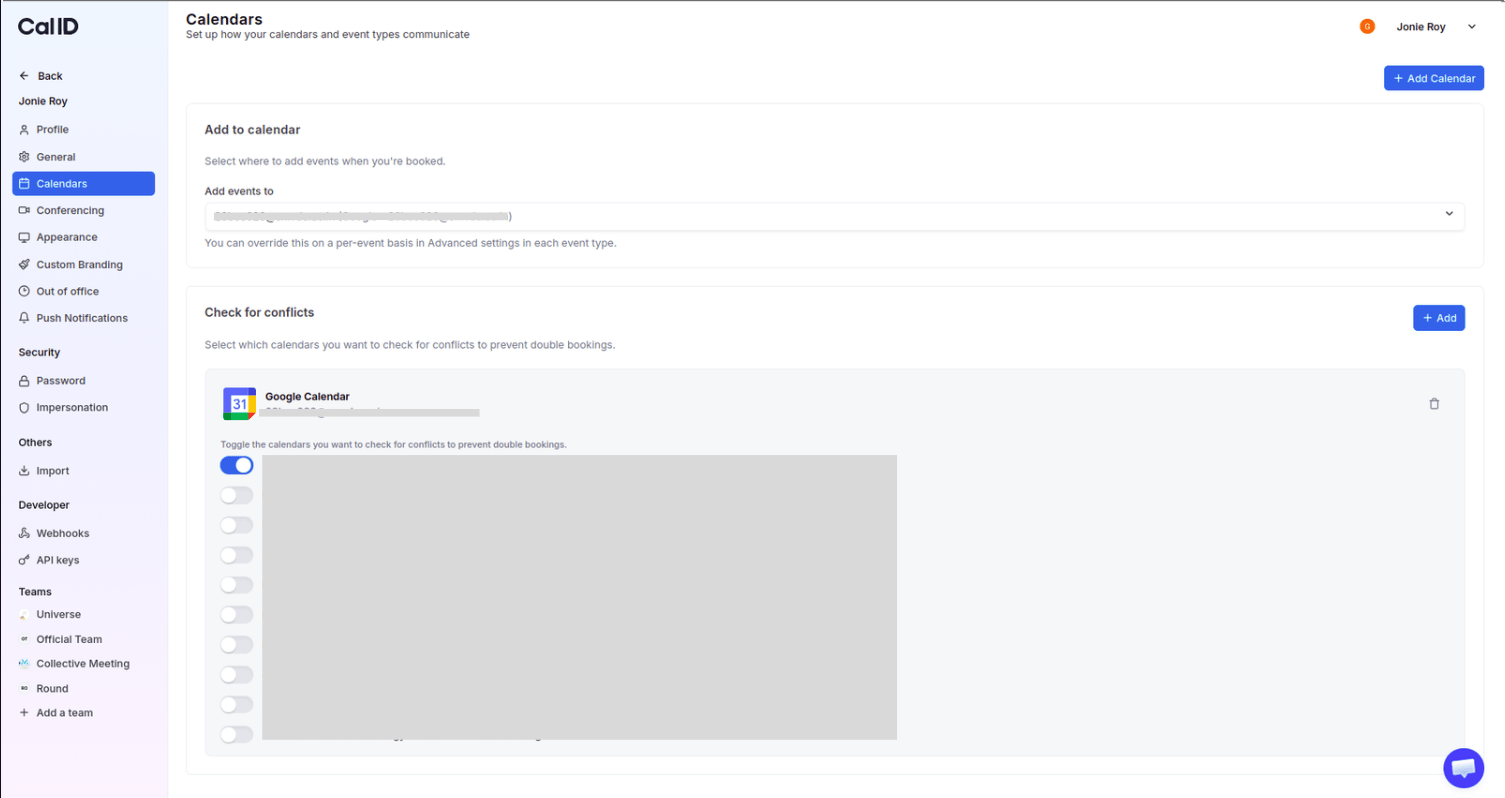
To set a global default for **all** event types, head to your **`/settings/calendars`**. From there, you can choose one primary calendar that's used whenever an event-specific one isn't chosen.
 ## Related topics
- [Disable Default Attendee Confirmation Emails in Cal ID](/docs/event-types/advanced/disable-confirmation-emails.md)
- [Hide Calendar Event details on Shared Calendars](/docs/event-types/advanced/hide-calendar-details.md)
- [Booking Success URL](/docs/event-types/advanced/success-url.md)
- [How to Set Up Requires Confirmation for a Booking?](/docs/event-types/advanced/requires-confirmation.md)
## Related topics
- [Disable Default Attendee Confirmation Emails in Cal ID](/docs/event-types/advanced/disable-confirmation-emails.md)
- [Hide Calendar Event details on Shared Calendars](/docs/event-types/advanced/hide-calendar-details.md)
- [Booking Success URL](/docs/event-types/advanced/success-url.md)
- [How to Set Up Requires Confirmation for a Booking?](/docs/event-types/advanced/requires-confirmation.md)