> ## Documentation Index
> Fetch the complete documentation index at: https://cal.id/docs/llms.txt
> Use this file to discover all available pages before exploring further.
# Attendee Calendar Invite Status
> Decide whether Cal ID adds attendees to the calendar invitation as already accepted or asks them to respond to it first.
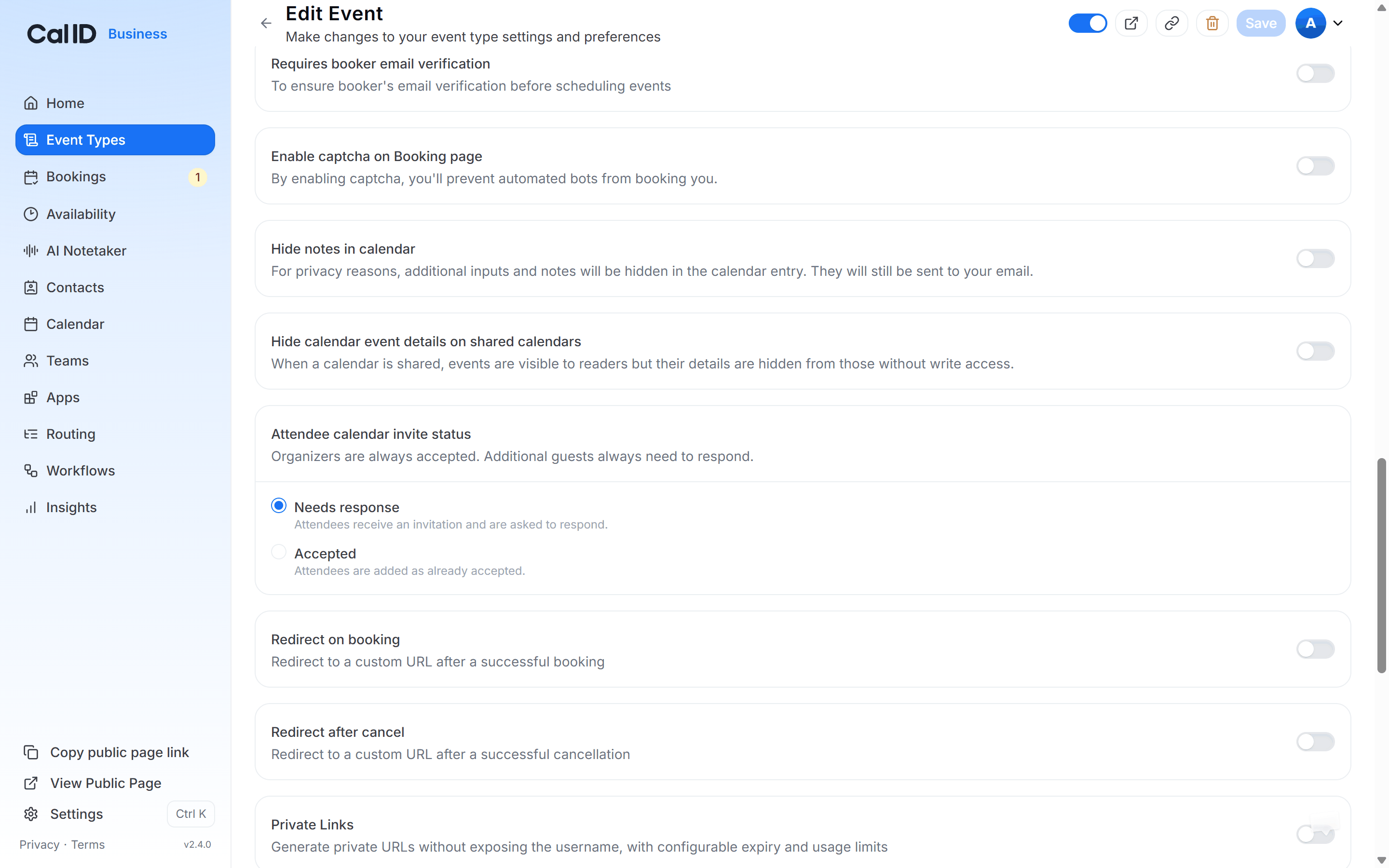
The **Attendee calendar invite status** setting controls how attendees appear on the calendar invitation for an event type. You either ask them to respond to the invite, or add them as already accepted so they have nothing to click.
This setting is about the calendar invitation only. It does not decide whether the booking itself is confirmed, pending, or cancelled.
## Where to find the setting
Open the event type, go to the **Advanced** tab, and look for **Attendee calendar invite status**.
**Path:** **Event Type → Advanced → Attendee calendar invite status**
 ## Needs response
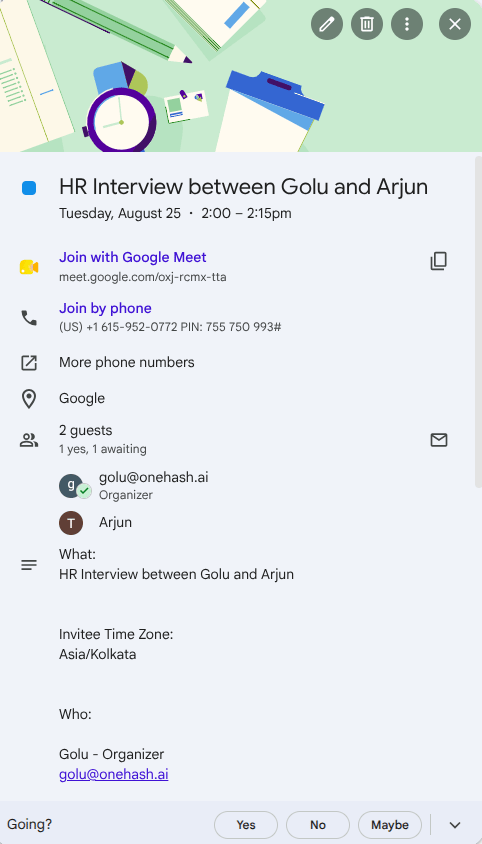
With **Needs response** selected, the attendee receives a calendar invitation that asks for a reply. They can accept, mark it as maybe, or decline from their own calendar application.
What happens:
* The attendee receives a calendar invitation.
* The invitation starts out requiring a response.
* The attendee is expected to respond.
* The organizer is unaffected and stays accepted.
For example, if a customer books an event set to **Needs response**, they receive the invitation and choose whether to accept or decline it.
## Needs response
With **Needs response** selected, the attendee receives a calendar invitation that asks for a reply. They can accept, mark it as maybe, or decline from their own calendar application.
What happens:
* The attendee receives a calendar invitation.
* The invitation starts out requiring a response.
* The attendee is expected to respond.
* The organizer is unaffected and stays accepted.
For example, if a customer books an event set to **Needs response**, they receive the invitation and choose whether to accept or decline it.
 Choose this option when you want attendees to confirm explicitly that they will attend.
## Accepted
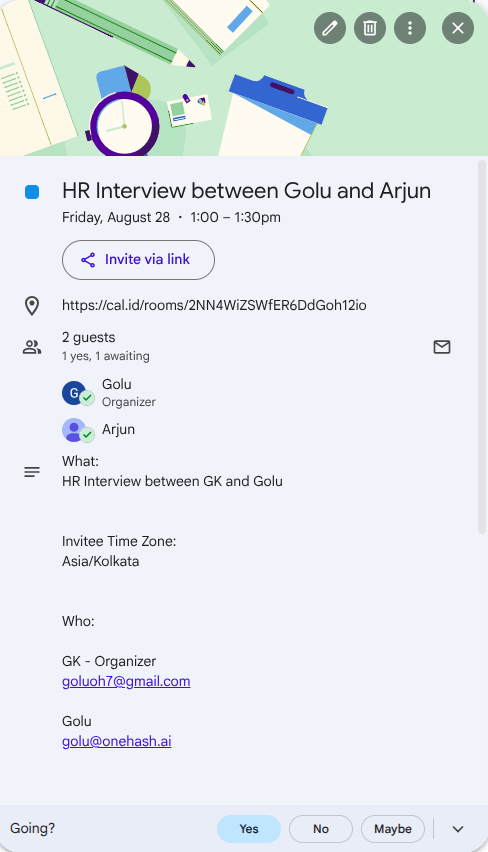
With **Accepted** selected, the attendee is added to the calendar as already accepted. There is no invitation to act on.
What happens:
* The attendee is added to the calendar as accepted.
* The attendee does not need to respond.
* The organizer is accepted, as always.
* Additional guests still need to respond.
For example, if a customer books an event set to **Accepted**, they are added to the calendar as an accepted attendee automatically.
Choose this option when you want attendees to confirm explicitly that they will attend.
## Accepted
With **Accepted** selected, the attendee is added to the calendar as already accepted. There is no invitation to act on.
What happens:
* The attendee is added to the calendar as accepted.
* The attendee does not need to respond.
* The organizer is accepted, as always.
* Additional guests still need to respond.
For example, if a customer books an event set to **Accepted**, they are added to the calendar as an accepted attendee automatically.
 Choose this option when attendees should count as confirmed on the calendar without any manual step.
## Organizers and additional guests
Two roles sit outside this setting entirely.
* **Organizers are always accepted**, whichever option you pick. Changing the setting does not change the organizer's status.
* **Additional guests always need to respond.** If an attendee invites other guests to the event, those guests are not marked as accepted by this setting and must respond to their own calendar invitations.
## Needs response vs. Accepted
| Role or setting | Status on the calendar | Response needed? |
| --------------------- | ---------------------------------------------- | ---------------- |
| **Needs response** | Invitation is sent and a response is requested | Yes |
| **Accepted** | Attendee is added as accepted | No |
| **Organizer** | Always accepted | No |
| **Additional guests** | Response required | Yes |
This setting controls the attendee's calendar invitation status only. It does not mean the booking itself is cancelled, pending, or confirmed — check **Bookings** for the booking's real state.
## Common questions
**Needs response** asks the attendee to respond to the calendar invitation. **Accepted** adds the attendee to the calendar as accepted, with nothing for them to click.
No. Organizers are always accepted, regardless of which option you select.
Yes. Additional guests always need to respond, whether the event type is set to **Needs response** or **Accepted**.
No. With **Accepted** selected, the attendee is already added as accepted.
No. It controls the attendee's calendar invitation status, not the booking's status.
## Related invite and calendar settings
Choose which connected calendar receives the bookings for this event type.
Connect Google Calendar so invitations and RSVPs sync both ways.
Check attendee information and the booking's actual status.
Control what attendees can change after they book.
## Related topics
- [Add Events to Calendar](/docs/event-types/advanced/add-to-calendar.md)
- [Connect Google Calendar](/docs/apps/google-calendar.md)
- [View Booking Details](/docs/bookings/view-details.md)
- [Disable Rescheduling and Cancelling](/docs/event-types/advanced/disable-reschedule-cancel.md)
Choose this option when attendees should count as confirmed on the calendar without any manual step.
## Organizers and additional guests
Two roles sit outside this setting entirely.
* **Organizers are always accepted**, whichever option you pick. Changing the setting does not change the organizer's status.
* **Additional guests always need to respond.** If an attendee invites other guests to the event, those guests are not marked as accepted by this setting and must respond to their own calendar invitations.
## Needs response vs. Accepted
| Role or setting | Status on the calendar | Response needed? |
| --------------------- | ---------------------------------------------- | ---------------- |
| **Needs response** | Invitation is sent and a response is requested | Yes |
| **Accepted** | Attendee is added as accepted | No |
| **Organizer** | Always accepted | No |
| **Additional guests** | Response required | Yes |
This setting controls the attendee's calendar invitation status only. It does not mean the booking itself is cancelled, pending, or confirmed — check **Bookings** for the booking's real state.
## Common questions
**Needs response** asks the attendee to respond to the calendar invitation. **Accepted** adds the attendee to the calendar as accepted, with nothing for them to click.
No. Organizers are always accepted, regardless of which option you select.
Yes. Additional guests always need to respond, whether the event type is set to **Needs response** or **Accepted**.
No. With **Accepted** selected, the attendee is already added as accepted.
No. It controls the attendee's calendar invitation status, not the booking's status.
## Related invite and calendar settings
Choose which connected calendar receives the bookings for this event type.
Connect Google Calendar so invitations and RSVPs sync both ways.
Check attendee information and the booking's actual status.
Control what attendees can change after they book.
## Related topics
- [Add Events to Calendar](/docs/event-types/advanced/add-to-calendar.md)
- [Connect Google Calendar](/docs/apps/google-calendar.md)
- [View Booking Details](/docs/bookings/view-details.md)
- [Disable Rescheduling and Cancelling](/docs/event-types/advanced/disable-reschedule-cancel.md)