> ## Documentation Index
> Fetch the complete documentation index at: https://cal.id/docs/llms.txt
> Use this file to discover all available pages before exploring further.
# Custom 'Reply-To' Email
> Redirect guest replies to Cal ID booking emails to a specific inbox per event type so responses always reach the right team or shared address.
Route guest replies to the inbox of your choice, per event type. In [**Cal ID**](https://cal.id/home), the **Custom 'Reply-To' email** feature changes where a guest's reply lands. By default, replies to a booking confirmation or reminder go to the organizer's primary account email; this setting sends them somewhere else instead.
## Why use a custom 'Reply-To' email?
* **Centralize Communication:** If you use a personal email for your Cal ID account but want all client replies to go to a team inbox (e.g., `support@company.com`), this feature automates that routing.
* **Delegation:** It allows administrative assistants or support staff to handle follow-up questions without the guest ever needing your direct, personal email address.
* **Professionalism:** It ensures that the "Reply-To" address matches your business domain or specific department, providing a more cohesive brand experience.
* **Inbox Management:** Keeps your primary calendar-syncing email clean by filtering guest questions into a dedicated workspace or CRM.
## How to set it up
Login to your [**Cal ID**](https://cal.id/home) account.
Go to the **Event Types** tab in the left sidebar and select the specific event you wish to modify.
Click on the **Advanced** tab in the top navigation bar.
Scroll to the bottom of the advanced options to find **Custom 'Reply-To' email**.
* Switch the toggle to **ON**.
* Enter the specific email address where you want all guest replies to be sent.
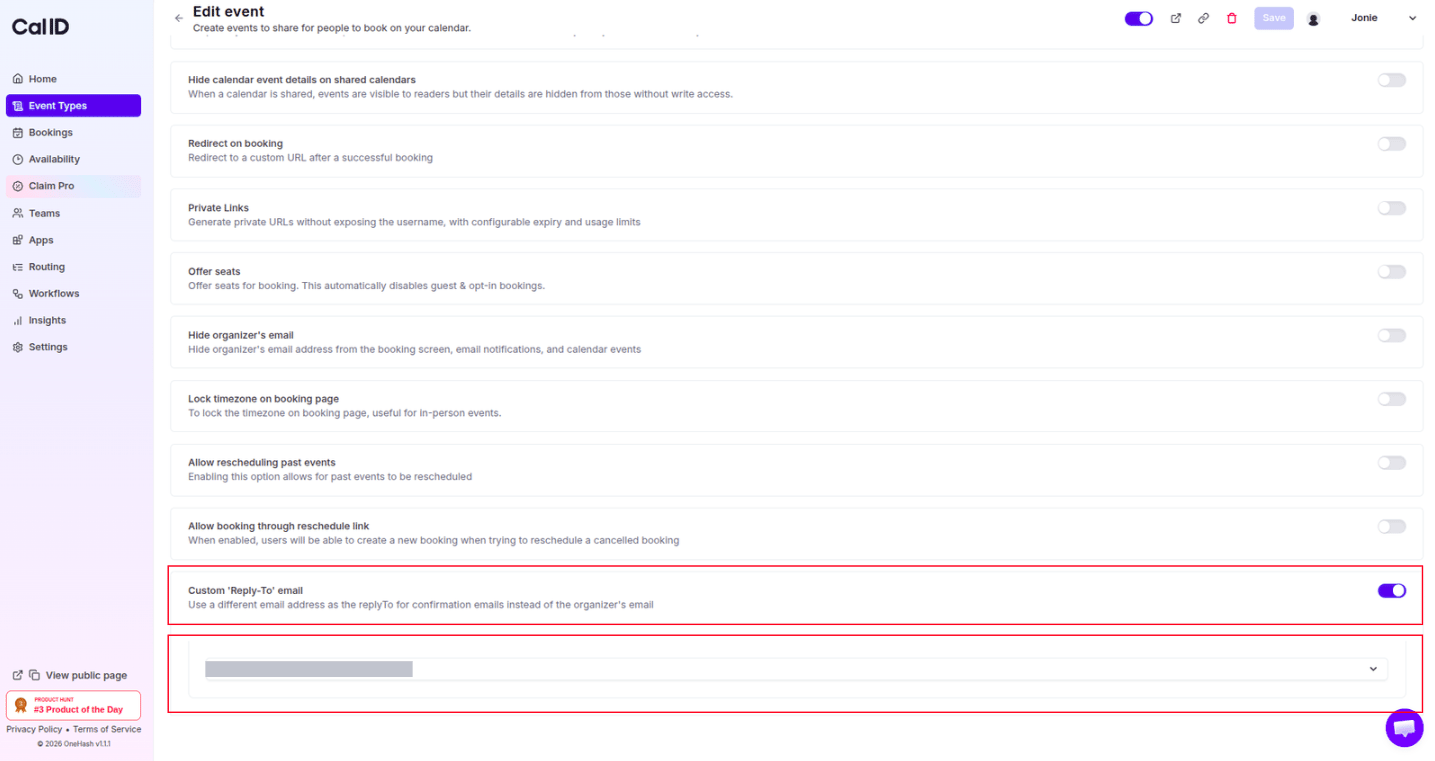 Click the blue **Save** button at the top right.
## How it works for the booker
* **Automated Emails:** When the guest receives their confirmation, reminder, or rescheduling email, the technical "From" address remains the Cal ID system, but the "Reply-To" header is updated.
* **Seamless Replying:** If the guest clicks "Reply" in their email client, your custom address will automatically populate in the "To" field.
* **Direct Routing:** The email is sent directly to your specified custom inbox, bypassing your primary Cal ID account email entirely.
This setting is event-specific. You can have your "Discovery Calls" reply to your sales team, while your "Technical Support" sessions reply to your help desk. If this is disabled, all replies will default to the email address associated with your Cal ID profile.
## Next steps
Keep your personal address off booking emails while still receiving replies.
Control which automated emails guests receive for this event type.
## Related topics
- [Disable Default Attendee Confirmation Emails in Cal ID](/docs/event-types/advanced/disable-confirmation-emails.md)
- [Hide Organizer's Email](/docs/event-types/advanced/hide-organizer-email.md)
- [Custom Event Name in Booking](/docs/event-types/advanced/custom-event-name.md)
- [Add Events to Calendar](/docs/event-types/advanced/add-to-calendar.md)
Click the blue **Save** button at the top right.
## How it works for the booker
* **Automated Emails:** When the guest receives their confirmation, reminder, or rescheduling email, the technical "From" address remains the Cal ID system, but the "Reply-To" header is updated.
* **Seamless Replying:** If the guest clicks "Reply" in their email client, your custom address will automatically populate in the "To" field.
* **Direct Routing:** The email is sent directly to your specified custom inbox, bypassing your primary Cal ID account email entirely.
This setting is event-specific. You can have your "Discovery Calls" reply to your sales team, while your "Technical Support" sessions reply to your help desk. If this is disabled, all replies will default to the email address associated with your Cal ID profile.
## Next steps
Keep your personal address off booking emails while still receiving replies.
Control which automated emails guests receive for this event type.
## Related topics
- [Disable Default Attendee Confirmation Emails in Cal ID](/docs/event-types/advanced/disable-confirmation-emails.md)
- [Hide Organizer's Email](/docs/event-types/advanced/hide-organizer-email.md)
- [Custom Event Name in Booking](/docs/event-types/advanced/custom-event-name.md)
- [Add Events to Calendar](/docs/event-types/advanced/add-to-calendar.md)