> ## Documentation Index
> Fetch the complete documentation index at: https://cal.id/docs/llms.txt
> Use this file to discover all available pages before exploring further.
# Disable Default Attendee Confirmation Emails in Cal ID
> Turn off Cal ID's default attendee confirmation email for an event type so you can send fully personalized confirmations from a custom workflow.
Turn off Cal ID's automatic attendee confirmation email for an event type so you can send your own personalized confirmation from a custom **Workflow** instead.
By default, Cal ID sends an automatic confirmation email to attendees once they successfully book a meeting. Disabling it hands that job over to a Workflow you control.
This toggle only becomes available once at least one active workflow on this event type sends a booking confirmation to attendees. Set up that replacement workflow first — otherwise your bookers would receive no confirmation at all.
## Steps to disable default confirmation emails
Navigate to your [**Event Types**](https://cal.id/event-types) dashboard and click the **Edit** icon on the specific event you wish to modify.
Click on the **Advanced** tab at the top of the event configuration screen.
Scroll to the bottom of the page to find **Disable default confirmation emails for attendees**.
Click the toggle switch to the right of the setting to enable it.
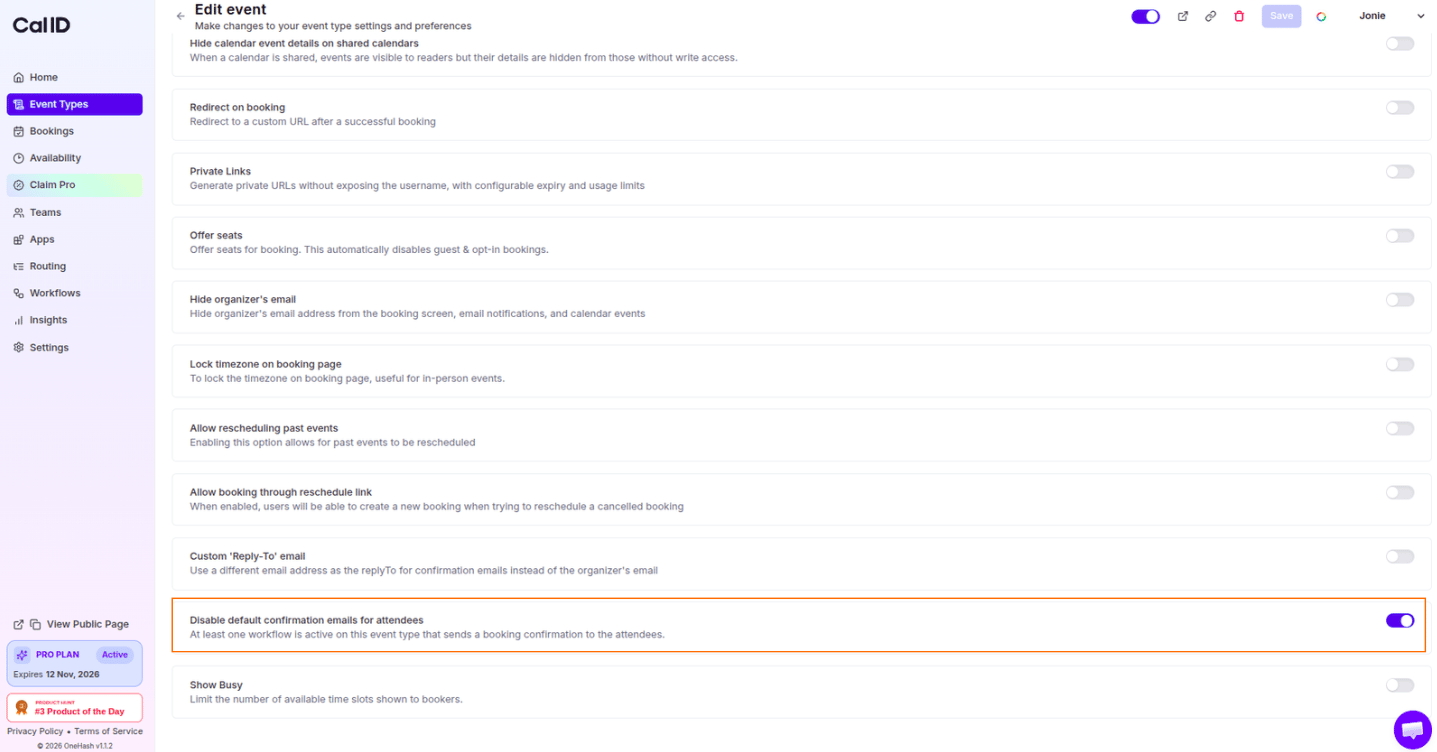 Click the **Save** button in the top right corner to apply your changes.
With the default email off, your active workflow is now the only confirmation attendees receive. Send yourself a test booking to confirm it delivers as expected.
## Related topics
- [Add Events to Calendar](/docs/event-types/advanced/add-to-calendar.md)
- [Custom 'Reply-To' Email](/docs/event-types/advanced/custom-reply-to.md)
- [How to Set Up Requires Confirmation for a Booking?](/docs/event-types/advanced/requires-confirmation.md)
- [Hide Organizer's Email](/docs/event-types/advanced/hide-organizer-email.md)
Click the **Save** button in the top right corner to apply your changes.
With the default email off, your active workflow is now the only confirmation attendees receive. Send yourself a test booking to confirm it delivers as expected.
## Related topics
- [Add Events to Calendar](/docs/event-types/advanced/add-to-calendar.md)
- [Custom 'Reply-To' Email](/docs/event-types/advanced/custom-reply-to.md)
- [How to Set Up Requires Confirmation for a Booking?](/docs/event-types/advanced/requires-confirmation.md)
- [Hide Organizer's Email](/docs/event-types/advanced/hide-organizer-email.md)