> ## Documentation Index
> Fetch the complete documentation index at: https://cal.id/docs/llms.txt
> Use this file to discover all available pages before exploring further.
# Hide Organizer's Email
> Keep your email address off calendar invites and confirmation emails in Cal ID while still facilitating bookings and delivering meeting details.
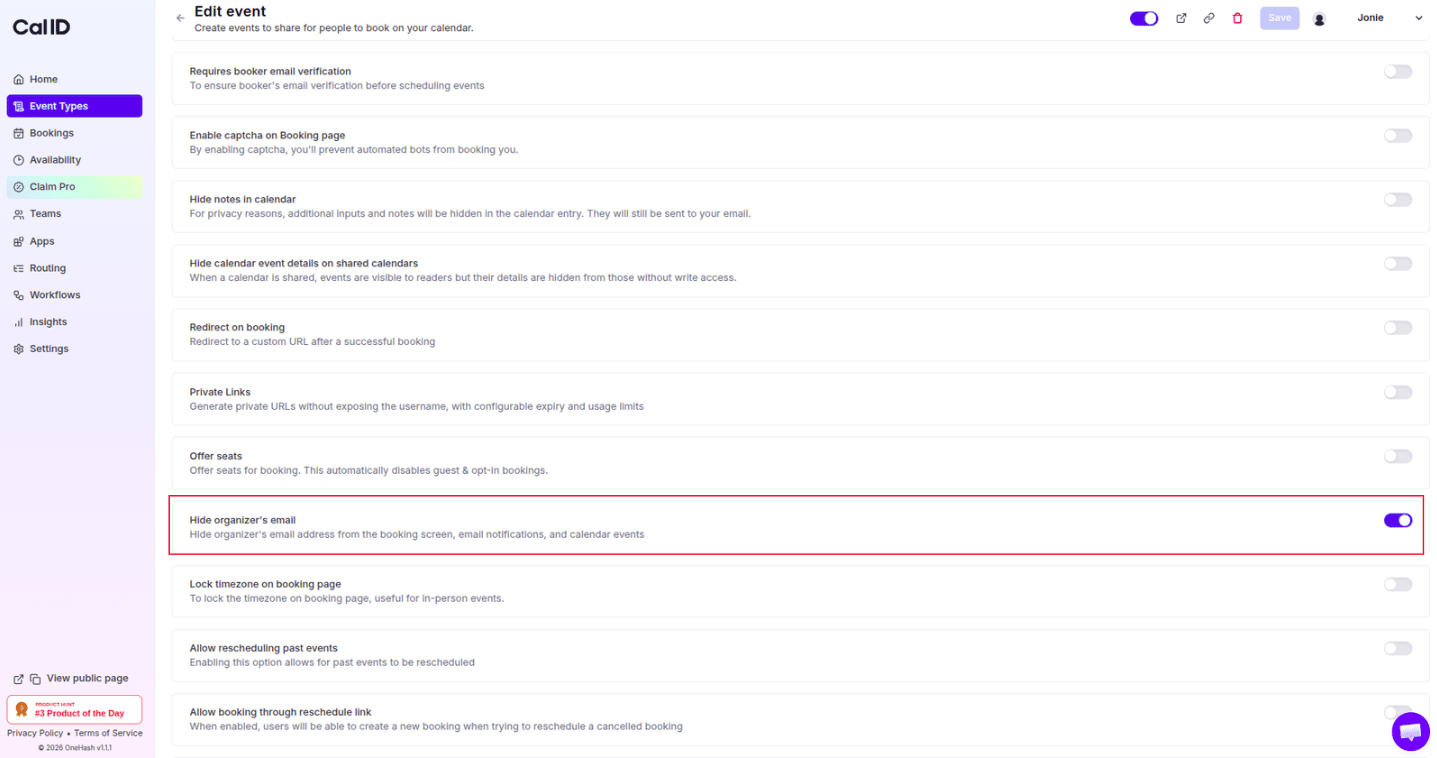
Facilitate bookings without exposing your personal or business email. In [**Cal ID**](https://cal.id/home), the **Hide organizer's email** feature is a privacy-focused setting that keeps your primary contact information secure while still sending calendar invites and meeting details to attendees.
## Why use "Hide organizer's email"?
* **Maintain privacy:** Ideal for public figures, high-level executives, or anyone using a personal email address for business who doesn't want their inbox address widely distributed.
* **Prevent unsolicited follow-ups:** Hiding your email encourages guests to use official channels (like your website or support desk) for follow-up questions rather than emailing you directly.
* **Brand consistency:** For organizations, this keeps the focus on the "Event" or the "Team" rather than an individual person's email address.
* **Reduce spam:** Keeping your email off calendar invites prevents it from being scraped or added to marketing lists by external parties.
## How to set it up
Log in to your [**Cal ID**](https://cal.id/home) account.
Go to the **Event Types** tab in the left sidebar and select the specific event you wish to modify.
Click on the **Advanced** tab in the top navigation bar.
Scroll down to the privacy section and locate **Hide organizer's email**.
Switch the toggle to **ON**.
Click the blue **Save** button at the top right to finalize the change.
 ## How it works for the booker
* **The calendar invite:** On the guest's calendar (Google, Outlook, etc.), the "Organizer" field typically shows your **Display Name** only, or a generic "no-reply" system address, rather than your actual email address.
* **The confirmation email:** The "From" address on the automated confirmation email is masked or replaced by Cal ID's system email.
* **Booking details:** Your email address is omitted from the booking summary page the guest sees after they finish scheduling.
This feature hides your email on the invite and confirmation page only. If you reply to an automated notification or send a manual email to the guest later, your email address will be visible — the setting is strictly for the **initial booking and automated calendar artifacts**. Also make sure your **Display Name** is set correctly in your account settings, since that is the primary way guests will identify you.
## Related topics
- [Hide Calendar Event details on Shared Calendars](/docs/event-types/advanced/hide-calendar-details.md)
- [Hide Notes in Calendar](/docs/event-types/advanced/hide-notes.md)
- [Custom 'Reply-To' Email](/docs/event-types/advanced/custom-reply-to.md)
- [Disable Default Attendee Confirmation Emails in Cal ID](/docs/event-types/advanced/disable-confirmation-emails.md)
## How it works for the booker
* **The calendar invite:** On the guest's calendar (Google, Outlook, etc.), the "Organizer" field typically shows your **Display Name** only, or a generic "no-reply" system address, rather than your actual email address.
* **The confirmation email:** The "From" address on the automated confirmation email is masked or replaced by Cal ID's system email.
* **Booking details:** Your email address is omitted from the booking summary page the guest sees after they finish scheduling.
This feature hides your email on the invite and confirmation page only. If you reply to an automated notification or send a manual email to the guest later, your email address will be visible — the setting is strictly for the **initial booking and automated calendar artifacts**. Also make sure your **Display Name** is set correctly in your account settings, since that is the primary way guests will identify you.
## Related topics
- [Hide Calendar Event details on Shared Calendars](/docs/event-types/advanced/hide-calendar-details.md)
- [Hide Notes in Calendar](/docs/event-types/advanced/hide-notes.md)
- [Custom 'Reply-To' Email](/docs/event-types/advanced/custom-reply-to.md)
- [Disable Default Attendee Confirmation Emails in Cal ID](/docs/event-types/advanced/disable-confirmation-emails.md)