> ## Documentation Index
> Fetch the complete documentation index at: https://cal.id/docs/llms.txt
> Use this file to discover all available pages before exploring further.
# Lock Timezone On Booking Page
> Fix your Cal ID booking page to a specific timezone for in-person events, fixed-time webinars, and situations where a timezone selector confuses guests.
Lock your **Cal ID** booking page to one fixed timezone so every guest sees the same "master" clock, no matter where they are booking from. It's the essential setting for events tied to a physical location or a fixed broadcast time.
By default, scheduling platforms translate your availability into the booker's local time. Enabling **Lock timezone on booking page** stops that translation and keeps the display fixed to the timezone you choose.
Reach for this feature when the event happens at a specific place or a fixed moment: in-person workshops, destination tours, and live-streamed webinars. For purely virtual events where each guest joins from their own location, leave it off so times show in their local timezone.
## Why use "Lock Timezone"?
* **In-Person Events:** If you are hosting a workshop in London, it starts at 10:00 AM GMT regardless of where the person booking is currently located. Locking the timezone prevents confusion.
* **Travel and Tours:** For business owners in the travel industry, guests often book from a different timezone but need to see the "local" time of the destination.
* **Fixed Broadcasts:** If you are running a live stream at a set time in a specific region, locking the timezone ensures everyone refers to the same "master" clock.
## How to set it up
Click on **Event Types** in the left sidebar.
Click on the specific event you want to lock.
Click on the **Advanced** tab in the top navigation bar.
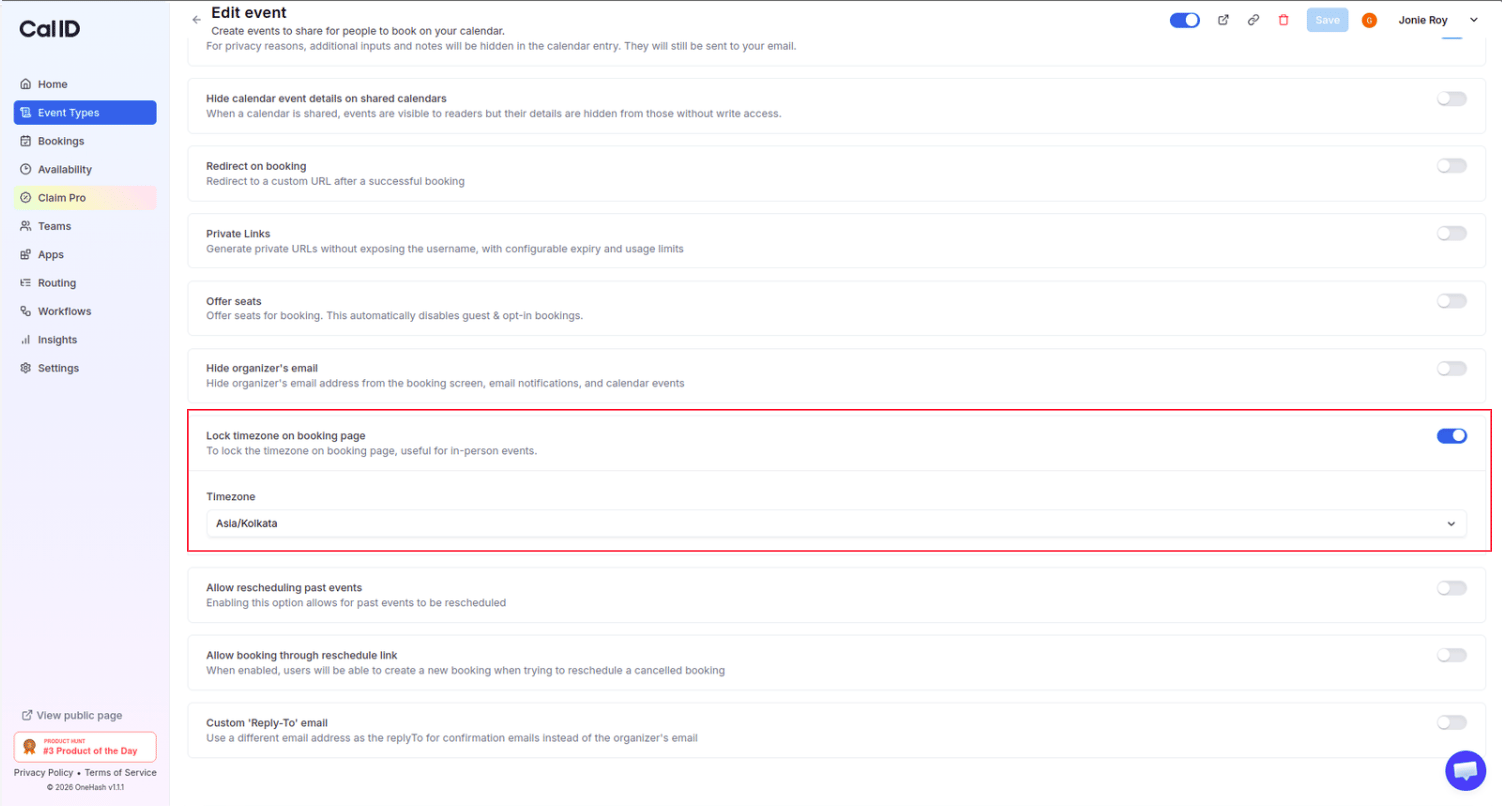
Locate the **Lock timezone on booking page** option.
Switch the toggle to **ON**.
Choose the timezone you want to lock the booking page to.
Click the **Save** button at the top right.
 ## How it works for the booker
* **Standard Behavior:** A guest in New York booking a meeting with someone in London (5 hours ahead) would see "9:00 AM" for a 2:00 PM GMT slot.
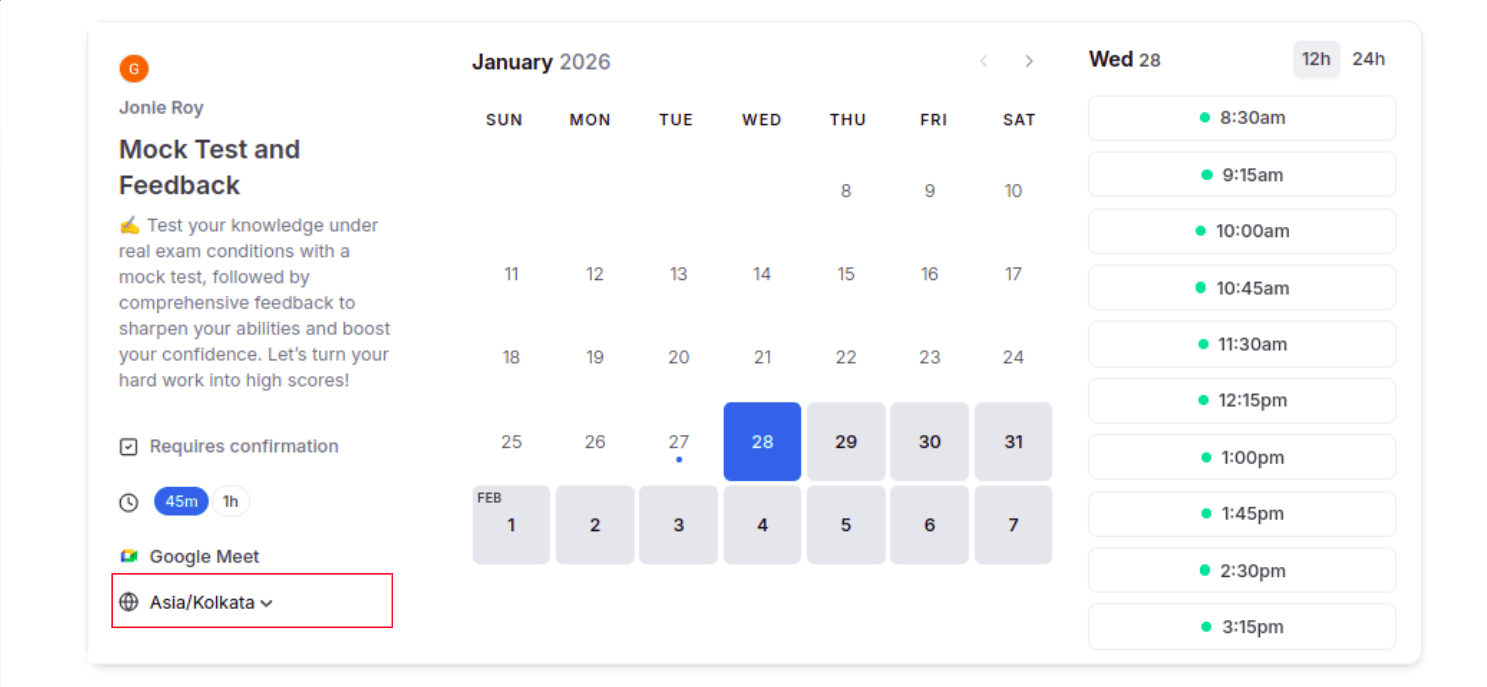
* **Locked Behavior:** With the timezone locked to GMT, the guest in New York will see "2:00 PM" on the calendar, with a clear indication that the time is in **GMT**.
* **Clarity:** It effectively tells the guest: "This event happens at this specific time in this specific place."
## How it works for the booker
* **Standard Behavior:** A guest in New York booking a meeting with someone in London (5 hours ahead) would see "9:00 AM" for a 2:00 PM GMT slot.
* **Locked Behavior:** With the timezone locked to GMT, the guest in New York will see "2:00 PM" on the calendar, with a clear indication that the time is in **GMT**.
* **Clarity:** It effectively tells the guest: "This event happens at this specific time in this specific place."
 If you have multiple event types where some are virtual (needs local timezone) and some are in-person (needs locked timezone), make sure to check this setting individually for each event. This is an event-level setting, not a global one!
## Next steps
Pair a locked timezone with a physical address so guests know exactly where and when to show up.
Keep the reschedule link working even after a fixed-time event has passed.
## Related topics
- [Set Event Location](/docs/event-types/setup/location.md)
- [Allow Rescheduling Past Events](/docs/event-types/advanced/reschedule-past.md)
- [Custom Event Name in Booking](/docs/event-types/advanced/custom-event-name.md)
- [Add Events to Calendar](/docs/event-types/advanced/add-to-calendar.md)
If you have multiple event types where some are virtual (needs local timezone) and some are in-person (needs locked timezone), make sure to check this setting individually for each event. This is an event-level setting, not a global one!
## Next steps
Pair a locked timezone with a physical address so guests know exactly where and when to show up.
Keep the reschedule link working even after a fixed-time event has passed.
## Related topics
- [Set Event Location](/docs/event-types/setup/location.md)
- [Allow Rescheduling Past Events](/docs/event-types/advanced/reschedule-past.md)
- [Custom Event Name in Booking](/docs/event-types/advanced/custom-event-name.md)
- [Add Events to Calendar](/docs/event-types/advanced/add-to-calendar.md)