> ## Documentation Index
> Fetch the complete documentation index at: https://cal.id/docs/llms.txt
> Use this file to discover all available pages before exploring further.
# Limiting Availability with the "Look Busy" Feature
> Use the Look Busy feature in Cal ID to show only a percentage of your open slots on the booking page to manage meeting load and create urgency.
Show bookers only a percentage of your real open slots. The **Look Busy** feature hides part of your availability to create a sense of urgency and manage your meeting load, without changing your actual schedule.
## Steps to enable and configure "Look Busy"
From your main dashboard, click the [**Event Types**](https://cal.id/event-types) tab in the left-hand sidebar.
Find the event type you want to modify, click the three dots, and choose **Edit**.
In the top navigation menu of the event editor, click on the **Advanced** tab.
Scroll down to locate **Look Busy** and switch the toggle to the **ON** position.
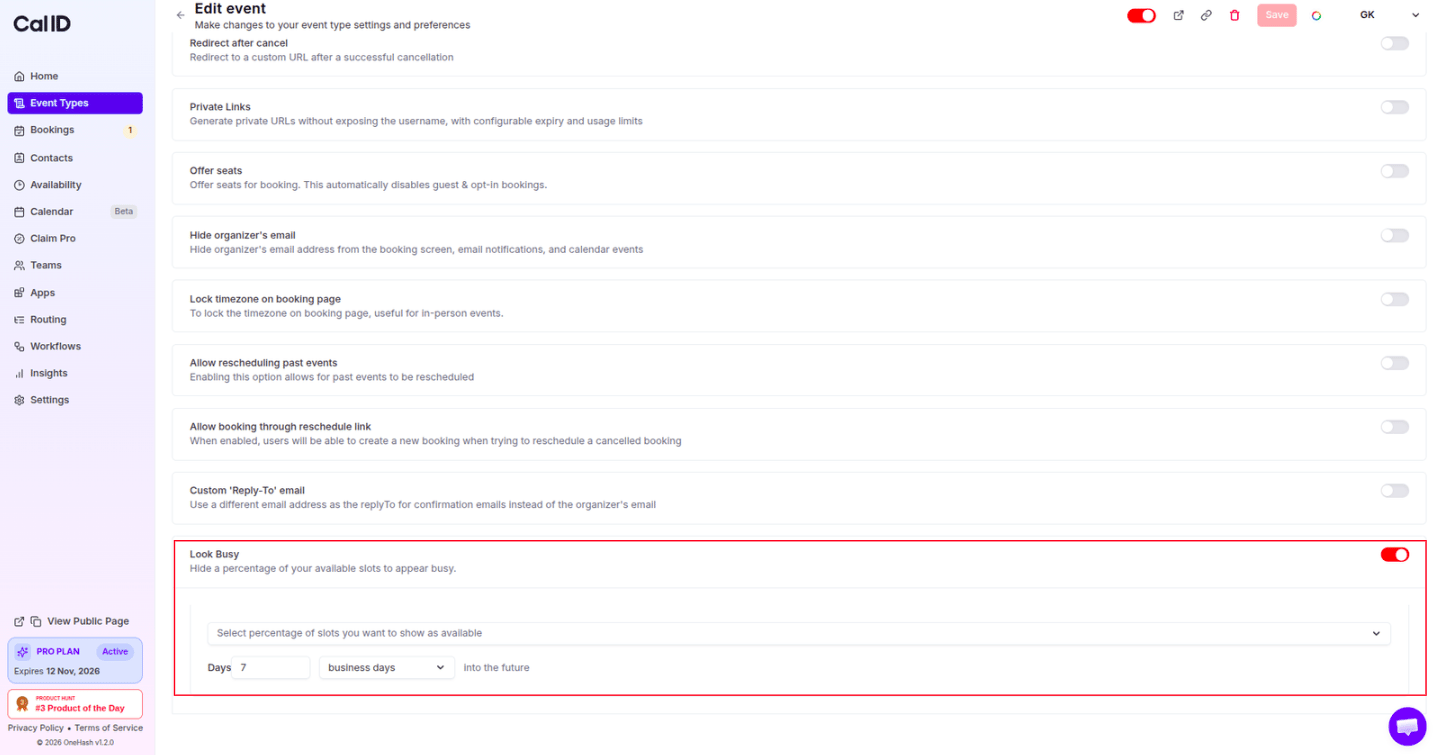 Set how much availability bookers can see:
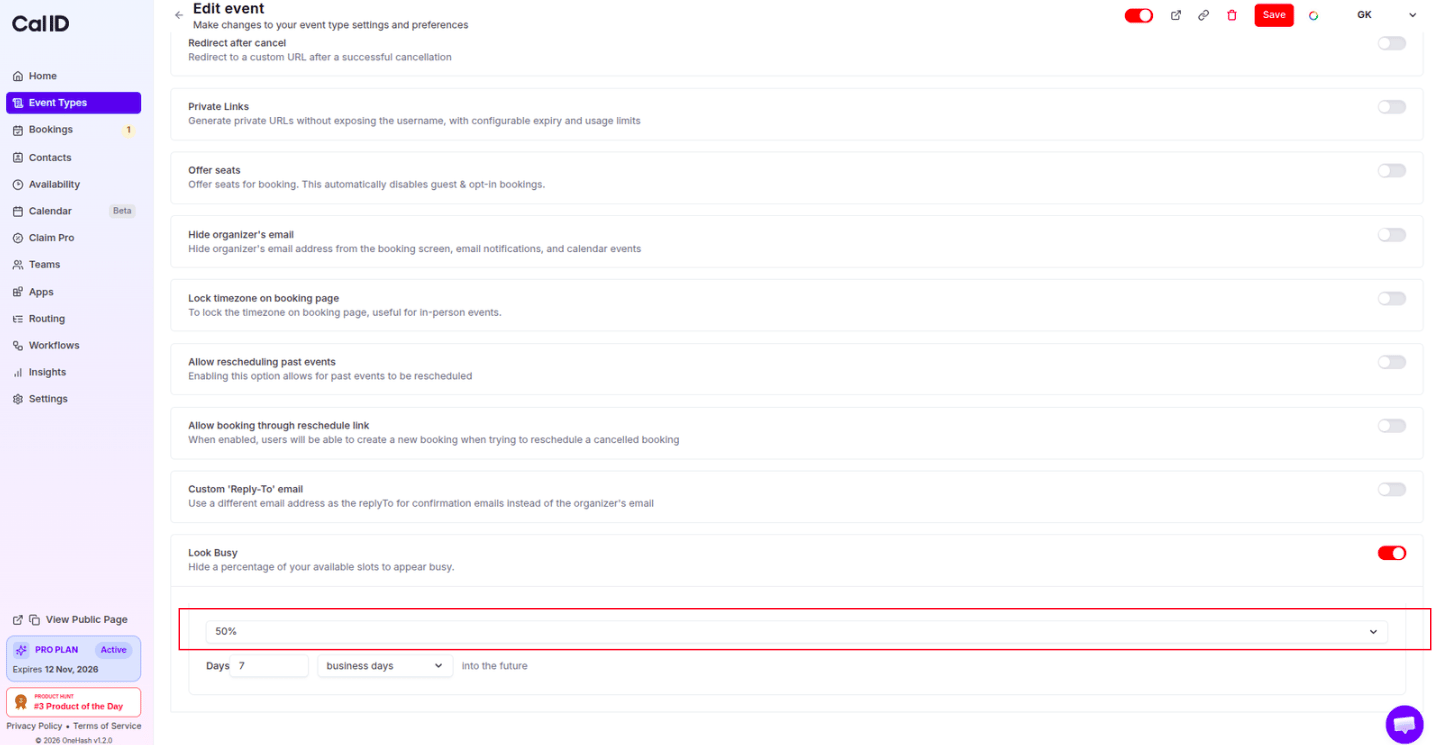
* **Percentage of slots:** Use the dropdown to select the percentage of your total available slots to make visible (e.g., set to 50% to hide half of your available times).
Set how much availability bookers can see:
* **Percentage of slots:** Use the dropdown to select the percentage of your total available slots to make visible (e.g., set to 50% to hide half of your available times).
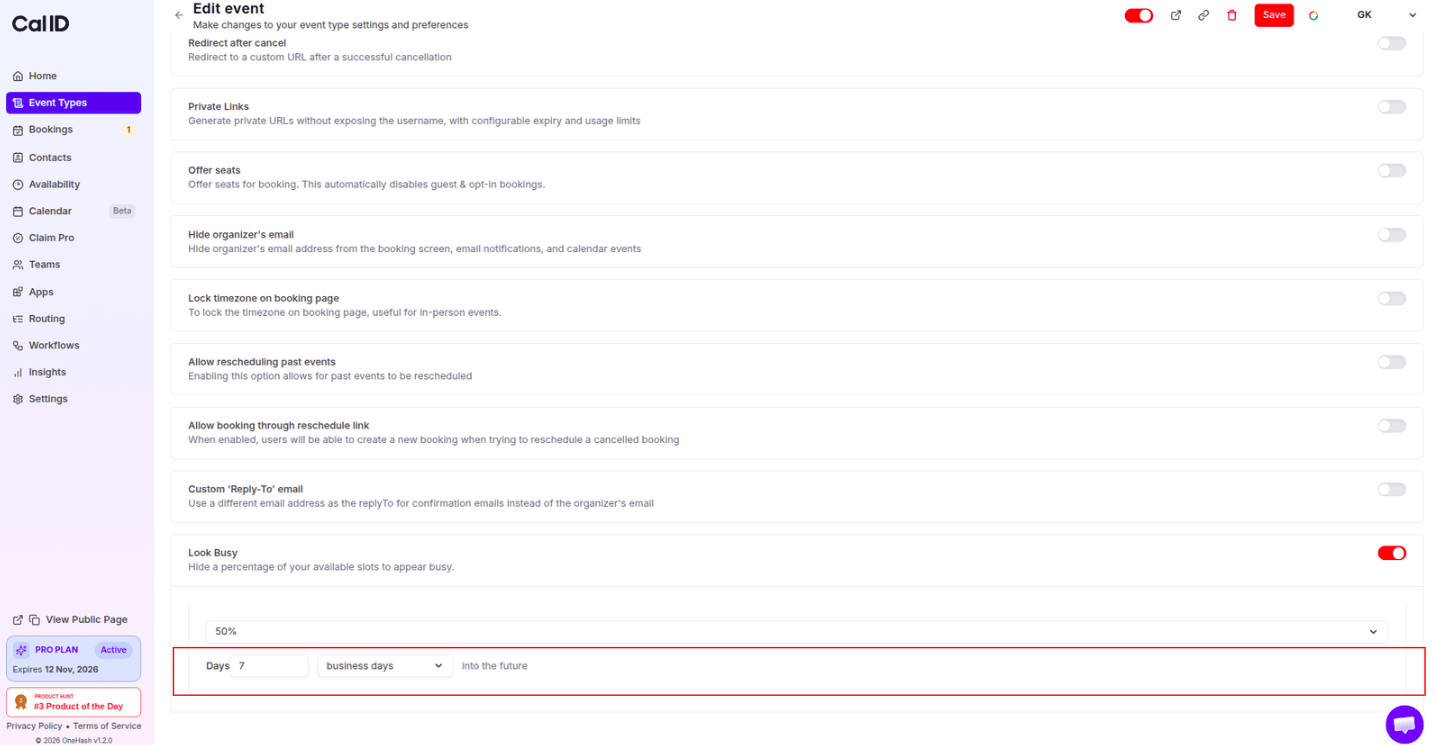
 * **Time horizon:** Define how far into the future bookers can see availability by entering a number in the **Days** field and selecting **calendar days** or **business days** from the dropdown.
 Click the **Save** button in the top right corner to apply these limits to your public booking page.
Look Busy only affects what bookers *see* — your real availability is untouched, so you can still manually block or open time whenever you need to.
## Use case
If you're available all day Monday from 9:00 AM to 5:00 PM (8 hours total) but set **Look Busy** to **50%**, Cal ID shows only **4 hours** worth of slots to your bookers, making your calendar look more in-demand while reserving the rest of the time for yourself.
## Related topics
- [How to Set Up Requires Confirmation for a Booking?](/docs/event-types/advanced/requires-confirmation.md)
- [How to use Offer Seats in Cal ID](/docs/event-types/advanced/offer-seats.md)
- [Limit Booking Frequency](/docs/event-types/limits/booking-frequency.md)
- [Custom Event Name in Booking](/docs/event-types/advanced/custom-event-name.md)
Click the **Save** button in the top right corner to apply these limits to your public booking page.
Look Busy only affects what bookers *see* — your real availability is untouched, so you can still manually block or open time whenever you need to.
## Use case
If you're available all day Monday from 9:00 AM to 5:00 PM (8 hours total) but set **Look Busy** to **50%**, Cal ID shows only **4 hours** worth of slots to your bookers, making your calendar look more in-demand while reserving the rest of the time for yourself.
## Related topics
- [How to Set Up Requires Confirmation for a Booking?](/docs/event-types/advanced/requires-confirmation.md)
- [How to use Offer Seats in Cal ID](/docs/event-types/advanced/offer-seats.md)
- [Limit Booking Frequency](/docs/event-types/limits/booking-frequency.md)
- [Custom Event Name in Booking](/docs/event-types/advanced/custom-event-name.md)