> ## Documentation Index
> Fetch the complete documentation index at: https://cal.id/docs/llms.txt
> Use this file to discover all available pages before exploring further.
# How to use Offer Seats in Cal ID
> Turn a one-on-one Cal ID meeting into a group session by allowing multiple people to book the same time slot with configurable seat limits per event.
Let several people book the same time slot. In **Cal ID**, the **Offer seats** feature transforms a one-on-one meeting into a **group session** — perfect for **webinars**, classes, and **workshops** where multiple attendees need the same slot.
## Setting up offer seats
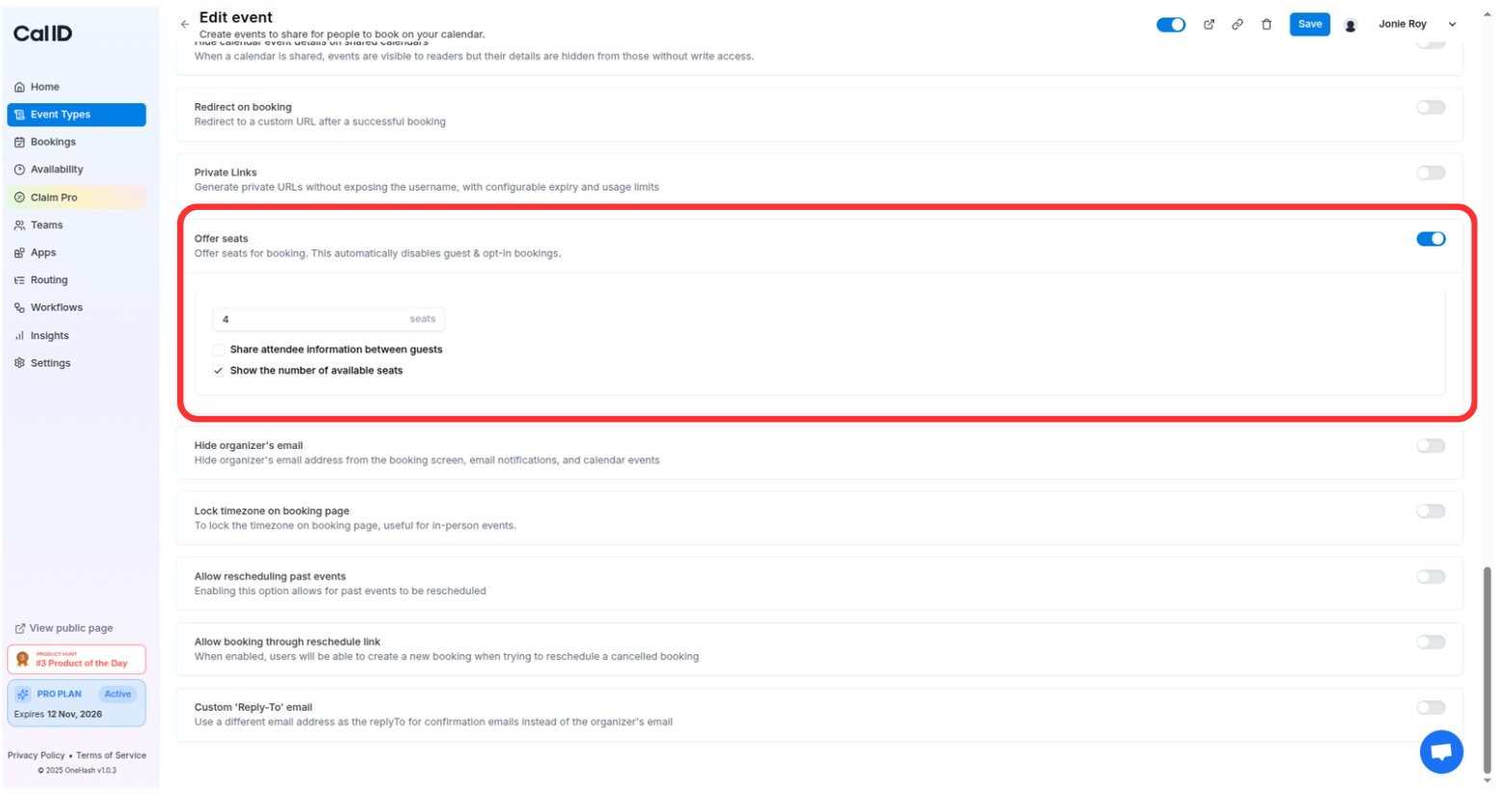
This setting defines how many people can attend a single event at the same time.
## Why use offer seats?
* **Host group sessions:** Easily manage classes, webinars, or team training where several people join at once.
* **Maximize efficiency:** Instead of repeating the same information five times, speak to five people in one hour.
* **Automatic status:** Once all the seats are filled, the system automatically hides that time slot so it cannot be overbooked.
Enabling Offer seats converts a one-on-one event type into a group booking: the same slot stays open to multiple attendees until every seat is taken.
## How to set it up
Click on **Event Types** in the left sidebar.
Click on the specific event you want to turn into a group session.
Click on the **Advanced** tab in the top navigation bar.
Locate the **Offer seats** section at the bottom of the page and toggle the switch to **ON**.
Enter the maximum number of people allowed to book that specific time slot.
Click the **Save** button at the top right.
 ## How it works for the booker
* The first person to book selects the time slot as usual.
* The time slot **remains visible** on your booking page for others until the maximum number of seats has been filled.
## How it works for the booker
* The first person to book selects the time slot as usual.
* The time slot **remains visible** on your booking page for others until the maximum number of seats has been filled.
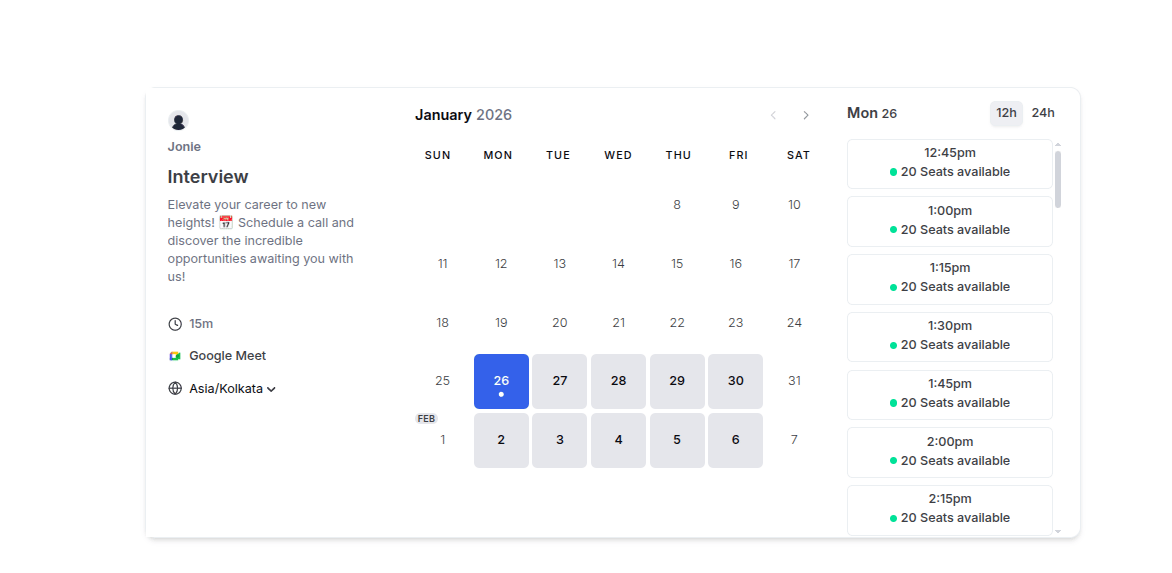 * If you have a meeting with 20 seats and 13 are taken, the guest might see a message indicating how many spots are left.
## Important details
* **Individual confirmations:** Each person who books a seat receives their own confirmation email and calendar invite.
* **Availability:** The slot only disappears from your calendar once the **total number of seats** is reached, or if you manually mark yourself as busy during that time.
**Scheduling a webinar or group discussion:** To host a one-time event (like a webinar or GD) at a very specific date and time, you can lock your seats into a single slot.
Guide: [Scheduling a One-Time Group Event (Webinars & GDs)](/docs/event-types/group-events)
## Related topics
- [Scheduling a One-Time Group Event (Webinars & GDs)](/docs/event-types/group-events.md)
- [How to Disable Adding Guests in Cal ID](/docs/event-types/booking-questions/disable-guests.md)
- [How to Set Up Requires Confirmation for a Booking?](/docs/event-types/advanced/requires-confirmation.md)
- [Limiting Availability with the "Look Busy" Feature](/docs/event-types/advanced/look-busy.md)
* If you have a meeting with 20 seats and 13 are taken, the guest might see a message indicating how many spots are left.
## Important details
* **Individual confirmations:** Each person who books a seat receives their own confirmation email and calendar invite.
* **Availability:** The slot only disappears from your calendar once the **total number of seats** is reached, or if you manually mark yourself as busy during that time.
**Scheduling a webinar or group discussion:** To host a one-time event (like a webinar or GD) at a very specific date and time, you can lock your seats into a single slot.
Guide: [Scheduling a One-Time Group Event (Webinars & GDs)](/docs/event-types/group-events)
## Related topics
- [Scheduling a One-Time Group Event (Webinars & GDs)](/docs/event-types/group-events.md)
- [How to Disable Adding Guests in Cal ID](/docs/event-types/booking-questions/disable-guests.md)
- [How to Set Up Requires Confirmation for a Booking?](/docs/event-types/advanced/requires-confirmation.md)
- [Limiting Availability with the "Look Busy" Feature](/docs/event-types/advanced/look-busy.md)