> ## Documentation Index
> Fetch the complete documentation index at: https://cal.id/docs/llms.txt
> Use this file to discover all available pages before exploring further.
# How to Set Up Requires Confirmation for a Booking?
> Manually approve every incoming Cal ID booking request before it is finalized, synced to calendars, or confirmed to guests so you stay in control of scheduling.
Keep the final say over who gets on your calendar. With **Requires confirmation** enabled, bookings for an event type wait for your manual approval before anything is finalized.
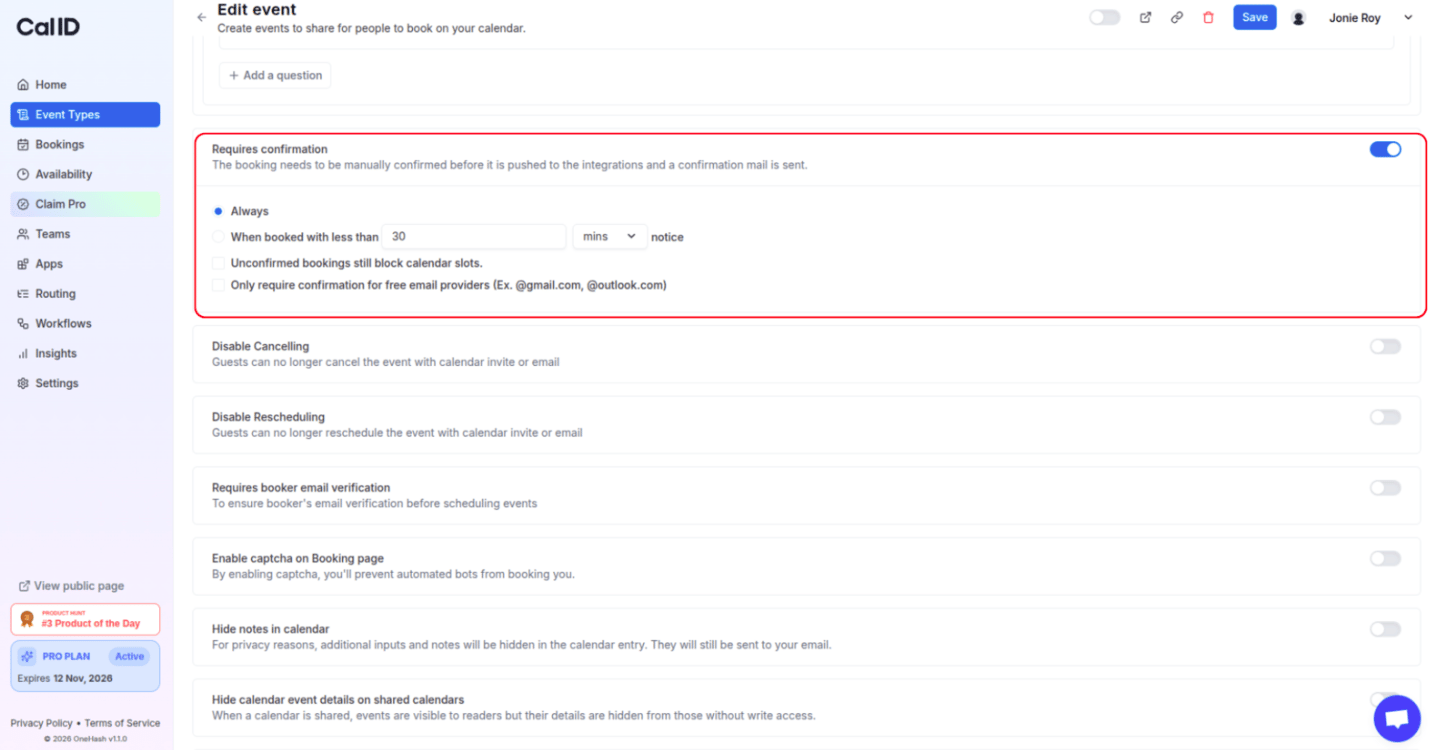
**Requires confirmation** acts as a "gatekeeper" for your appointments. When enabled, bookings must be manually approved before they are finalized, pushed to your calendar integrations, or a confirmation email is sent to the guest.
## Configuration options
Once you toggle the feature **ON**, you can customize exactly when and how confirmation is triggered:
| Option | What it does |
| ------------------------------------------------------ | ------------------------------------------------------------------------------------------------------------------------------------------------------------------------------------------ |
| **Always** | Every single booking for this event type will require your manual approval. |
| **When booked with less than \[X] notice** | (e.g., 30 mins/hours/days) Allows "instant" bookings if they are far in the future, but requires your approval for last-minute requests that might disrupt your immediate flow. |
| **Unconfirmed bookings still block calendar slots** | If checked, the time slot the guest requested will be held (marked as busy) while you decide whether to approve or reject it. |
| **Only require confirmation for free email providers** | Automatically approves guests using professional/work domains (e.g., @company.com) while requiring you to manually vet guests using free services like **@gmail.com** or **@outlook.com**. |
## How to set it up
Log in to your [**Cal ID**](https://cal.id/home) account.
Click on **Event Types** in the left sidebar.
Select the event you wish to modify.
Locate the **`Requires Confirmation`** section and toggle the switch to **ON**.
Choose between "Always" or the "Notice period" threshold.
Check the boxes for "blocking slots" or "filtering free email providers" based on your preference.
Click the blue **Save** button at the top right of the screen.
 ## How it works for the booker
* The guest selects their time and submits their details.
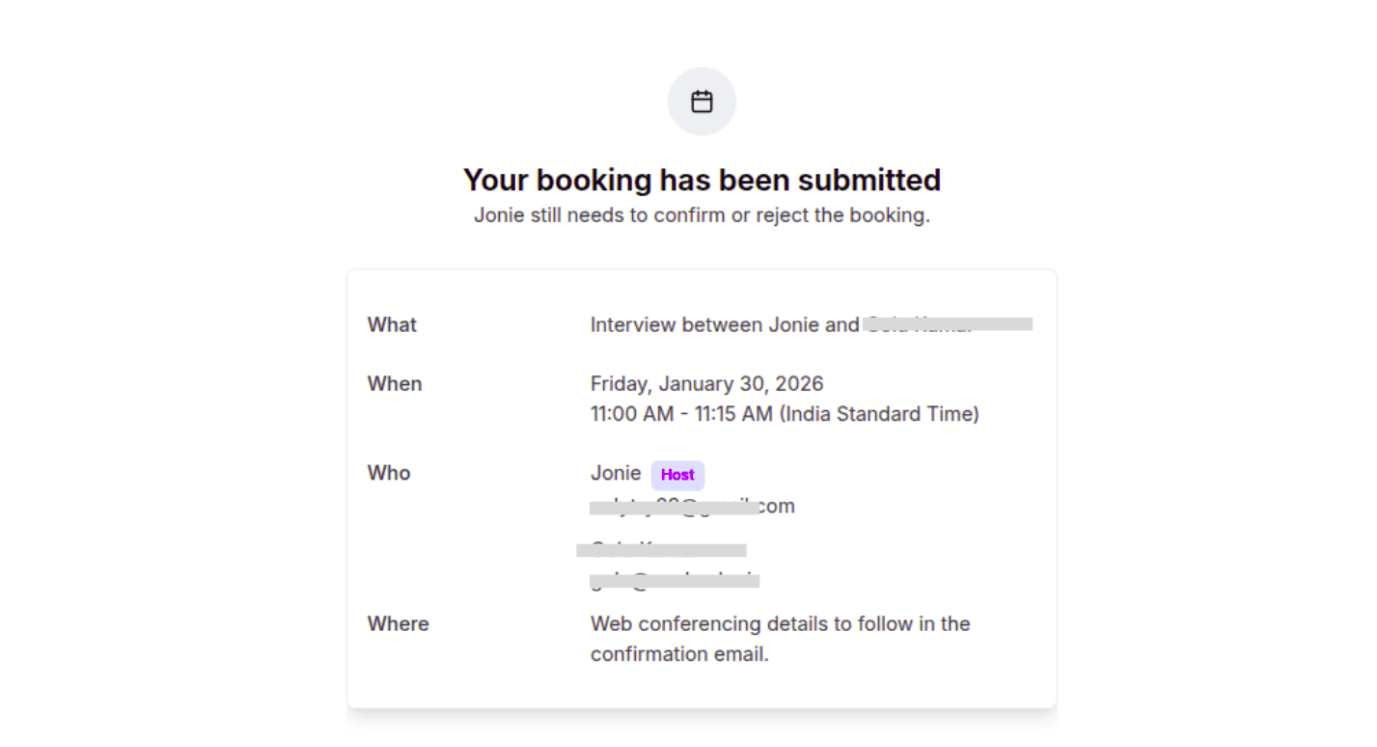
* Instead of a "Confirmed" message, they receive a notification that their request is pending approval.
* **Crucial:** No confirmation email is sent, and integrations (like Zoom or Google Meet links) are not generated until you click **Approve**.
## How it works for the booker
* The guest selects their time and submits their details.
* Instead of a "Confirmed" message, they receive a notification that their request is pending approval.
* **Crucial:** No confirmation email is sent, and integrations (like Zoom or Google Meet links) are not generated until you click **Approve**.
 ## How to approve a booking
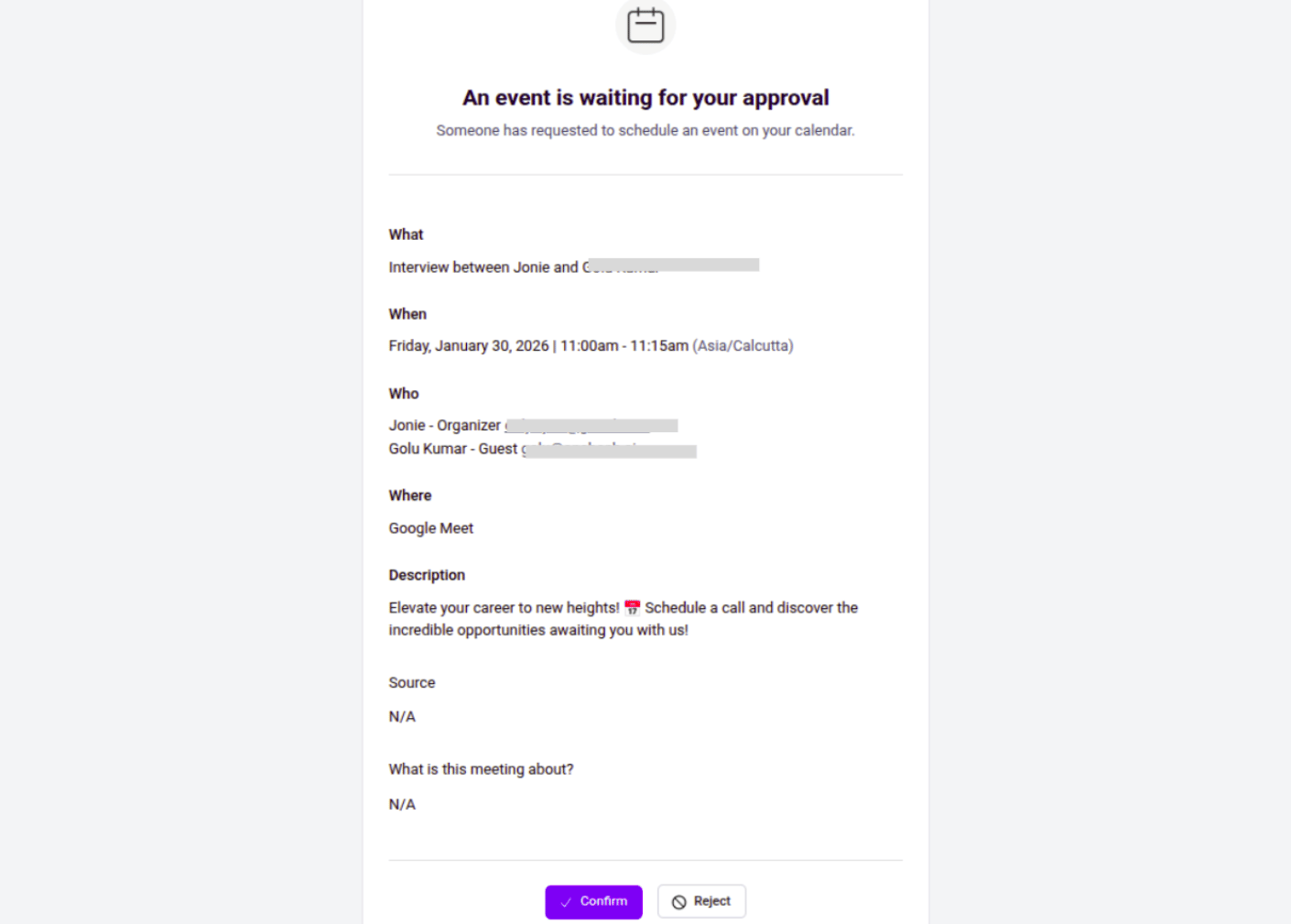
* **Email:** You will receive a notification with a direct link to approve or reject.
## How to approve a booking
* **Email:** You will receive a notification with a direct link to approve or reject.
 * **Dashboard:** Navigate to the **Bookings** tab in the left sidebar to see all pending requests.
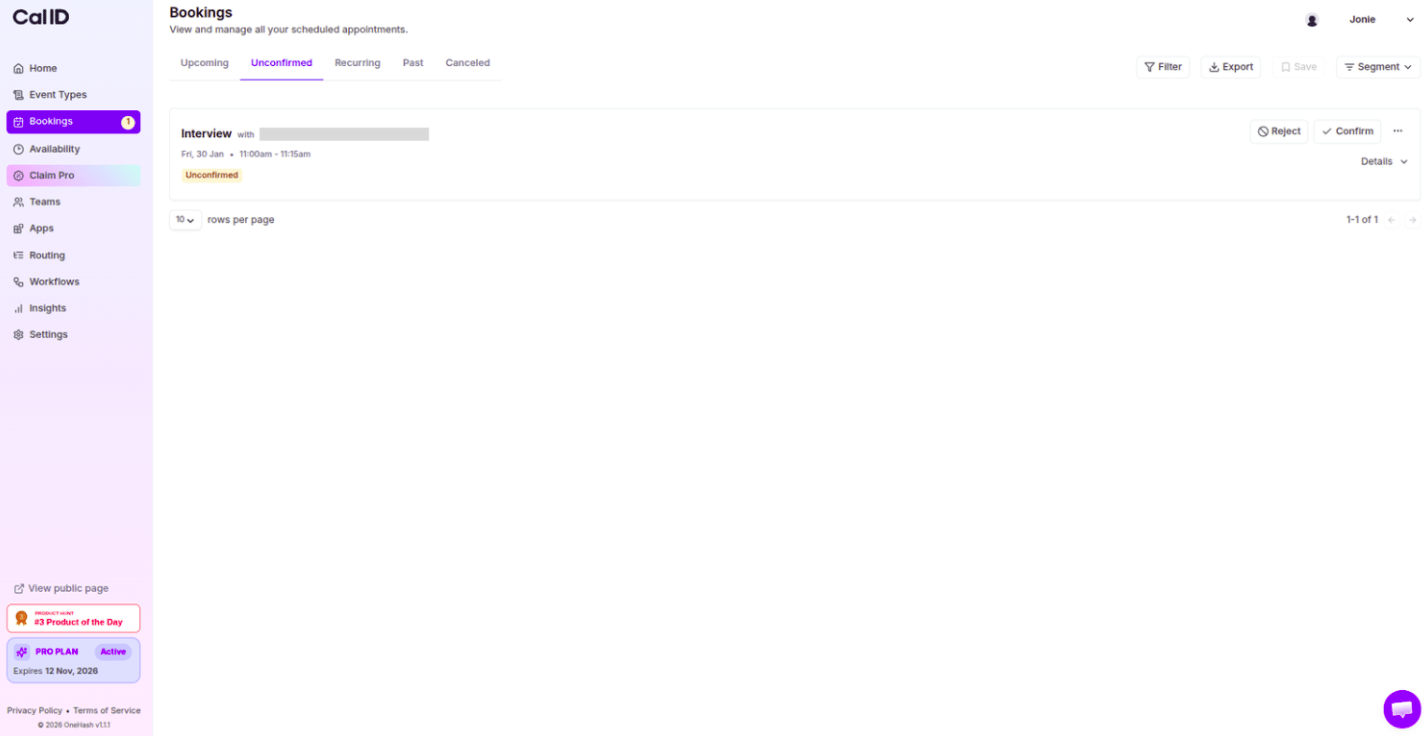 * **Action:** Once you click **Confirm**, the guest receives their confirmation email and the event is synced to your calendar.
## What happens when more than one booking is submitted for the same slot and date?
If more than one user submits a booking request for confirmation for the same slot and date, you can accept only one booking from those requests. Once you accept a booking, the remaining bookings will remain in **unconfirmed** status.
If you want to accept another user's booking from the remaining requests, you must first **cancel the booking that was previously accepted** for that slot and date. After canceling that booking, you will then be able to **accept another booking request**.
## Next steps
Fine-tune which emails go out once a booking is approved.
Lock in appointments once you have confirmed them.
## Related topics
- [Disable Default Attendee Confirmation Emails in Cal ID](/docs/event-types/advanced/disable-confirmation-emails.md)
- [Disable Rescheduling and Cancelling](/docs/event-types/advanced/disable-reschedule-cancel.md)
- [Limiting Availability with the "Look Busy" Feature](/docs/event-types/advanced/look-busy.md)
- [How to use Offer Seats in Cal ID](/docs/event-types/advanced/offer-seats.md)
* **Action:** Once you click **Confirm**, the guest receives their confirmation email and the event is synced to your calendar.
## What happens when more than one booking is submitted for the same slot and date?
If more than one user submits a booking request for confirmation for the same slot and date, you can accept only one booking from those requests. Once you accept a booking, the remaining bookings will remain in **unconfirmed** status.
If you want to accept another user's booking from the remaining requests, you must first **cancel the booking that was previously accepted** for that slot and date. After canceling that booking, you will then be able to **accept another booking request**.
## Next steps
Fine-tune which emails go out once a booking is approved.
Lock in appointments once you have confirmed them.
## Related topics
- [Disable Default Attendee Confirmation Emails in Cal ID](/docs/event-types/advanced/disable-confirmation-emails.md)
- [Disable Rescheduling and Cancelling](/docs/event-types/advanced/disable-reschedule-cancel.md)
- [Limiting Availability with the "Look Busy" Feature](/docs/event-types/advanced/look-busy.md)
- [How to use Offer Seats in Cal ID](/docs/event-types/advanced/offer-seats.md)