> ## Documentation Index
> Fetch the complete documentation index at: https://cal.id/docs/llms.txt
> Use this file to discover all available pages before exploring further.
# Allow Rescheduling Past Events
> Let guests reuse their original Cal ID booking link to reschedule a meeting even after its scheduled time has already passed for late reschedules.
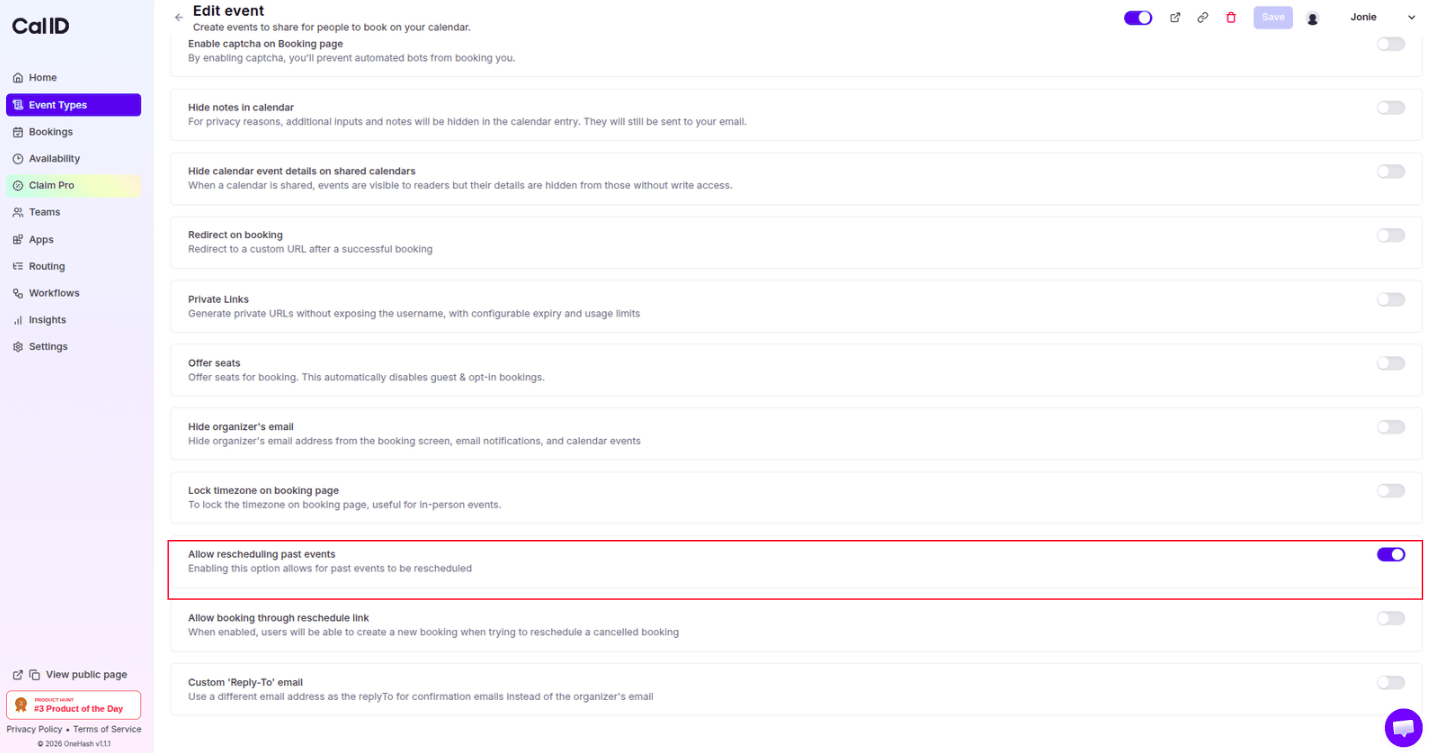
Let guests reschedule from their original booking link even after the meeting time has passed. In [**Cal ID**](https://cal.id/home), the **Allow rescheduling past events** feature gives both organizers and guests the flexibility to recover no-shows and late reschedules without starting over.
Keep this turned on when you want to salvage missed meetings gracefully. With it off, the reschedule link in the confirmation email stops working the moment the scheduled time passes.
## Why use "Allow rescheduling past events"?
* **Handle No-Shows Gracefully:** If a guest misses a meeting, enabling this allows them to use their original booking link to find a new time rather than having to start the entire booking process from scratch.
* **Maintain Relationship Momentum:** It makes it easier to recover "lost" opportunities by keeping the rescheduling channel open even if the initial window was missed.
* **Reduce Administrative Work:** Instead of manually sending new links or booking slots for guests who missed their time, the system automates the recovery process.
## How to set it up
Log in to your [**Cal ID**](https://cal.id/home) account.
Select the specific event from your dashboard.
Click on the **Advanced** tab in the top navigation bar.
Scroll down to find the option **Allow rescheduling past events**.
Switch the toggle to **ON**.
Click the blue **Save** button at the top right to finalize your changes.
 ## How it works for the booker
* **Active Links:** Typically, once a meeting time passes, the "Reschedule" link in the confirmation email becomes inactive. With this setting enabled, that link remains functional.
* **Seamless Updates:** When the guest clicks the link from a past event, they are taken back to your calendar to select a new, upcoming time slot.
* **Automatic Notification:** Once they select a new time, the original "past" event is updated or replaced with the new time, and you both receive a new confirmation.
## Next steps
Let guests create a brand-new booking from a reschedule link after a cancellation.
Control whether guests can reschedule or cancel their bookings at all.
## Related topics
- [Disable Rescheduling and Cancelling](/docs/event-types/advanced/disable-reschedule-cancel.md)
- [Allow Booking through Rescheduled Link](/docs/event-types/advanced/book-via-reschedule-link.md)
- [Lock Timezone On Booking Page](/docs/event-types/advanced/lock-timezone.md)
- [How to Set Up Requires Confirmation for a Booking?](/docs/event-types/advanced/requires-confirmation.md)
## How it works for the booker
* **Active Links:** Typically, once a meeting time passes, the "Reschedule" link in the confirmation email becomes inactive. With this setting enabled, that link remains functional.
* **Seamless Updates:** When the guest clicks the link from a past event, they are taken back to your calendar to select a new, upcoming time slot.
* **Automatic Notification:** Once they select a new time, the original "past" event is updated or replaced with the new time, and you both receive a new confirmation.
## Next steps
Let guests create a brand-new booking from a reschedule link after a cancellation.
Control whether guests can reschedule or cancel their bookings at all.
## Related topics
- [Disable Rescheduling and Cancelling](/docs/event-types/advanced/disable-reschedule-cancel.md)
- [Allow Booking through Rescheduled Link](/docs/event-types/advanced/book-via-reschedule-link.md)
- [Lock Timezone On Booking Page](/docs/event-types/advanced/lock-timezone.md)
- [How to Set Up Requires Confirmation for a Booking?](/docs/event-types/advanced/requires-confirmation.md)