> ## Documentation Index
> Fetch the complete documentation index at: https://cal.id/docs/llms.txt
> Use this file to discover all available pages before exploring further.
# Add Custom Icons in the Events
> Personalize each Cal ID event type with a custom icon and accent color so your dashboard and public booking page stay visually organized at a glance.
Give every event type its own look. In [**Cal ID**](https://cal.id/home), the **Change icon** feature lets you pick a unique symbol and accent color for each event, so your dashboard and public booking page stay organized and on-brand.
## Adding custom icons to events
An icon is the small symbol that represents your meeting. Adding a custom icon helps you stay organized and makes your page look professional.
### Why use custom icons?
* **Visual organization**: Easily tell the difference between a "Group Session" and a "One-on-One" call by using different symbols.
* **Brand matching**: Use your brand's specific colors to make your booking page feel like a part of your business.
* **Guest clarity**: Icons like a 🎓 for "Career Counselling" or a 🛠️ for a "Workshop" help guests understand what the meeting is about at a glance.
## How to do it
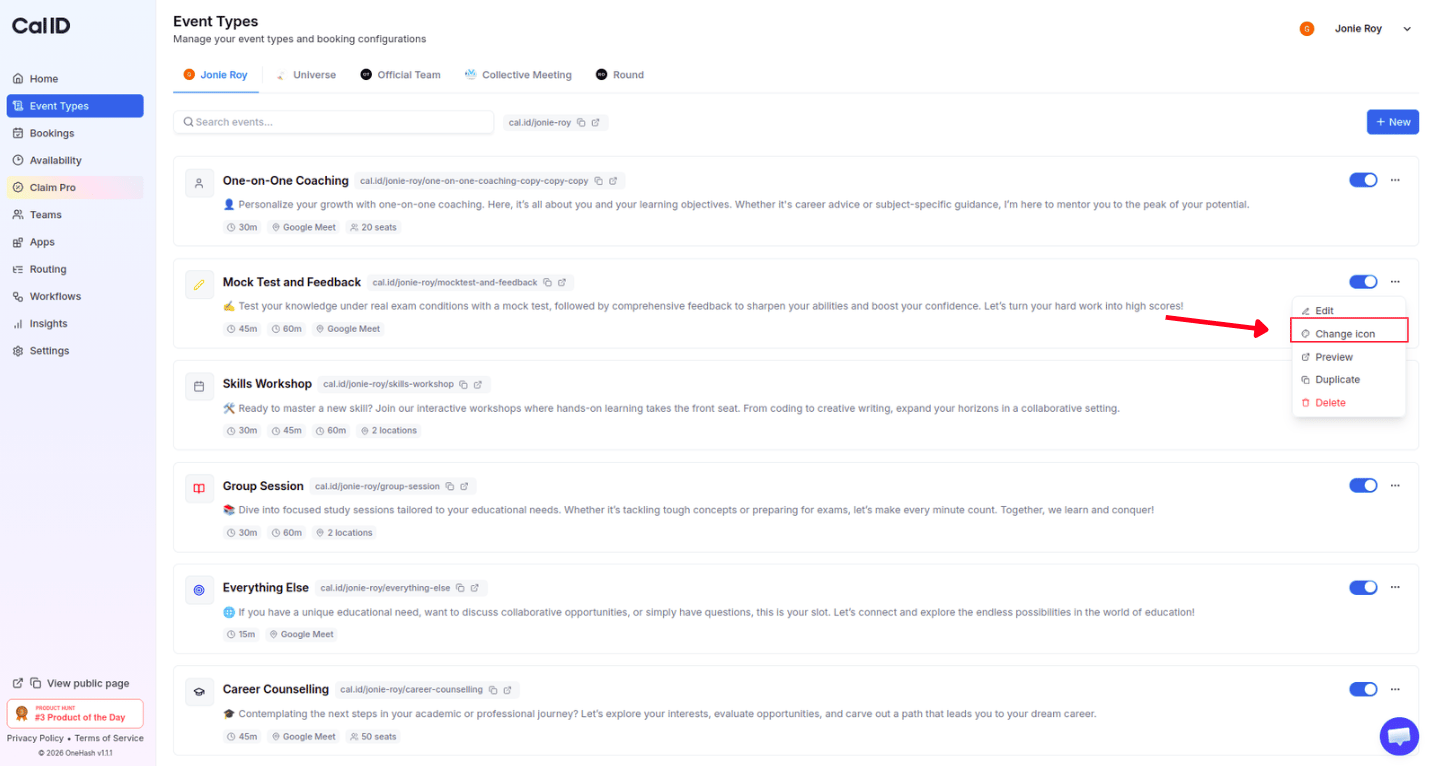
Login to your **Cal ID** account and go to the **Event Types** tab. Find the event you want to change, click the **three dots (···)**, and select **Change icon**.
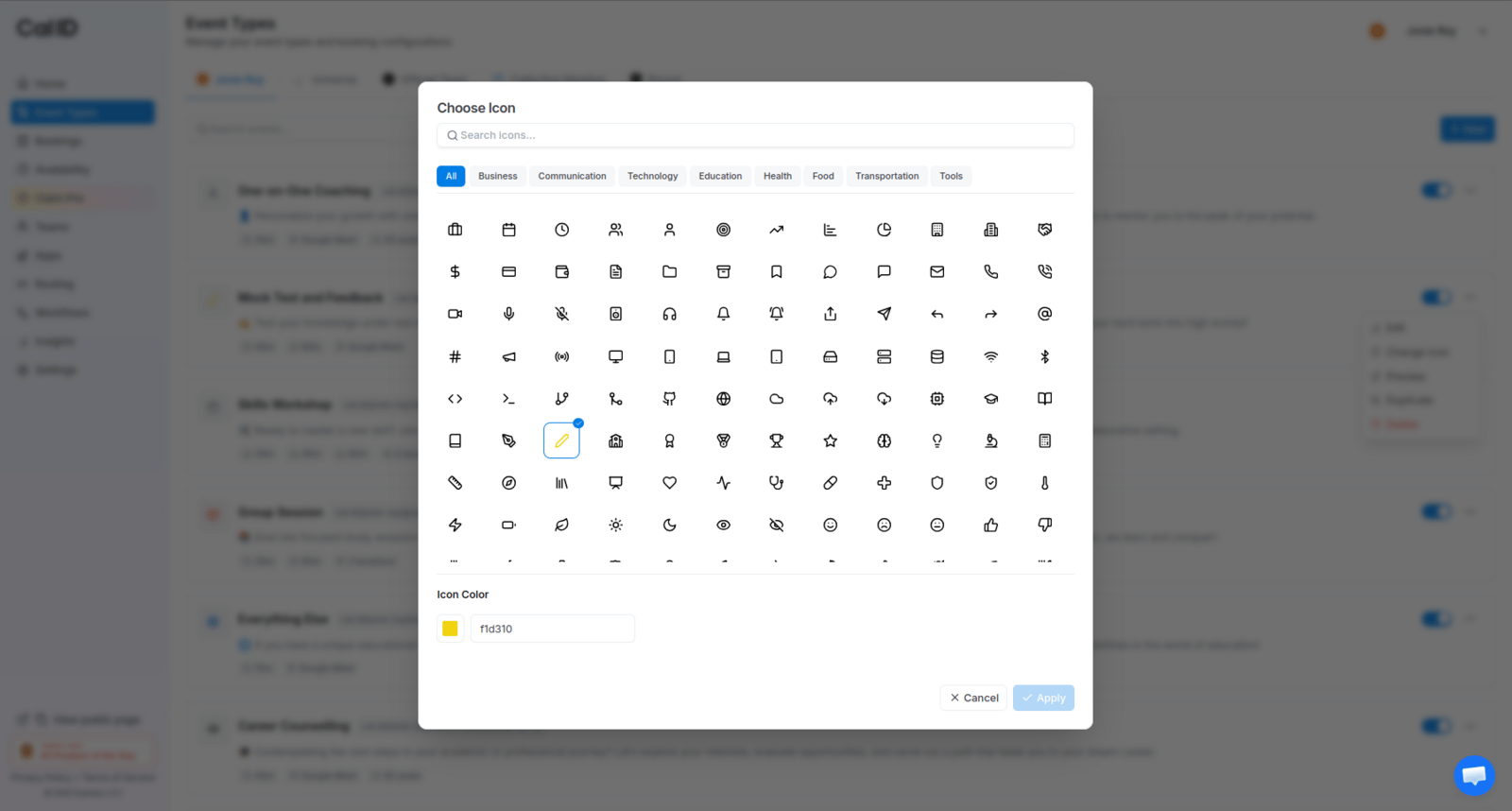
 A **Choose Icon** box will pop up on your screen.
* **Search**: Use the search bar to find a specific icon (like "Video" or "Phone").
* **Categories**: Browse icons by category, such as Business, Communication, or Education.
A **Choose Icon** box will pop up on your screen.
* **Search**: Use the search bar to find a specific icon (like "Video" or "Phone").
* **Categories**: Browse icons by category, such as Business, Communication, or Education.
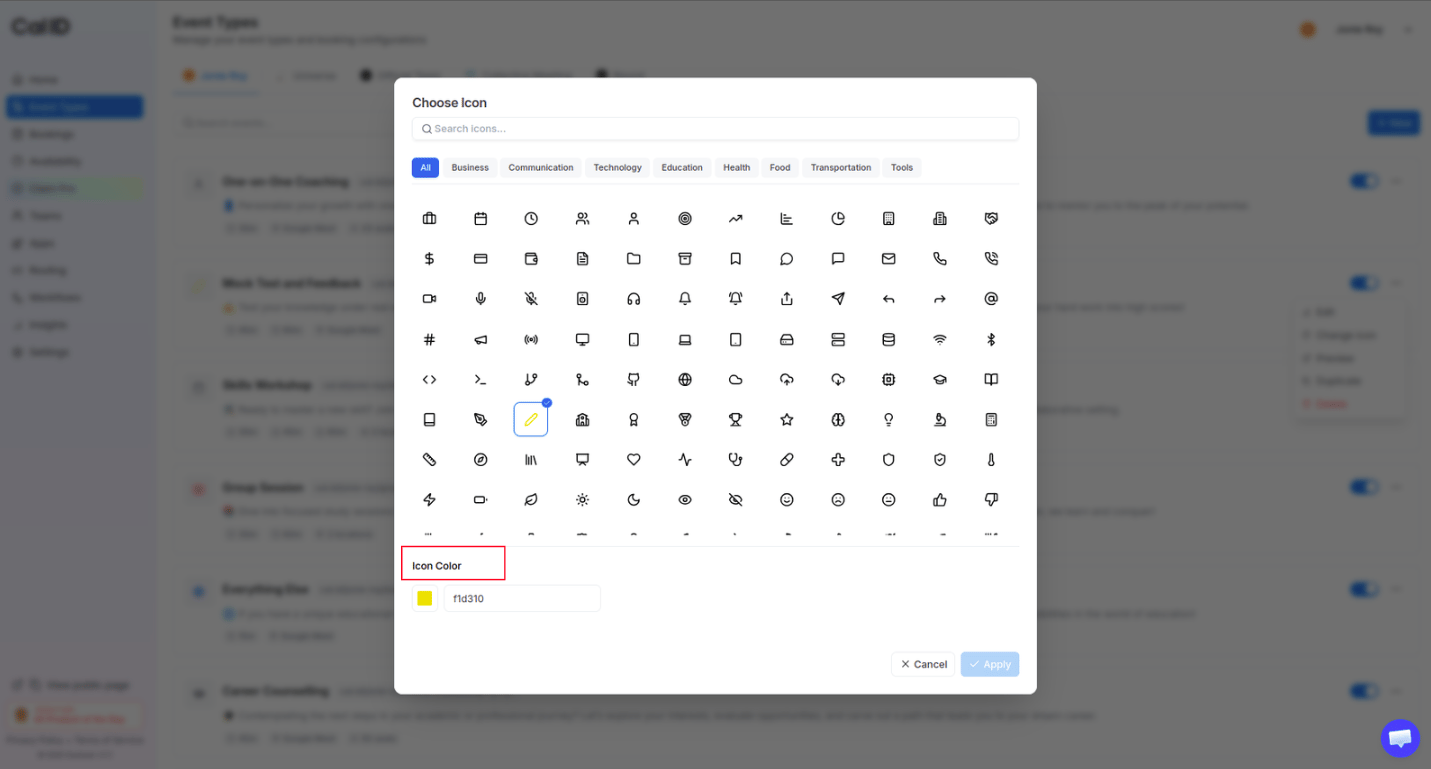
 * Click on the **Icon Color** box at the bottom.
* Enter a specific color code (HEX) or choose a color that matches your brand.
* Click on the **Icon Color** box at the bottom.
* Enter a specific color code (HEX) or choose a color that matches your brand.
 Click **Apply** to save your new look.
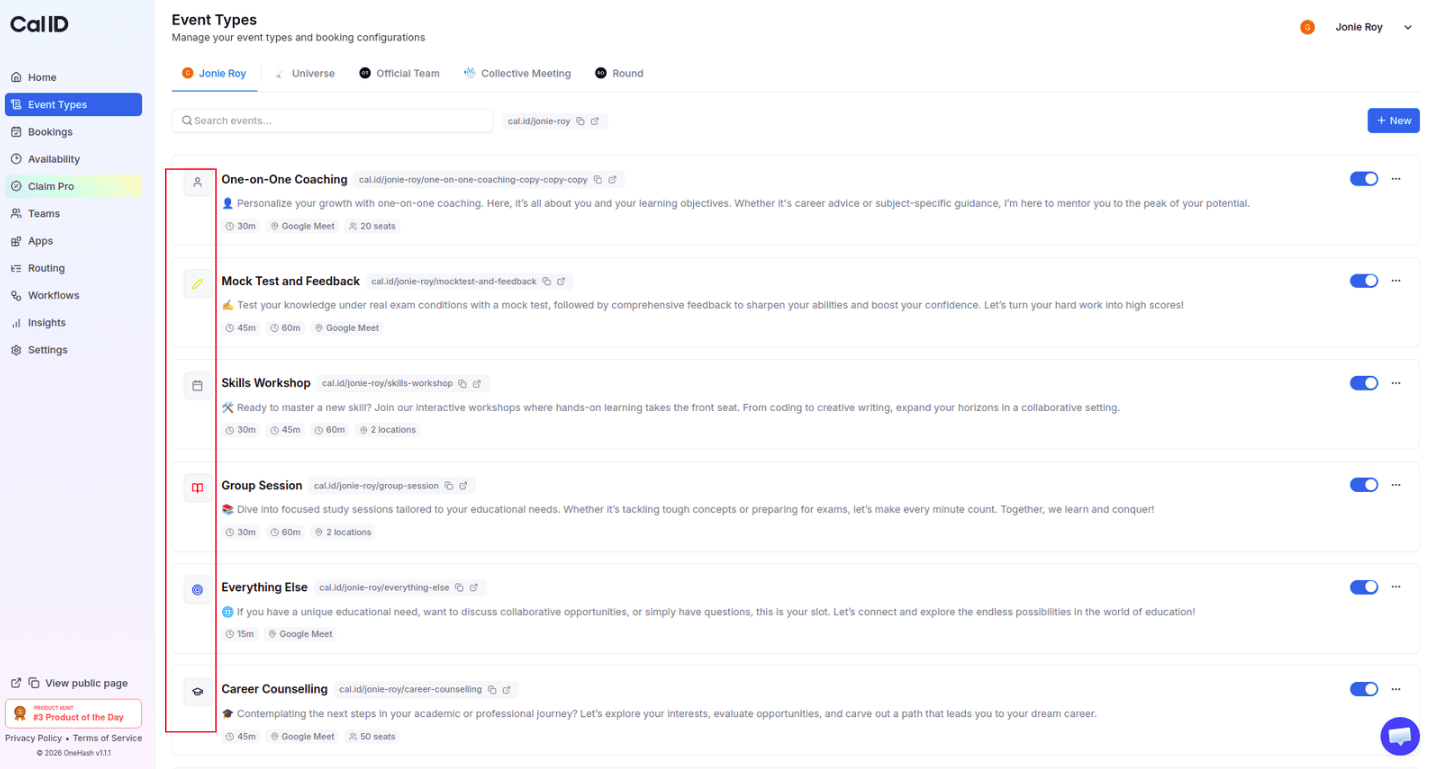 For faster visual organization, use color as a system: keep the same color for all "Discovery" meetings and a different color for all "Paid" meetings. A consistent palette lets you scan your schedule at a glance.
## Related topics
- [Editing Event Type Details (Title, URL, & Language)](/docs/event-types/basics/edit-details.md)
- [Event Types](/docs/event-types/basics/overview.md)
- [Changing the Order of Event Types](/docs/event-types/basics/reorder.md)
- [Duplicate the Event Type](/docs/event-types/basics/duplicate.md)
- [Customizing Your Appearance in Cal ID](/docs/appearance/appearance.md)
For faster visual organization, use color as a system: keep the same color for all "Discovery" meetings and a different color for all "Paid" meetings. A consistent palette lets you scan your schedule at a glance.
## Related topics
- [Editing Event Type Details (Title, URL, & Language)](/docs/event-types/basics/edit-details.md)
- [Event Types](/docs/event-types/basics/overview.md)
- [Changing the Order of Event Types](/docs/event-types/basics/reorder.md)
- [Duplicate the Event Type](/docs/event-types/basics/duplicate.md)
- [Customizing Your Appearance in Cal ID](/docs/appearance/appearance.md)