> ## Documentation Index
> Fetch the complete documentation index at: https://cal.id/docs/llms.txt
> Use this file to discover all available pages before exploring further.
# Editing Event Type Details (Title, URL, & Language)
> Update the title, URL slug, description, and interface language of an existing Cal ID event type to keep your public booking page accurate and localized.
Update the title, URL, description, and interface language of an existing event type at any time to keep your public booking page relevant, accurate, and localized.
## How to access event editing
Log in to your [Cal ID](https://cal.id/home) account and click on the [**Event Types**](https://cal.id/event-types) tab in the main sidebar.
Locate the event type you wish to modify.
Click the **Edit** icon on the event card to open the event configuration screen.
## Updating event information
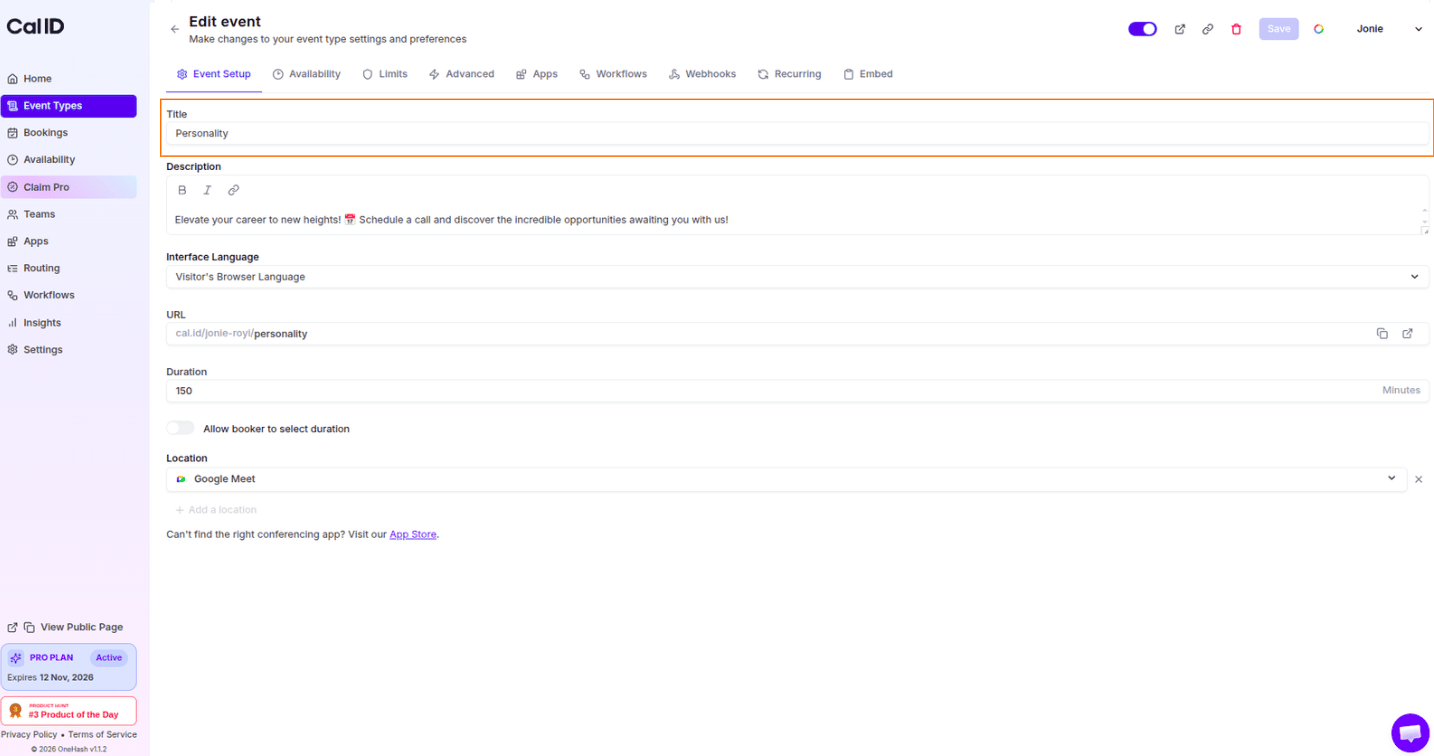
Locate the **Title** field of the event setup page and enter the new title for your event. This is the main title your bookers will see.
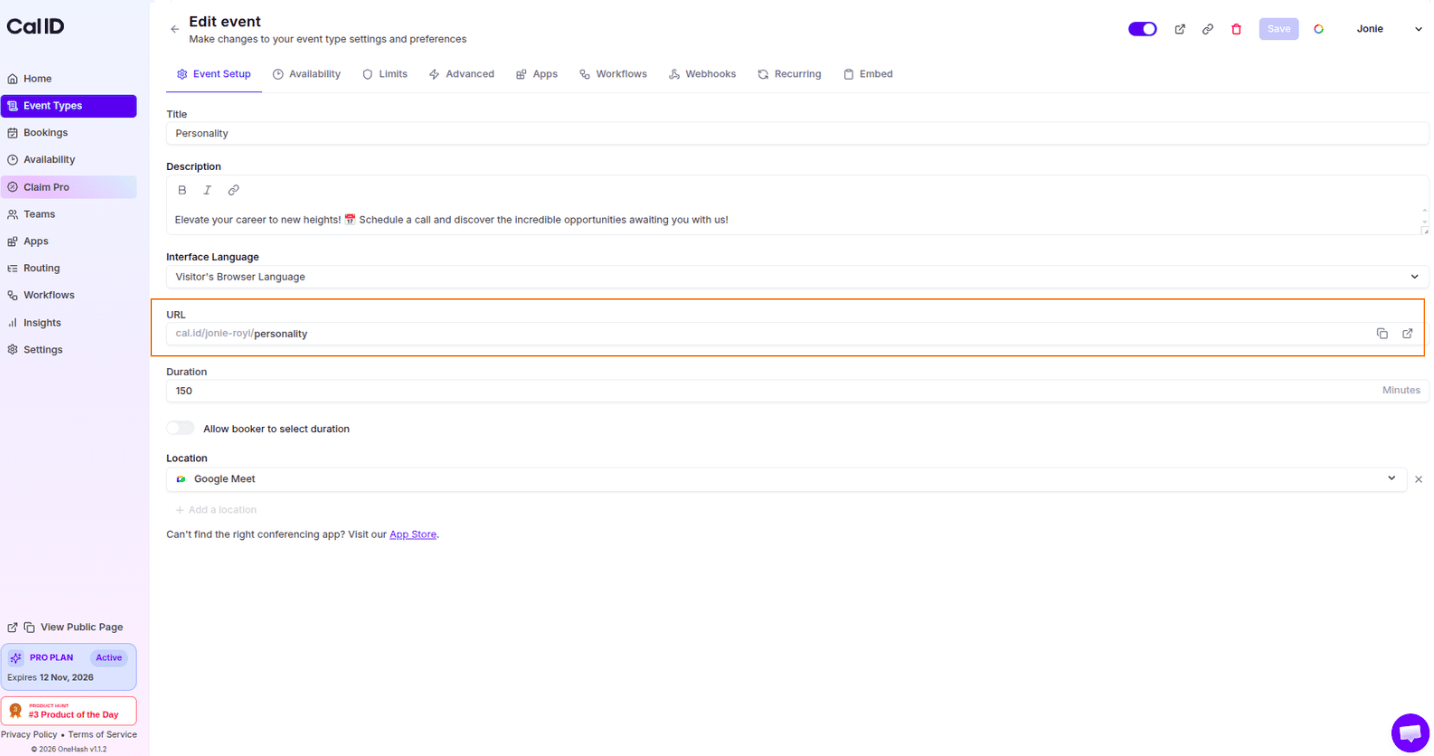
 Find the **URL** field located below the Interface Language and enter a new URL slug. For example, changing the slug from `meeting` to `quick-chat` changes the link to `cal.id/your-username/quick-chat`.
Changing the URL slug breaks any existing links you have previously shared. Update the link everywhere you've posted it, such as your email signature, website, and social profiles.
Find the **URL** field located below the Interface Language and enter a new URL slug. For example, changing the slug from `meeting` to `quick-chat` changes the link to `cal.id/your-username/quick-chat`.
Changing the URL slug breaks any existing links you have previously shared. Update the link everywhere you've posted it, such as your email signature, website, and social profiles.
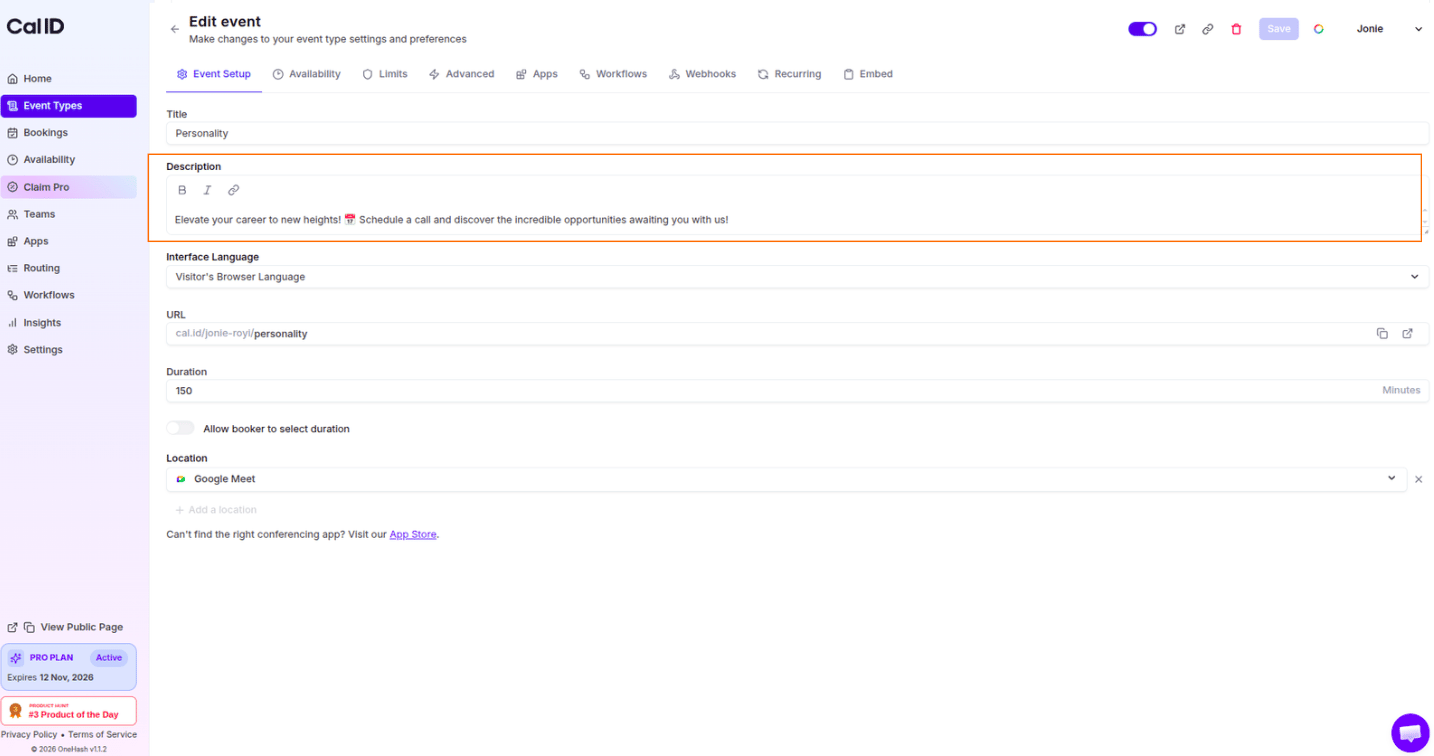
 Locate the **Description** text box and edit the text to provide clearer instructions or context about the meeting to your attendees.
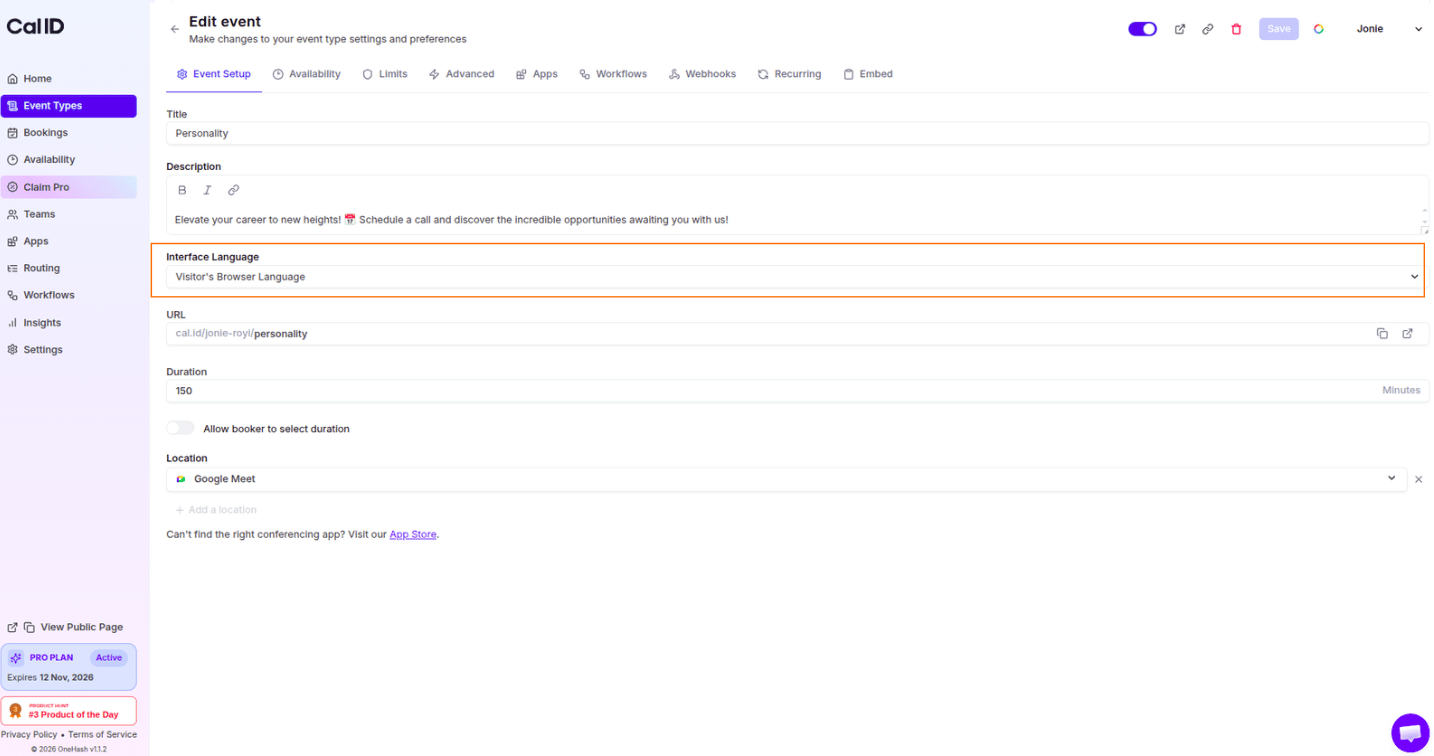
 Scroll down to the **Interface Language** dropdown menu and select the preferred language for this specific event type. This changes the text displayed on the booking page for the guest.
Select **Visitor's Browser Language** so that the user does not get confused.
Scroll down to the **Interface Language** dropdown menu and select the preferred language for this specific event type. This changes the text displayed on the booking page for the guest.
Select **Visitor's Browser Language** so that the user does not get confused.
 ## Saving your changes
Once you have made all necessary updates, click the **Save** button in the top right corner of the page to apply the changes to your public booking page.
## Related topics
- [Event Types](/docs/event-types/basics/overview.md)
- [Add Custom Icons in the Events](/docs/event-types/basics/custom-icons.md)
- [Set Event Location](/docs/event-types/setup/location.md)
- [Set Multiple Durations](/docs/event-types/setup/multiple-durations.md)
- [Duplicate the Event Type](/docs/event-types/basics/duplicate.md)
## Saving your changes
Once you have made all necessary updates, click the **Save** button in the top right corner of the page to apply the changes to your public booking page.
## Related topics
- [Event Types](/docs/event-types/basics/overview.md)
- [Add Custom Icons in the Events](/docs/event-types/basics/custom-icons.md)
- [Set Event Location](/docs/event-types/setup/location.md)
- [Set Multiple Durations](/docs/event-types/setup/multiple-durations.md)
- [Duplicate the Event Type](/docs/event-types/basics/duplicate.md)