> ## Documentation Index
> Fetch the complete documentation index at: https://cal.id/docs/llms.txt
> Use this file to discover all available pages before exploring further.
# Event Types
> Create reusable Cal ID event types as meeting templates so guests can book the right length of time with you without back-and-forth email coordination.
Event types are reusable meeting templates, like a "15-minute intro" or a "60-minute deep dive," that let guests book the right amount of time with you without any manual back-and-forth. Set them up once and share the link anywhere.
## What are event types?
Each event type is a pre-set meeting template you can share with anyone, fully customizable down to its name, URL, and duration.
* **Customizable settings**: Create as many as you need, each with its own unique availability and location (like Zoom or Google Meet and many more).
* **Smart availability**: When someone views your booking link, they only see slots where you are truly free. Cal ID automatically checks your integrated calendar for conflicts to prevent double-booking.
* **Professional examples**: An HR professional might have a "Job Interview" (30 min) and a "Performance Review" (60 min), each with different settings.
## How to create your event type
Log in to your [**Cal ID**](https://cal.id/home) account and navigate to the **Event Types** page, then click the **+ New** button in the top right corner.
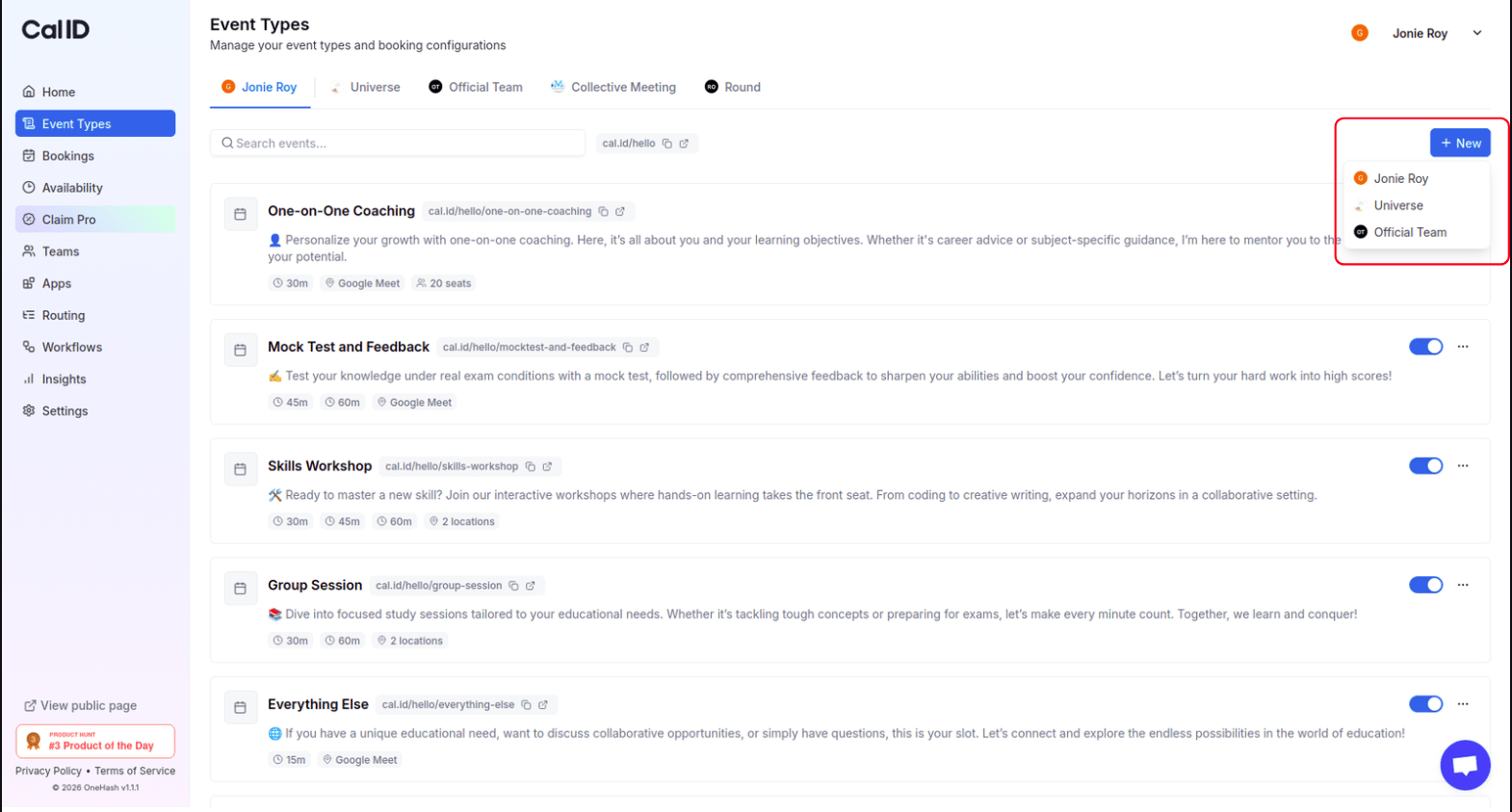
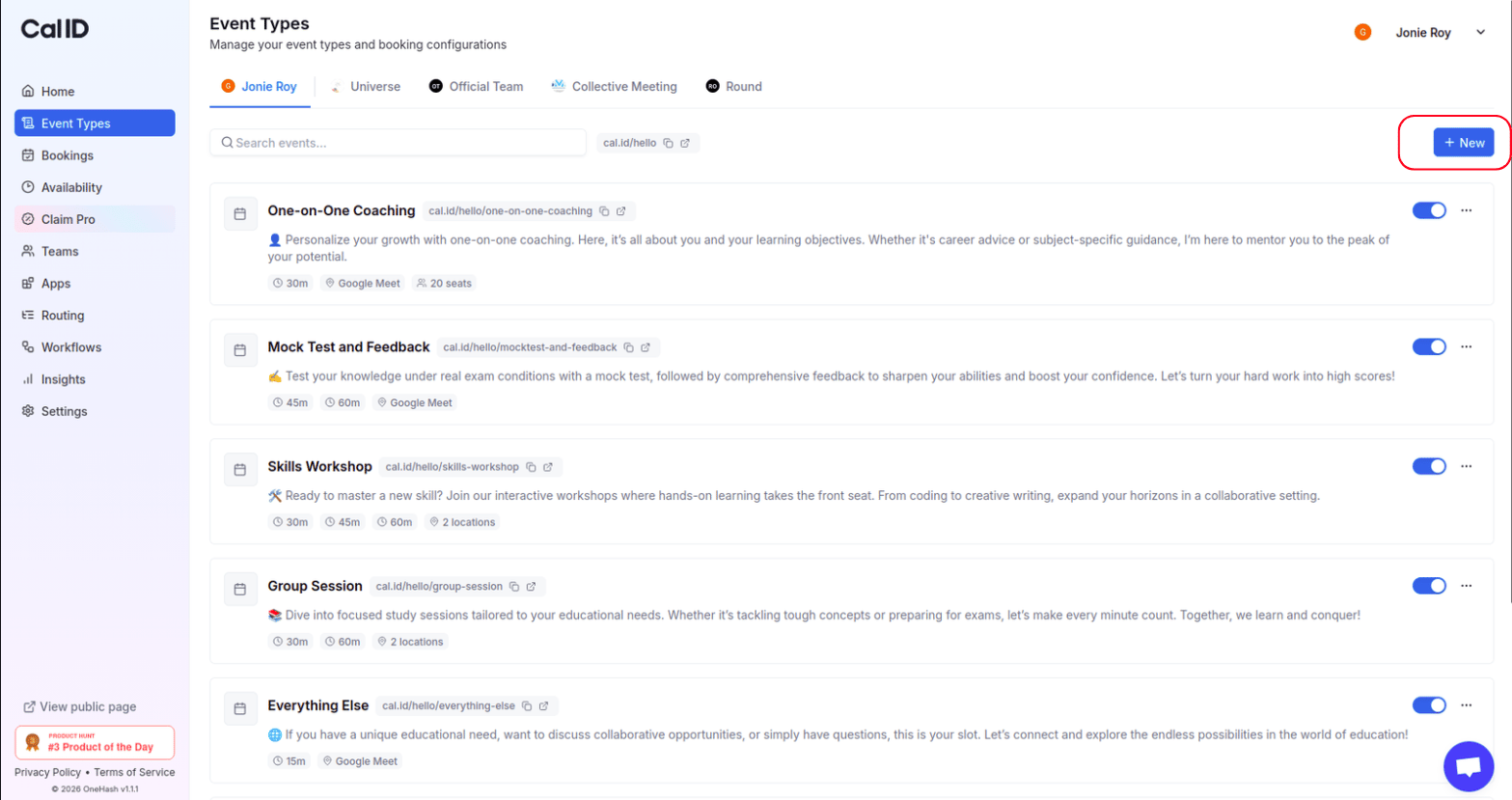 * **Personal Event**: Set this up so people can book time directly with you.
* **Team Event**: If you are part of a team, you can create an event type for that.
If you aren't in a team, the event will automatically be added to your personal account.
* **Personal Event**: Set this up so people can book time directly with you.
* **Team Event**: If you are part of a team, you can create an event type for that.
If you aren't in a team, the event will automatically be added to your personal account.
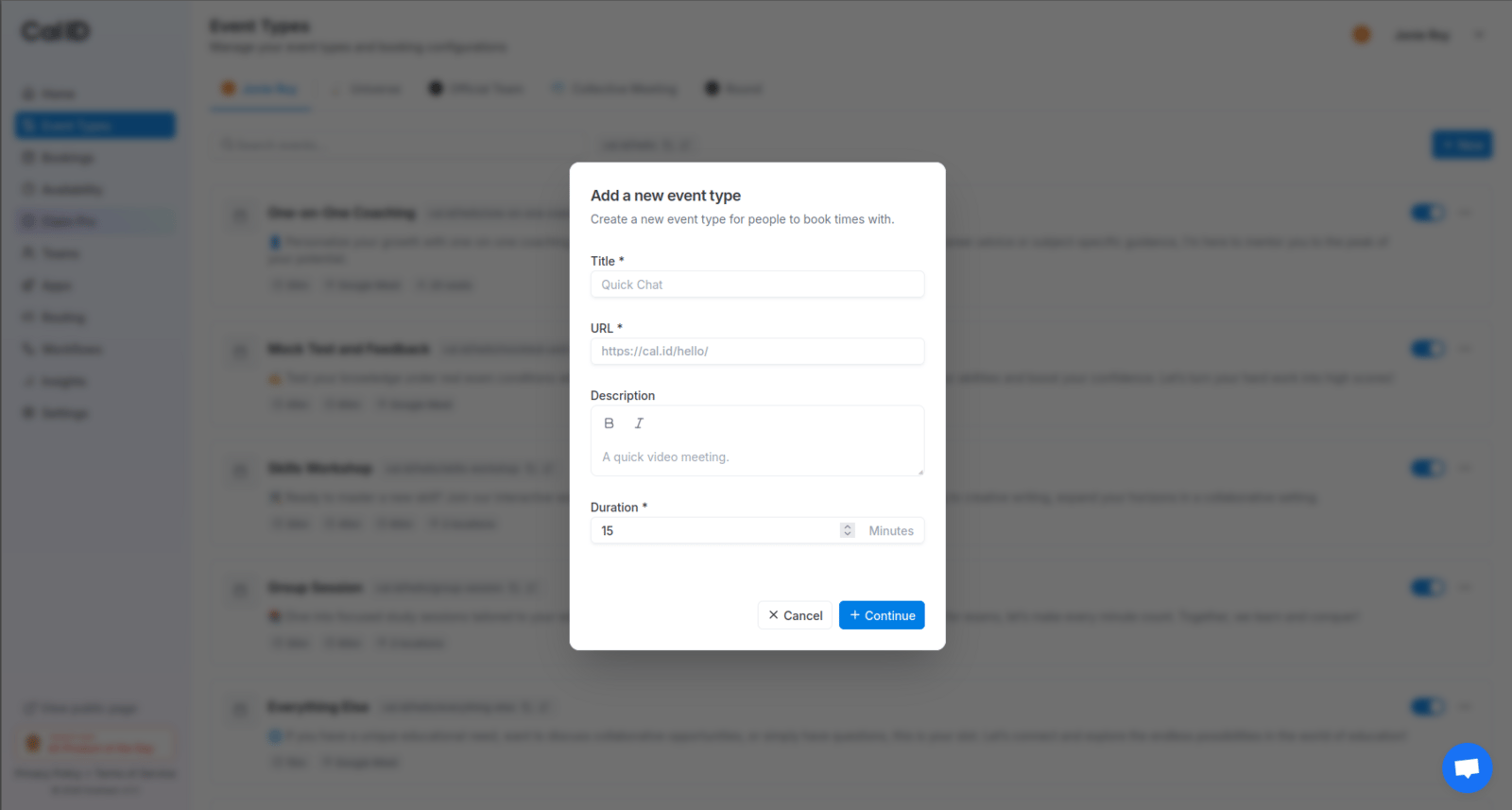
 A pop-up will appear where you fill in the core details:
* **Title**: Give your event a name (e.g., "Consultation"). This title automatically becomes part of the URL, but you can change it if you wish.
* **Description**: Briefly explain what the meeting is for. This is shown to the booker on your public page.
* **Duration**: Select how long the meeting will last (e.g., 15, 30, or 60 minutes).
A pop-up will appear where you fill in the core details:
* **Title**: Give your event a name (e.g., "Consultation"). This title automatically becomes part of the URL, but you can change it if you wish.
* **Description**: Briefly explain what the meeting is for. This is shown to the booker on your public page.
* **Duration**: Select how long the meeting will last (e.g., 15, 30, or 60 minutes).
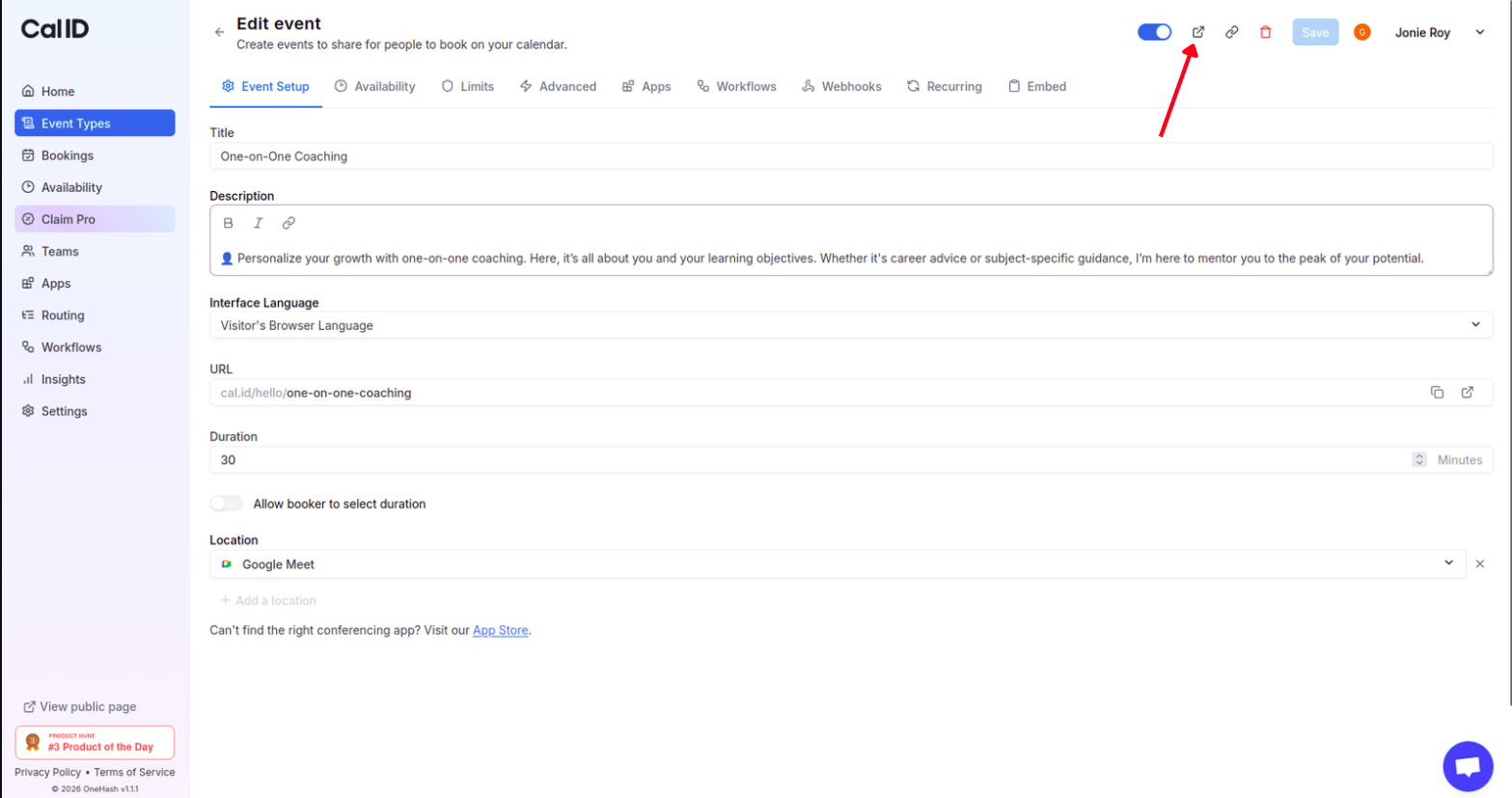
 After clicking **Continue**, a detailed page opens where you can fine-tune your event:
* **Event Setup**: Edit your title, description, and location.
* **Availability**: Set specific hours for this event type.
* **Limits & Buffers**: Add extra time before or after meetings to give yourself a break.
* **Advanced**: Adjust advanced settings.
* **Workflows**: Set workflows for notifications and reminders.
* **Recurring**: Set for repetitive bookings.
* **Embed**: Get the embed code.
### Preview your booking page
Before sharing your link, you can easily see exactly what your Booker will see. There are two simple ways to view the preview:
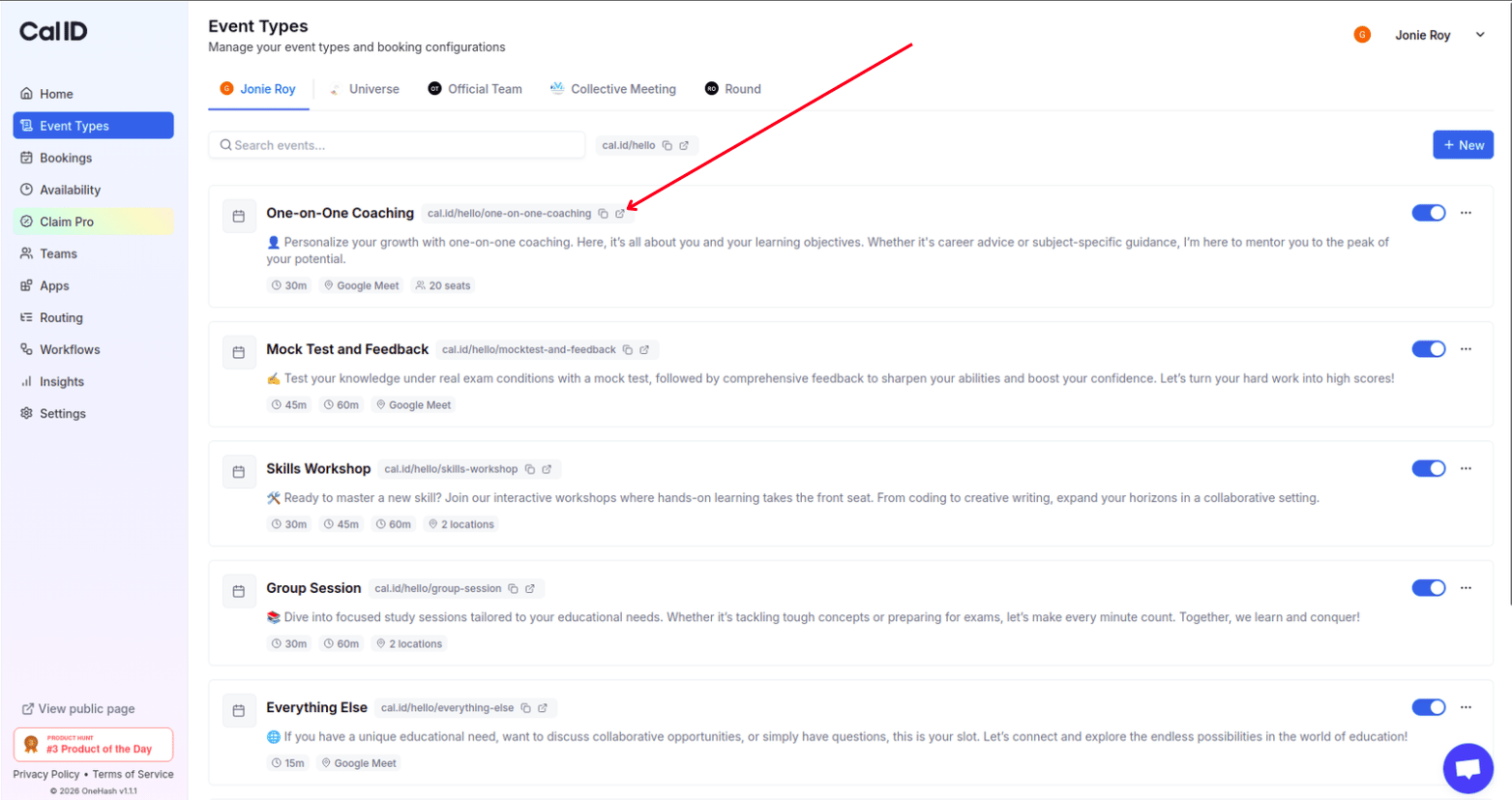
On your main dashboard, click on the **External Link icon** (square with an arrow) next to your event URL to open the live booking page in a new tab.
After clicking **Continue**, a detailed page opens where you can fine-tune your event:
* **Event Setup**: Edit your title, description, and location.
* **Availability**: Set specific hours for this event type.
* **Limits & Buffers**: Add extra time before or after meetings to give yourself a break.
* **Advanced**: Adjust advanced settings.
* **Workflows**: Set workflows for notifications and reminders.
* **Recurring**: Set for repetitive bookings.
* **Embed**: Get the embed code.
### Preview your booking page
Before sharing your link, you can easily see exactly what your Booker will see. There are two simple ways to view the preview:
On your main dashboard, click on the **External Link icon** (square with an arrow) next to your event URL to open the live booking page in a new tab.
 While you are inside editing an event, you can click the **Preview icon** located at the top right to see your changes in real-time.
 ## Key benefits
* **Saves Time**: No more "Are you free at 2 PM?" emails.
* **Flexibility**: Switch events on or off with a single toggle.
* **Easy Sharing**: Each event has its own unique link that you can send via email or embed on your website.
## Next steps
Choose where your meeting happens, from Zoom and Google Meet to in-person.
Give yourself breathing room before and after each meeting.
Collect the details you need from guests when they book.
## Related topics
- [Editing Event Type Details (Title, URL, & Language)](/docs/event-types/basics/edit-details.md)
- [Duplicate the Event Type](/docs/event-types/basics/duplicate.md)
- [Set Event Location](/docs/event-types/setup/location.md)
- [How to Schedule a Meeting through Cal ID](/docs/getting-started/schedule-a-meeting.md)
- [How to set Availability for an Event type?](/docs/event-types/setup/event-availability.md)
## Key benefits
* **Saves Time**: No more "Are you free at 2 PM?" emails.
* **Flexibility**: Switch events on or off with a single toggle.
* **Easy Sharing**: Each event has its own unique link that you can send via email or embed on your website.
## Next steps
Choose where your meeting happens, from Zoom and Google Meet to in-person.
Give yourself breathing room before and after each meeting.
Collect the details you need from guests when they book.
## Related topics
- [Editing Event Type Details (Title, URL, & Language)](/docs/event-types/basics/edit-details.md)
- [Duplicate the Event Type](/docs/event-types/basics/duplicate.md)
- [Set Event Location](/docs/event-types/setup/location.md)
- [How to Schedule a Meeting through Cal ID](/docs/getting-started/schedule-a-meeting.md)
- [How to set Availability for an Event type?](/docs/event-types/setup/event-availability.md)