> ## Documentation Index
> Fetch the complete documentation index at: https://cal.id/docs/llms.txt
> Use this file to discover all available pages before exploring further.
# Changing the Order of Event Types
> Rearrange your Cal ID event types with a simple drag-and-drop interface to control the order they appear in on your public booking page for guests.
Rearrange your event types with a simple drag-and-drop to control the order guests see them in on your public booking page, so your most important meetings appear first.
## How to rearrange your event types
Click on the **Event Types** tab in the left-hand sidebar to see your full list of active and inactive events.
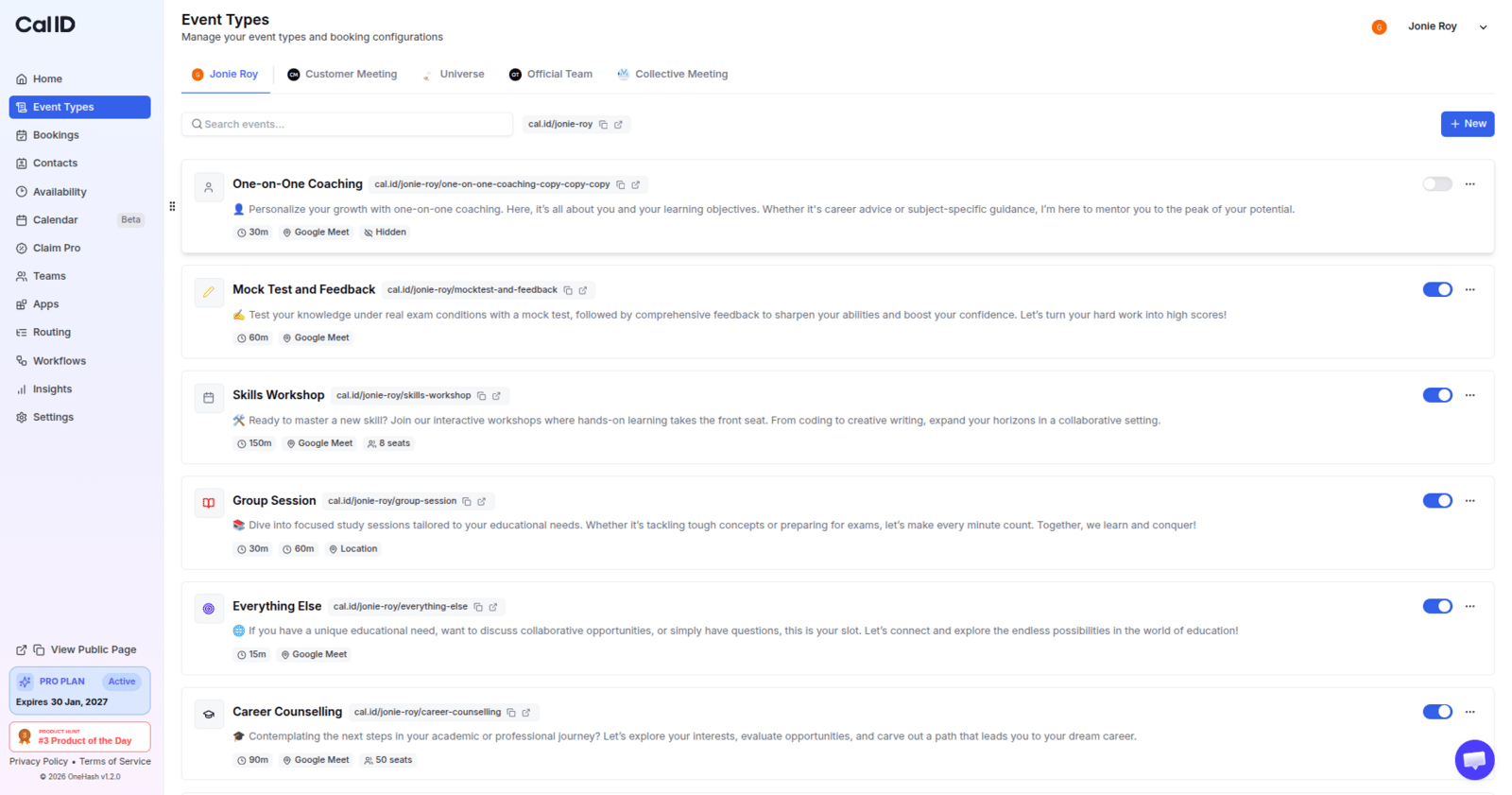 Hover your mouse cursor over the event type you wish to move. A **6-dot icon (⣿)** will appear on the far left side of that specific event card.
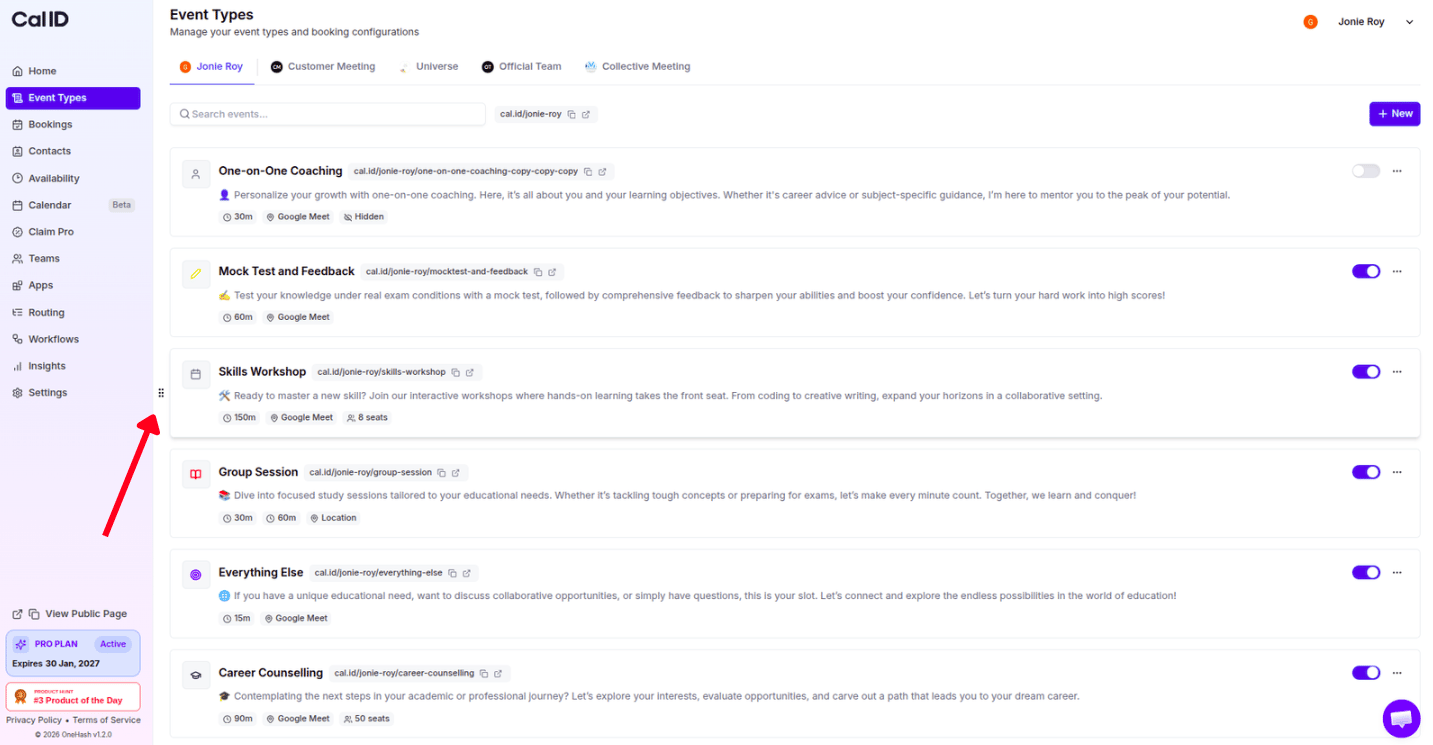 * Click and hold the **6-dot icon**.
* Drag the event type up or down to your preferred position in the list.
* Release the mouse button to drop it into place.
* Click and hold the **6-dot icon**.
* Drag the event type up or down to your preferred position in the list.
* Release the mouse button to drop it into place.
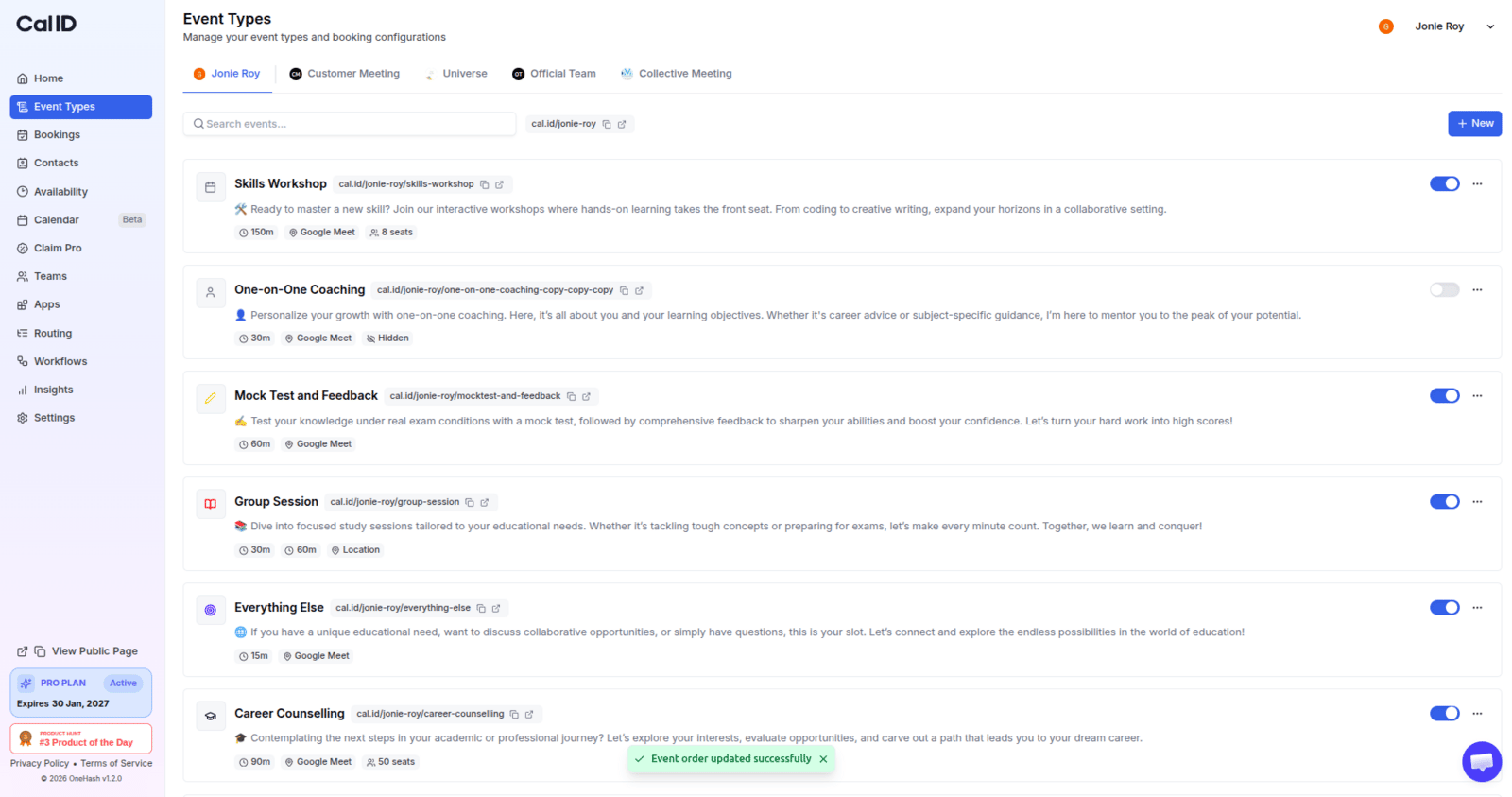 Once you move an event type in your dashboard, the new order is automatically saved and will be instantly reflected on your **Public Booking Page**.
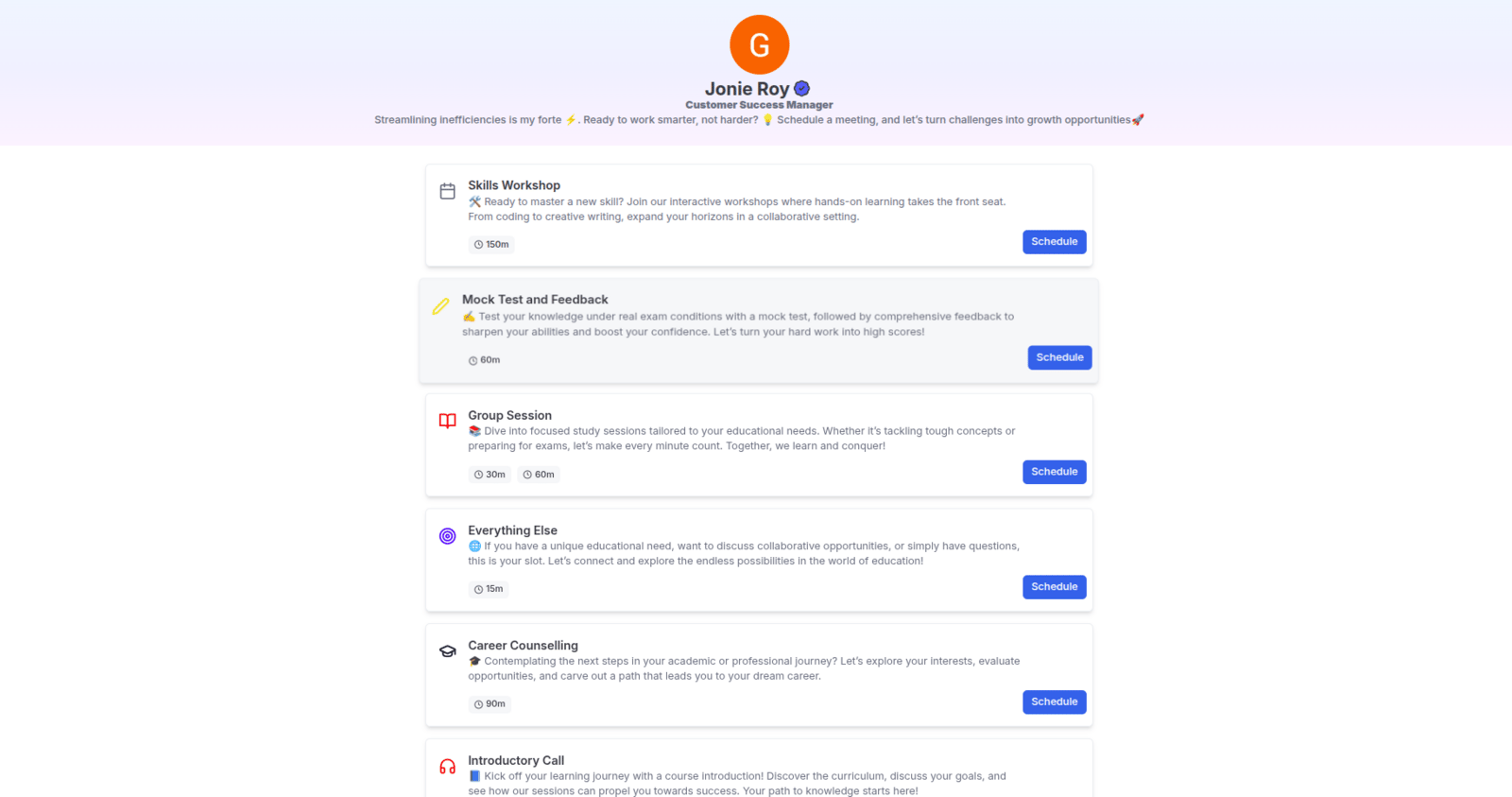 Place your most frequently booked sessions (like "Intro Calls" or "Demos") at the very top so guests don't have to scroll to find them.
## Why change the order?
* **Prioritize Popular Meetings**: Place your most frequently booked sessions (like "Intro Calls" or "Demos") at the very top so users don't have to scroll.
* **Logical Grouping**: Organise your meetings by duration (e.g., all 15-minute calls followed by 60-minute calls) or by category to make it easier for attendees to choose.
* **Highlight Seasonal Events**: If you have a temporary or high-priority event type, you can move it to the top position to ensure it gets maximum visibility.
## Related topics
- [Event Types](/docs/event-types/basics/overview.md)
- [Editing Event Type Details (Title, URL, & Language)](/docs/event-types/basics/edit-details.md)
- [Duplicate the Event Type](/docs/event-types/basics/duplicate.md)
- [Add Custom Icons in the Events](/docs/event-types/basics/custom-icons.md)
- [Delete the Event Type](/docs/event-types/basics/delete.md)
Place your most frequently booked sessions (like "Intro Calls" or "Demos") at the very top so guests don't have to scroll to find them.
## Why change the order?
* **Prioritize Popular Meetings**: Place your most frequently booked sessions (like "Intro Calls" or "Demos") at the very top so users don't have to scroll.
* **Logical Grouping**: Organise your meetings by duration (e.g., all 15-minute calls followed by 60-minute calls) or by category to make it easier for attendees to choose.
* **Highlight Seasonal Events**: If you have a temporary or high-priority event type, you can move it to the top position to ensure it gets maximum visibility.
## Related topics
- [Event Types](/docs/event-types/basics/overview.md)
- [Editing Event Type Details (Title, URL, & Language)](/docs/event-types/basics/edit-details.md)
- [Duplicate the Event Type](/docs/event-types/basics/duplicate.md)
- [Add Custom Icons in the Events](/docs/event-types/basics/custom-icons.md)
- [Delete the Event Type](/docs/event-types/basics/delete.md)