> ## Documentation Index
> Fetch the complete documentation index at: https://cal.id/docs/llms.txt
> Use this file to discover all available pages before exploring further.
# Adding Attachments in Booking Pages
> Collect files such as resumes, intake forms, and project briefs from guests before a Cal ID meeting by adding an Attachment question to your booking page.
Collect important files from your guests by adding an **Attachment** question to your **Cal ID** booking page. It's perfect for gathering resumes, intake forms, or project briefs before a meeting begins — you can require the upload or leave it optional.
## Why use attachments?
* **Be prepared:** Review a guest's resume or document before the meeting starts so you're ready to discuss it.
* **Professional workflow:** Gives your booking process a high-end, organized feel for things like job interviews or coaching sessions.
## How to set it up
Go to your **Event Types**, click **Edit** on the event you want to change, and open the **Advanced** tab.
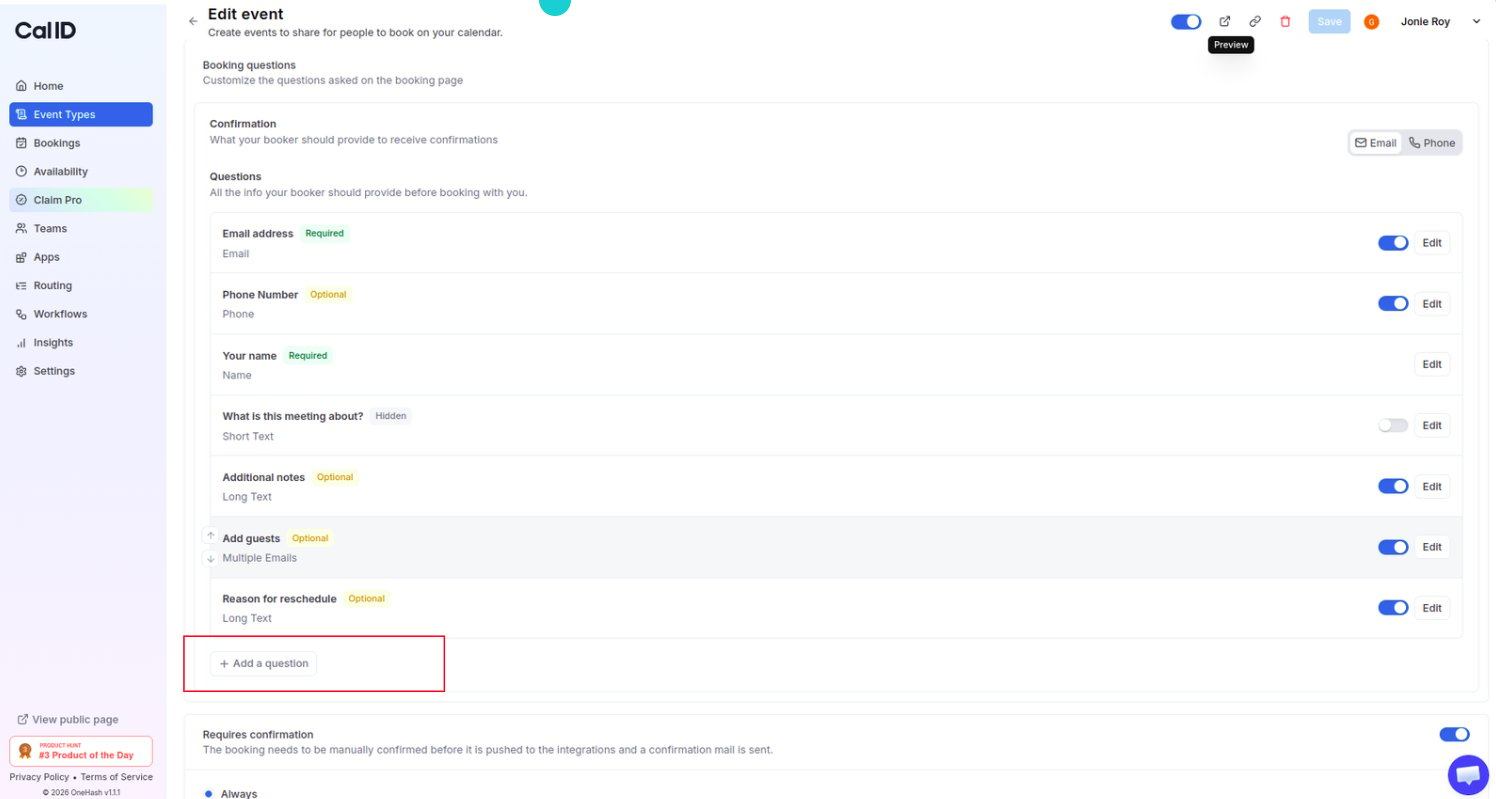
Scroll down to the **Booking questions** section and click **+ Add a question**.
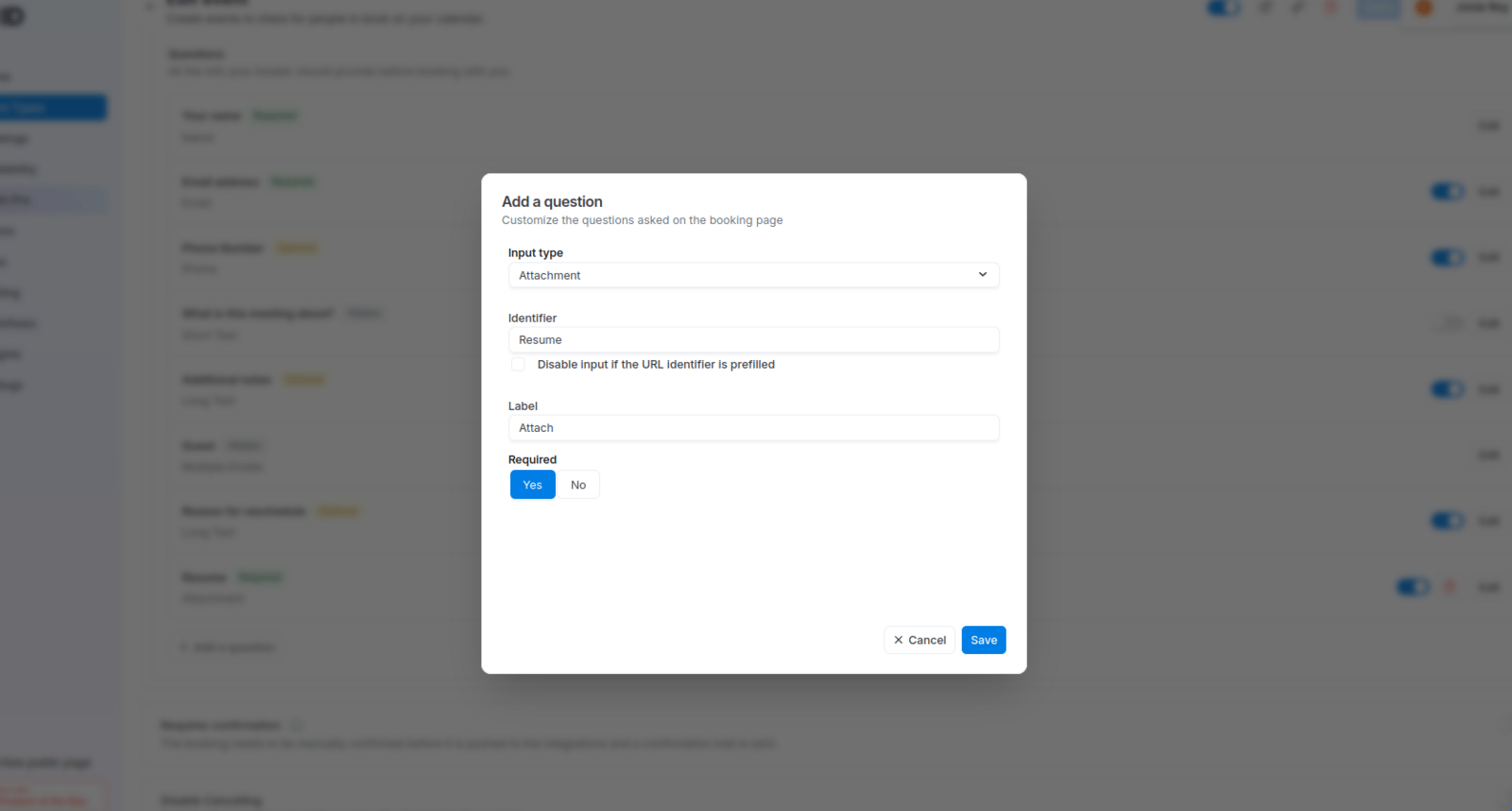
 In the **Input type** dropdown, select **Attachment**.
* **Identifier:** A short name for the system (e.g., "Resume" or "Upload Project Brief").
* **Label:** The text your guest will see (e.g., "Attach-the-document").
* **Required:** Select **Yes** if the guest **must** upload a file to finish booking.
In the **Input type** dropdown, select **Attachment**.
* **Identifier:** A short name for the system (e.g., "Resume" or "Upload Project Brief").
* **Label:** The text your guest will see (e.g., "Attach-the-document").
* **Required:** Select **Yes** if the guest **must** upload a file to finish booking.
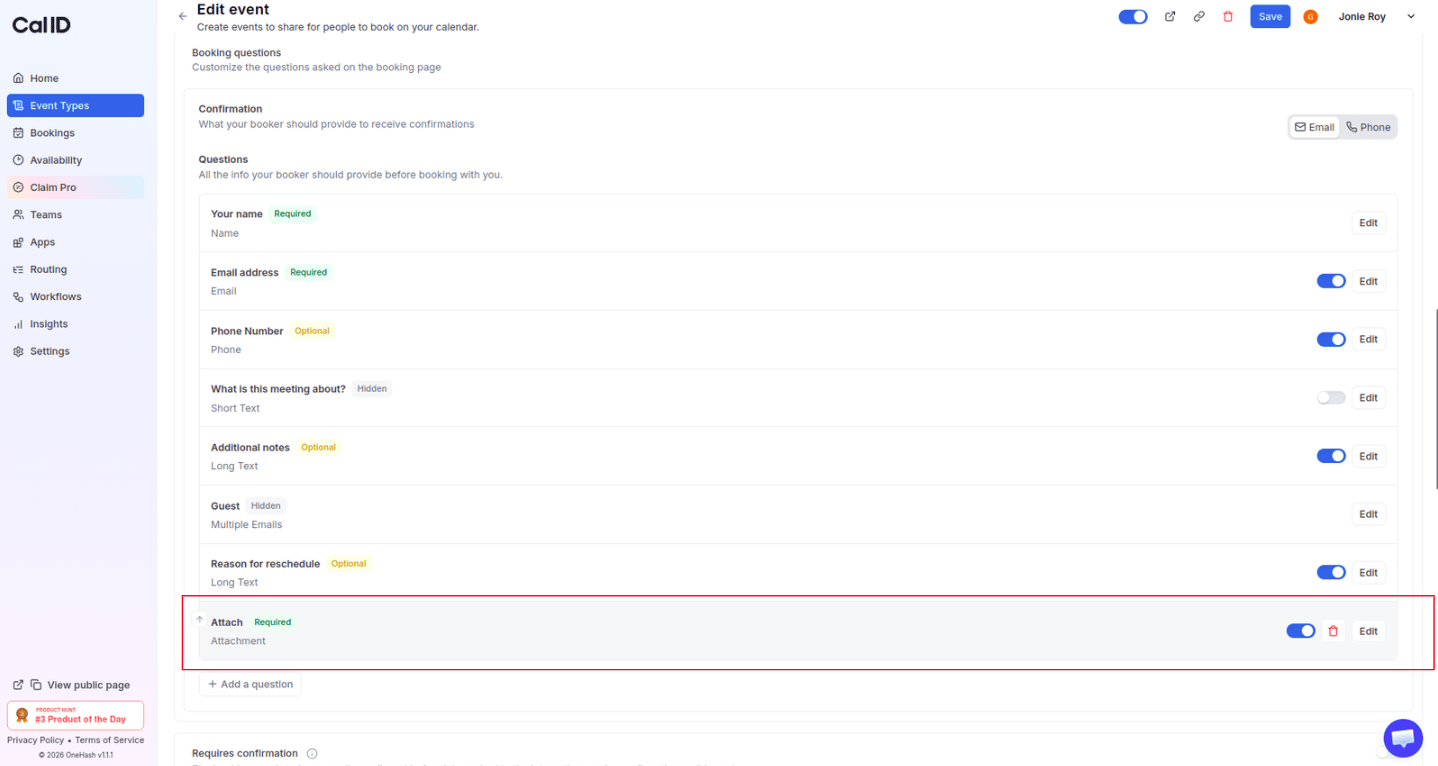
 Click **Add**, then click **Save** at the top of the page.
 ## How it works for the booker
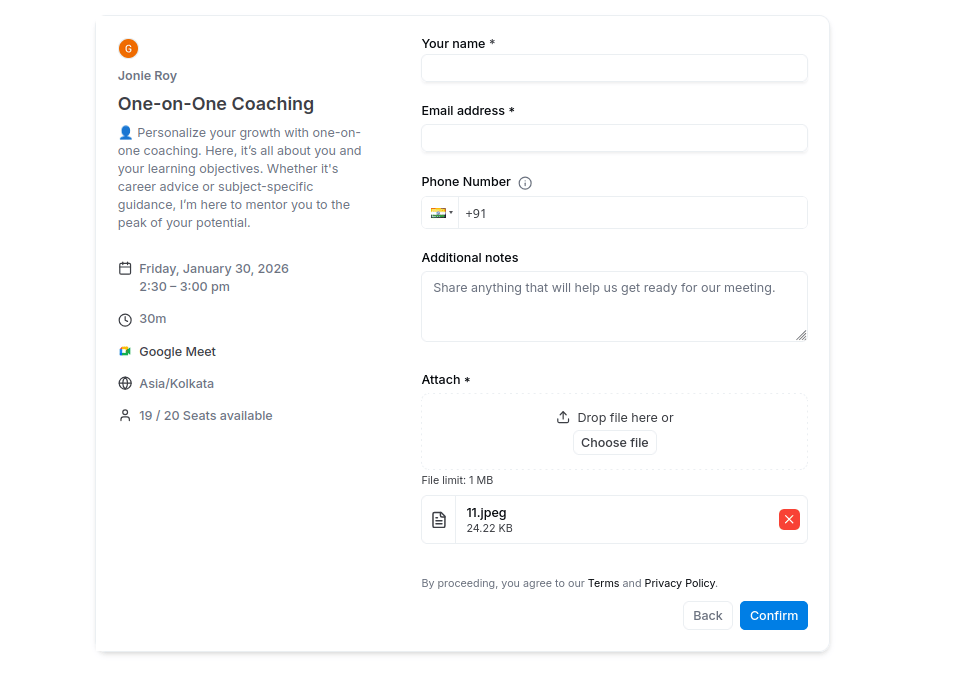
* **Upload field:** On the booking page, the guest sees a "Drop file here or Choose file" box under your question.
## How it works for the booker
* **Upload field:** On the booking page, the guest sees a "Drop file here or Choose file" box under your question.
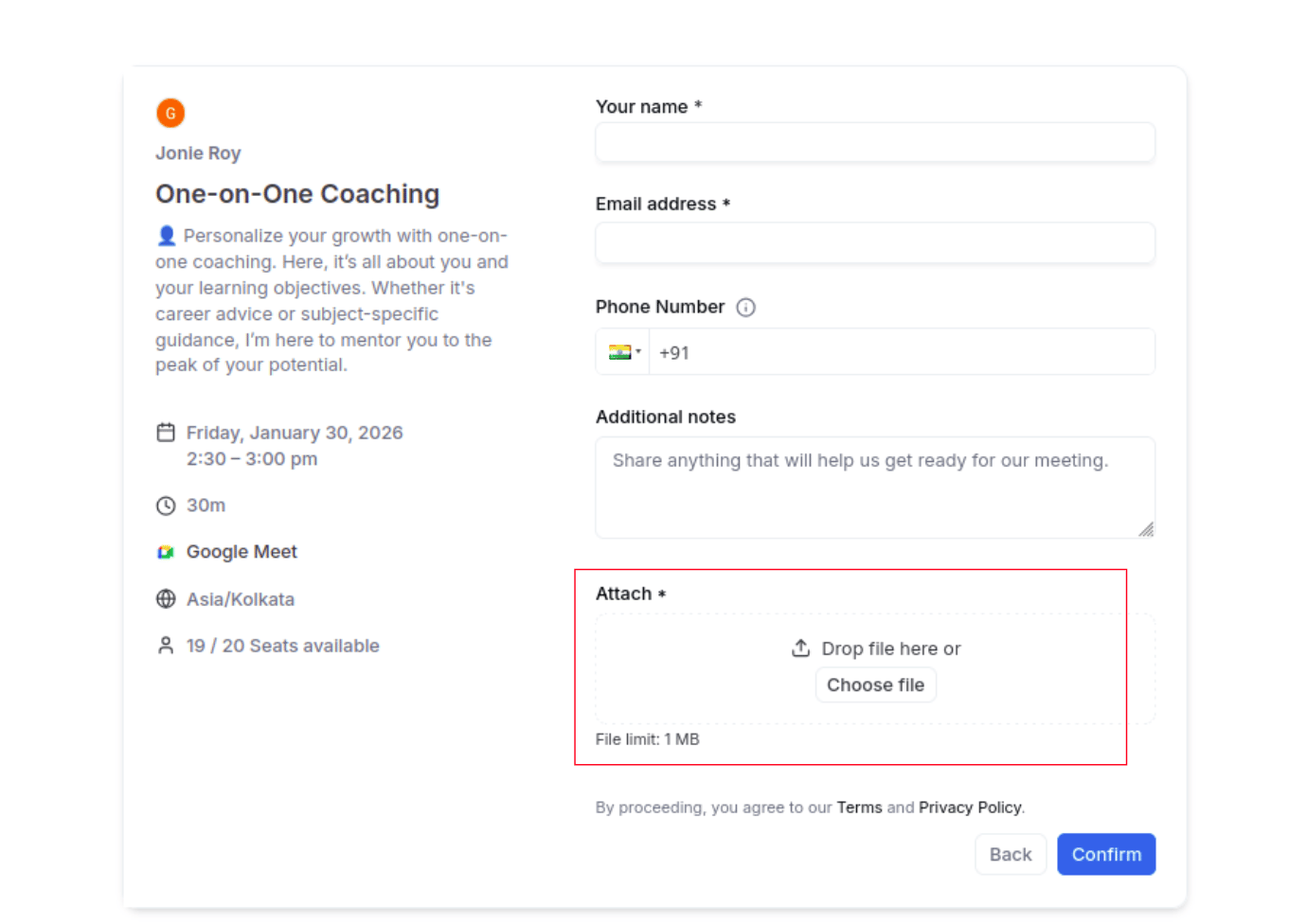 * **File selection:** Guests can drag a file into the box or select one from their computer.
* **Visual feedback:** Once uploaded, the guest sees the file name and size before clicking **Confirm**.
* **File selection:** Guests can drag a file into the box or select one from their computer.
* **Visual feedback:** Once uploaded, the guest sees the file name and size before clicking **Confirm**.
 ## Where to find the files
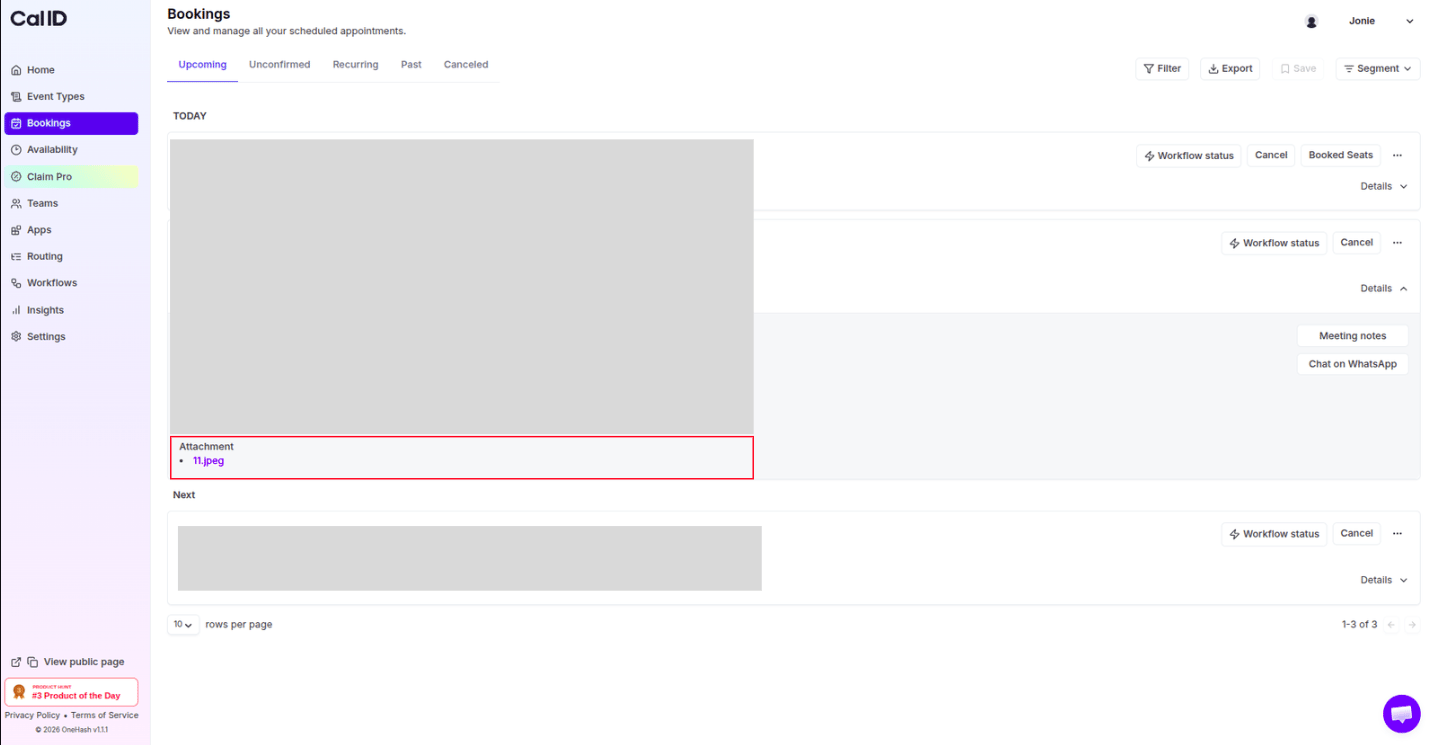
Once a booking is completed, you don't need to check your email to find the file. Go to the **Bookings** tab in your **Cal ID** sidebar and click that specific booking to view and download the attached file.
## Where to find the files
Once a booking is completed, you don't need to check your email to find the file. Go to the **Bookings** tab in your **Cal ID** sidebar and click that specific booking to view and download the attached file.
 ## Next steps
Explore every input type and build your full intake form.
Pre-fill known data and hide internal-only fields with URL parameters.
## Related topics
- [Add Pre-Booking Questions for Events](/docs/event-types/booking-questions/pre-booking-questions.md)
- [How to Hide and Prefill Booking Questions?](/docs/event-types/booking-questions/hide-prefill.md)
- [Create a Phone-only Event Type](/docs/event-types/booking-questions/phone-only.md)
- [Split Full Name into First and Last Name on Booking Page](/docs/event-types/booking-questions/split-name.md)
## Next steps
Explore every input type and build your full intake form.
Pre-fill known data and hide internal-only fields with URL parameters.
## Related topics
- [Add Pre-Booking Questions for Events](/docs/event-types/booking-questions/pre-booking-questions.md)
- [How to Hide and Prefill Booking Questions?](/docs/event-types/booking-questions/hide-prefill.md)
- [Create a Phone-only Event Type](/docs/event-types/booking-questions/phone-only.md)
- [Split Full Name into First and Last Name on Booking Page](/docs/event-types/booking-questions/split-name.md)