> ## Documentation Index
> Fetch the complete documentation index at: https://cal.id/docs/llms.txt
> Use this file to discover all available pages before exploring further.
# Enable Captcha on Booking Page
> Protect your Cal ID calendar from spam bots and malicious scripts by adding a Cloudflare Turnstile captcha challenge to your public booking page.
Add a captcha challenge to your public booking page to keep automated bots and malicious scripts from flooding your calendar with fake appointments.
In **Cal ID**, the **Enable captcha on Booking page** feature is a vital security layer designed to protect your calendar from automated spam bots and malicious booking scripts.
Captcha is bot protection for your booking page: it verifies that a real person — not an automated script — is submitting the booking, so scrapers and bots can't snatch slots or fill your schedule with junk.
## Why use "Enable captcha on Booking page"?
* **Bot Mitigation:** Prevents automated bots from flooding your schedule with fake appointments, ensuring your availability is reserved for real clients.
* **Protect Public Links:** Essential for "Discovery Calls" or public booking links that are easily accessible to web scrapers.
* **Prevent "Denial of Service" on Slots:** Bots can be used to "snatch" every available slot in seconds to prevent others from booking. Captcha blocks these scripts.
* **Clean Data:** Keeps your dashboard and connected CRM free from junk data and "trash" leads.
## How to set it up
Log in to your [**Cal ID**](https://cal.id/home) account.
Select the specific event you want to protect.
Click on the **Advanced** tab in the top navigation bar.
Locate the **Enable captcha on booking page** option and switch it to **ON**.
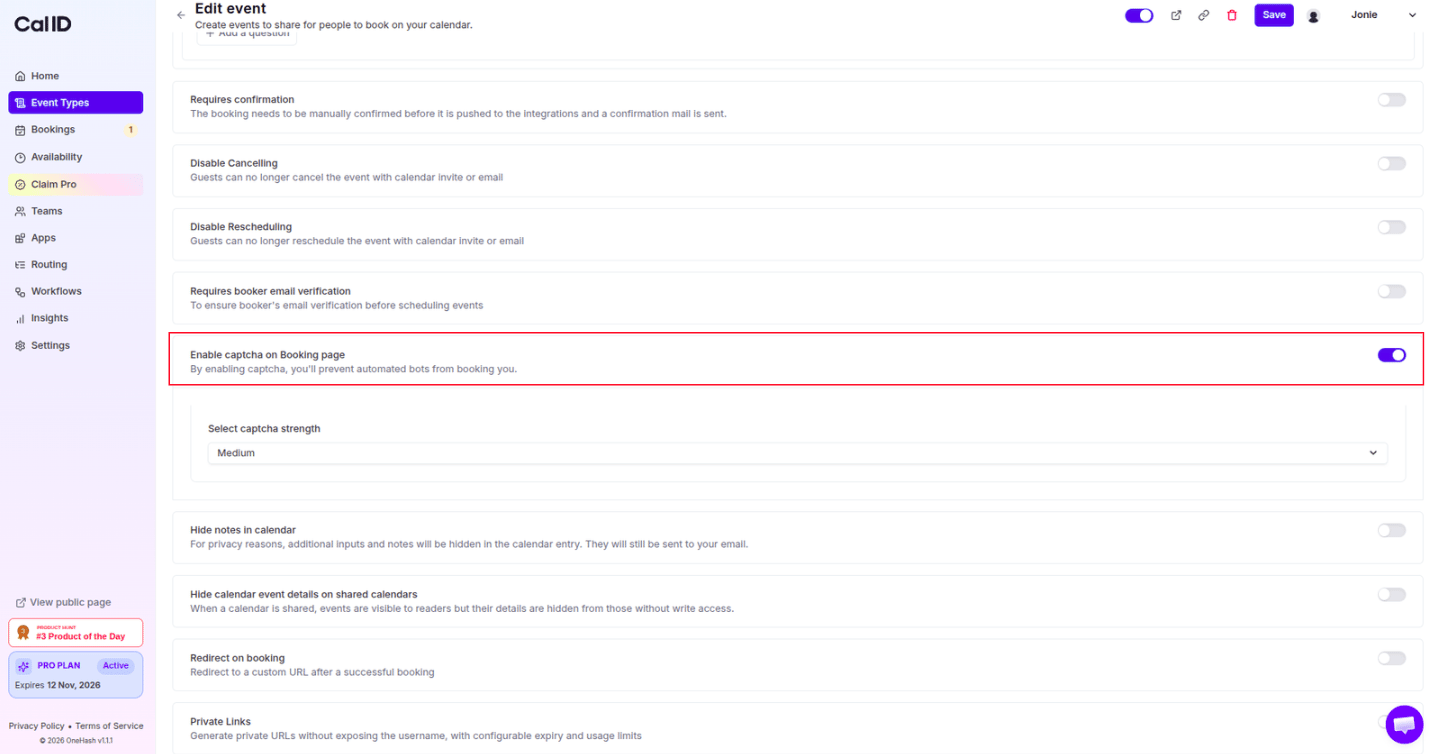 Once enabled, a new dropdown field will appear labeled **Select captcha strength**. Choose the level that fits your needs:
* **Low:** Minimal friction; only challenges highly suspicious traffic.
* **Medium:** The standard balance between security and user experience.
* **High:** Strict verification; more likely to present visual challenges (like selecting traffic lights) to all users.
Once enabled, a new dropdown field will appear labeled **Select captcha strength**. Choose the level that fits your needs:
* **Low:** Minimal friction; only challenges highly suspicious traffic.
* **Medium:** The standard balance between security and user experience.
* **High:** Strict verification; more likely to present visual challenges (like selecting traffic lights) to all users.
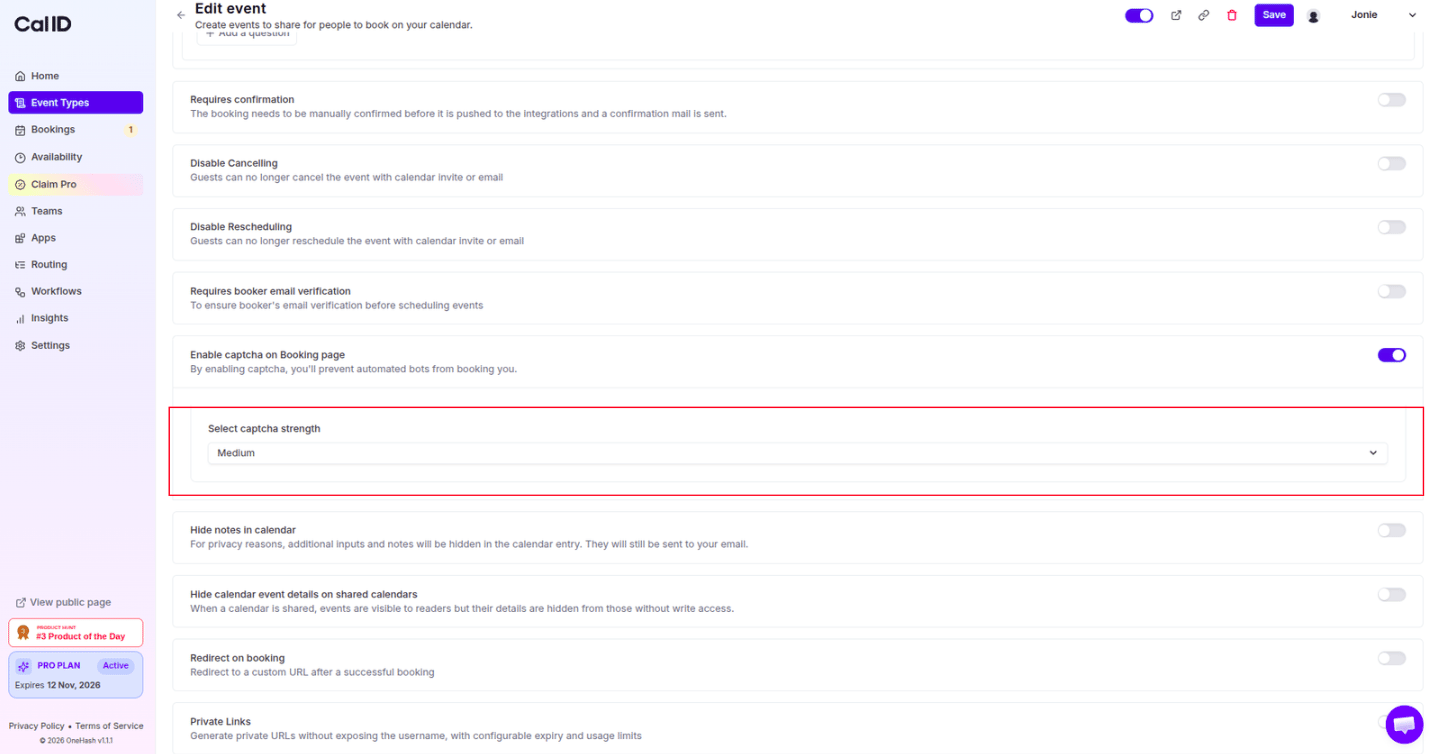 Click the blue **Save** button at the top right.
## How it works for the booker
* **Frictionless Experience:** Cal ID uses advanced reCAPTCHA technology. For most users, the check happens silently in the background without them having to do anything.
* **Interactive Challenges:** If the guest's browser behavior appears "bot-like," the system will present a visual or audio challenge (e.g., "Select all crosswalks") that they must solve before clicking "Confirm Booking".
* **Strength Impact:** At **High** strength, the system is much more sensitive, which increases security but may cause slight delays for legitimate users.
If you are using **Requires booker email verification** alongside Captcha, your booking page will be extremely secure. However, keep in mind that every extra step (Captcha + Email Verification) adds "friction." For internal team links or private 1-on-1s, we recommend keeping these settings at **Medium** or **Low** to ensure a smooth booking flow.
## Related topics
- [Verify Email on Booking Page before the Booking](/docs/event-types/booking-questions/verify-email.md)
- [Require/Exclude Email Domains (Booking Question)](/docs/event-types/booking-questions/email-domains.md)
- [How to Disable Adding Guests in Cal ID](/docs/event-types/booking-questions/disable-guests.md)
- [Add Pre-Booking Questions for Events](/docs/event-types/booking-questions/pre-booking-questions.md)
Click the blue **Save** button at the top right.
## How it works for the booker
* **Frictionless Experience:** Cal ID uses advanced reCAPTCHA technology. For most users, the check happens silently in the background without them having to do anything.
* **Interactive Challenges:** If the guest's browser behavior appears "bot-like," the system will present a visual or audio challenge (e.g., "Select all crosswalks") that they must solve before clicking "Confirm Booking".
* **Strength Impact:** At **High** strength, the system is much more sensitive, which increases security but may cause slight delays for legitimate users.
If you are using **Requires booker email verification** alongside Captcha, your booking page will be extremely secure. However, keep in mind that every extra step (Captcha + Email Verification) adds "friction." For internal team links or private 1-on-1s, we recommend keeping these settings at **Medium** or **Low** to ensure a smooth booking flow.
## Related topics
- [Verify Email on Booking Page before the Booking](/docs/event-types/booking-questions/verify-email.md)
- [Require/Exclude Email Domains (Booking Question)](/docs/event-types/booking-questions/email-domains.md)
- [How to Disable Adding Guests in Cal ID](/docs/event-types/booking-questions/disable-guests.md)
- [Add Pre-Booking Questions for Events](/docs/event-types/booking-questions/pre-booking-questions.md)