> ## Documentation Index
> Fetch the complete documentation index at: https://cal.id/docs/llms.txt
> Use this file to discover all available pages before exploring further.
# How to Disable Adding Guests in Cal ID
> Hide the Add guests option from your Cal ID booking page to keep meetings strictly one-on-one and prevent attendees from inviting additional people.
Hide the "Add guests" option from your booking page so bookers cannot add extra email addresses, keeping your meetings strictly one-on-one.
## Why use this feature?
* **Strict One-on-Ones:** Ensure the meeting stays between just you and the person who booked it.
* **Manage Group Size:** Prevent unexpected people from showing up to a session that was only meant for one person.
* **Privacy:** Keeps the booking simple and focused on a single attendee.
## How to do it
Login to your Cal ID account and go to the **Event Types** tab.
Find the event you want to change and click **Edit**.
Scroll down to the **Questions** section where you see fields like "Email address" and "Your name".
Look for the **Add guests** question at the bottom of the list.
Simply click the switch so it is no longer active.
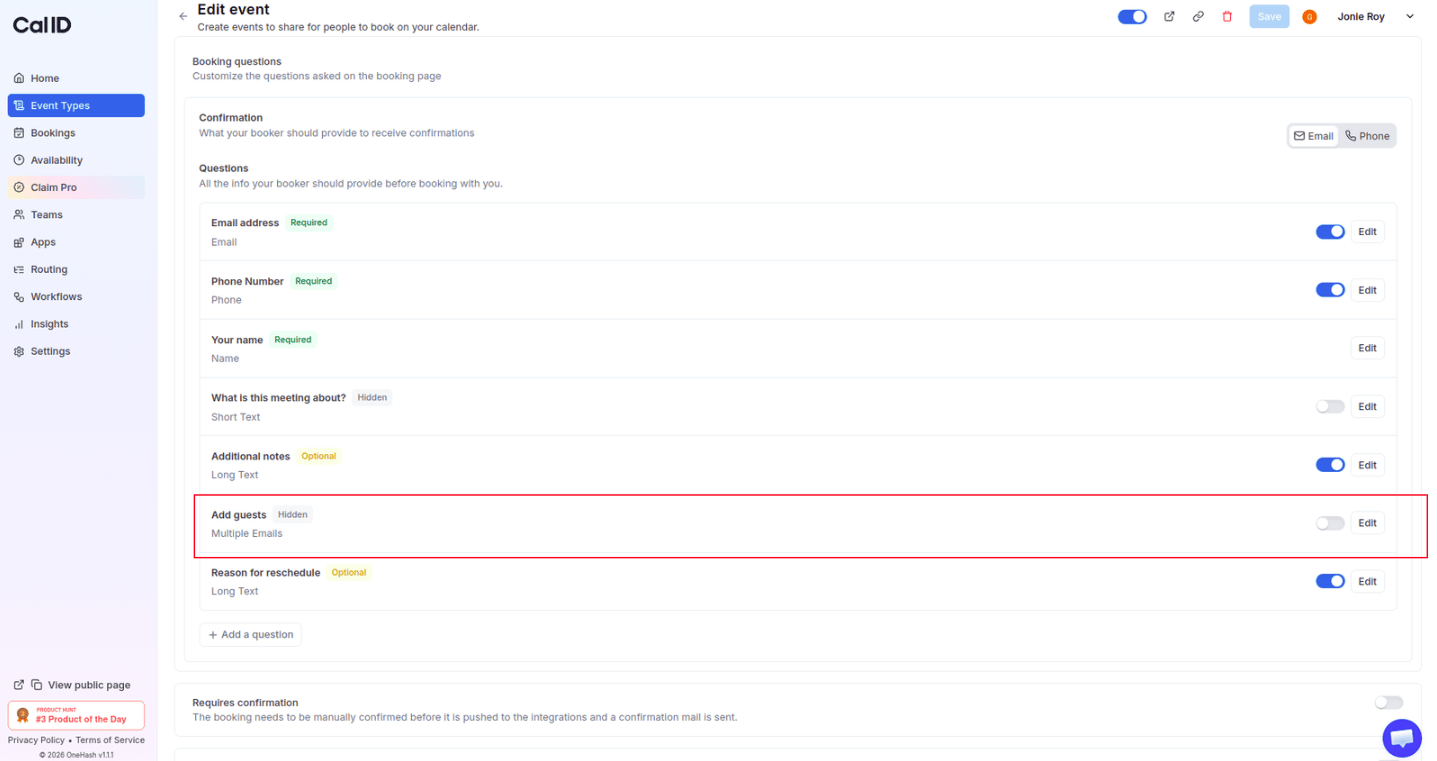 Click **Save** at the top of the page.
Even if you disable this on your booking page, a guest might still be able to invite others manually using their own personal calendar (like Google or Outlook) after the meeting is scheduled. This setting specifically removes the option from the **initial booking process**.
## Related topics
- [Add Pre-Booking Questions for Events](/docs/event-types/booking-questions/pre-booking-questions.md)
- [How to Hide and Prefill Booking Questions?](/docs/event-types/booking-questions/hide-prefill.md)
- [How to use Offer Seats in Cal ID](/docs/event-types/advanced/offer-seats.md)
- [Require/Exclude Email Domains (Booking Question)](/docs/event-types/booking-questions/email-domains.md)
Click **Save** at the top of the page.
Even if you disable this on your booking page, a guest might still be able to invite others manually using their own personal calendar (like Google or Outlook) after the meeting is scheduled. This setting specifically removes the option from the **initial booking process**.
## Related topics
- [Add Pre-Booking Questions for Events](/docs/event-types/booking-questions/pre-booking-questions.md)
- [How to Hide and Prefill Booking Questions?](/docs/event-types/booking-questions/hide-prefill.md)
- [How to use Offer Seats in Cal ID](/docs/event-types/advanced/offer-seats.md)
- [Require/Exclude Email Domains (Booking Question)](/docs/event-types/booking-questions/email-domains.md)