> ## Documentation Index
> Fetch the complete documentation index at: https://cal.id/docs/llms.txt
> Use this file to discover all available pages before exploring further.
# Require/Exclude Email Domains (Booking Question)
> Use the Email booking question's validation rules in Cal ID to allow or block specific email domains so only approved bookers can complete a booking.
Control exactly who can book with you by using the validation rules built into the **Email** booking question in [**Cal ID**](https://cal.id/home). Automatically filter out personal accounts or limit bookings to specific professional organizations, so your calendar stays reserved for the right audience.
**Allow vs. block.** *Require* rules act as an allowlist — only the domains you list can book. *Exclude* rules act as a blocklist — the domains you list are turned away, and everyone else is allowed.
## Why use domain filtering?
* **Filter out spam:** Block common personal email providers so you only speak with business prospects.
* **Internal use only:** Set up a link that only allows people with your company's domain to book.
* **Competitor blocking:** Prevent specific competitors from booking by excluding their known domains.
## How to set it up
Log in to [**Cal ID**](https://cal.id/home) and navigate to the **Event Types** tab.
Click **Edit** on the specific event type you want to restrict.
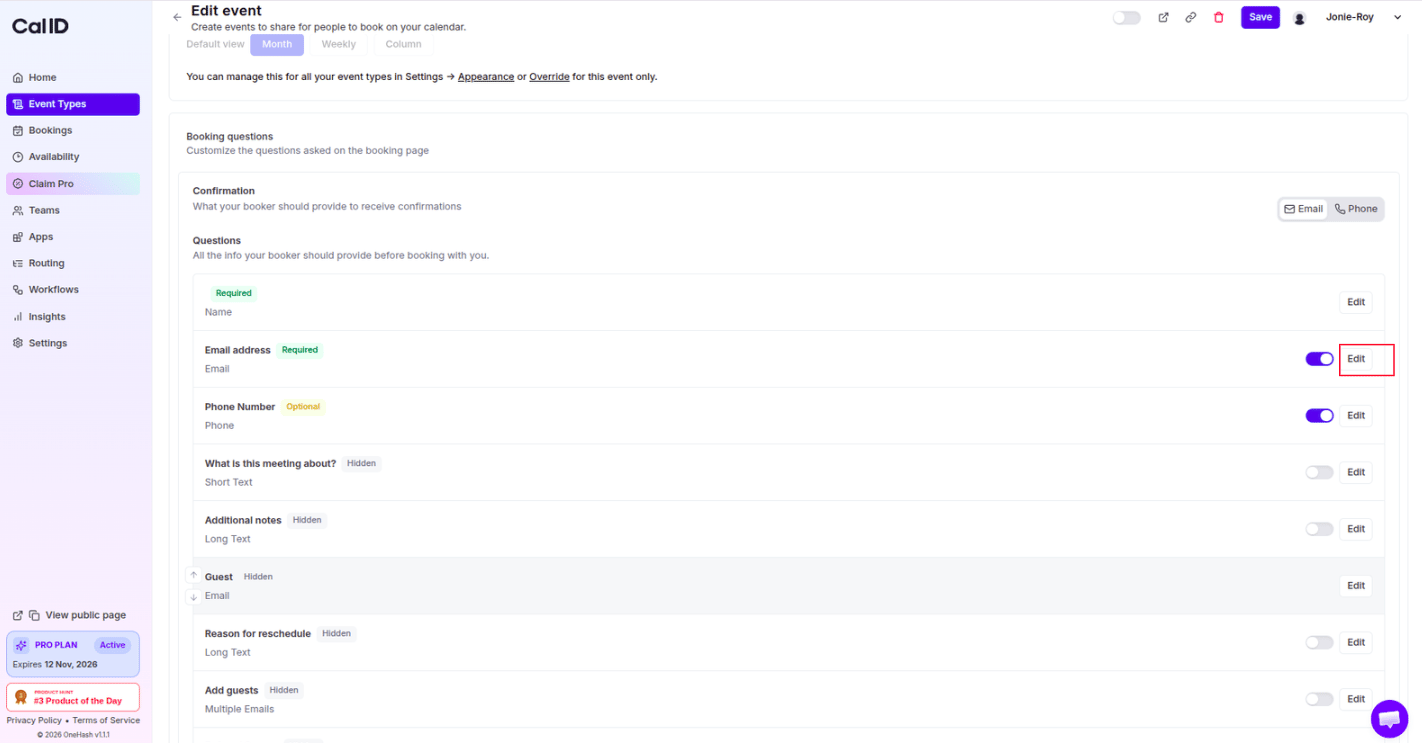
Scroll to the **Questions** section and find the **Email address** question.
Click the **Edit** button next to that question to open the "Add a question" settings.
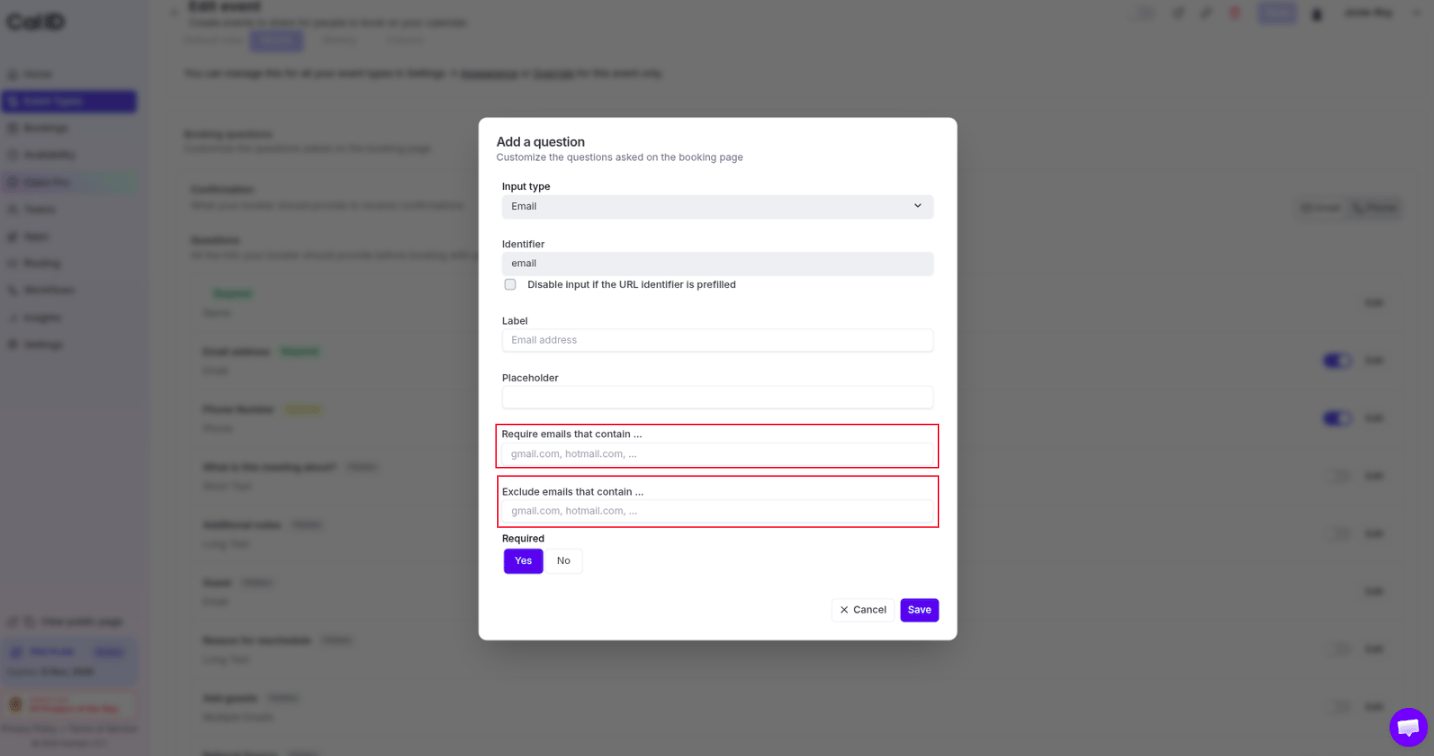
 * **Require emails that contain...:** Enter the specific domains you want to allow (e.g., `yourcompany.com`).
* **Exclude emails that contain...:** Enter the domains you want to forbid (e.g., `gmail.com, hotmail.com`).
* **Require emails that contain...:** Enter the specific domains you want to allow (e.g., `yourcompany.com`).
* **Exclude emails that contain...:** Enter the domains you want to forbid (e.g., `gmail.com, hotmail.com`).
 Click **Save**.
## Booker experience & error messages
If a guest attempts to book with a restricted email address, the system blocks the submission and displays a specific error message when they click **Confirm**:
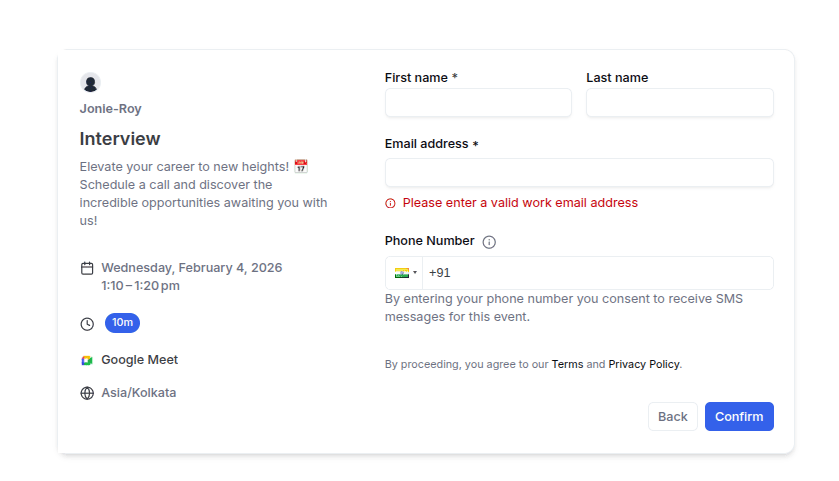
* **When excluded:** If you've blocked a domain (like a personal Gmail account), the guest sees:
> **"Please enter a valid work email address"**
Click **Save**.
## Booker experience & error messages
If a guest attempts to book with a restricted email address, the system blocks the submission and displays a specific error message when they click **Confirm**:
* **When excluded:** If you've blocked a domain (like a personal Gmail account), the guest sees:
> **"Please enter a valid work email address"**
 * **When required:** If you've limited the event to specific domains and the guest uses a different one, they see:
> **"You are not allowed to book with this email domain. Please contact the owner of this link."**
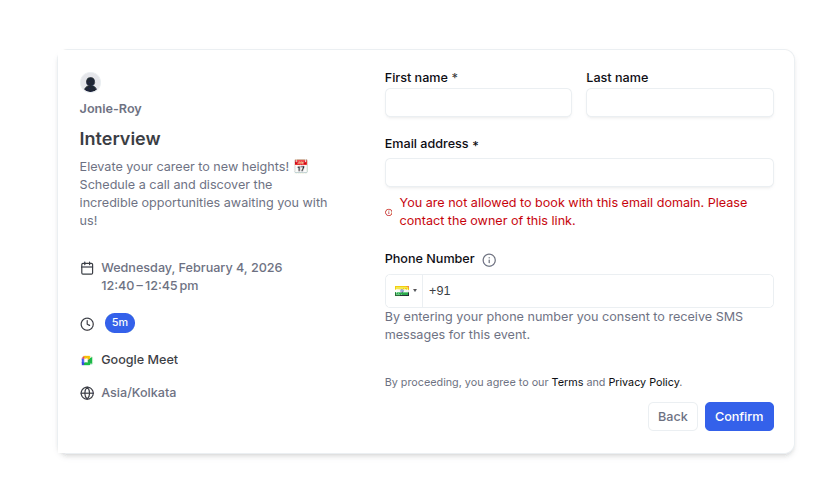
* **When required:** If you've limited the event to specific domains and the guest uses a different one, they see:
> **"You are not allowed to book with this email domain. Please contact the owner of this link."**
 **Professional prospecting:** For Sales Discovery calls, it's common practice to exclude `gmail.com`, `outlook.com`, and `yahoo.com`. This ensures you collect professional contact information, making it easier to research your prospects and maintain a high-quality lead list.
## Related topics
- [Verify Email on Booking Page before the Booking](/docs/event-types/booking-questions/verify-email.md)
- [Add Pre-Booking Questions for Events](/docs/event-types/booking-questions/pre-booking-questions.md)
- [Enable Captcha on Booking Page](/docs/event-types/booking-questions/captcha.md)
- [How to Disable Adding Guests in Cal ID](/docs/event-types/booking-questions/disable-guests.md)
**Professional prospecting:** For Sales Discovery calls, it's common practice to exclude `gmail.com`, `outlook.com`, and `yahoo.com`. This ensures you collect professional contact information, making it easier to research your prospects and maintain a high-quality lead list.
## Related topics
- [Verify Email on Booking Page before the Booking](/docs/event-types/booking-questions/verify-email.md)
- [Add Pre-Booking Questions for Events](/docs/event-types/booking-questions/pre-booking-questions.md)
- [Enable Captcha on Booking Page](/docs/event-types/booking-questions/captcha.md)
- [How to Disable Adding Guests in Cal ID](/docs/event-types/booking-questions/disable-guests.md)