> ## Documentation Index
> Fetch the complete documentation index at: https://cal.id/docs/llms.txt
> Use this file to discover all available pages before exploring further.
# How to Hide and Prefill Booking Questions?
> Pre-fill known booker data or hide internal-only fields on your Cal ID booking page using URL query parameters and hidden field identifiers.
Pre-fill information you already know about a client, or hide fields meant only for internal tracking (like referral sources or Lead IDs), to keep your **Cal ID** booking form short and friction-free while your calendar stays organized.
## Step 1: Add a booking question
Log in to your Cal ID account.
Navigate to the **Event Types** tab in the left sidebar and select the event you want to modify.
Click the **Advanced** tab in the top navigation bar.
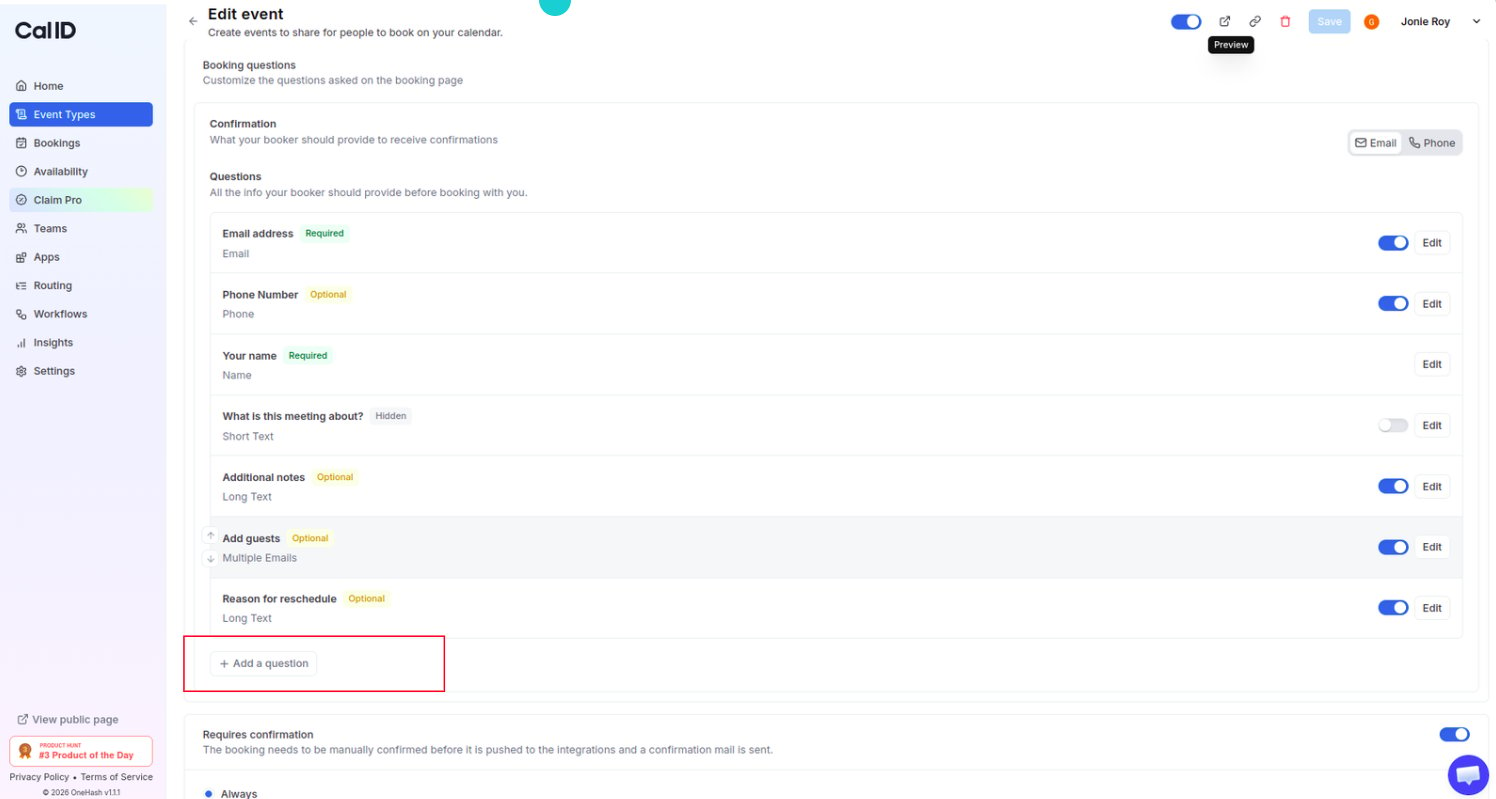
In the **Booking questions** section, click **+ Add a question**.
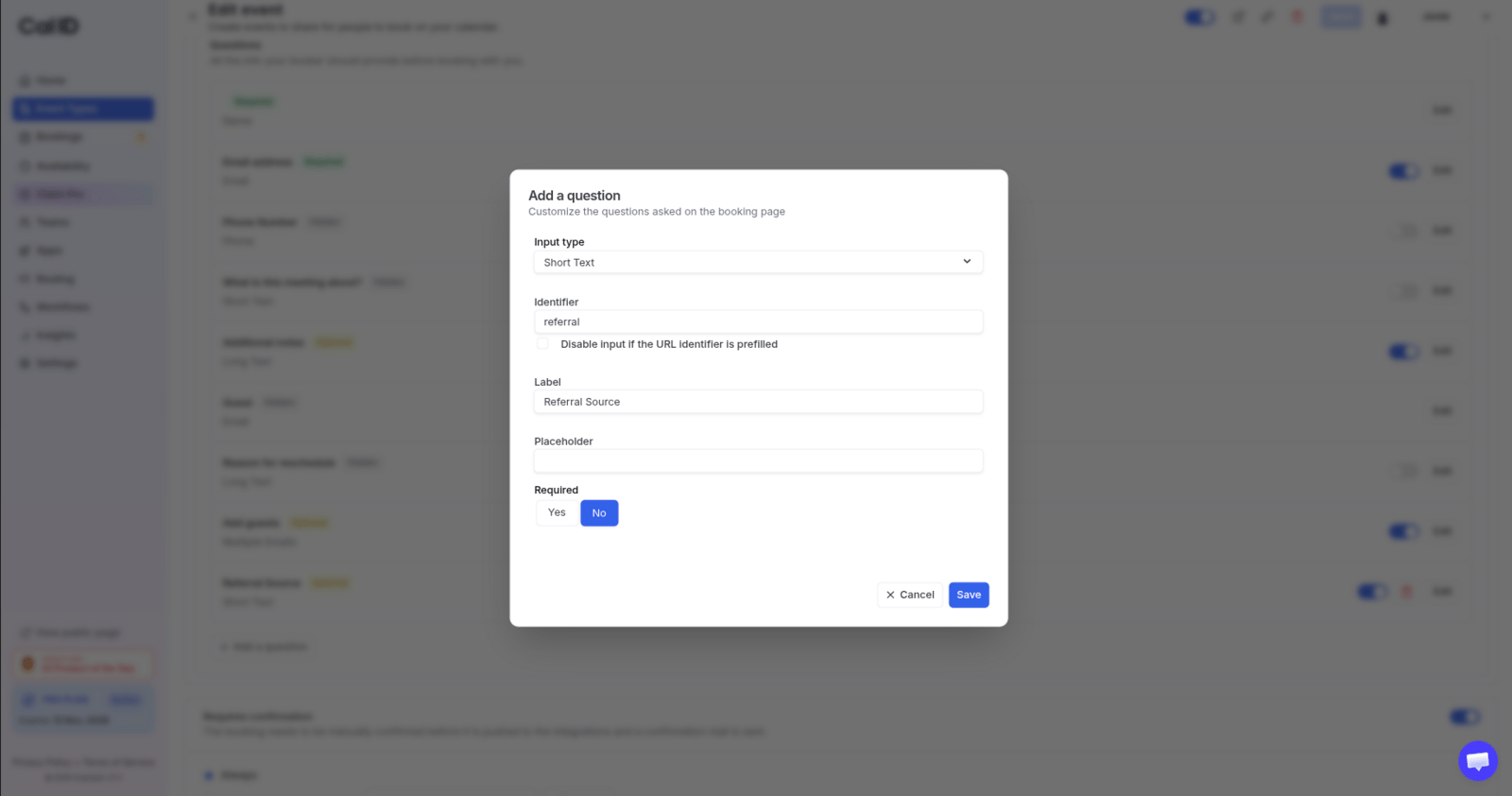
 * **Label:** The question text (e.g., "Referral Source").
* **Identifier:** Take note of this unique ID (e.g., `referral`). You'll need this exact word to pre-fill the data later.
* **Label:** The question text (e.g., "Referral Source").
* **Identifier:** Take note of this unique ID (e.g., `referral`). You'll need this exact word to pre-fill the data later.
 Click **Add**.
## Step 2: Hide a booking question
To record a field in your calendar while keeping it invisible to the attendee, hide it:
Find your newly added question in the list.
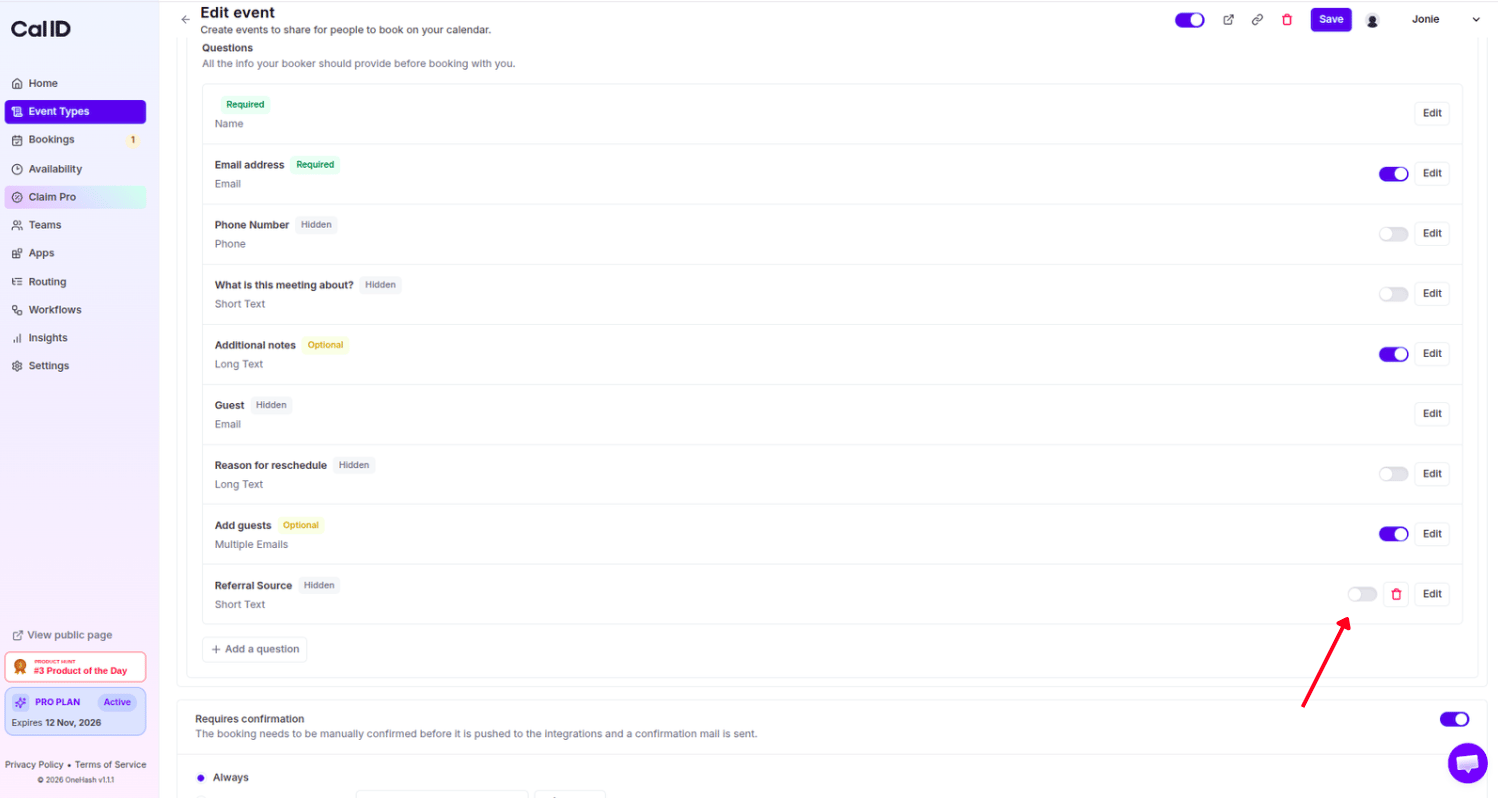
Click the switch next to the question to set it to **Hidden**.
Click **Add**.
## Step 2: Hide a booking question
To record a field in your calendar while keeping it invisible to the attendee, hide it:
Find your newly added question in the list.
Click the switch next to the question to set it to **Hidden**.
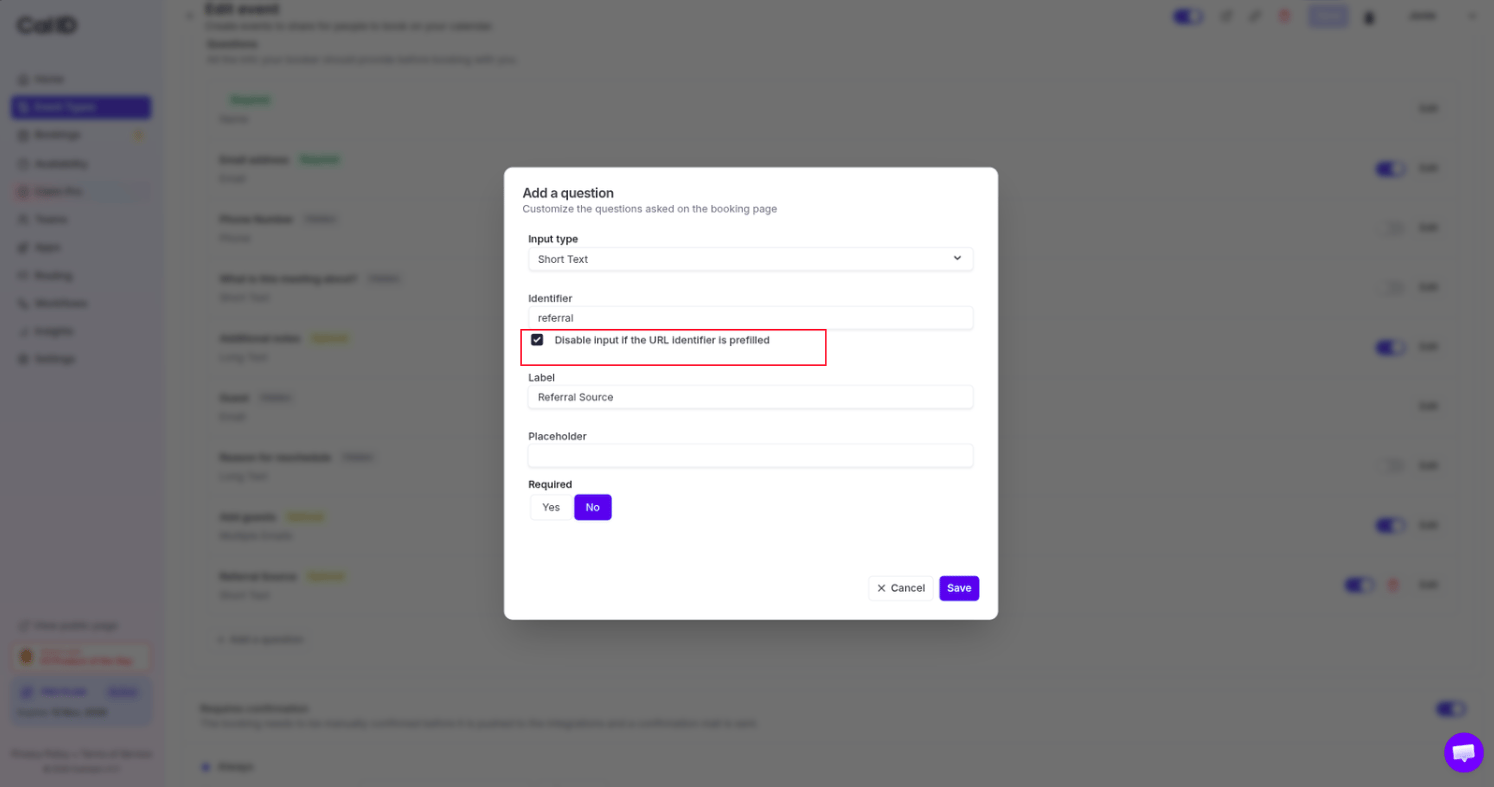
 To ensure a user cannot change a pre-filled value even if they find the field, click **Edit** and check the box **"Disable input if the URL identifier is prefilled"**.
 Click **Save** at the top right of the page.
## Step 3: Pre-fill the booking question
To automatically fill a field, append a **query parameter** to your booking URL that matches your question's **Identifier**.
* **The logic:** Use a `?` for the first parameter and an `&` for any additional parameters.
* **The structure:** `URL?identifier=value`
Click **Save** at the top right of the page.
## Step 3: Pre-fill the booking question
To automatically fill a field, append a **query parameter** to your booking URL that matches your question's **Identifier**.
* **The logic:** Use a `?` for the first parameter and an `&` for any additional parameters.
* **The structure:** `URL?identifier=value`
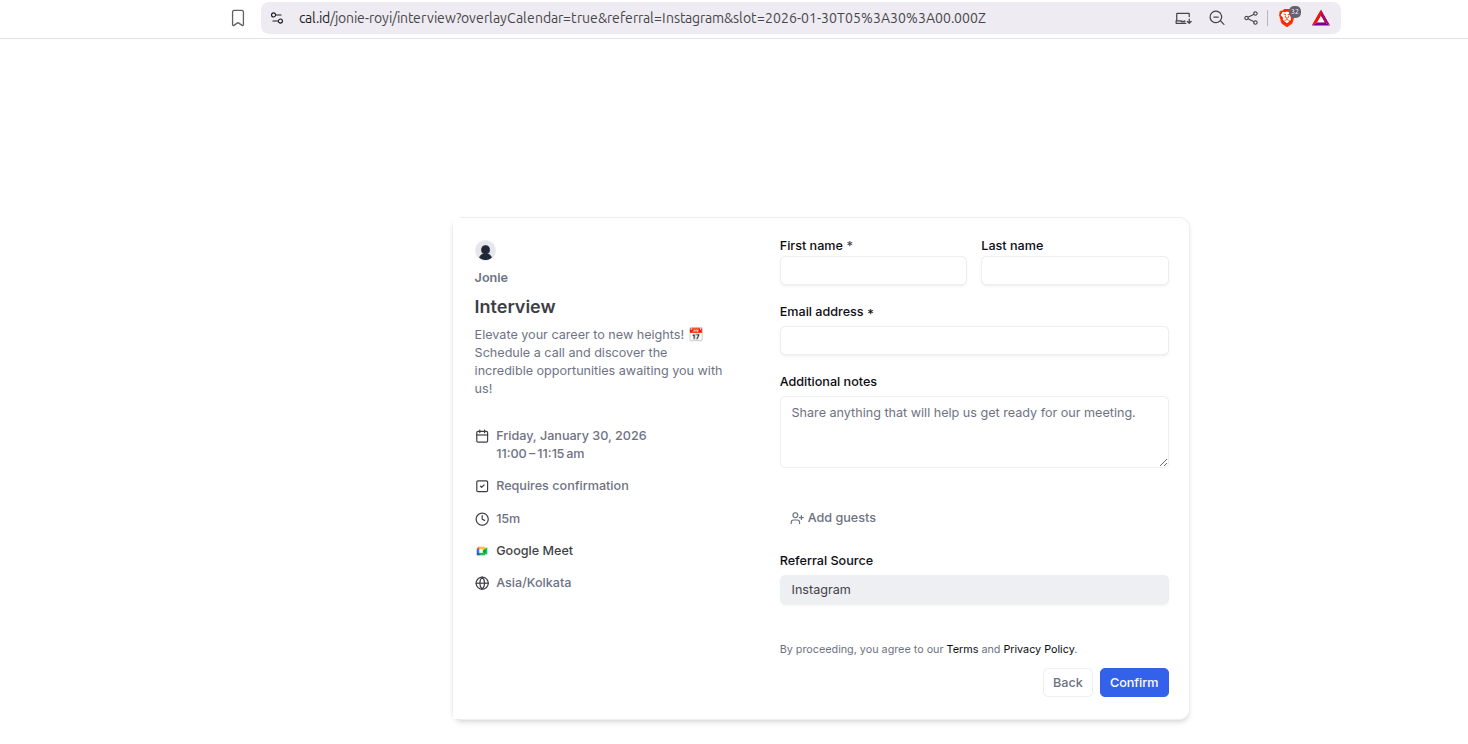 ### Example scenario
* **Your booking URL:** `https://cal.id/username/eventtype`
* **Your identifier:** `referral`
* **The value you want to set:** `Instagram`
**Your modified URL becomes:** `https://cal.id/username/eventtype?referral=Instagram`
### Example with multiple parameters
If your URL already has parameters (like `?overlayCalendar=true`), use the `&` symbol to add your pre-fill data: `https://cal.id/username/eventtype?overlayCalendar=true&referral=Instagram`
### URL parameter behavior
| Parameter pattern | Effect |
| ---------------------------------------------------------- | ------------------------------------------------------------------ |
| `?identifier=value` | First parameter — pre-fills the matching question with `value`. |
| `&identifier=value` | Additional parameter — appended after an existing `?`. |
| Hidden question + parameter | Value is captured silently; the booker never sees the field. |
| "Disable input if the URL identifier is prefilled" enabled | The pre-filled value is locked and cannot be edited by the booker. |
## Why use this method?
* **Data integrity:** As long as the question is **Hidden**, the booker won't see it on the page, but the information (e.g., "Referral: Instagram") still appears in your **Google/Outlook Calendar** and your **Cal ID Dashboard** once scheduled.
* **Seamless personalization:** Send custom links to different partners, each with their own name pre-filled, to see exactly who is driving your bookings.
* **Clean forms:** Keep the visible form short by capturing background data (like Campaign IDs or User IDs) behind the scenes.
## Next steps
Explore every input type and build your intake form.
Control who can book with domain validation rules.
## Related topics
- [Add Pre-Booking Questions for Events](/docs/event-types/booking-questions/pre-booking-questions.md)
- [Split Full Name into First and Last Name on Booking Page](/docs/event-types/booking-questions/split-name.md)
- [How to Disable Adding Guests in Cal ID](/docs/event-types/booking-questions/disable-guests.md)
- [Require/Exclude Email Domains (Booking Question)](/docs/event-types/booking-questions/email-domains.md)
### Example scenario
* **Your booking URL:** `https://cal.id/username/eventtype`
* **Your identifier:** `referral`
* **The value you want to set:** `Instagram`
**Your modified URL becomes:** `https://cal.id/username/eventtype?referral=Instagram`
### Example with multiple parameters
If your URL already has parameters (like `?overlayCalendar=true`), use the `&` symbol to add your pre-fill data: `https://cal.id/username/eventtype?overlayCalendar=true&referral=Instagram`
### URL parameter behavior
| Parameter pattern | Effect |
| ---------------------------------------------------------- | ------------------------------------------------------------------ |
| `?identifier=value` | First parameter — pre-fills the matching question with `value`. |
| `&identifier=value` | Additional parameter — appended after an existing `?`. |
| Hidden question + parameter | Value is captured silently; the booker never sees the field. |
| "Disable input if the URL identifier is prefilled" enabled | The pre-filled value is locked and cannot be edited by the booker. |
## Why use this method?
* **Data integrity:** As long as the question is **Hidden**, the booker won't see it on the page, but the information (e.g., "Referral: Instagram") still appears in your **Google/Outlook Calendar** and your **Cal ID Dashboard** once scheduled.
* **Seamless personalization:** Send custom links to different partners, each with their own name pre-filled, to see exactly who is driving your bookings.
* **Clean forms:** Keep the visible form short by capturing background data (like Campaign IDs or User IDs) behind the scenes.
## Next steps
Explore every input type and build your intake form.
Control who can book with domain validation rules.
## Related topics
- [Add Pre-Booking Questions for Events](/docs/event-types/booking-questions/pre-booking-questions.md)
- [Split Full Name into First and Last Name on Booking Page](/docs/event-types/booking-questions/split-name.md)
- [How to Disable Adding Guests in Cal ID](/docs/event-types/booking-questions/disable-guests.md)
- [Require/Exclude Email Domains (Booking Question)](/docs/event-types/booking-questions/email-domains.md)