> ## Documentation Index
> Fetch the complete documentation index at: https://cal.id/docs/llms.txt
> Use this file to discover all available pages before exploring further.
# Create a Phone-only Event Type
> Switch a Cal ID event's primary confirmation channel from email to phone so bookings and reminders run through SMS-based workflows instead of email.
Switch a **Cal ID** event to a phone-first scheduling workflow by making a phone number — not email — the primary contact your booker must provide. It's ideal for SMS-based confirmations and reminders.
Selecting **Phone** in the Confirmation section makes the **Phone Number** field required and sets phone as the primary identifier for the booking.
## How to switch to phone confirmation
Navigate to your **Event Types** and click **Edit** on the event you want to modify.
Go to the **Booking questions** section, which controls the information asked on the booking page.
Find the **Confirmation** header, which defines what your booker must provide to receive confirmations.
On the **right-hand side** of this section, you'll see a toggle with **Email** and **Phone** icons.
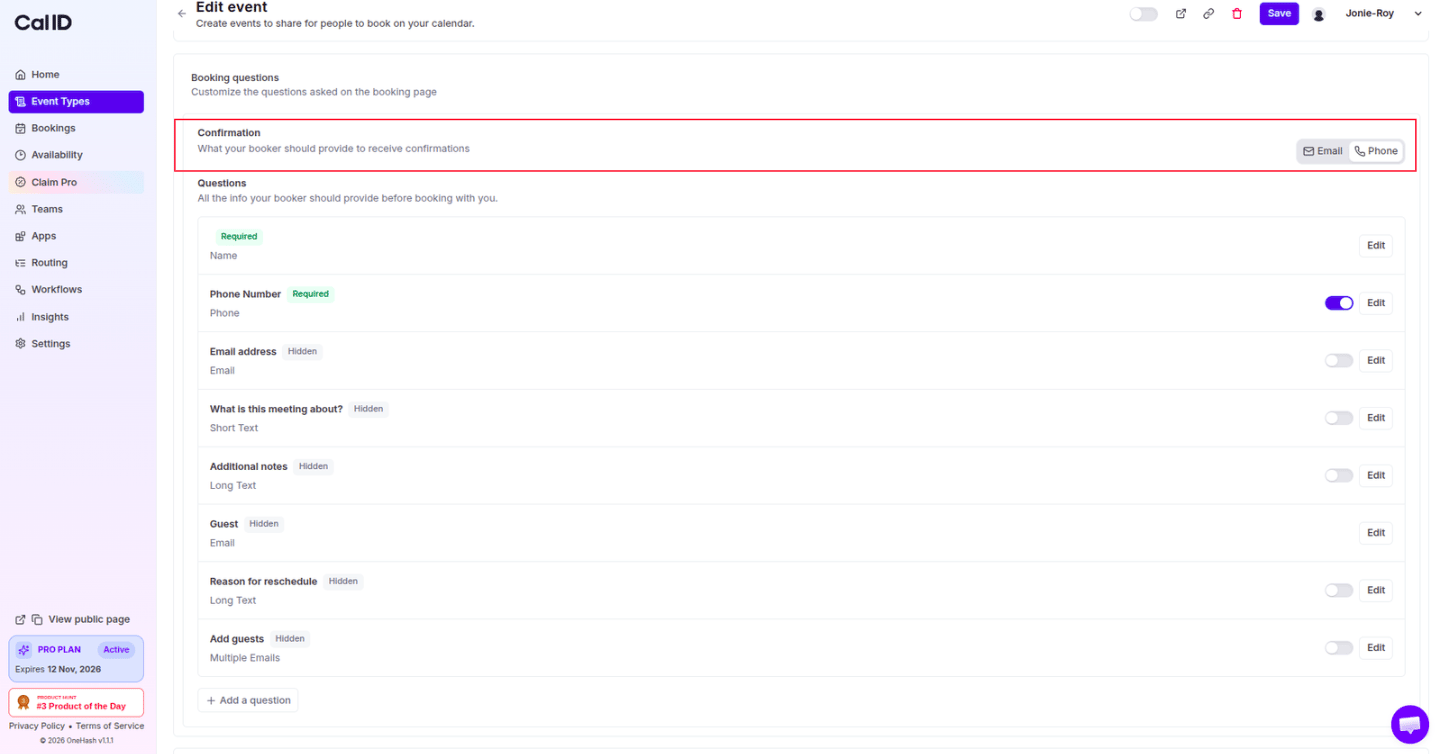 This selects the phone number as the primary identifier for the booking.
Once selected, the **Phone Number** question is set to a **Required** field.
Click **Save** at the bottom of the page.
## What happens on your booking page?
* **Primary requirement:** The **Phone Number** field becomes the mandatory input for guests to complete their booking.
* **Automatic formatting:** The phone field includes a country code selector to ensure international numbers are captured correctly.
This selects the phone number as the primary identifier for the booking.
Once selected, the **Phone Number** question is set to a **Required** field.
Click **Save** at the bottom of the page.
## What happens on your booking page?
* **Primary requirement:** The **Phone Number** field becomes the mandatory input for guests to complete their booking.
* **Automatic formatting:** The phone field includes a country code selector to ensure international numbers are captured correctly.
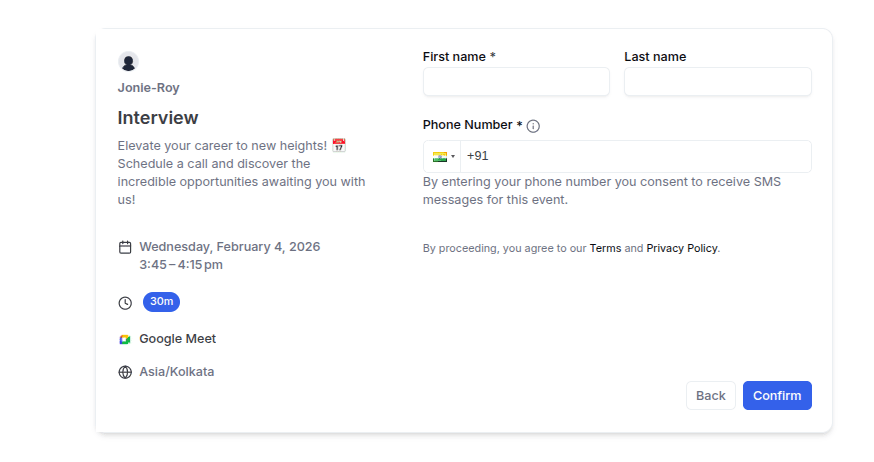 **Confirmation delivery:** Selecting the **Phone** option means meeting details are sent via SMS rather than a traditional email. This is perfect for high-touch services where clients are more likely to check their text messages than their inbox.
## Related topics
- [Add Pre-Booking Questions for Events](/docs/event-types/booking-questions/pre-booking-questions.md)
- [Split Full Name into First and Last Name on Booking Page](/docs/event-types/booking-questions/split-name.md)
- [Verify Email on Booking Page before the Booking](/docs/event-types/booking-questions/verify-email.md)
- [Require/Exclude Email Domains (Booking Question)](/docs/event-types/booking-questions/email-domains.md)
**Confirmation delivery:** Selecting the **Phone** option means meeting details are sent via SMS rather than a traditional email. This is perfect for high-touch services where clients are more likely to check their text messages than their inbox.
## Related topics
- [Add Pre-Booking Questions for Events](/docs/event-types/booking-questions/pre-booking-questions.md)
- [Split Full Name into First and Last Name on Booking Page](/docs/event-types/booking-questions/split-name.md)
- [Verify Email on Booking Page before the Booking](/docs/event-types/booking-questions/verify-email.md)
- [Require/Exclude Email Domains (Booking Question)](/docs/event-types/booking-questions/email-domains.md)