> ## Documentation Index
> Fetch the complete documentation index at: https://cal.id/docs/llms.txt
> Use this file to discover all available pages before exploring further.
# Add Pre-Booking Questions for Events
> Customize the information bookers must provide before scheduling a Cal ID meeting using text, dropdown, checkbox, phone, and other input question types.
The **Booking Questions** section in **Cal ID** lets you collect exactly the information you need before someone can schedule with you. Add, edit, hide, or reorder fields — using a wide range of input types — to build an intake form tailored to your workflow.
By default, Cal ID asks for a **name** and **email address**. Everything below shows how to go further.
## Add a question
Open your desired event under **Event Types** and go to the **Advanced** tab.
Scroll down to the **Booking questions** section.
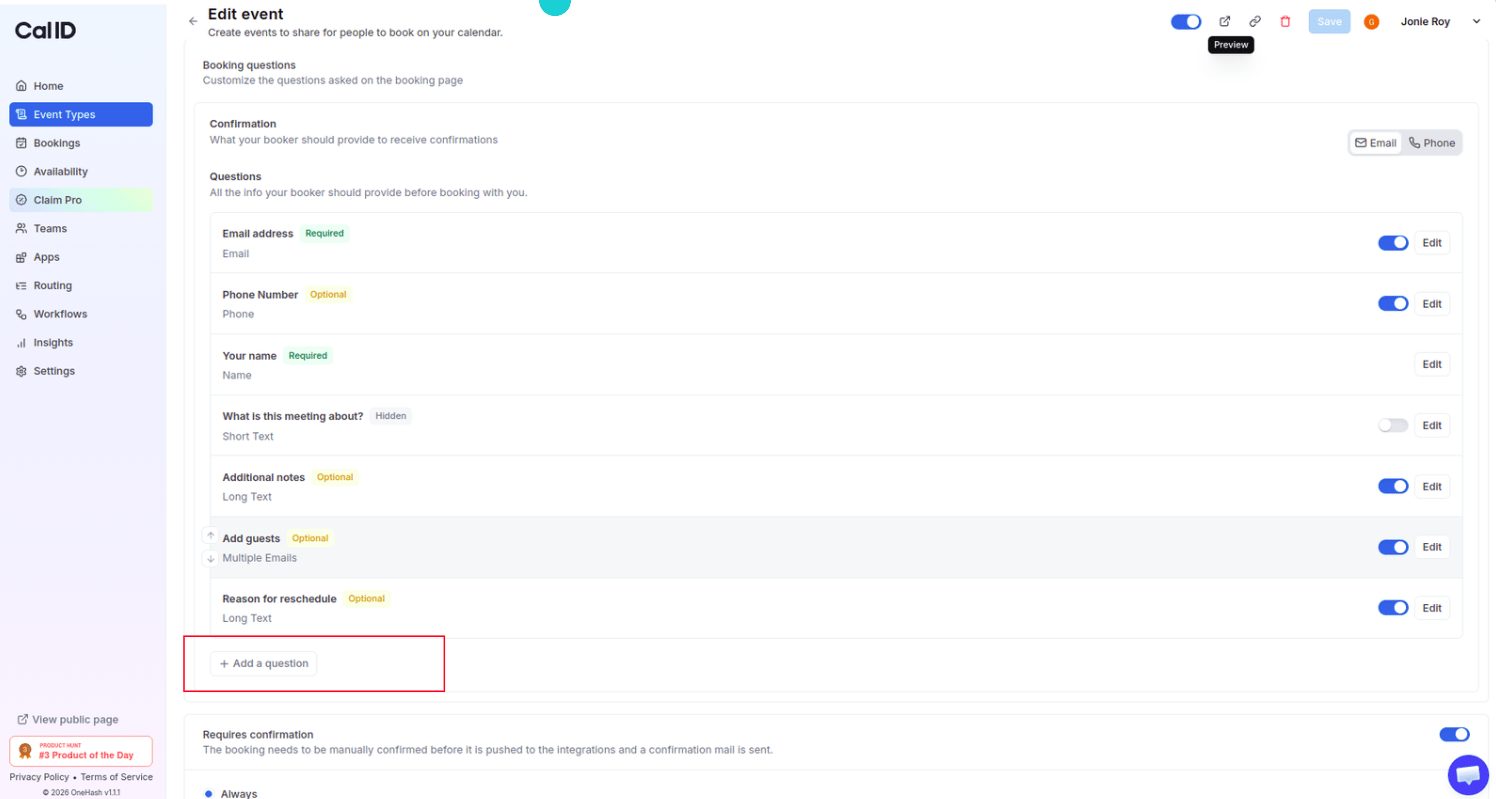
Click the **+ Add a question** button.
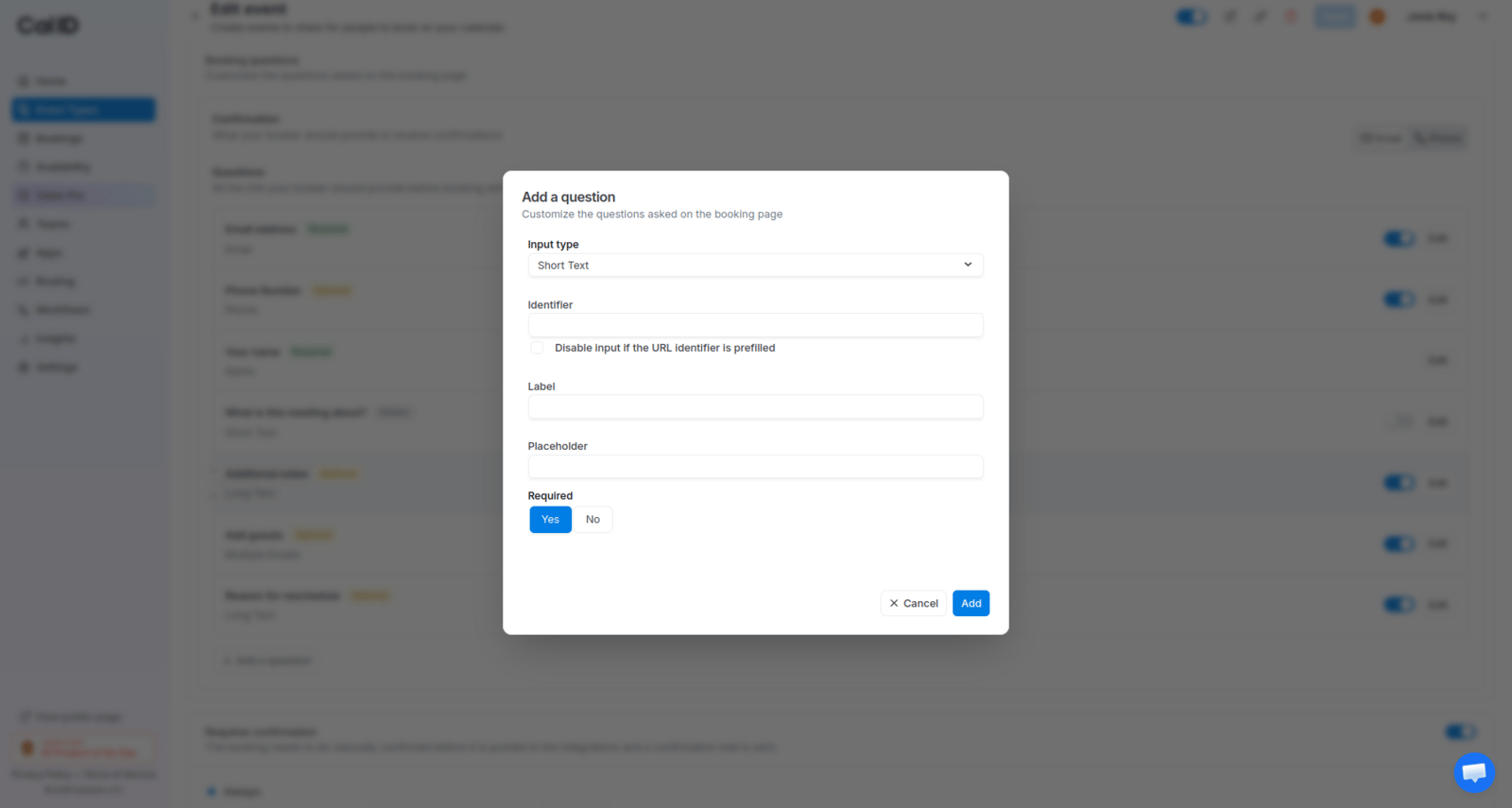
 In the pop-up, select the **Input type**, set a **Label** (the question text), and add a **Placeholder** (example text).
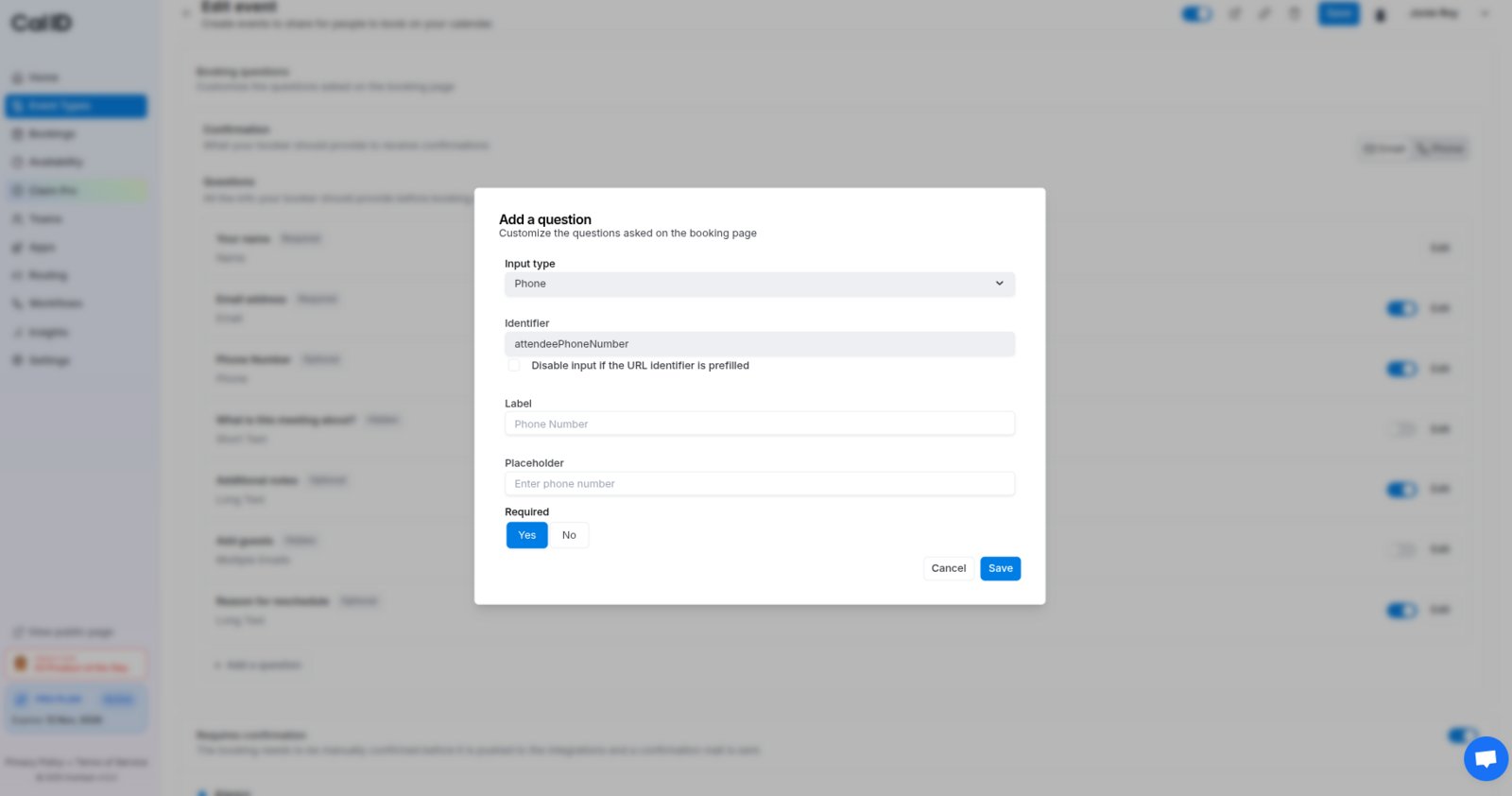 Choose **Yes** or **No** to determine whether the booker must answer the question to proceed.
## Available input types
Choose the input type that matches the data you're collecting so answers are formatted correctly:
| Input type | Best used for |
| ------------------ | ---------------------------------------------------------- |
| **Email** | Collecting additional contact emails. |
| **Phone** | Capturing contact numbers for SMS or calls. |
| **Address** | Physical locations for in-person meetings. |
| **Number** | Quantitative data (e.g., "How many guests?"). |
| **Long Text** | Detailed explanations or background info. |
| **Select** | A single-choice dropdown menu. |
| **Multi select** | Allowing guests to pick several options from a list. |
| **Multi Email** | Inviting multiple guests to the same meeting. |
| **Checkbox group** | Multiple choice options shown as a list of boxes. |
| **Radio Group** | Forcing a single choice from a visible list. |
| **Checkbox** | Simple "Yes/No" or "I agree to terms" confirmations. |
| **URL** | Collecting website links or social media profiles. |
| **Attachment** | Allowing guests to upload resumes, briefs, or screenshots. |
## Manage existing questions
* **Edit:** Click **Edit** next to any question to change its type, label, or requirement status.
Choose **Yes** or **No** to determine whether the booker must answer the question to proceed.
## Available input types
Choose the input type that matches the data you're collecting so answers are formatted correctly:
| Input type | Best used for |
| ------------------ | ---------------------------------------------------------- |
| **Email** | Collecting additional contact emails. |
| **Phone** | Capturing contact numbers for SMS or calls. |
| **Address** | Physical locations for in-person meetings. |
| **Number** | Quantitative data (e.g., "How many guests?"). |
| **Long Text** | Detailed explanations or background info. |
| **Select** | A single-choice dropdown menu. |
| **Multi select** | Allowing guests to pick several options from a list. |
| **Multi Email** | Inviting multiple guests to the same meeting. |
| **Checkbox group** | Multiple choice options shown as a list of boxes. |
| **Radio Group** | Forcing a single choice from a visible list. |
| **Checkbox** | Simple "Yes/No" or "I agree to terms" confirmations. |
| **URL** | Collecting website links or social media profiles. |
| **Attachment** | Allowing guests to upload resumes, briefs, or screenshots. |
## Manage existing questions
* **Edit:** Click **Edit** next to any question to change its type, label, or requirement status.
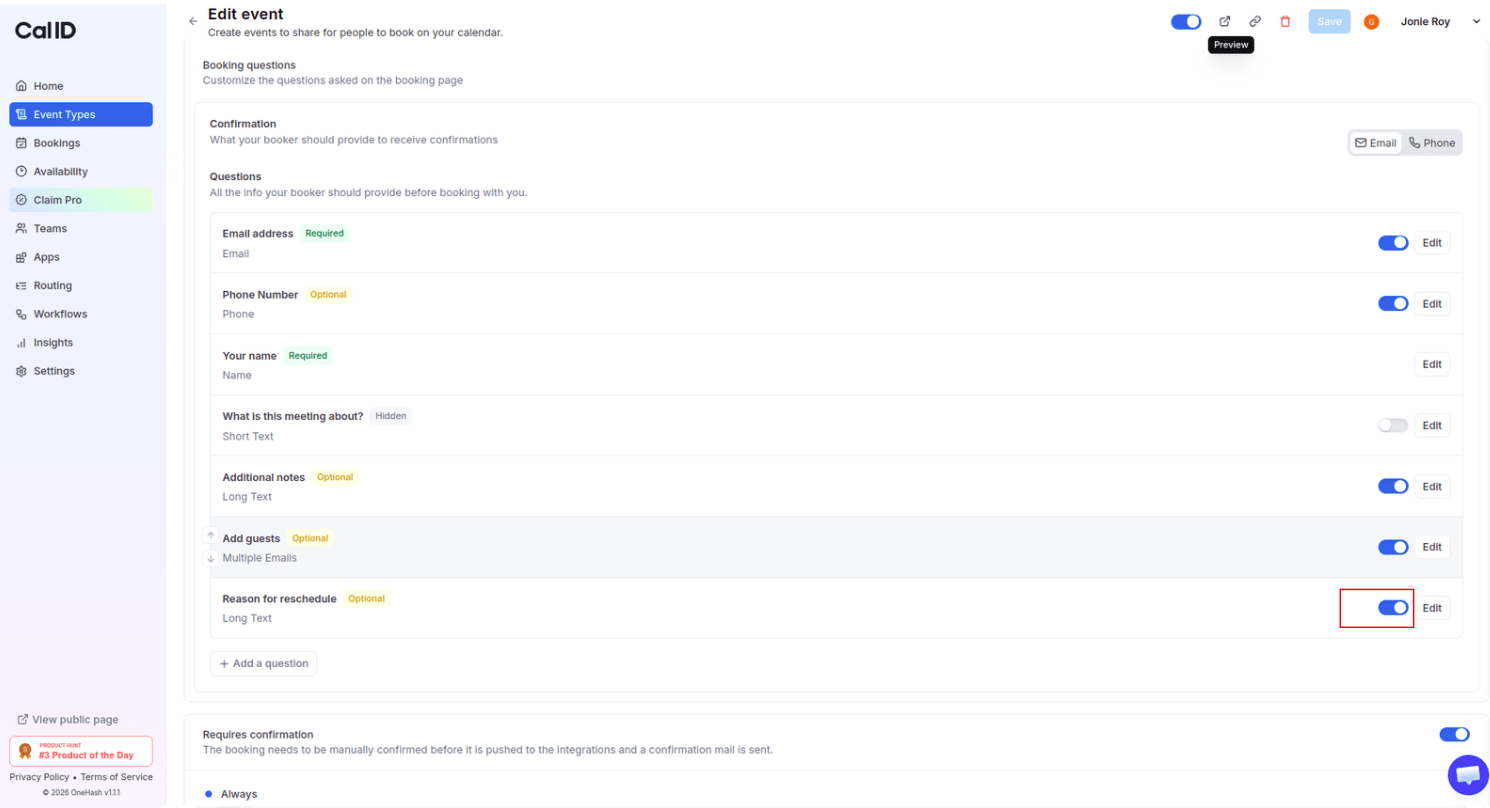
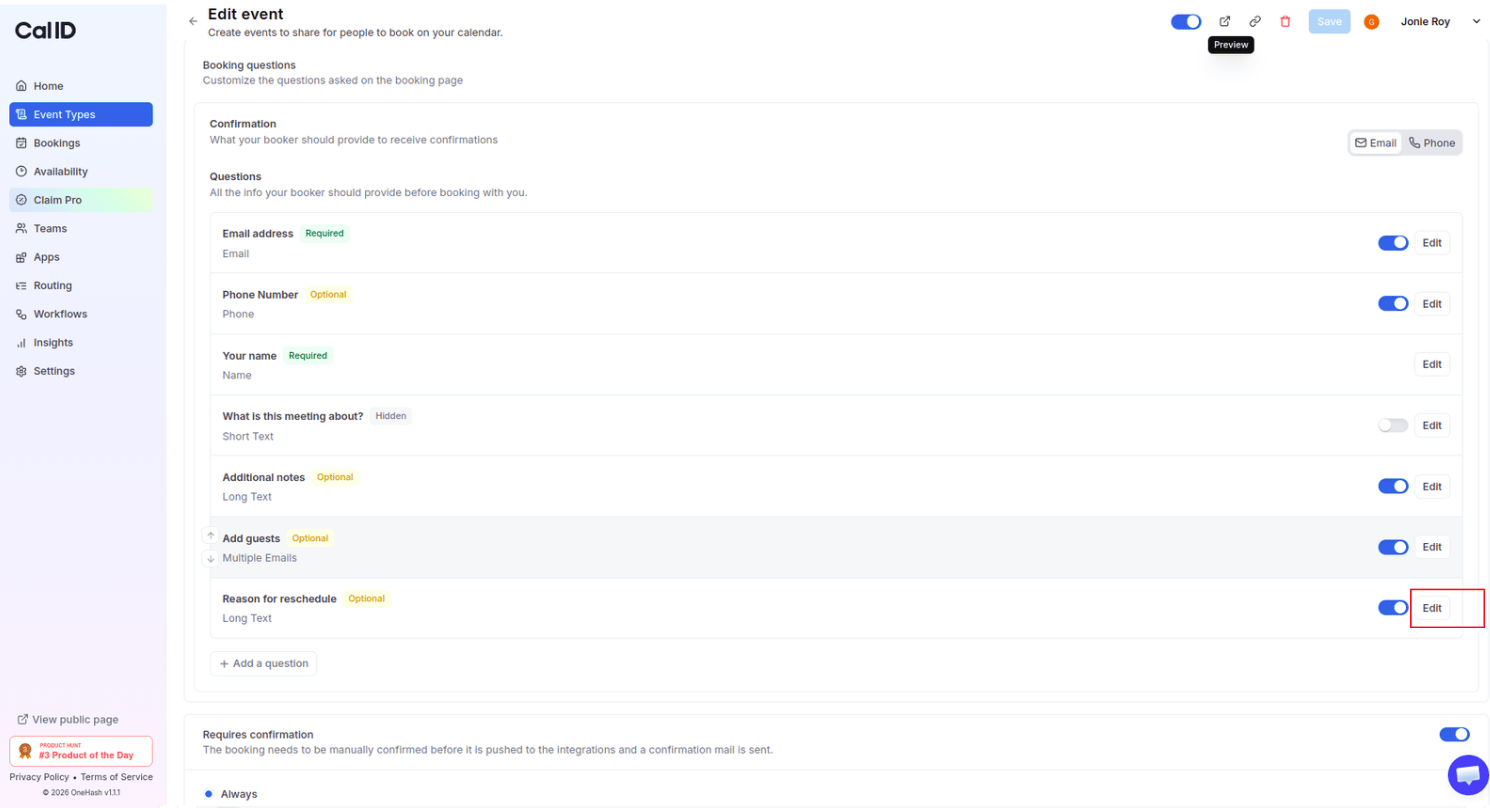 * **Hide:** Use the toggle switch to make a question **Hidden**. This is useful for internal tracking via URL identifiers.
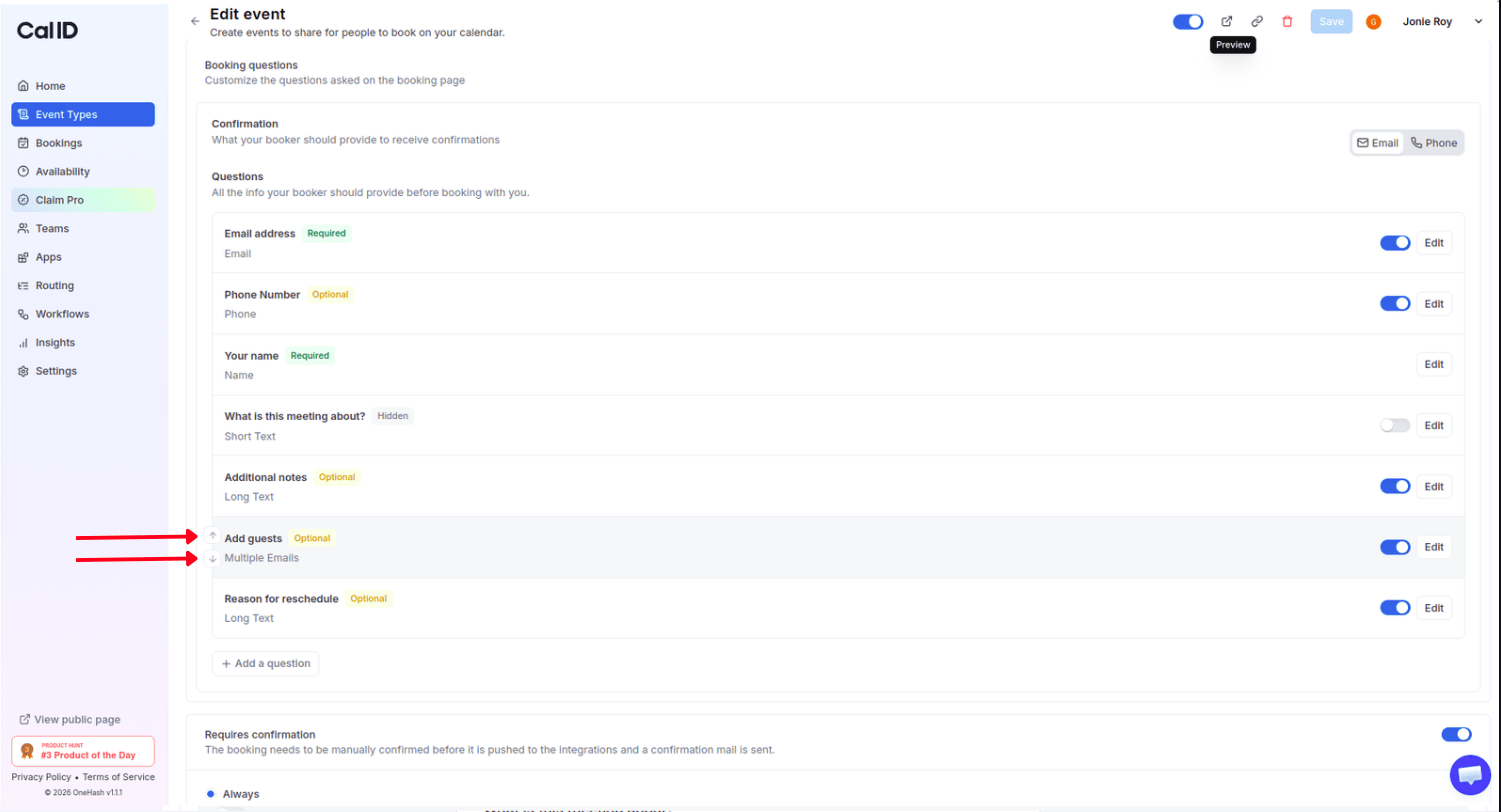
 * **Reorder:** Use the arrow icons next to a question to move it up or down in the list.
 With **URL identifiers**, you can pre-fill fields for your guests by appending data to the end of your booking link. You can even **Disable input if the URL identifier is prefilled** to prevent guests from changing that specific data.
## Booking field identifier
The `identifier` for a booking question is a unique text key you set when creating the question. It gives each question a distinct reference used throughout the platform wherever that question is addressed or its answers are processed.
The identifier's main value appears when people schedule meetings. As guests fill out booking forms, their responses are tied back to the specific question via these identifiers. This keeps every answer unmistakably linked to its corresponding question, eliminating confusion — especially when similar or related questions are present.
Using the `identifier` gives you a more organized, efficient, and error-resistant way to handle booking data, both within the platform and in conjunction with external systems. This improves data management and integrity and contributes to a smoother overall experience.
## Next steps
Pre-fill known data and hide internal-only fields using URL parameters.
Collect resumes, briefs, and other files before the meeting.
## Related topics
- [How to Hide and Prefill Booking Questions?](/docs/event-types/booking-questions/hide-prefill.md)
- [Split Full Name into First and Last Name on Booking Page](/docs/event-types/booking-questions/split-name.md)
- [Create a Phone-only Event Type](/docs/event-types/booking-questions/phone-only.md)
- [Verify Email on Booking Page before the Booking](/docs/event-types/booking-questions/verify-email.md)
- [Adding Attachments in Booking Pages](/docs/event-types/booking-questions/attachments.md)
With **URL identifiers**, you can pre-fill fields for your guests by appending data to the end of your booking link. You can even **Disable input if the URL identifier is prefilled** to prevent guests from changing that specific data.
## Booking field identifier
The `identifier` for a booking question is a unique text key you set when creating the question. It gives each question a distinct reference used throughout the platform wherever that question is addressed or its answers are processed.
The identifier's main value appears when people schedule meetings. As guests fill out booking forms, their responses are tied back to the specific question via these identifiers. This keeps every answer unmistakably linked to its corresponding question, eliminating confusion — especially when similar or related questions are present.
Using the `identifier` gives you a more organized, efficient, and error-resistant way to handle booking data, both within the platform and in conjunction with external systems. This improves data management and integrity and contributes to a smoother overall experience.
## Next steps
Pre-fill known data and hide internal-only fields using URL parameters.
Collect resumes, briefs, and other files before the meeting.
## Related topics
- [How to Hide and Prefill Booking Questions?](/docs/event-types/booking-questions/hide-prefill.md)
- [Split Full Name into First and Last Name on Booking Page](/docs/event-types/booking-questions/split-name.md)
- [Create a Phone-only Event Type](/docs/event-types/booking-questions/phone-only.md)
- [Verify Email on Booking Page before the Booking](/docs/event-types/booking-questions/verify-email.md)
- [Adding Attachments in Booking Pages](/docs/event-types/booking-questions/attachments.md)