> ## Documentation Index
> Fetch the complete documentation index at: https://cal.id/docs/llms.txt
> Use this file to discover all available pages before exploring further.
# Split Full Name into First and Last Name on Booking Page
> Replace the single full-name field on your Cal ID public booking page with separate first name and last name inputs for cleaner CRM and workflow data.
Split the single **Full name** field on your Cal ID booking page into separate **First name** and **Last name** inputs, so your CRM and workflows receive cleaner, structured contact data.
By default, the Cal ID booking page has a full name text input field for the scheduler to put their name in. This usually works just fine for most people. However, at times, it is preferable to take the first name and last name of the scheduler as separate inputs in the booking form.
## How to split the name field
Head to the event type where you wish to split the full name into first name and last name. Click the three dots at the right side of the event and choose **Edit**.
Navigate to the **Advanced** tab, then scroll to the **Booking questions** section.
Click the **Edit** button in front of the "Your name" field.
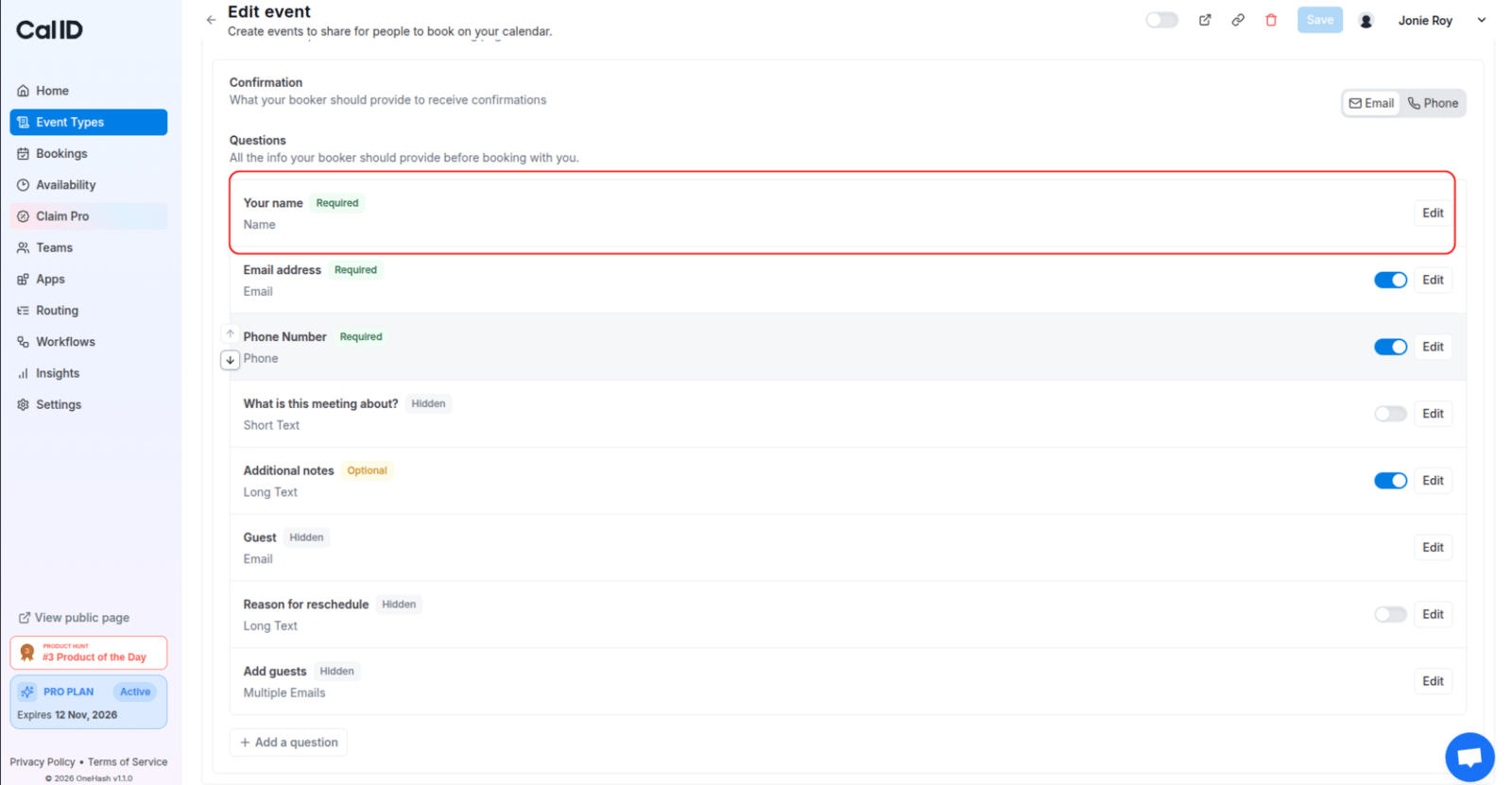 In the dialog that opens, click the toggle that says **`Split "Full name" into "First name" and "Last name"`**.
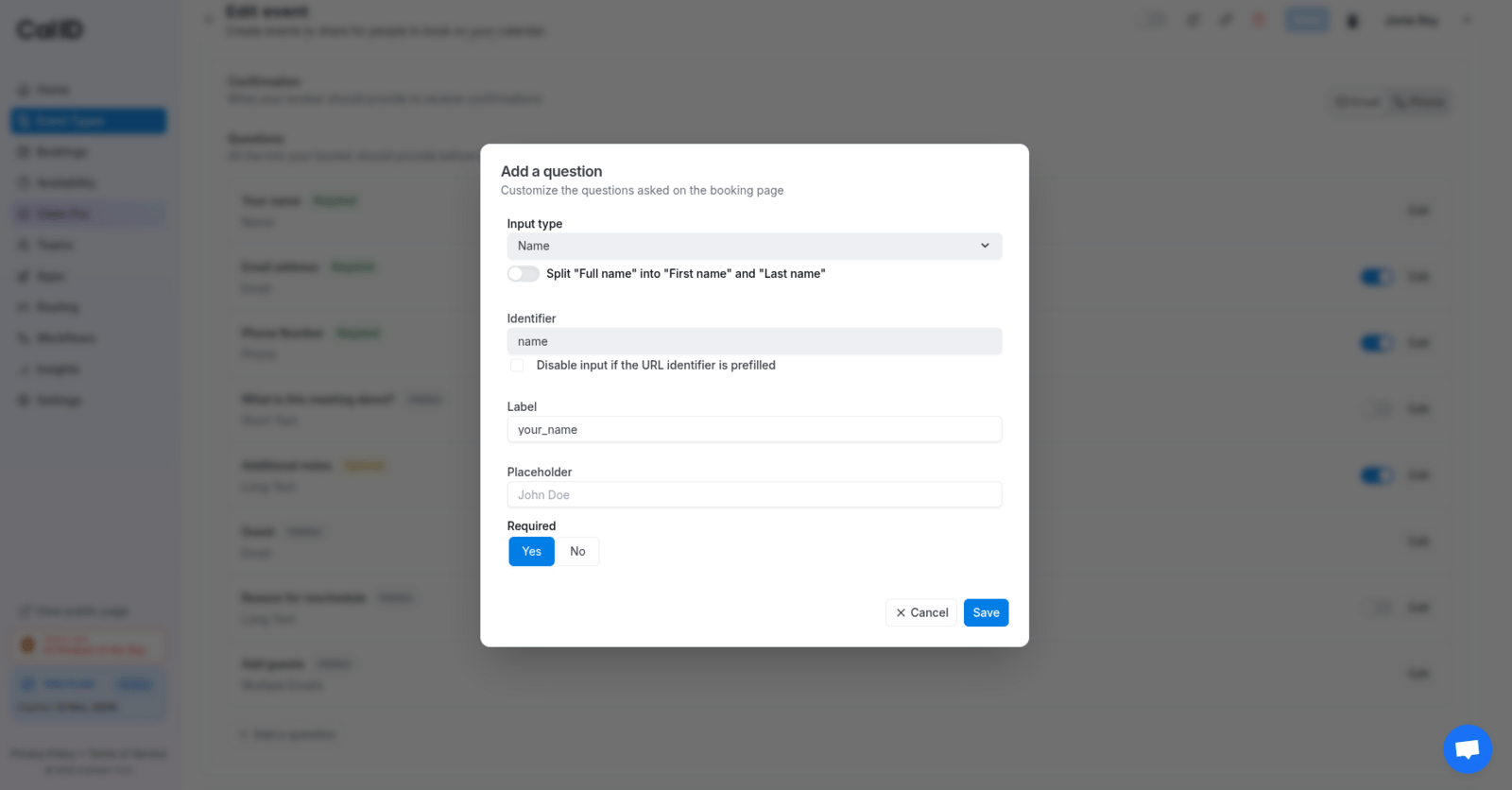 Fill in the label and optional placeholder values, then click **Save**.
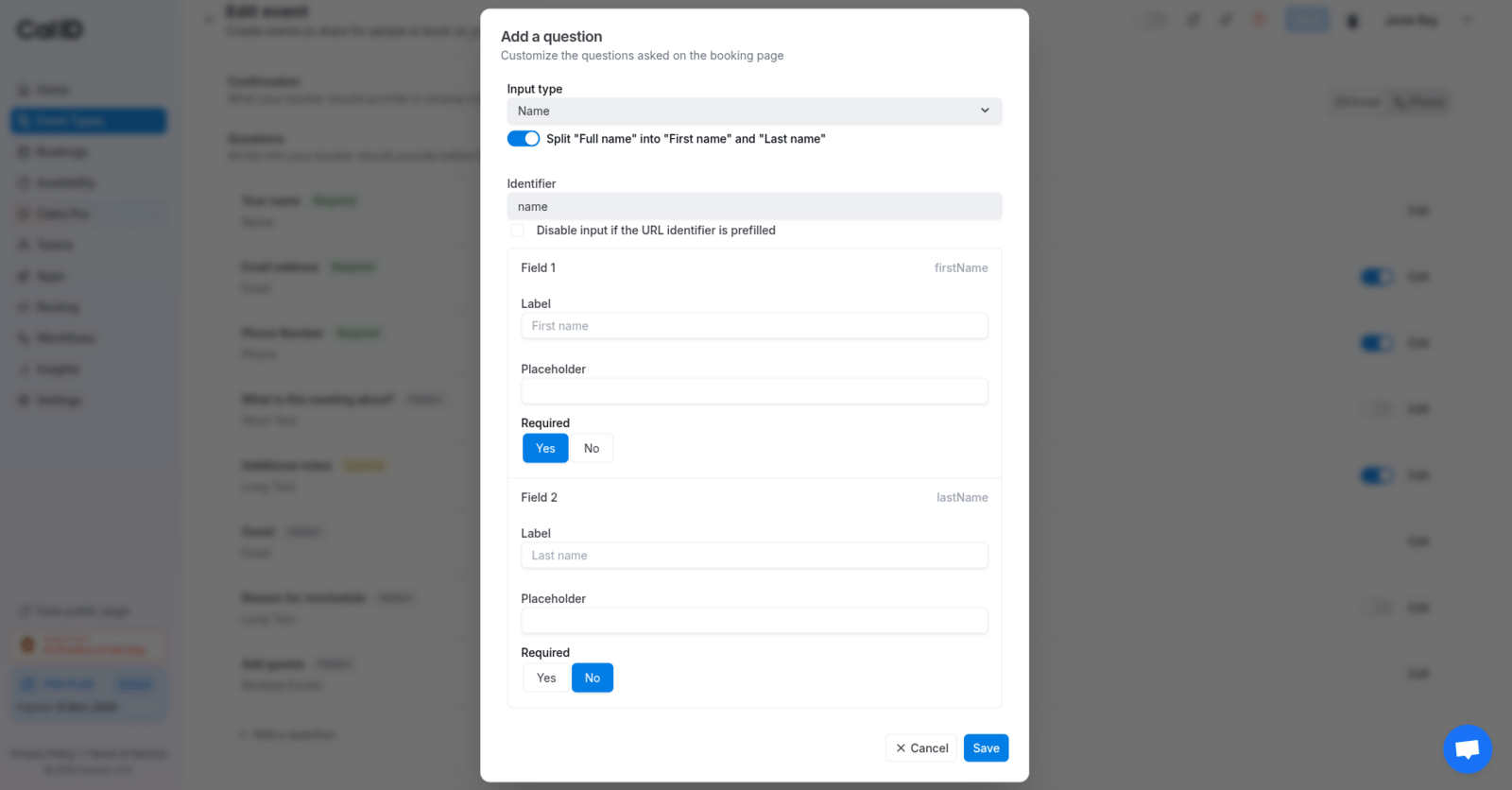 Remember to click the **Save** button at the top right of the event type settings as well.
Head to the public booking page of this event type. You will notice the Full name is now split into First name and Last name with the labels provided by you.
Remember to click the **Save** button at the top right of the event type settings as well.
Head to the public booking page of this event type. You will notice the Full name is now split into First name and Last name with the labels provided by you.
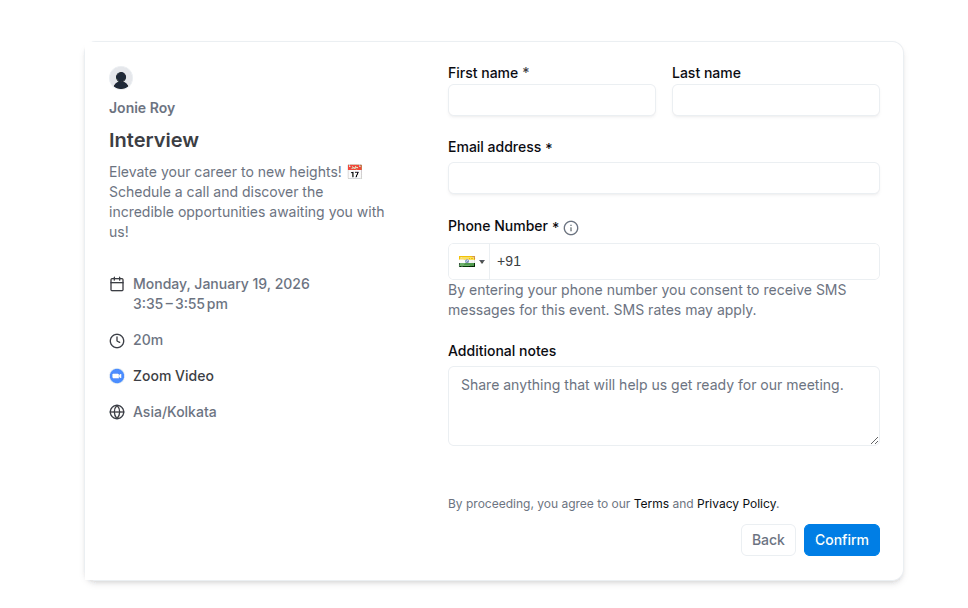 You're all set — your booking page now collects First name and Last name as separate fields.
## How this affects the Booking API requests?
Please note that in case of API requests, your usual **responses object**
```json theme={null}
"responses": {
"name": "John Doe",
"email": "john.doe@example.com",
"location": {
"optionValue": "",
"value": "Acme Industries"
}
}
```
will now be updated to allow **name** to be converted into an object containing **firstName** and **lastName** as follows:
```json theme={null}
"responses": {
"name": {
"firstName": "John",
"lastName": "Doe"
},
"email": "john.doe@example.com",
"location": {
"optionValue": "",
"value": "Acme Industries"
}
}
```
## Related topics
- [Add Pre-Booking Questions for Events](/docs/event-types/booking-questions/pre-booking-questions.md)
- [How to Hide and Prefill Booking Questions?](/docs/event-types/booking-questions/hide-prefill.md)
- [Create a Phone-only Event Type](/docs/event-types/booking-questions/phone-only.md)
- [Adding Attachments in Booking Pages](/docs/event-types/booking-questions/attachments.md)
You're all set — your booking page now collects First name and Last name as separate fields.
## How this affects the Booking API requests?
Please note that in case of API requests, your usual **responses object**
```json theme={null}
"responses": {
"name": "John Doe",
"email": "john.doe@example.com",
"location": {
"optionValue": "",
"value": "Acme Industries"
}
}
```
will now be updated to allow **name** to be converted into an object containing **firstName** and **lastName** as follows:
```json theme={null}
"responses": {
"name": {
"firstName": "John",
"lastName": "Doe"
},
"email": "john.doe@example.com",
"location": {
"optionValue": "",
"value": "Acme Industries"
}
}
```
## Related topics
- [Add Pre-Booking Questions for Events](/docs/event-types/booking-questions/pre-booking-questions.md)
- [How to Hide and Prefill Booking Questions?](/docs/event-types/booking-questions/hide-prefill.md)
- [Create a Phone-only Event Type](/docs/event-types/booking-questions/phone-only.md)
- [Adding Attachments in Booking Pages](/docs/event-types/booking-questions/attachments.md)