> ## Documentation Index
> Fetch the complete documentation index at: https://cal.id/docs/llms.txt
> Use this file to discover all available pages before exploring further.
# Verify Email on Booking Page before the Booking
> Require guests to enter an email verification code before a Cal ID booking is confirmed to block spam bookings and confirm valid contact addresses.
Require guests to confirm a verification code before their booking is finalized, so every appointment is tied to a real, reachable email address.
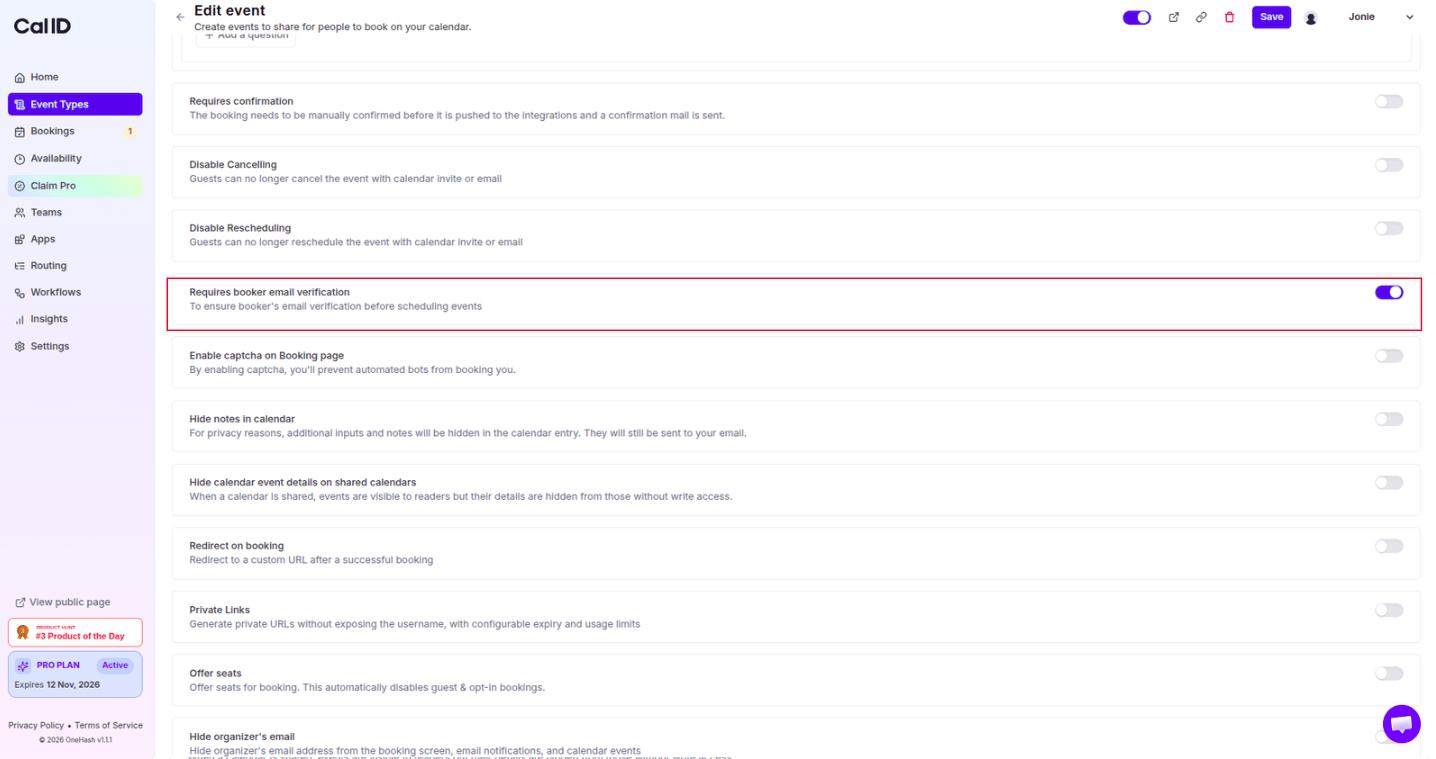
In **Cal ID**, the **Requires booker email verification** feature adds an essential layer of security and data integrity to your scheduling process. It ensures that every booking is tied to a legitimate, accessible email address by requiring guests to enter a verification code before their appointment is confirmed.
Email verification is one of the most effective ways to reduce spam and fake bookings — it blocks bots and bad actors who use non-existent addresses before they ever reach your calendar.
## Why use "Requires booker email verification"?
* **Eliminate Spam & Fake Bookings:** It prevents bots or malicious users from filling your calendar with fake appointments using non-existent email addresses.
* **Ensure Deliverability:** By verifying the email upfront, you can be 100% certain that confirmation links, meeting invites, and automated reminders will actually reach the guest.
* **Protect Sensitive Meetings:** For high-value consultations or private sessions, this ensures that the person booking is exactly who they claim to be.
* **Reduce No-Shows:** Requiring an extra step of verification often filters out casual or "low-intent" bookers, ensuring your time is spent with committed clients.
## How to set it up
Log in to your [Cal ID](https://cal.id/home) account.
Go to the **Event Types** tab in the left sidebar and select the specific event you wish to modify.
Click on the **Advanced** tab in the top navigation bar.
Scroll down to find the option **Requires booker email verification**.
Switch the toggle to **ON**.
Click the blue **Save** button at the top right to finalize the change.
 ## How it works for the booker
* **The Verification Step:** After the guest fills out their name and answers your booking questions, they won't see the "Confirmed" screen immediately. Instead, they will see a prompt to enter a **6-digit verification code**.
* **The Email Trigger:** Cal ID instantly sends an automated email to the address provided by the guest containing the unique code.
* **The Confirmation:** Once the guest enters the correct code on the booking page, the meeting is officially confirmed and added to both of your calendars.
* **Time Sensitivity:** If the guest fails to enter the code within a certain timeframe, the slot remains open for others to book, protecting your availability.
While this feature significantly increases security, it does add a small amount of "friction" to the booking process. We recommend using this for high-value or public-facing links where spam is a concern. For known clients or internal team meetings, you may prefer to keep it disabled for a faster booking experience.
## Related topics
- [Require/Exclude Email Domains (Booking Question)](/docs/event-types/booking-questions/email-domains.md)
- [Enable Captcha on Booking Page](/docs/event-types/booking-questions/captcha.md)
- [Add Pre-Booking Questions for Events](/docs/event-types/booking-questions/pre-booking-questions.md)
- [Create a Phone-only Event Type](/docs/event-types/booking-questions/phone-only.md)
## How it works for the booker
* **The Verification Step:** After the guest fills out their name and answers your booking questions, they won't see the "Confirmed" screen immediately. Instead, they will see a prompt to enter a **6-digit verification code**.
* **The Email Trigger:** Cal ID instantly sends an automated email to the address provided by the guest containing the unique code.
* **The Confirmation:** Once the guest enters the correct code on the booking page, the meeting is officially confirmed and added to both of your calendars.
* **Time Sensitivity:** If the guest fails to enter the code within a certain timeframe, the slot remains open for others to book, protecting your availability.
While this feature significantly increases security, it does add a small amount of "friction" to the booking process. We recommend using this for high-value or public-facing links where spam is a concern. For known clients or internal team meetings, you may prefer to keep it disabled for a faster booking experience.
## Related topics
- [Require/Exclude Email Domains (Booking Question)](/docs/event-types/booking-questions/email-domains.md)
- [Enable Captcha on Booking Page](/docs/event-types/booking-questions/captcha.md)
- [Add Pre-Booking Questions for Events](/docs/event-types/booking-questions/pre-booking-questions.md)
- [Create a Phone-only Event Type](/docs/event-types/booking-questions/phone-only.md)