> ## Documentation Index
> Fetch the complete documentation index at: https://cal.id/docs/llms.txt
> Use this file to discover all available pages before exploring further.
# Embed Meeting Scheduling Link
> Embed your Cal ID scheduling link directly on your website so clients can book meetings without ever leaving your page using inline, popup, or floating widgets.
Embed your **Cal ID** scheduling link directly into your website so clients can book meetings without ever leaving your page. This seamless integration increases conversions and saves you from the "back-and-forth" of traditional email scheduling.
## Key benefits of using embed
Using the Embed feature turns your website from a static page into an interactive booking engine. Here's why it's a game-changer:
* **Seamless user experience:** Clients can book without ever leaving your website, keeping them engaged with your brand.
* **Fully visually responsive:** No matter how your clients visit your site—whether on a wide desktop monitor, a tablet, or a compact smartphone screen—the booking grid automatically scales, resizes, and adjusts its layout perfectly to provide an effortless mobile experience.
* **Higher conversion rates:** By removing the extra step of clicking an external link, you reduce the "drop-off" rate and capture more leads.
* **Professional branding:** The scheduler blends perfectly with your site's design, making your business look established and tech-savvy.
* **24/7 automation:** Your website works for you even while you sleep, allowing visitors to book confirmed meetings instantly.
* **Reduced email clutter:** Say goodbye to the "When are you free?" back-and-forth emails.
## How to embed your meeting link
Follow these steps to generate and use your unique embed code.
* **Log in** to your Cal ID account.
* Navigate to the **Event Types** tab from your dashboard.
* Find the specific event you want to embed (e.g., "15-Minute Discovery Call").
* Click the **three dots (...)** on the right side of the event card and select **Edit**.
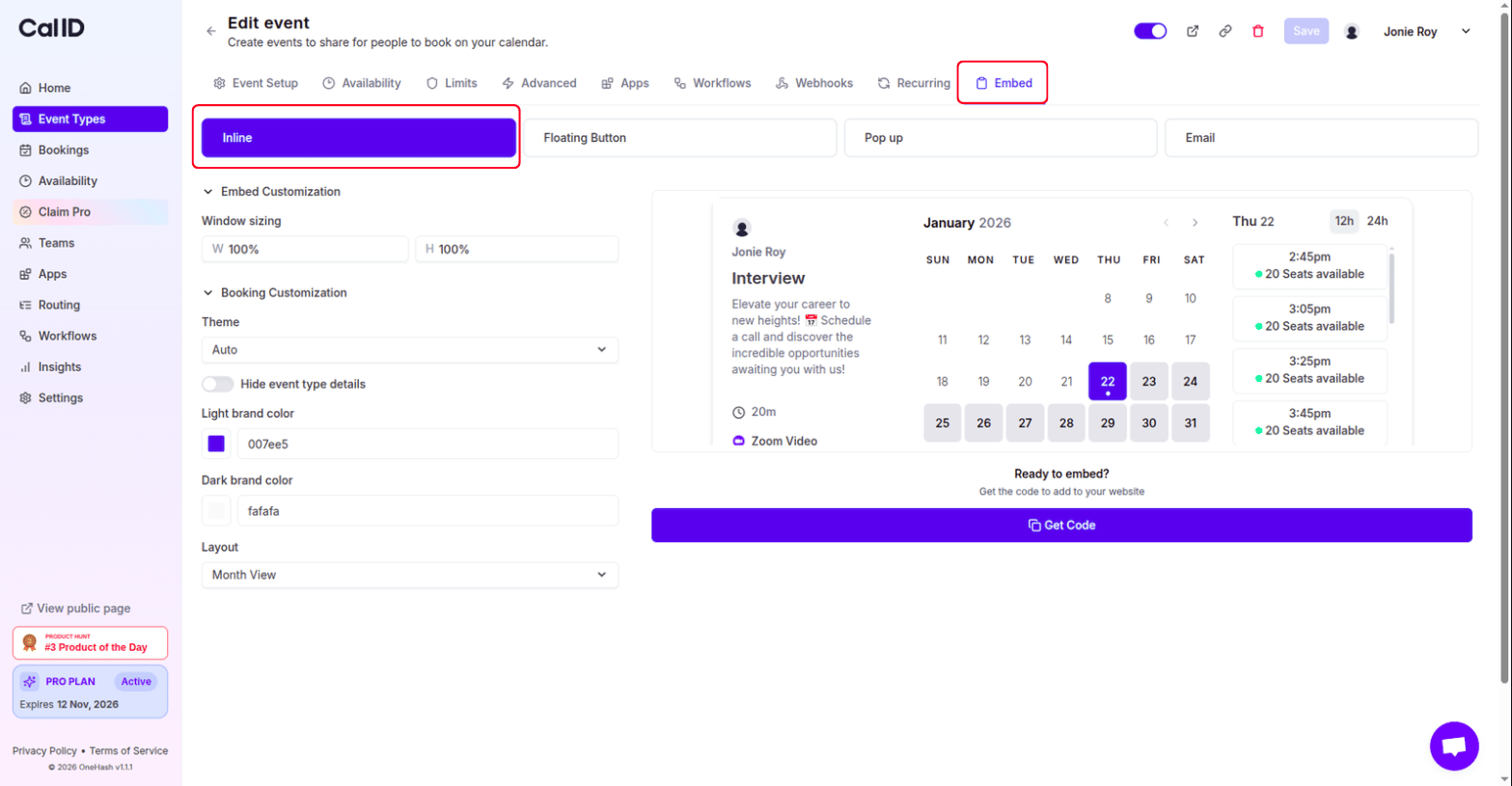
Inside the event editor, click on the **Embed** tab. You will see four distinct ways to display your calendar:
Embeds the full scheduling calendar directly into your webpage content.
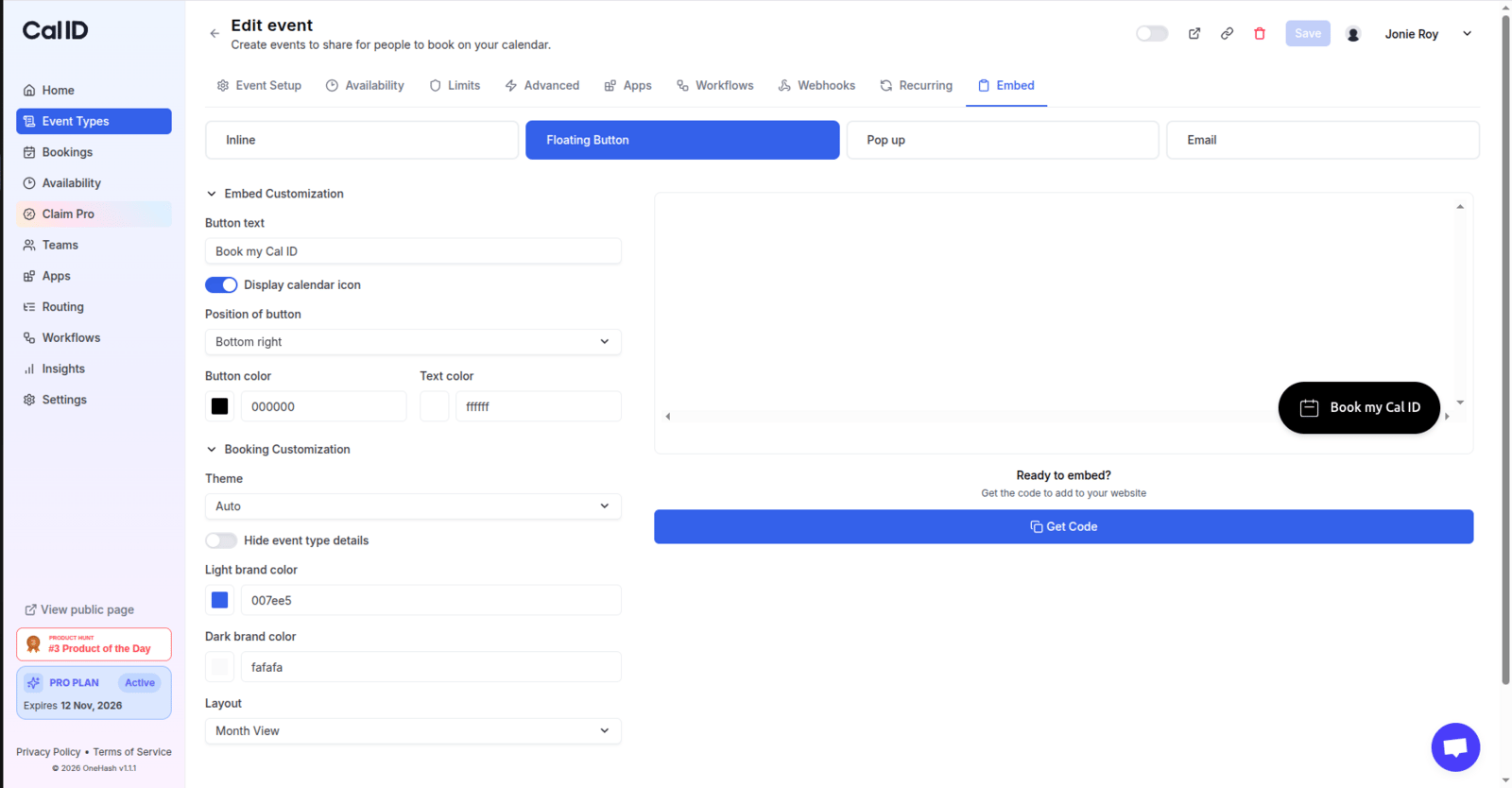
 Adds a persistent button (e.g., "Book a Meeting") that stays in the corner of your website.
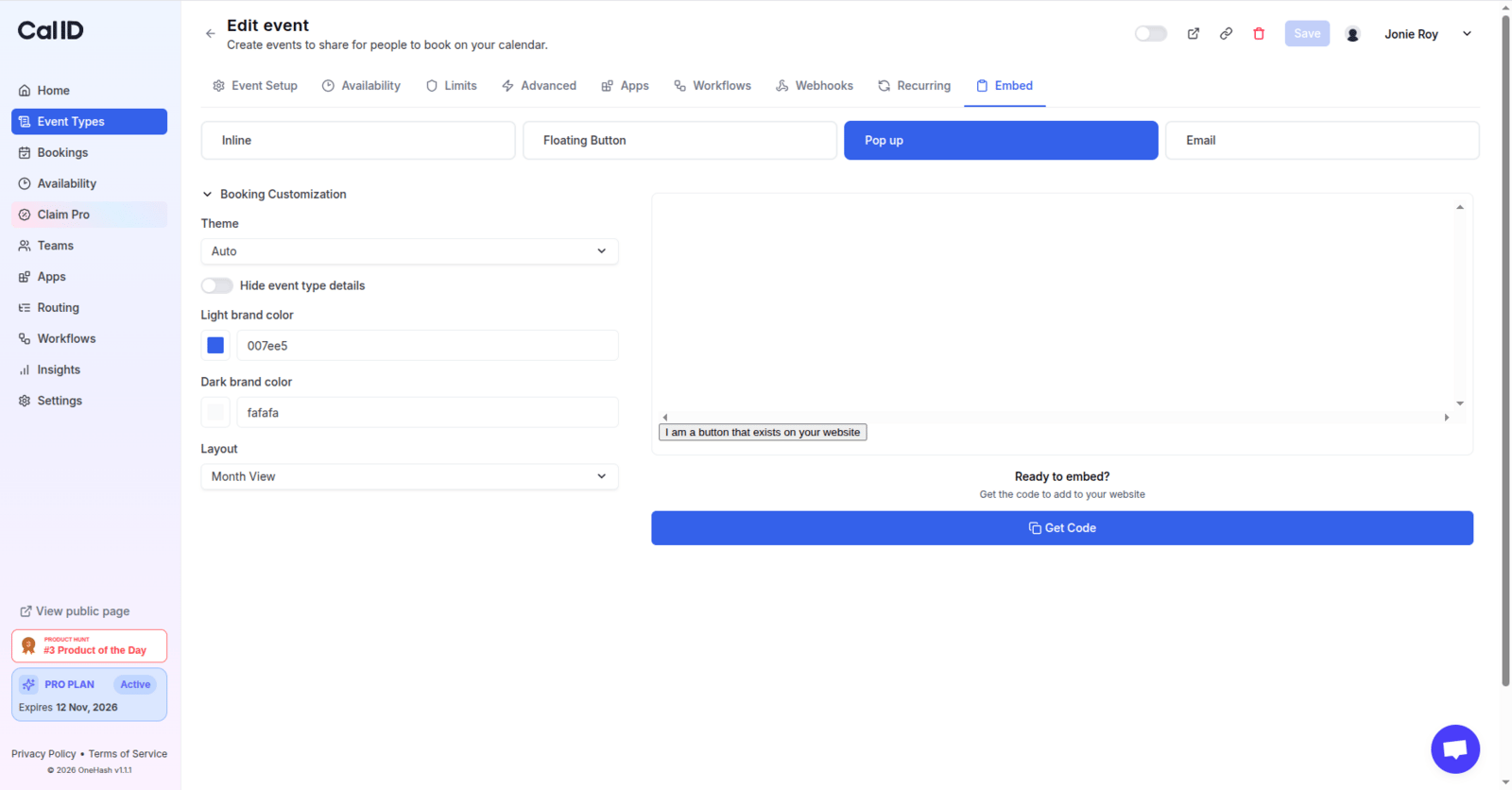
 Triggers a scheduling window when a user clicks a specific link or button you create.
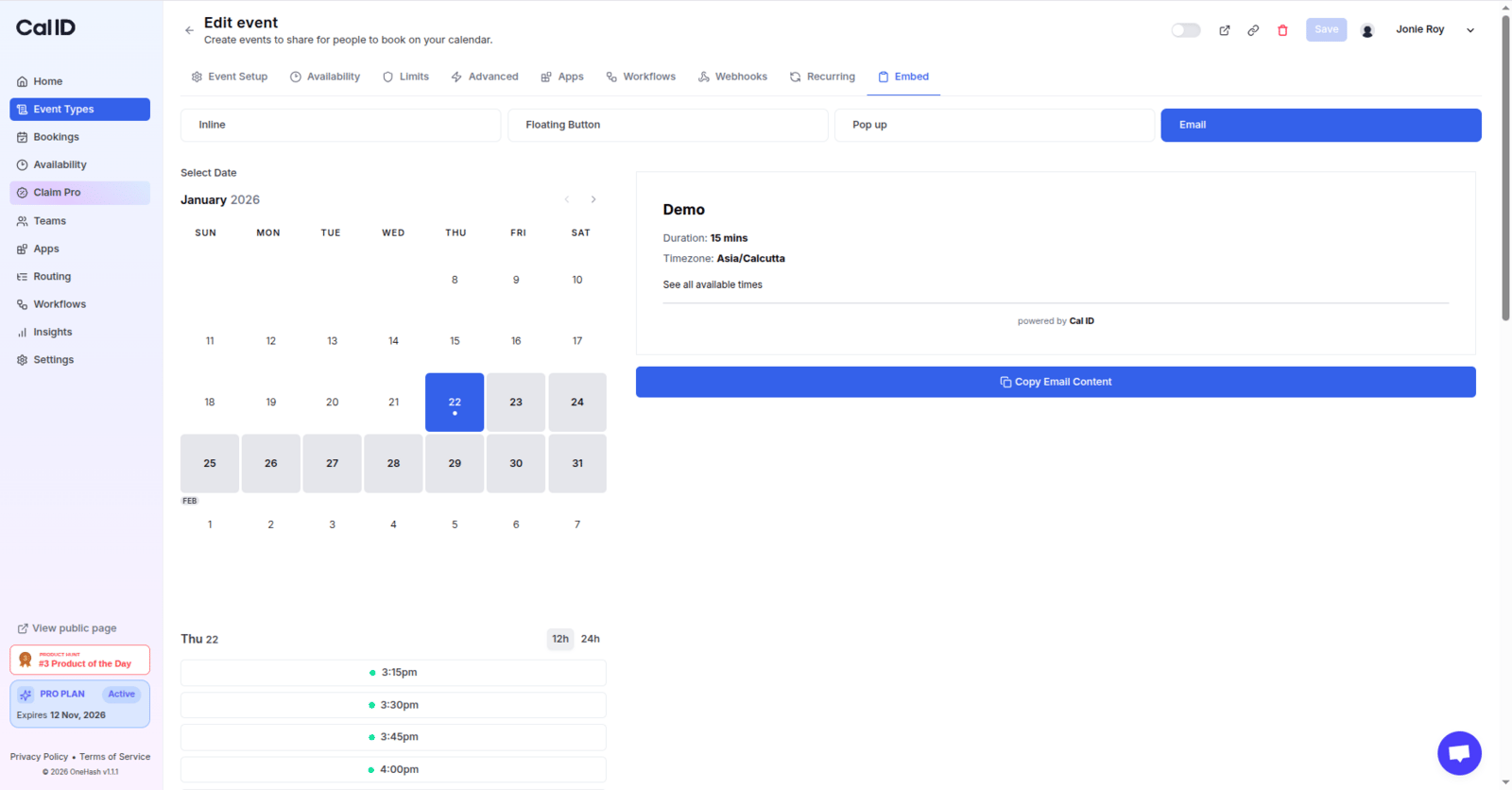
 Generates a snippet or link optimized for your email signature or marketing campaigns.
 On the **left side** of the Embed screen, you will find a **Settings** panel. Use this to:
* Change colors to match your brand.
* Adjust the button text.
* Modify the visibility settings.
* Once you have selected and styled your embed, click the **Get Code** button.
* **Copy** the code provided.
* **Paste** the code into the **header** or the HTML section of your website.
**Multiple embeds on one page:** Cal ID is flexible! You are not limited to just one scheduler. **You can have multiple embeds on a single page.** This is incredibly useful if you want to offer visitors different booking opportunities—for example, a "15-Minute Intro Call" and a "60-Minute Technical Consultation"—side-by-side on the same page. Each will function independently, giving your visitors the power to choose the meeting that fits their needs.
## Which embed type should I use?
| Type | Best For... |
| ------------------- | -------------------------------------------------------------------------------------------------- |
| **Inline** | Dedicated "Booking" pages where you want the calendar visible immediately. |
| **Floating Button** | High-traffic pages (like a Home or Pricing page) where you want to offer booking at any time. |
| **Pop-up** | Keeping your page clean; the calendar only appears when a user expresses interest by clicking. |
| **Email** | Your professional email signature or "cold reach out" emails to reduce friction for the recipient. |
## Related topics
- [Enabling Apps for Specific Event Types](/docs/event-types/enable-apps.md)
- [Setting Up Event-Specific Webhooks](/docs/event-types/event-webhooks.md)
- [Scheduling a One-Time Group Event (Webinars & GDs)](/docs/event-types/group-events.md)
- [How to Find and Share Your Cal ID URL](/docs/getting-started/share-your-url.md)
On the **left side** of the Embed screen, you will find a **Settings** panel. Use this to:
* Change colors to match your brand.
* Adjust the button text.
* Modify the visibility settings.
* Once you have selected and styled your embed, click the **Get Code** button.
* **Copy** the code provided.
* **Paste** the code into the **header** or the HTML section of your website.
**Multiple embeds on one page:** Cal ID is flexible! You are not limited to just one scheduler. **You can have multiple embeds on a single page.** This is incredibly useful if you want to offer visitors different booking opportunities—for example, a "15-Minute Intro Call" and a "60-Minute Technical Consultation"—side-by-side on the same page. Each will function independently, giving your visitors the power to choose the meeting that fits their needs.
## Which embed type should I use?
| Type | Best For... |
| ------------------- | -------------------------------------------------------------------------------------------------- |
| **Inline** | Dedicated "Booking" pages where you want the calendar visible immediately. |
| **Floating Button** | High-traffic pages (like a Home or Pricing page) where you want to offer booking at any time. |
| **Pop-up** | Keeping your page clean; the calendar only appears when a user expresses interest by clicking. |
| **Email** | Your professional email signature or "cold reach out" emails to reduce friction for the recipient. |
## Related topics
- [Enabling Apps for Specific Event Types](/docs/event-types/enable-apps.md)
- [Setting Up Event-Specific Webhooks](/docs/event-types/event-webhooks.md)
- [Scheduling a One-Time Group Event (Webinars & GDs)](/docs/event-types/group-events.md)
- [How to Find and Share Your Cal ID URL](/docs/getting-started/share-your-url.md)