> ## Documentation Index
> Fetch the complete documentation index at: https://cal.id/docs/llms.txt
> Use this file to discover all available pages before exploring further.
# Setting Up Event-Specific Webhooks
> Send real-time booking data from a specific Cal ID event type to another application using event-level webhooks for granular automation control.
Webhooks send real-time data from Cal ID to another application whenever a booking event occurs. Setting them up at the **Event Type** level gives you fine-grained control, so notifications fire only for the specific meeting you choose.
## Steps to create a webhook for an event type
Log in to your [Cal ID](https://cal.id/home) account and navigate to the **Event Types** tab in your dashboard.
Locate the specific event type you want to track, click the **three dots** on its card, and select **Edit**.
Within the event editor, click on the **Webhooks** tab at the top of the page.
Click the **+ Create** button.
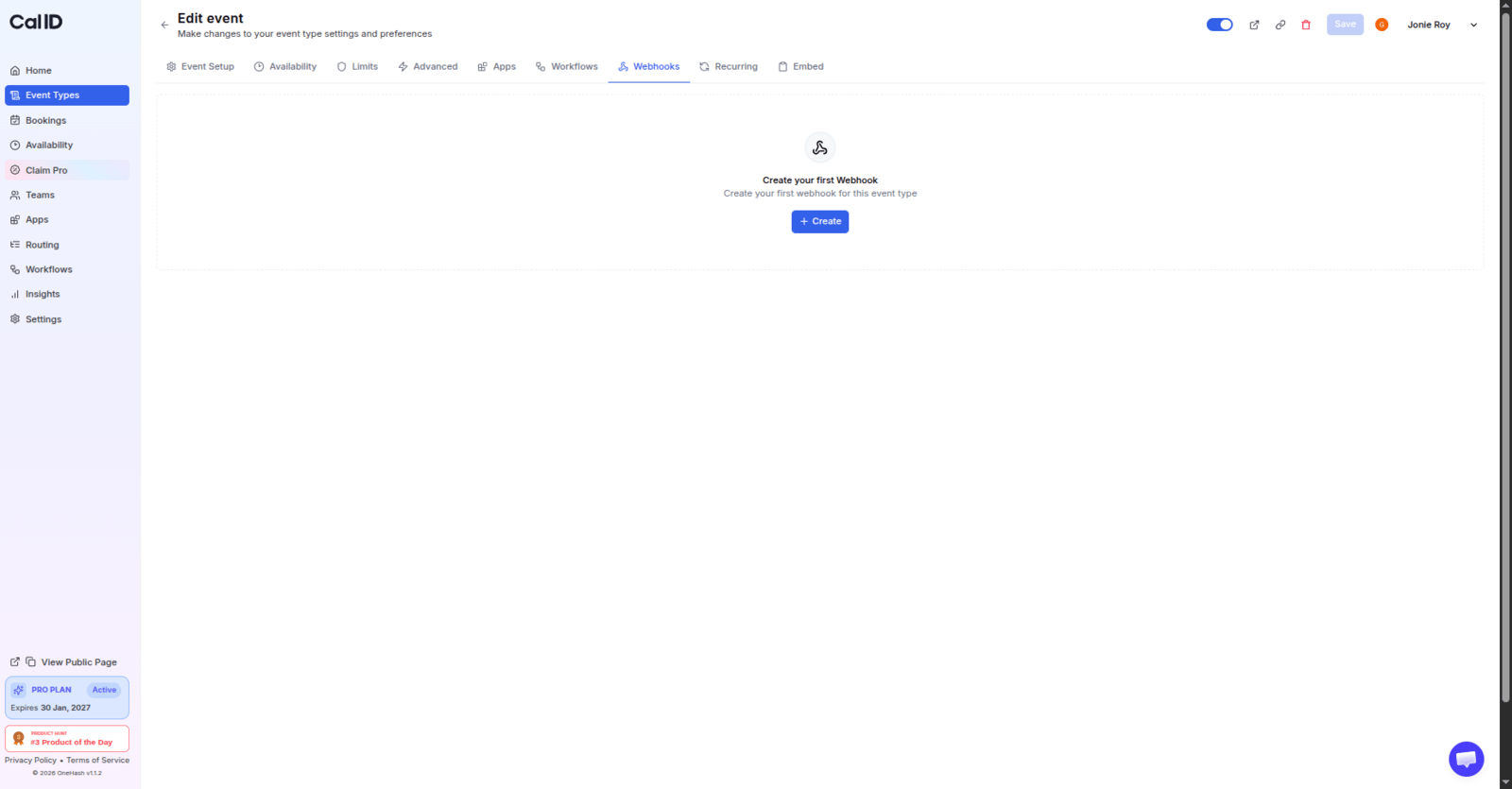 * **Subscriber URL**: Paste the listener URL provided by the application you are sending data to (e.g., Zapier, Pipedream, or your own server).
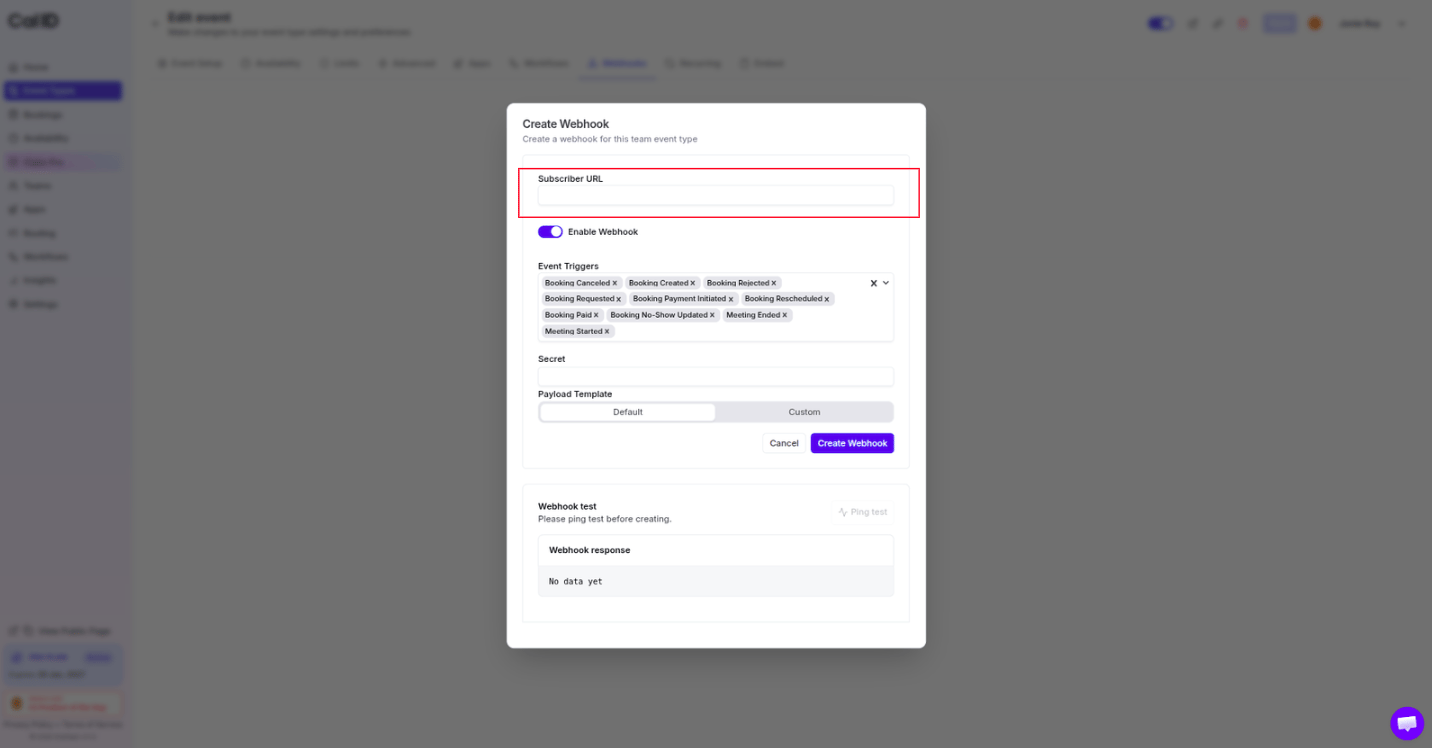 * **Secret (optional but recommended)**: Enter a secret key to verify that the payload is authentic and has not been tampered with.
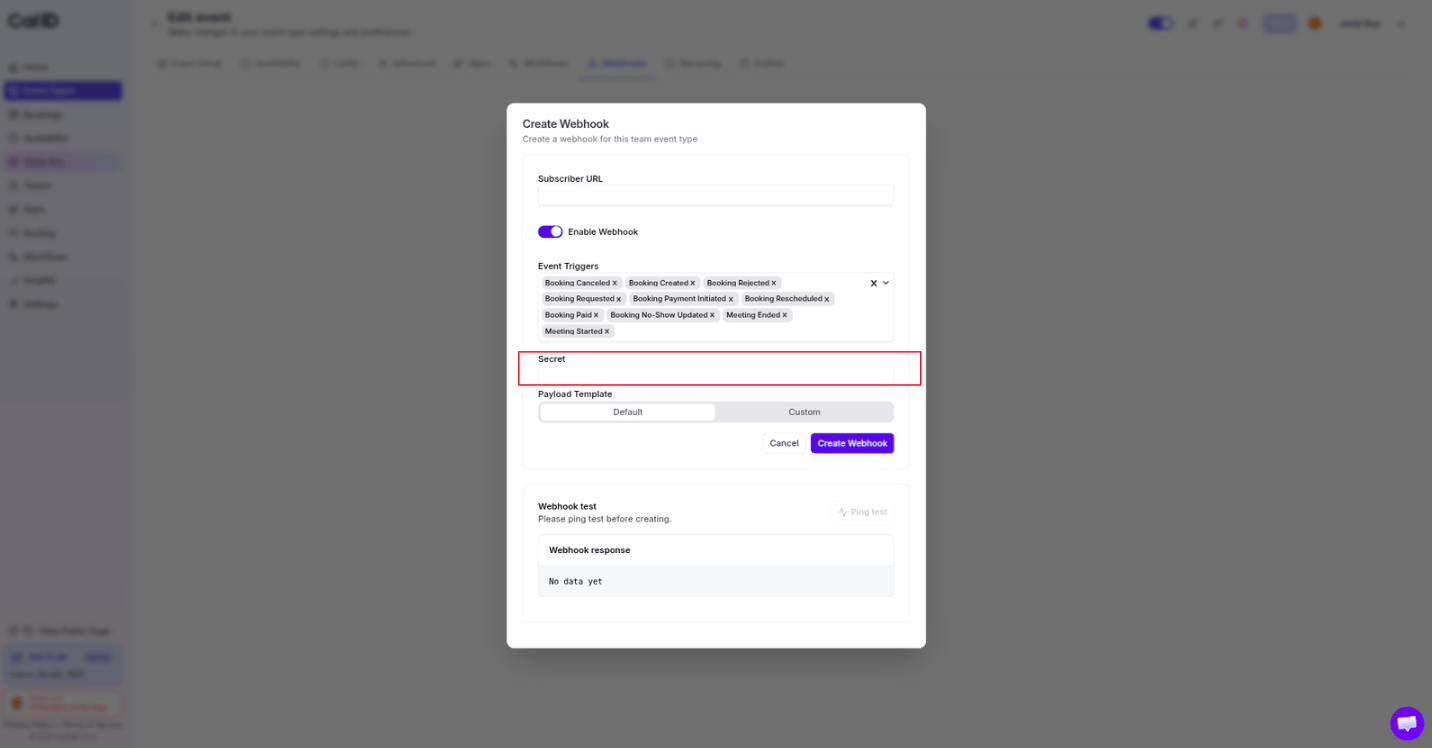 * **Event triggers**: Select the specific events that will trigger this webhook, such as **Booking Created**, **Booking Cancelled**, or **Meeting Ended**.
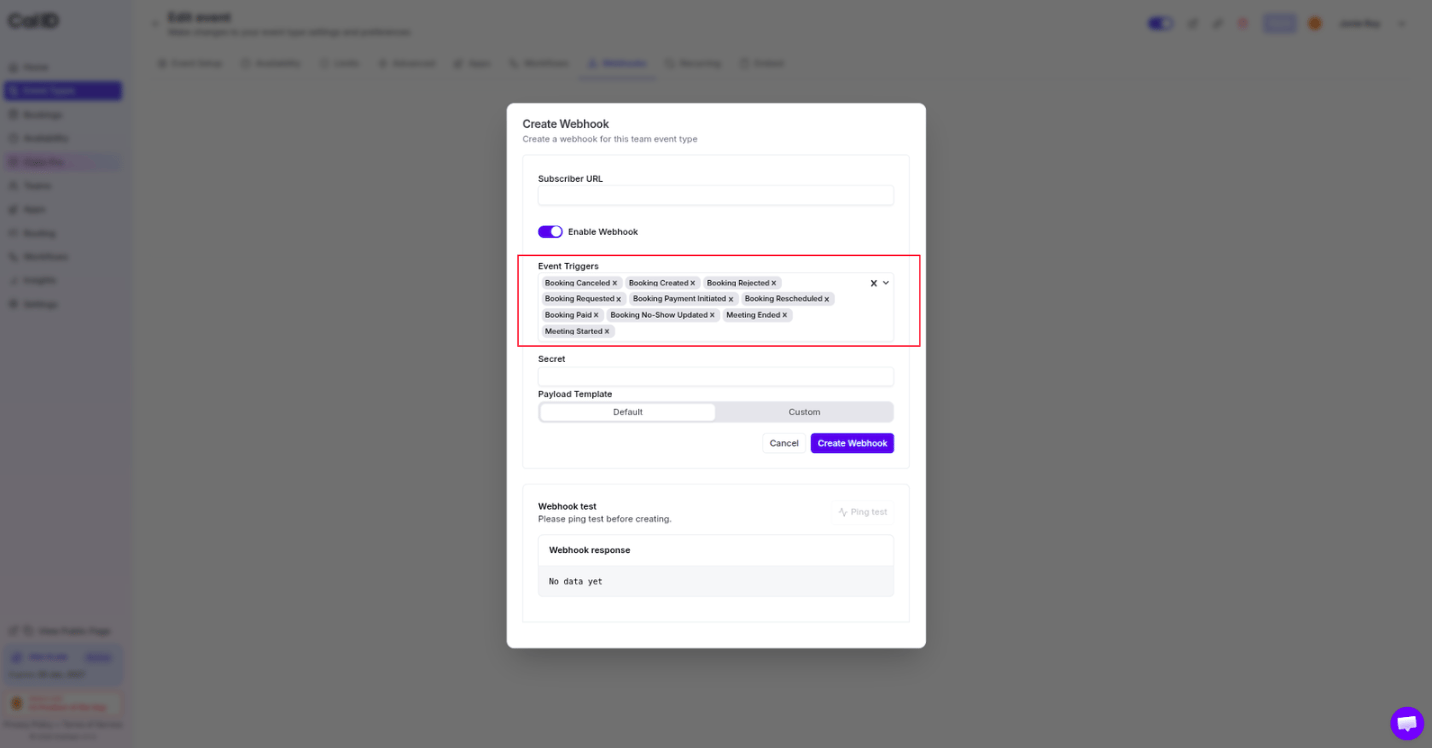 Click the **Create Webhook** button to activate the webhook.
## Important considerations
* **Scopes**: Event-type level webhooks trigger only for that specific event. To track all events for a user or team, create a webhook at the **User** or **Team** level instead. To do that, visit [**Webhook in Cal ID**](/docs/developers/webhooks).
* **Team managed events**: For team-managed events, it is highly recommended to create the webhook directly on the **parent event type** within the team dashboard to ensure it captures all bookings.
* **Custom payloads**: You can customize the data structure sent to your URL by using custom payload templates.
See the full list of webhook triggers and their JSON payload schemas in the API reference.
## Related topics
- [Webhook in Cal ID](/docs/developers/webhooks.md)
- [Enabling Apps for Specific Event Types](/docs/event-types/enable-apps.md)
- [Embed Meeting Scheduling Link](/docs/event-types/embed.md)
- [Integrating Cal ID with Make](/docs/apps/make.md)
Click the **Create Webhook** button to activate the webhook.
## Important considerations
* **Scopes**: Event-type level webhooks trigger only for that specific event. To track all events for a user or team, create a webhook at the **User** or **Team** level instead. To do that, visit [**Webhook in Cal ID**](/docs/developers/webhooks).
* **Team managed events**: For team-managed events, it is highly recommended to create the webhook directly on the **parent event type** within the team dashboard to ensure it captures all bookings.
* **Custom payloads**: You can customize the data structure sent to your URL by using custom payload templates.
See the full list of webhook triggers and their JSON payload schemas in the API reference.
## Related topics
- [Webhook in Cal ID](/docs/developers/webhooks.md)
- [Enabling Apps for Specific Event Types](/docs/event-types/enable-apps.md)
- [Embed Meeting Scheduling Link](/docs/event-types/embed.md)
- [Integrating Cal ID with Make](/docs/apps/make.md)