> ## Documentation Index
> Fetch the complete documentation index at: https://cal.id/docs/llms.txt
> Use this file to discover all available pages before exploring further.
# Booker Active Booking Limit
> Stop a single guest from monopolizing your Cal ID calendar by capping how many active bookings they can hold with the same event at any one time.
Stop one guest from monopolizing your schedule by capping how many active (upcoming) appointments they can hold for the same event at once. The **Booker active booking limit** identifies guests by email and blocks new bookings once they hit the cap.
## Enforcing booker active booking limits
The **Booker active booking limit** is a privacy and control setting that ensures an attendee can only have a set number of "active" (upcoming) appointments at any one time.
### Why use a booker active booking limit?
| Reason | What it prevents |
| ------------------------------ | --------------------------------------------------------------------------------------------- |
| **Prevent calendar hogging** | One guest booking multiple slots for the same event type (e.g. five consecutive Mondays). |
| **Fair resource distribution** | Uneven access in high-demand scenarios like coaching, office hours, or limited consultations. |
| **Reduce no-show impact** | A single guest booking ten slots and ruining your week by failing to show. |
| **Manage service tiers** | Guests exceeding the limited sessions your service model allows, enforced by email address. |
## How to set it up
Login to your [**Cal ID**](https://cal.id/home) account.
Navigate to the **Event Types** tab in the left sidebar and select the specific event you wish to modify.
Click on the **Limits** tab in the top navigation bar.
Find **Booker active booking limit** and switch the toggle to **ON**.
Enter the maximum number of active bookings allowed (typically set to **1**).
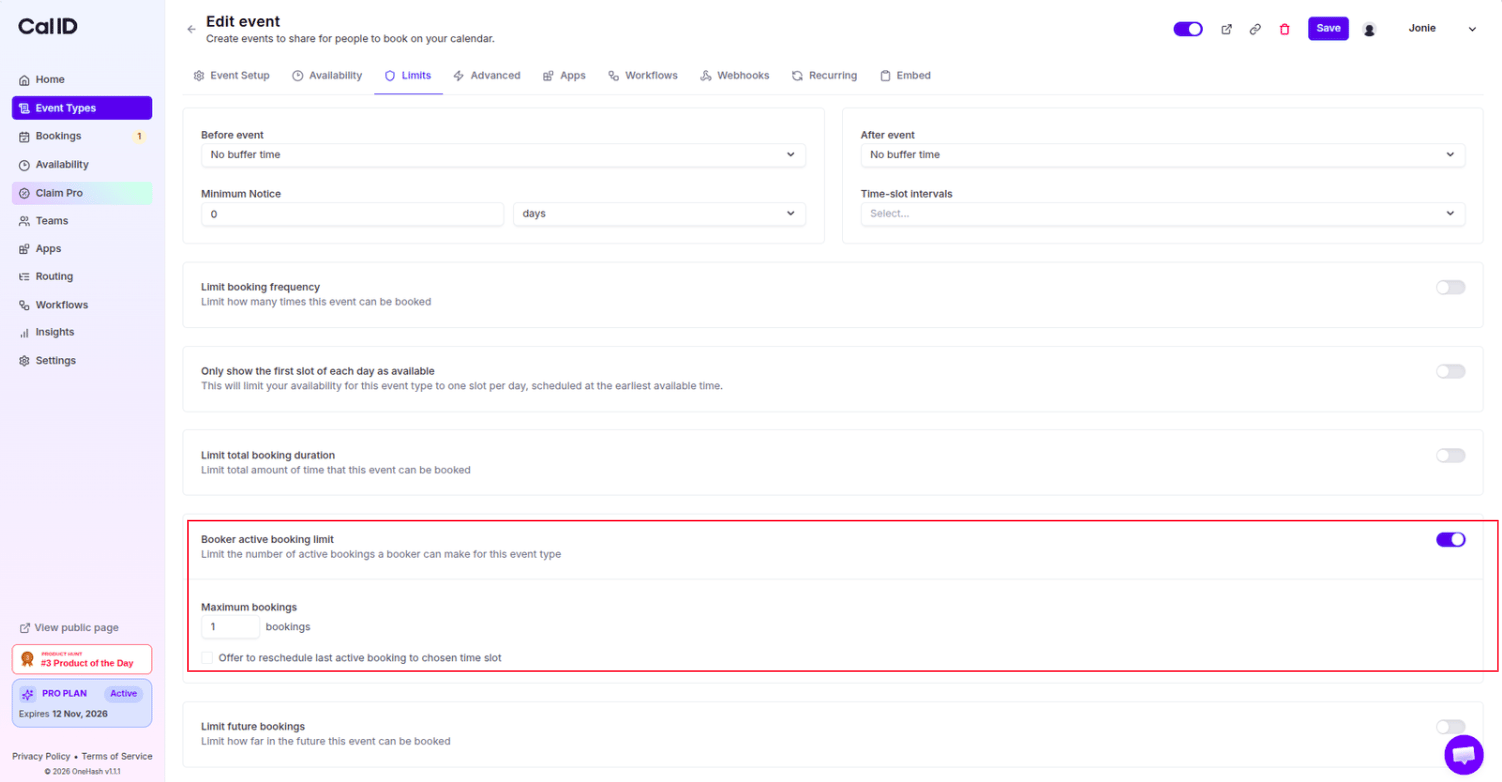 Toggle **ON** the sub-option **Offer to reschedule last active booking to chosen time slot** if you want to let guests move their current meeting instead of just blocking them.
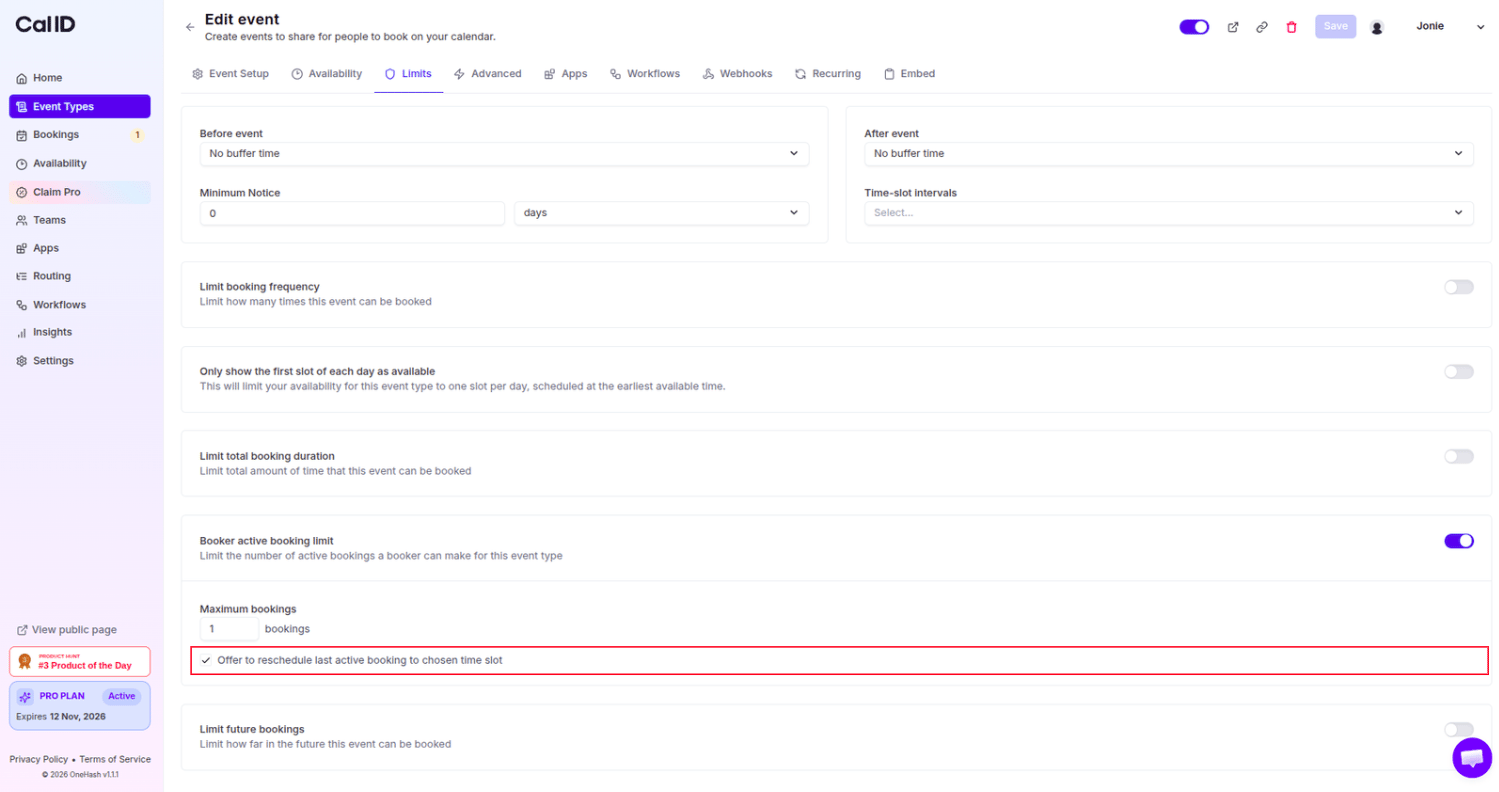 Click the blue **Save** button at the top right.
## How it works for the booker
* **The restriction:** If a guest tries to book an additional appointment using the same email address while they already have an upcoming session, the system blocks the request.
* **The error message:** The booker sees a notification stating:
> **Could not book the meeting.** **Booker maximum active booking limit exceeded.**
* **The reschedule option:** If you enabled the "Offer to reschedule" feature, the system recognises their existing appointment and asks:
> **Could not reschedule the meeting.** **You already have a booking for this event on Friday, January 30, 2026 5:00 am (Scheduled\_time). Would you like to reschedule to the new selected time?**
This feature identifies the booker primarily by their **email address**. If a guest uses a different email address, the system treats them as a new user. For **Collective or Team events**, this limit applies specifically to that event type to ensure fair access across the entire team's availability.
## Next steps
Cap the total number of bookings per day, week, or month across all guests.
Control how far into the future guests can book this event.
## Related topics
- [Limit Booking Frequency](/docs/event-types/limits/booking-frequency.md)
- [Limit total Booking Duration](/docs/event-types/limits/total-duration.md)
- [Limit Future Booking to Restrict the Future Booking](/docs/event-types/limits/future-booking.md)
- [Minimum Notice for the Booking](/docs/event-types/limits/minimum-notice.md)
- [Event Buffers or Break between the Events](/docs/event-types/limits/buffers.md)
Click the blue **Save** button at the top right.
## How it works for the booker
* **The restriction:** If a guest tries to book an additional appointment using the same email address while they already have an upcoming session, the system blocks the request.
* **The error message:** The booker sees a notification stating:
> **Could not book the meeting.** **Booker maximum active booking limit exceeded.**
* **The reschedule option:** If you enabled the "Offer to reschedule" feature, the system recognises their existing appointment and asks:
> **Could not reschedule the meeting.** **You already have a booking for this event on Friday, January 30, 2026 5:00 am (Scheduled\_time). Would you like to reschedule to the new selected time?**
This feature identifies the booker primarily by their **email address**. If a guest uses a different email address, the system treats them as a new user. For **Collective or Team events**, this limit applies specifically to that event type to ensure fair access across the entire team's availability.
## Next steps
Cap the total number of bookings per day, week, or month across all guests.
Control how far into the future guests can book this event.
## Related topics
- [Limit Booking Frequency](/docs/event-types/limits/booking-frequency.md)
- [Limit total Booking Duration](/docs/event-types/limits/total-duration.md)
- [Limit Future Booking to Restrict the Future Booking](/docs/event-types/limits/future-booking.md)
- [Minimum Notice for the Booking](/docs/event-types/limits/minimum-notice.md)
- [Event Buffers or Break between the Events](/docs/event-types/limits/buffers.md)