> ## Documentation Index
> Fetch the complete documentation index at: https://cal.id/docs/llms.txt
> Use this file to discover all available pages before exploring further.
# Only Show the first slot of each day as available
> Limit a Cal ID event type to a single appointment per day by exposing only the earliest open slot so guests can't book multiple times on the same date.
Cap an event type at one appointment per day by showing bookers only your earliest open slot. The **Only show the first slot of each day as available** setting is a simple way to protect the rest of your day and keep your calendar from filling with back-to-back meetings.
## Managing daily availability limits
This setting lives under the **Limits** tab and prevents your calendar from being overwhelmed with multiple bookings on the same date.
### Why use this feature?
| Benefit | What it does for you |
| ------------------------ | ---------------------------------------------------------------------------------------------------------------------------- |
| **Prioritize deep work** | Limits you to the first open slot, protecting the rest of your day for focused tasks and long-term projects. |
| **Control daily load** | Guarantees no more than one meeting of this event type per day — ideal for intensive consultations or high-energy workshops. |
| **Maintain consistency** | Automates a "meetings at the start of the day" preference so external calls stay grouped. |
## How to set it up
Log in to [Cal ID](https://cal.id/home).
Select the event you wish to modify from the left sidebar.
Click on the **Limits** tab in the top navigation bar of the "Edit event" screen.
Locate the section titled **Only show the first slot of each day as available**.
Switch the toggle to **ON**.
Click the blue **Save** button at the top right of the page.
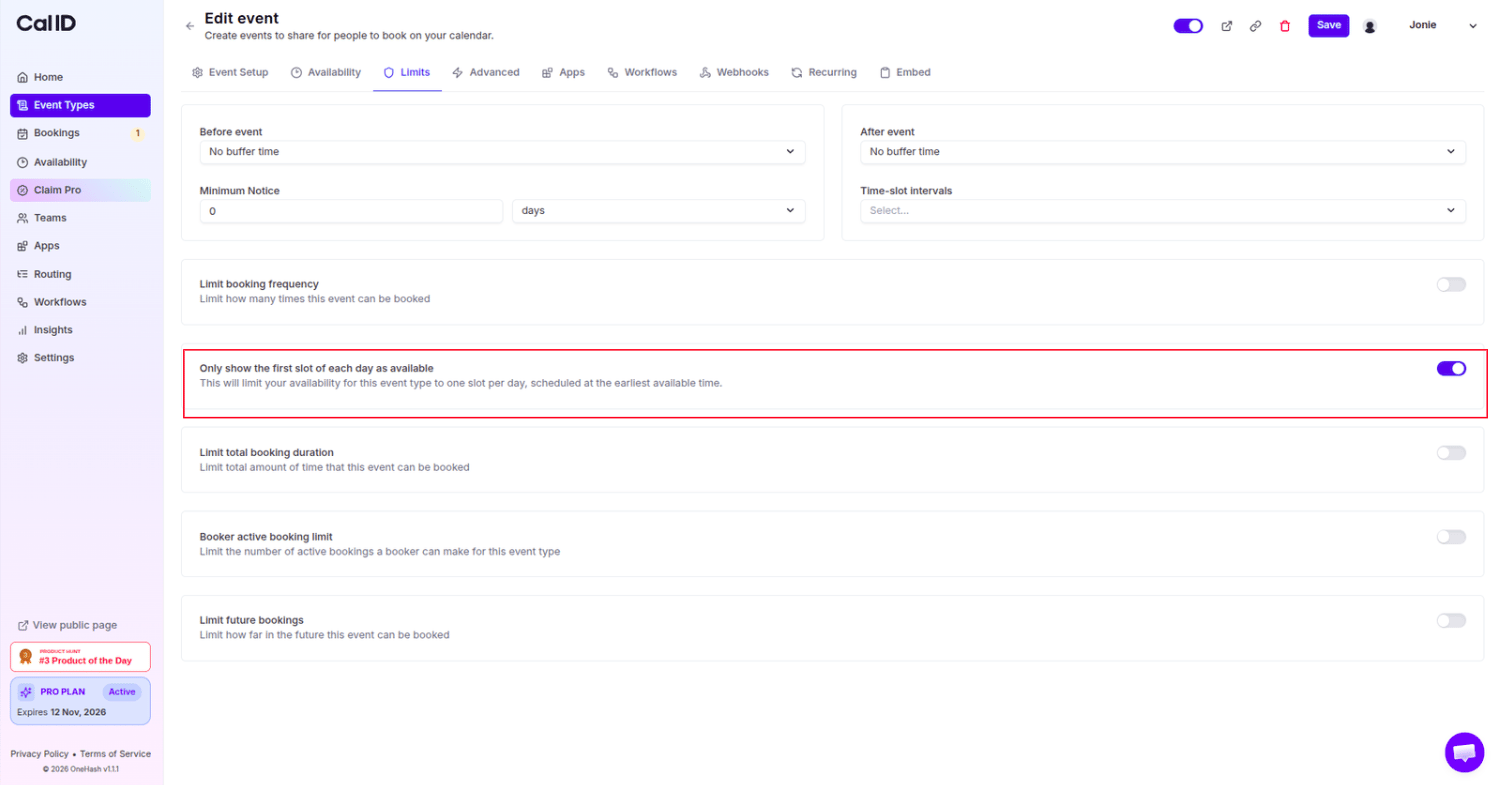 You're set — bookers will now see only the earliest open slot for each day on your booking page.
## How it works for the booker
* **Earliest option only:** When a guest views your booking page, they see only the very first available time slot you have defined for each day.
* **Dynamic hiding:** Once that first slot is booked for a specific day, all other slots for that day are automatically hidden from future bookers.
* **Schedule restriction:** This effectively restricts your availability to a single appointment per day, scheduled at your earliest available time.
This feature is an "all-or-nothing" limit for the day. If you want to allow more than one booking but still limit the total count, use the [**Limit booking frequency**](/docs/event-types/limits/booking-frequency) setting located just above this toggle.
## Next steps
Allow more than one booking per day while still capping the total count.
Hide a percentage of open slots to make your calendar appear fuller.
## Related topics
- [Custom or Fixed Time-Slot Intervals](/docs/event-types/limits/time-slot-intervals.md)
- [Limiting Availability with the "Look Busy" Feature](/docs/event-types/advanced/look-busy.md)
- [Event Buffers or Break between the Events](/docs/event-types/limits/buffers.md)
- [Limit Booking Frequency](/docs/event-types/limits/booking-frequency.md)
- [How to set Availability for an Event type?](/docs/event-types/setup/event-availability.md)
You're set — bookers will now see only the earliest open slot for each day on your booking page.
## How it works for the booker
* **Earliest option only:** When a guest views your booking page, they see only the very first available time slot you have defined for each day.
* **Dynamic hiding:** Once that first slot is booked for a specific day, all other slots for that day are automatically hidden from future bookers.
* **Schedule restriction:** This effectively restricts your availability to a single appointment per day, scheduled at your earliest available time.
This feature is an "all-or-nothing" limit for the day. If you want to allow more than one booking but still limit the total count, use the [**Limit booking frequency**](/docs/event-types/limits/booking-frequency) setting located just above this toggle.
## Next steps
Allow more than one booking per day while still capping the total count.
Hide a percentage of open slots to make your calendar appear fuller.
## Related topics
- [Custom or Fixed Time-Slot Intervals](/docs/event-types/limits/time-slot-intervals.md)
- [Limiting Availability with the "Look Busy" Feature](/docs/event-types/advanced/look-busy.md)
- [Event Buffers or Break between the Events](/docs/event-types/limits/buffers.md)
- [Limit Booking Frequency](/docs/event-types/limits/booking-frequency.md)
- [How to set Availability for an Event type?](/docs/event-types/setup/event-availability.md)