> ## Documentation Index
> Fetch the complete documentation index at: https://cal.id/docs/llms.txt
> Use this file to discover all available pages before exploring further.
# Limit Future Booking to Restrict the Future Booking
> Control how far into the future guests can book Cal ID meetings using either a fixed calendar range or a rolling window of days, weeks, or months.
Control how far ahead guests can book so bookings never appear further out than you're comfortable managing. If a period in the future carries uncertainty for your [Cal ID](https://cal.id/home) events, you can limit how far in advance the event can be booked — either as a number of days that roll forward or a fixed date range. This keeps an eye on your immediate schedule and helps prevent unwanted bookings, and it's especially handy for **Webinar** setups.
To reach the setting, go to **Event Types** >> click **edit** >> **Limit future booking**.
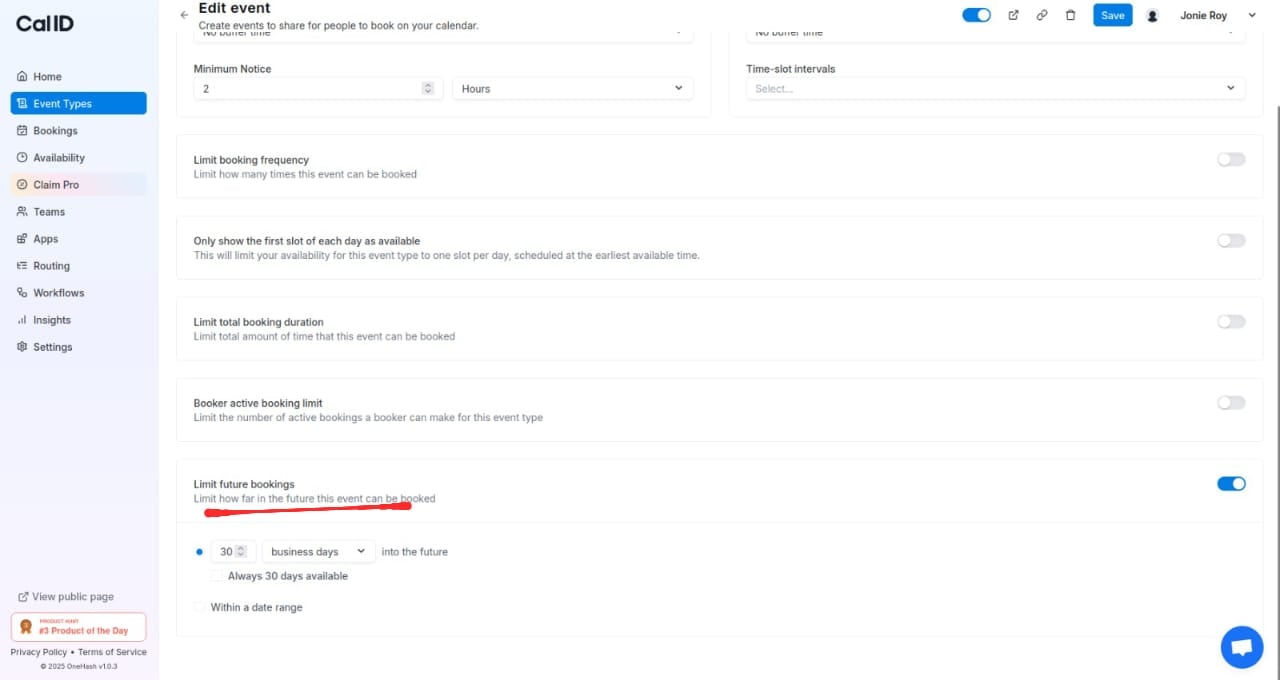 For example, say you want to be available for bookings only two weeks ahead at any point in time. In your event type settings, set the number of days to **14 calendar days**. Now bookers can only book you two weeks ahead at any point in time. If you select a specific date range instead, you'll be available for those days only.
**Rolling window vs. fixed date range** — the two modes behave very differently:
* **Rolling window** (a number of days, weeks, or months): the window moves forward with today's date, always keeping the same amount of availability open ahead of you.
* **Fixed date range** (a start and end date): availability is pinned to specific calendar dates and shrinks as those dates approach, eventually running out until you reset it.
## How to set a rolling 30-day booking window
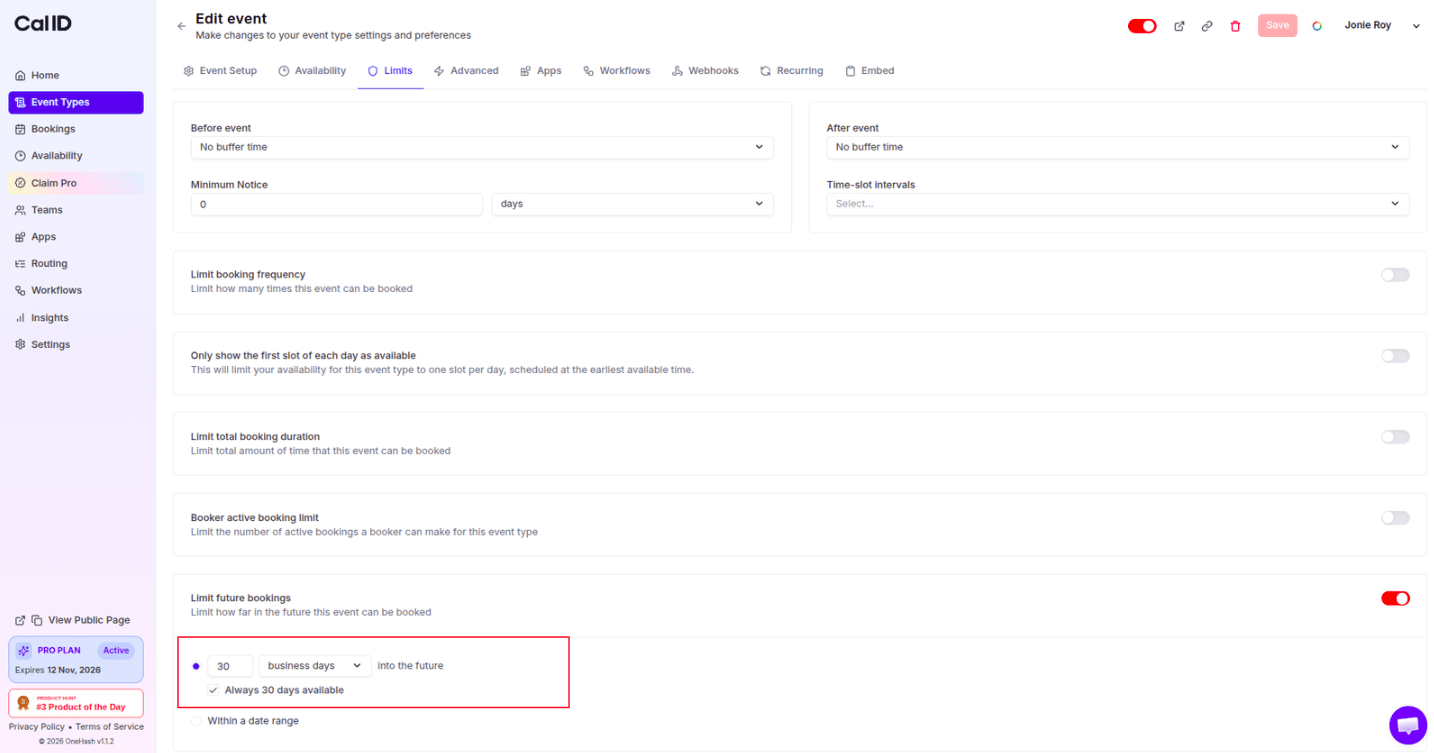
To keep a constant 30-day availability for your clients, follow these steps within the **Limits** tab of your event settings:
Toggle the **Limit future bookings** switch to **ON** (the switch will appear red/active).
In the input field, enter **30** and select **business days** (or calendar days) from the dropdown menu.
Check the box labeled **"Always 30 days available."**
Click the **Save** button in the top right corner to apply your changes.
## Why use "Always 30 days available"?
This setting creates a **rolling booking window**, the most efficient way to manage long-term availability:
* **Continuous availability:** Your booking page always displays exactly 30 available days from the current date.
* **Automatic updates:** As each day passes (or as a day is fully booked), the system automatically opens a new day at the end of the window to replace it. Your schedule never "runs out" of slots.
* **Fixed vs. rolling:** Without this box checked, your window is **fixed**. The available days shrink as you get closer to the end of the specified 30-day period, eventually leaving you with no visible slots until you manually reset it.
For example, say you want to be available for bookings only two weeks ahead at any point in time. In your event type settings, set the number of days to **14 calendar days**. Now bookers can only book you two weeks ahead at any point in time. If you select a specific date range instead, you'll be available for those days only.
**Rolling window vs. fixed date range** — the two modes behave very differently:
* **Rolling window** (a number of days, weeks, or months): the window moves forward with today's date, always keeping the same amount of availability open ahead of you.
* **Fixed date range** (a start and end date): availability is pinned to specific calendar dates and shrinks as those dates approach, eventually running out until you reset it.
## How to set a rolling 30-day booking window
To keep a constant 30-day availability for your clients, follow these steps within the **Limits** tab of your event settings:
Toggle the **Limit future bookings** switch to **ON** (the switch will appear red/active).
In the input field, enter **30** and select **business days** (or calendar days) from the dropdown menu.
Check the box labeled **"Always 30 days available."**
Click the **Save** button in the top right corner to apply your changes.
## Why use "Always 30 days available"?
This setting creates a **rolling booking window**, the most efficient way to manage long-term availability:
* **Continuous availability:** Your booking page always displays exactly 30 available days from the current date.
* **Automatic updates:** As each day passes (or as a day is fully booked), the system automatically opens a new day at the end of the window to replace it. Your schedule never "runs out" of slots.
* **Fixed vs. rolling:** Without this box checked, your window is **fixed**. The available days shrink as you get closer to the end of the specified 30-day period, eventually leaving you with no visible slots until you manually reset it.
 ## Next steps
Set how much lead time you need before a guest can book.
Cap how many bookings you take per day, week, or month.
## Related topics
- [Minimum Notice for the Booking](/docs/event-types/limits/minimum-notice.md)
- [Limit Booking Frequency](/docs/event-types/limits/booking-frequency.md)
- [Booker Active Booking Limit](/docs/event-types/limits/booker-limit.md)
- [How to set Availability for an Event type?](/docs/event-types/setup/event-availability.md)
- [Limit total Booking Duration](/docs/event-types/limits/total-duration.md)
## Next steps
Set how much lead time you need before a guest can book.
Cap how many bookings you take per day, week, or month.
## Related topics
- [Minimum Notice for the Booking](/docs/event-types/limits/minimum-notice.md)
- [Limit Booking Frequency](/docs/event-types/limits/booking-frequency.md)
- [Booker Active Booking Limit](/docs/event-types/limits/booker-limit.md)
- [How to set Availability for an Event type?](/docs/event-types/setup/event-availability.md)
- [Limit total Booking Duration](/docs/event-types/limits/total-duration.md)