> ## Documentation Index
> Fetch the complete documentation index at: https://cal.id/docs/llms.txt
> Use this file to discover all available pages before exploring further.
# Minimum Notice for the Booking
> Require a minimum lead time before guests can book a Cal ID meeting so appointments never appear on your calendar at the last minute unexpectedly.
In **Cal ID**, the **Minimum Notice** setting gives you the lead time you need to prepare, so you never get surprised by a meeting that appears on your calendar at the last second.
## Setting a minimum notice
This setting prevents guests from booking a slot that is too close to the current time. For example, if you set a 2-hour notice, no one can book a meeting with you that starts less than 2 hours from now.
### Why use a minimum notice?
* **Avoid surprises:** Stop meetings from "popping up" on your calendar while you are already busy or away from your desk.
* **Preparation time:** Ensure you have enough time to review notes or research a guest before the call starts.
* **Schedule peace of mind:** Know exactly what your day looks like without worrying about last-minute changes.
## How to set it up
Click on **Event Types** in the left sidebar.
Click on the event you want to edit (e.g., "Interview").
Click on the **Limits** tab in the top menu bar of the event editor.
Look for the section labelled **Minimum Notice**.
Type in the number of minutes, hours, or days you require as a heads-up.
* **Example:** Entering "120" minutes means you won't get any bookings for the next 2 hours.
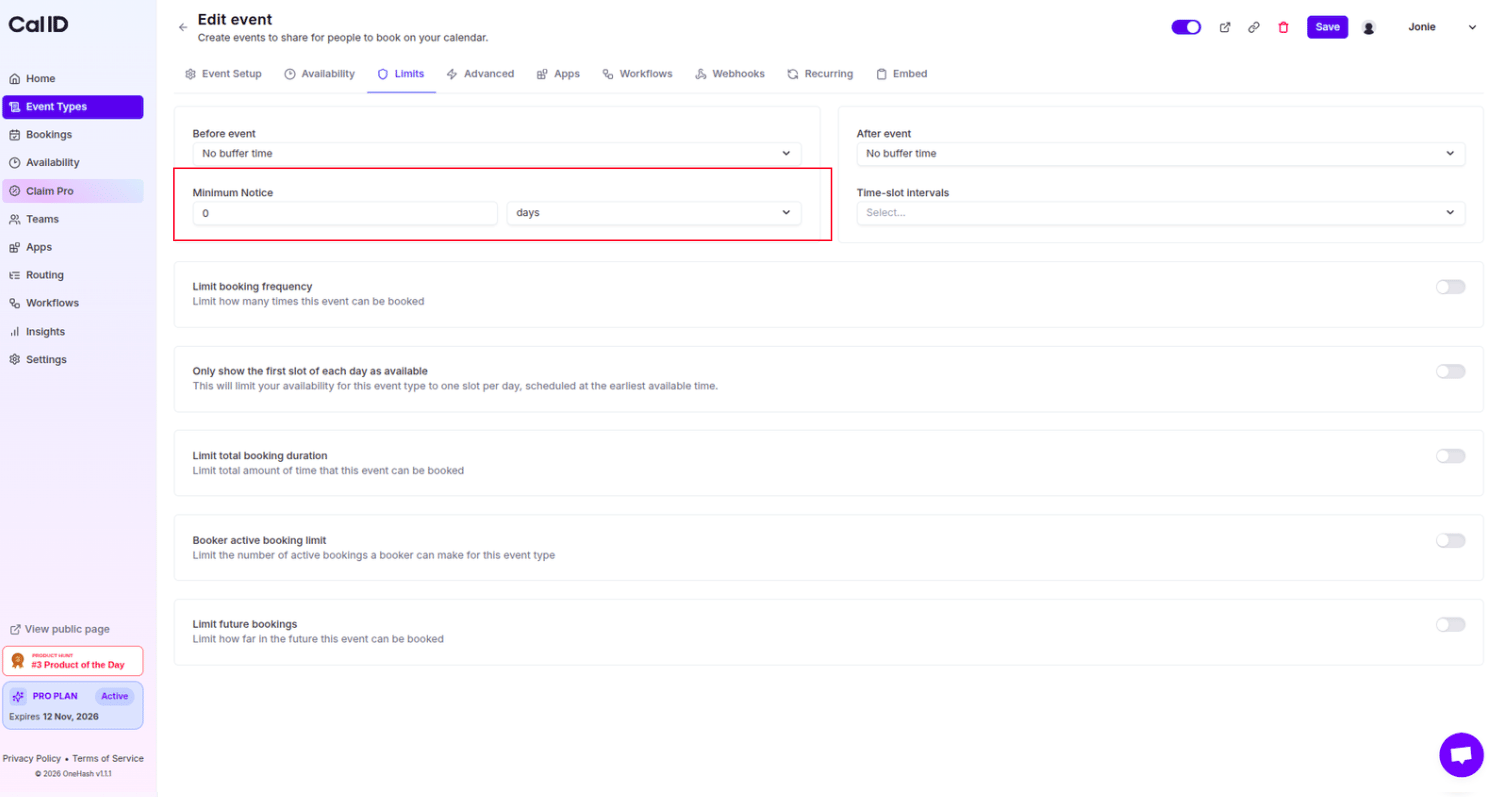 Click the **Save** button at the top right.
## How it looks for the booker
* If it is currently 2:00 PM and you have a 1-hour minimum notice, the booker will only see available slots starting from 3:00 PM onwards.
* Any slots between 2:00 PM and 3:00 PM will be automatically hidden, even if you are technically "free" on your calendar.
If you have a busy morning, many users prefer a **12-hour or 24-hour notice**. This ensures that when you wake up, your schedule for the entire day is already set and won't change unexpectedly!
## Related topics
- [Event Buffers or Break between the Events](/docs/event-types/limits/buffers.md)
- [Limit Future Booking to Restrict the Future Booking](/docs/event-types/limits/future-booking.md)
- [Limit Booking Frequency](/docs/event-types/limits/booking-frequency.md)
- [How to set Availability for an Event type?](/docs/event-types/setup/event-availability.md)
- [Custom or Fixed Time-Slot Intervals](/docs/event-types/limits/time-slot-intervals.md)
Click the **Save** button at the top right.
## How it looks for the booker
* If it is currently 2:00 PM and you have a 1-hour minimum notice, the booker will only see available slots starting from 3:00 PM onwards.
* Any slots between 2:00 PM and 3:00 PM will be automatically hidden, even if you are technically "free" on your calendar.
If you have a busy morning, many users prefer a **12-hour or 24-hour notice**. This ensures that when you wake up, your schedule for the entire day is already set and won't change unexpectedly!
## Related topics
- [Event Buffers or Break between the Events](/docs/event-types/limits/buffers.md)
- [Limit Future Booking to Restrict the Future Booking](/docs/event-types/limits/future-booking.md)
- [Limit Booking Frequency](/docs/event-types/limits/booking-frequency.md)
- [How to set Availability for an Event type?](/docs/event-types/setup/event-availability.md)
- [Custom or Fixed Time-Slot Intervals](/docs/event-types/limits/time-slot-intervals.md)