> ## Documentation Index
> Fetch the complete documentation index at: https://cal.id/docs/llms.txt
> Use this file to discover all available pages before exploring further.
# Custom or Fixed Time-Slot Intervals
> Control how often available start times appear on your Cal ID booking page, independent of your meeting duration, using custom time-slot intervals.
In **Cal ID**, the **Time-slot intervals** setting controls how often available start times appear on your booking page, letting you create a specific rhythm for your calendar, independent of your meeting duration.
## Customizing time-slot intervals
This feature allows you to decide if guests see slots every 15 minutes, every 30 minutes, or at larger gaps. This is independent of your meeting duration. For example, you can have a 30-minute meeting but only allow it to start at the top of every hour.
### Why use time-slot intervals?
* **Clean calendar look:** Avoid a cluttered booking page by offering fewer, well-spaced start times.
* **Standardized start times:** Force meetings to start at consistent times (like 9:00, 9:30, 10:00) rather than random times like 9:15 or 10:45.
* **Better scheduling control:** By setting larger intervals, you can ensure your day follows a specific block-based structure.
## How to set it up
Click on **Event Types** in the left sidebar.
Click on the specific event you want to edit.
Click on the **Limits** tab at the top of the event editor.
Locate the dropdown menu on the right side of the screen labeled **Time-slot intervals**.
* Select from the list of options (e.g., **15, 30, or 60 minutes**).
* If you leave this blank, the system will typically use the event's duration as the interval.
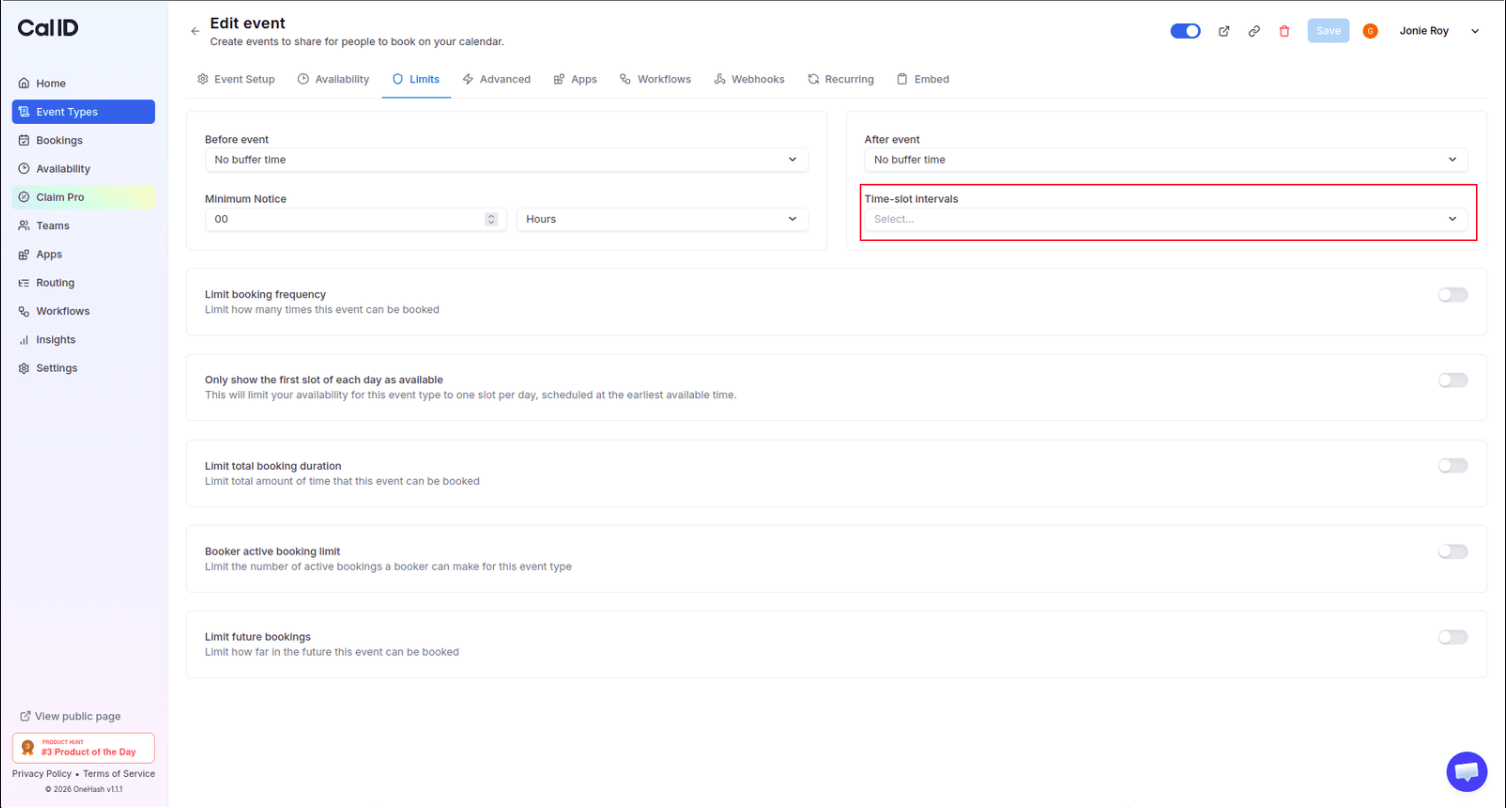 Click the **Save** button in the top right corner.
## How it looks for the booker
The interval you choose sets the spacing between the start times a guest can pick:
| Interval | Start times the guest sees |
| -------------- | --------------------------------------------------- |
| **30 minutes** | 10:00 AM, 10:30 AM, 11:00 AM, and so on |
| **60 minutes** | 10:00 AM, 11:00 AM, 12:00 PM (top of the hour only) |
The system will only show intervals that fit within your **Availability Schedule** and don't conflict with other bookings.
If you want to ensure you always start meetings on the hour, set your interval to **60 minutes**. This is very helpful for "batching" your work and keeping your calendar predictable.
## Related topics
- [Event Buffers or Break between the Events](/docs/event-types/limits/buffers.md)
- [Limit Booking Frequency](/docs/event-types/limits/booking-frequency.md)
- [Only Show the first slot of each day as available](/docs/event-types/limits/first-slot-only.md)
- [Set Multiple Durations](/docs/event-types/setup/multiple-durations.md)
- [Minimum Notice for the Booking](/docs/event-types/limits/minimum-notice.md)
Click the **Save** button in the top right corner.
## How it looks for the booker
The interval you choose sets the spacing between the start times a guest can pick:
| Interval | Start times the guest sees |
| -------------- | --------------------------------------------------- |
| **30 minutes** | 10:00 AM, 10:30 AM, 11:00 AM, and so on |
| **60 minutes** | 10:00 AM, 11:00 AM, 12:00 PM (top of the hour only) |
The system will only show intervals that fit within your **Availability Schedule** and don't conflict with other bookings.
If you want to ensure you always start meetings on the hour, set your interval to **60 minutes**. This is very helpful for "batching" your work and keeping your calendar predictable.
## Related topics
- [Event Buffers or Break between the Events](/docs/event-types/limits/buffers.md)
- [Limit Booking Frequency](/docs/event-types/limits/booking-frequency.md)
- [Only Show the first slot of each day as available](/docs/event-types/limits/first-slot-only.md)
- [Set Multiple Durations](/docs/event-types/setup/multiple-durations.md)
- [Minimum Notice for the Booking](/docs/event-types/limits/minimum-notice.md)