> ## Documentation Index
> Fetch the complete documentation index at: https://cal.id/docs/llms.txt
> Use this file to discover all available pages before exploring further.
# Setting Up Recurring Events in Cal ID
> Create a series of Cal ID meetings on a fixed schedule so attendees can subscribe to a recurring event instead of booking each occurrence separately.
The **Recurring** feature lets you create a series of meetings on a fixed schedule, so attendees subscribe to the whole series in one booking instead of reserving each occurrence separately.
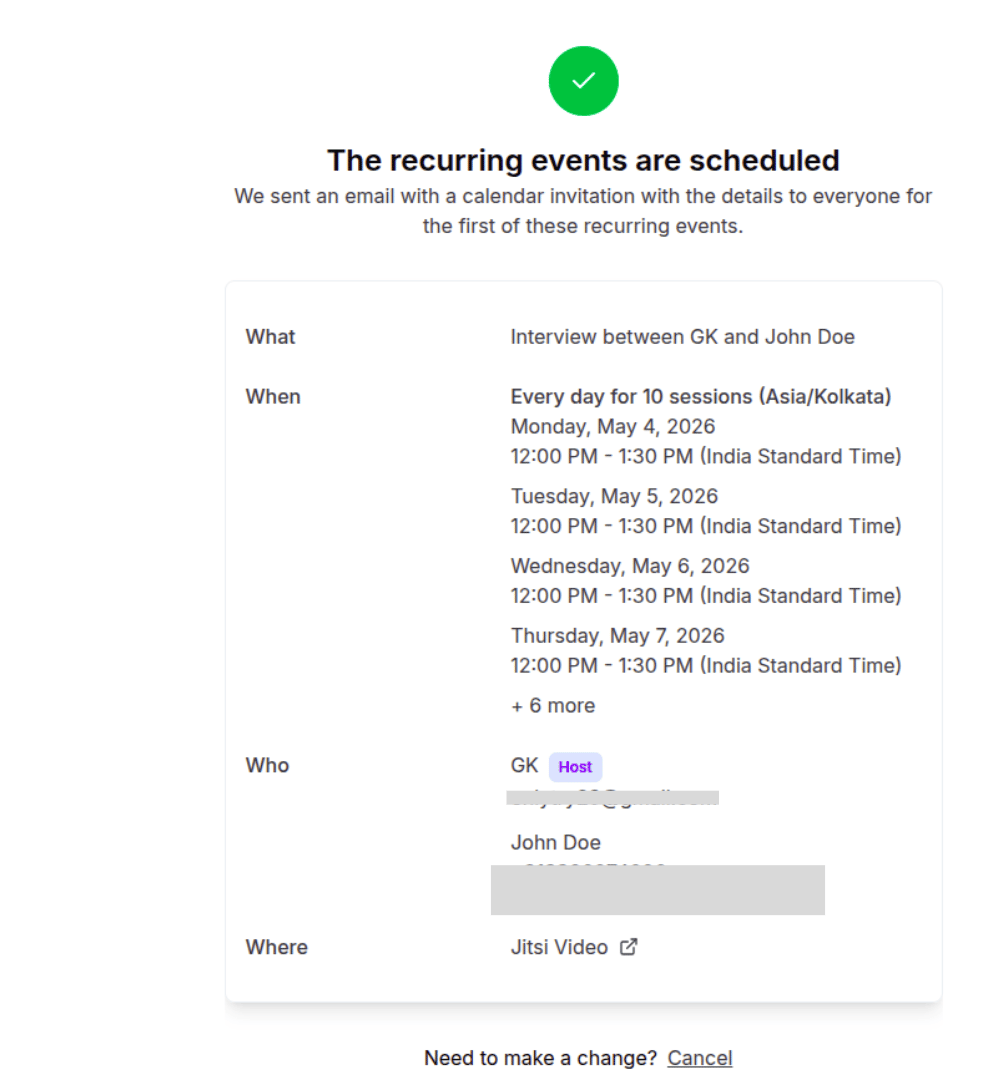
Attendees don't book each session one by one. They pick a starting slot on your public page, choose (or confirm) how many sessions the series includes, and a single confirmation books every occurrence at once — that's how they "subscribe" to the series.
## How to enable recurring events
From your Cal ID dashboard, click on [**Event Types**](https://cal.id/event-types) in the left-hand menu.
Find the event you want to make recurring and click the **Edit** (pencil) icon.
In the top settings bar, click on **Recurring**.
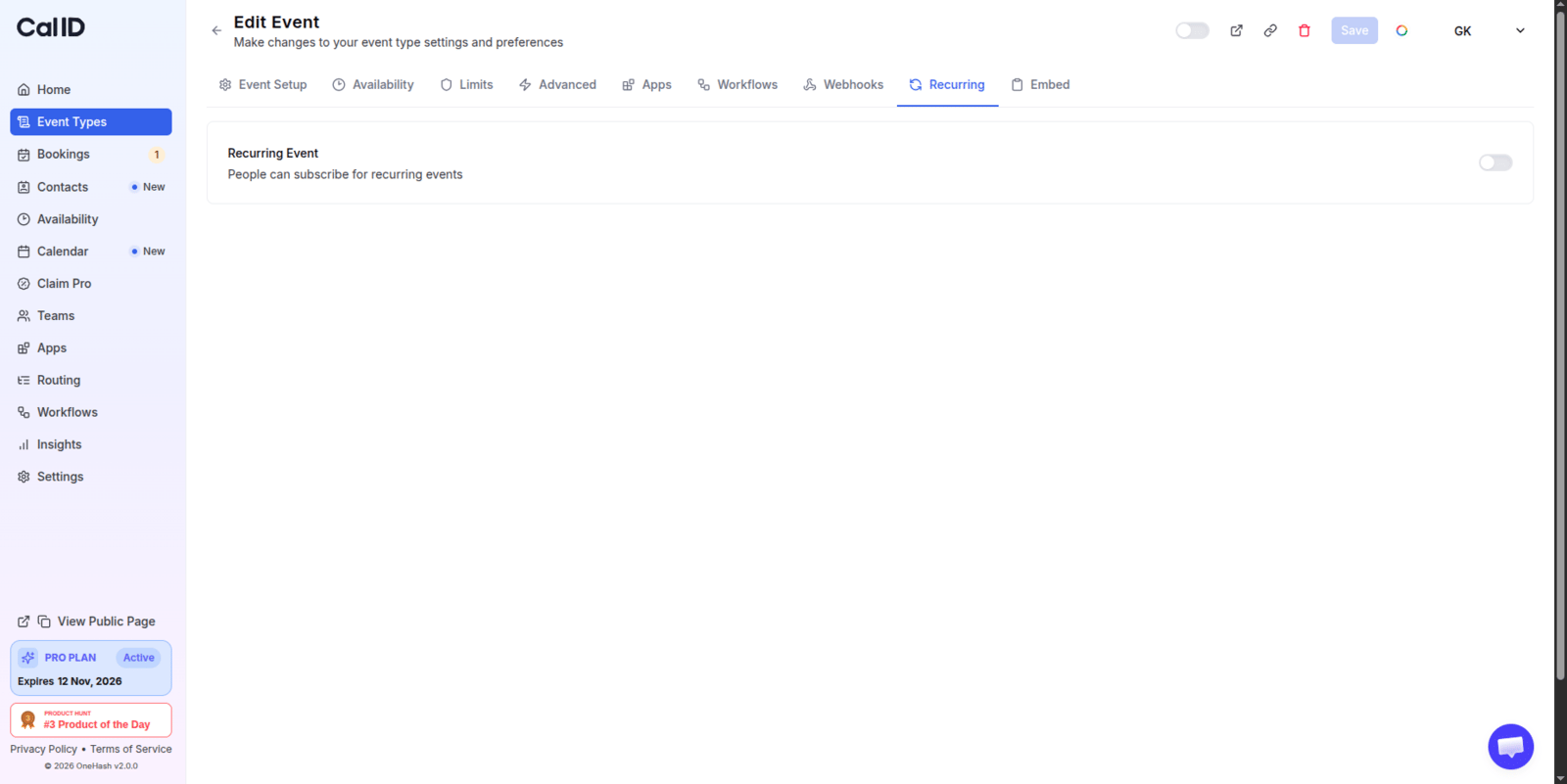 Switch the **Recurring Event** toggle to **ON**.
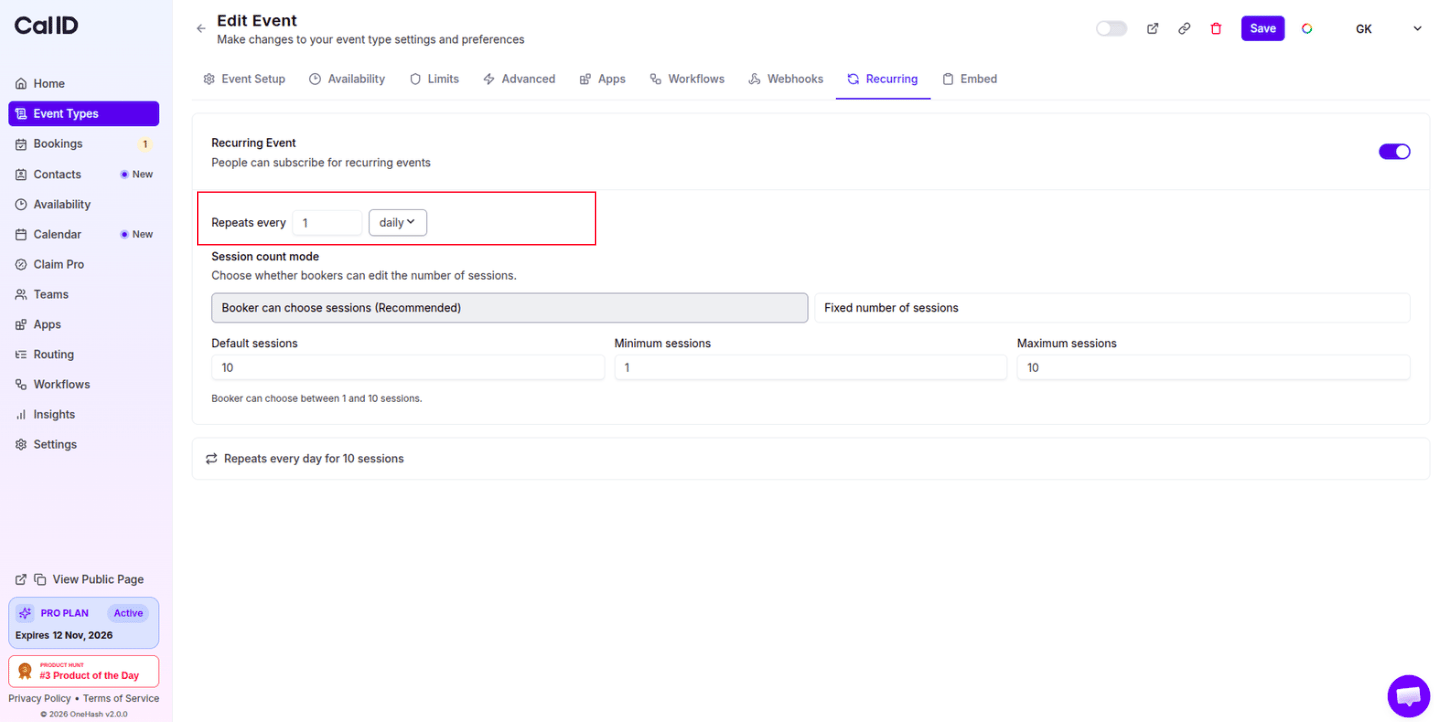
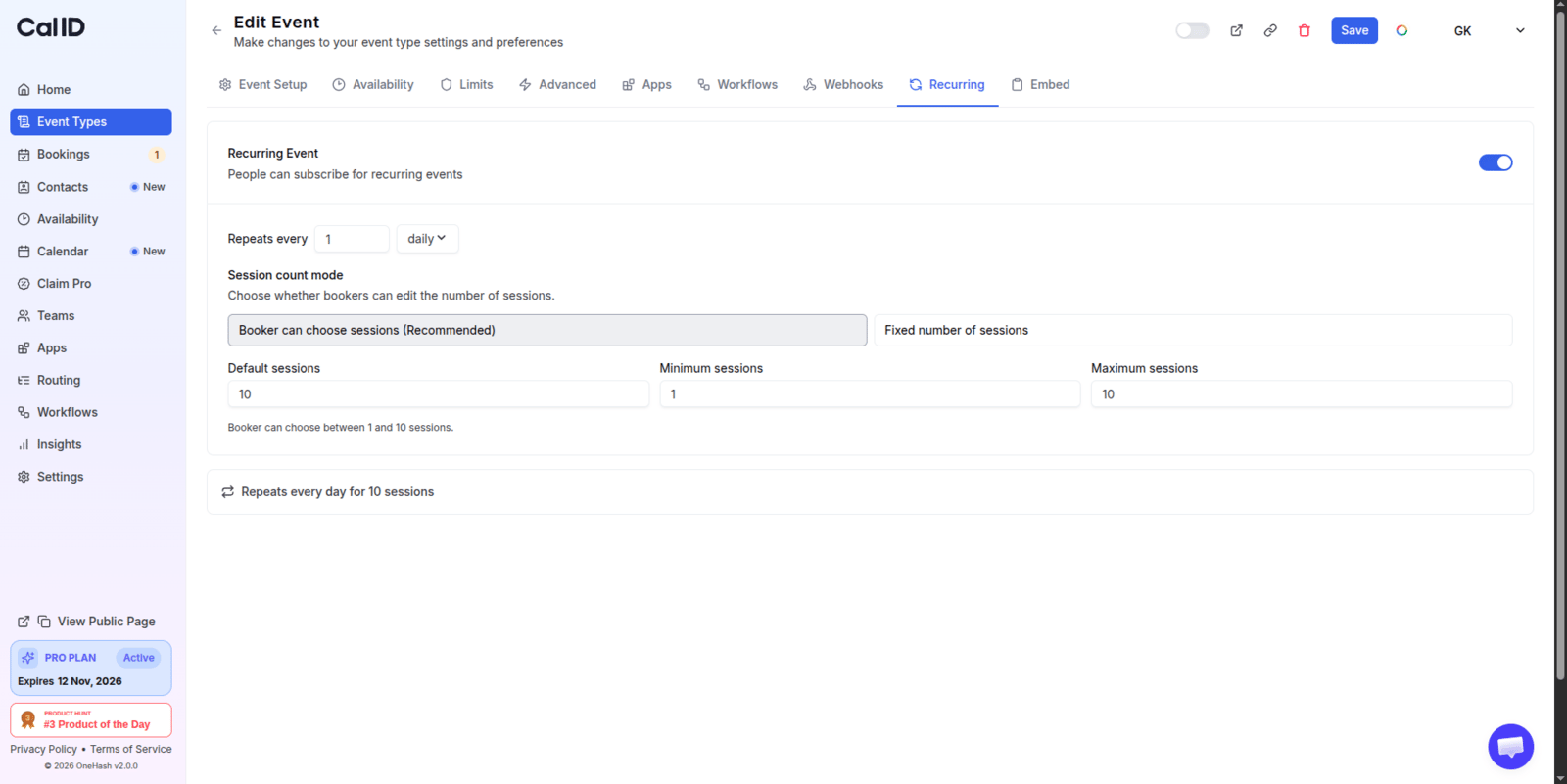 * **Repeats every**: Enter a number and choose the interval (Daily, Weekly, Monthly, or Yearly).
* **Example: "Repeats every 1 week" means the meeting happens every seven days.**
* **Repeats every**: Enter a number and choose the interval (Daily, Weekly, Monthly, or Yearly).
* **Example: "Repeats every 1 week" means the meeting happens every seven days.**
 ## Choosing the booking style
Cal ID gives you two ways to handle how many sessions an attendee books.
Use this if you want the attendee to decide how many sessions they need within your limits.
* Choose: For what you want to set up
## Choosing the booking style
Cal ID gives you two ways to handle how many sessions an attendee books.
Use this if you want the attendee to decide how many sessions they need within your limits.
* Choose: For what you want to set up
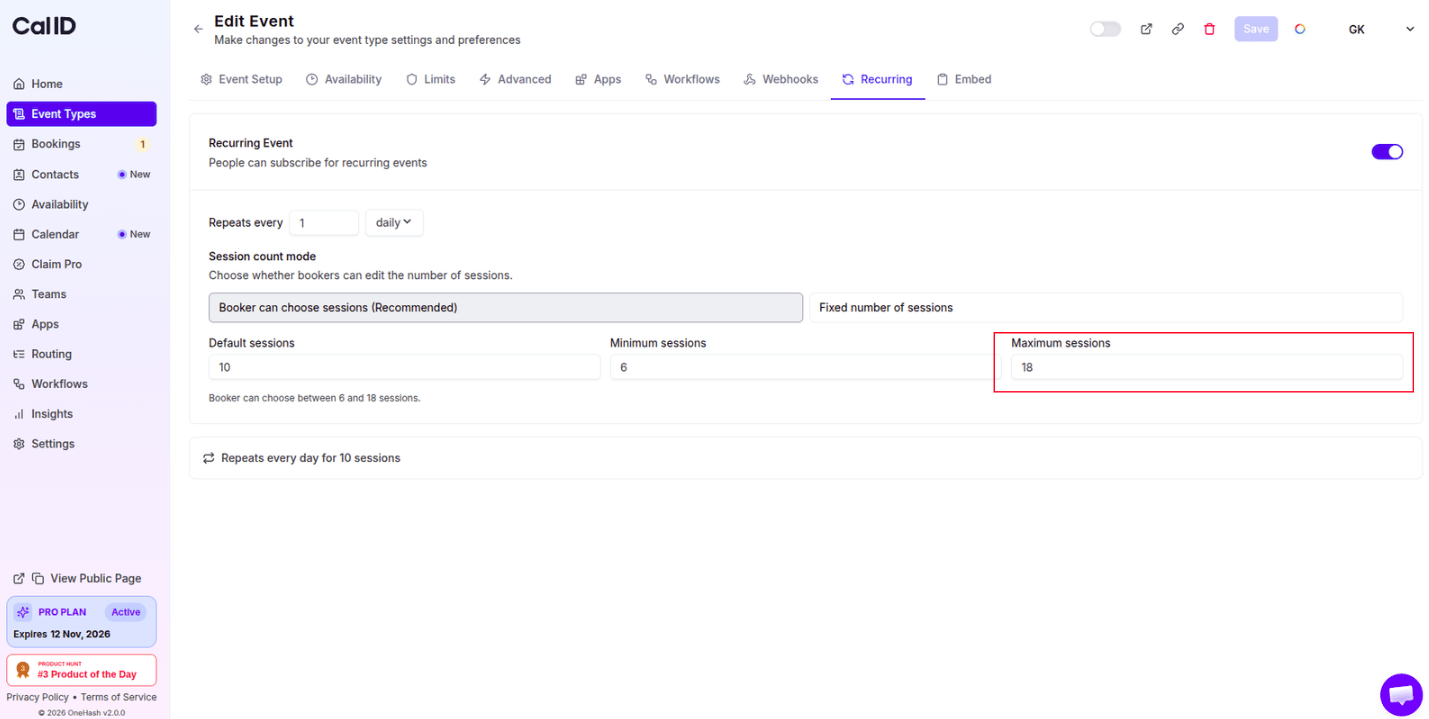
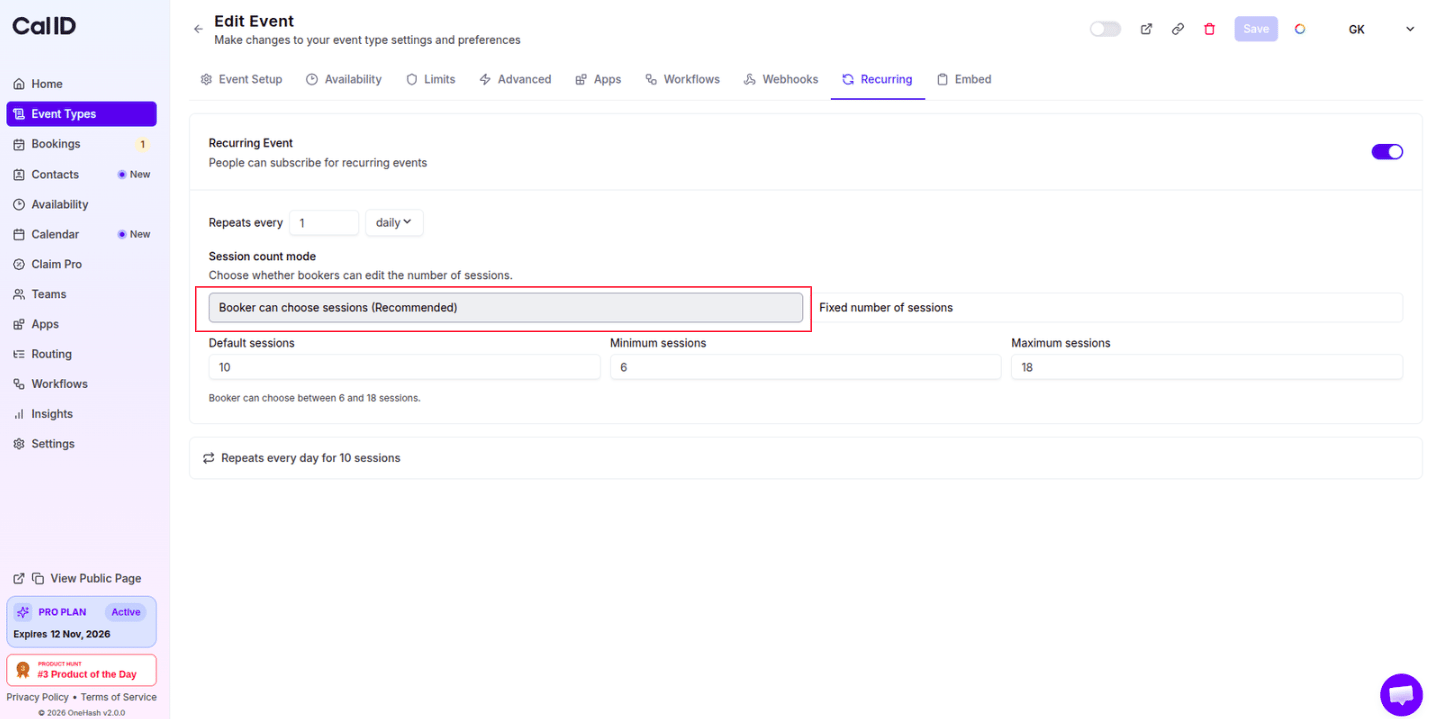 * **Maximum occurrences**: The number of sessions available in the series.
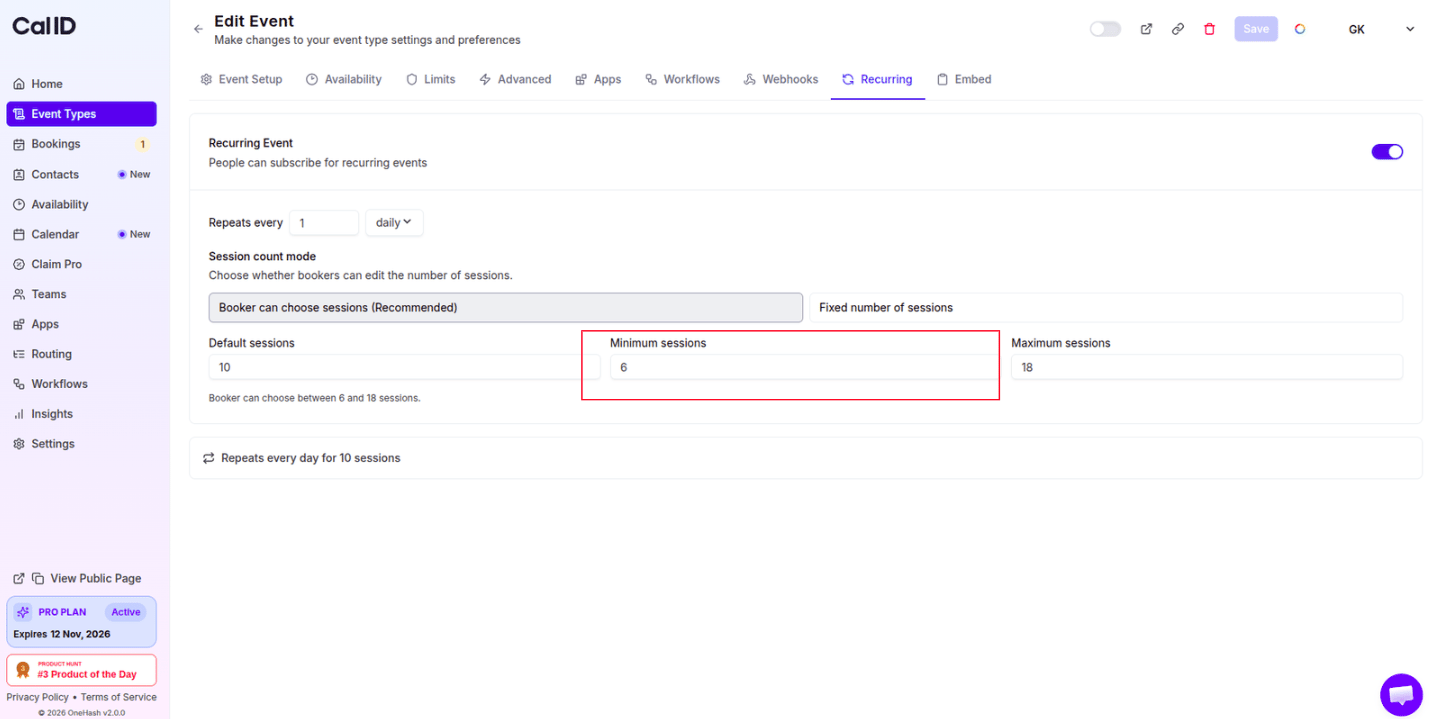
 * **Minimum occurrences**: The smallest number of sessions a user **must** book to complete the checkout.
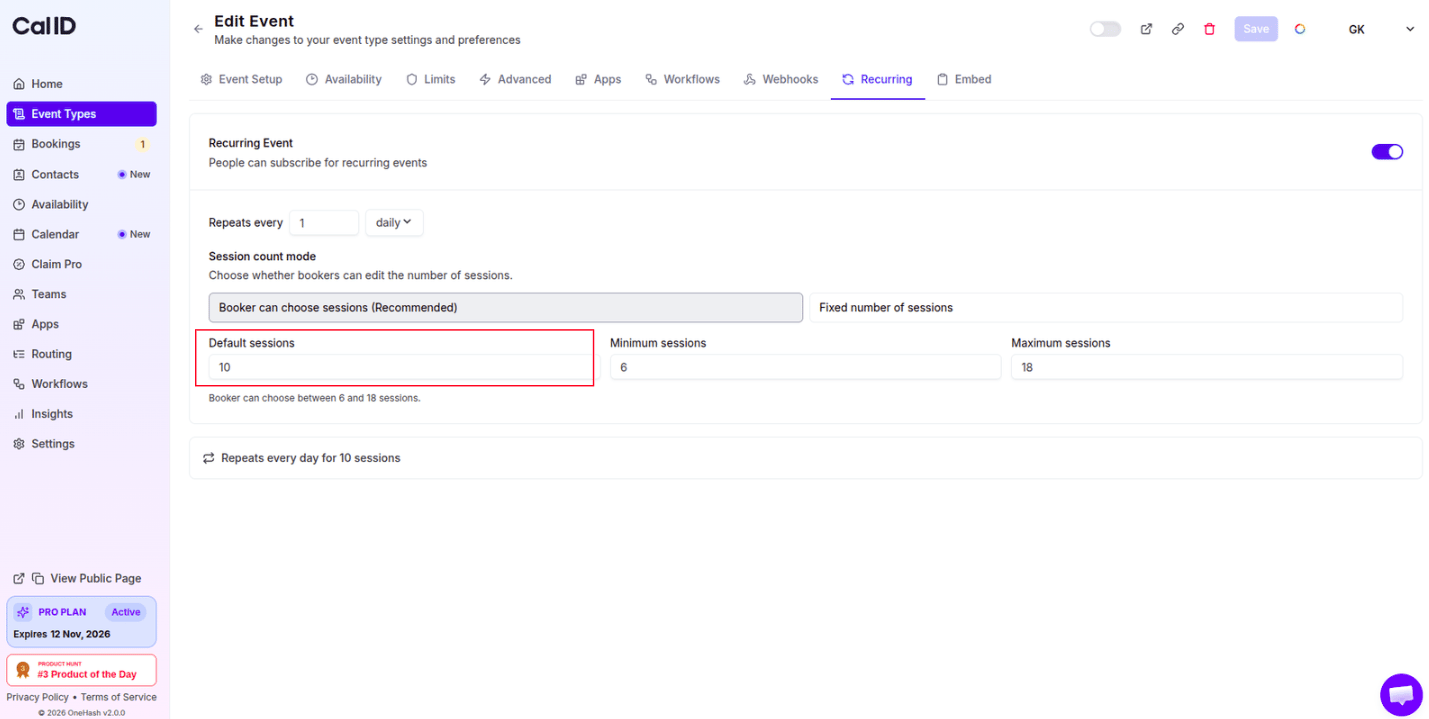
 * **Default occurrences**: The number of sessions that will be automatically selected when the attendee opens the page.
 Use this if the series requires a set number of meetings (e.g., a "10-Session Masterclass").
* Select the **Fixed number of sessions** option.
* **Number of occurrences**: Enter the exact number of meetings the attendee is required to book.
Use this if the series requires a set number of meetings (e.g., a "10-Session Masterclass").
* Select the **Fixed number of sessions** option.
* **Number of occurrences**: Enter the exact number of meetings the attendee is required to book.
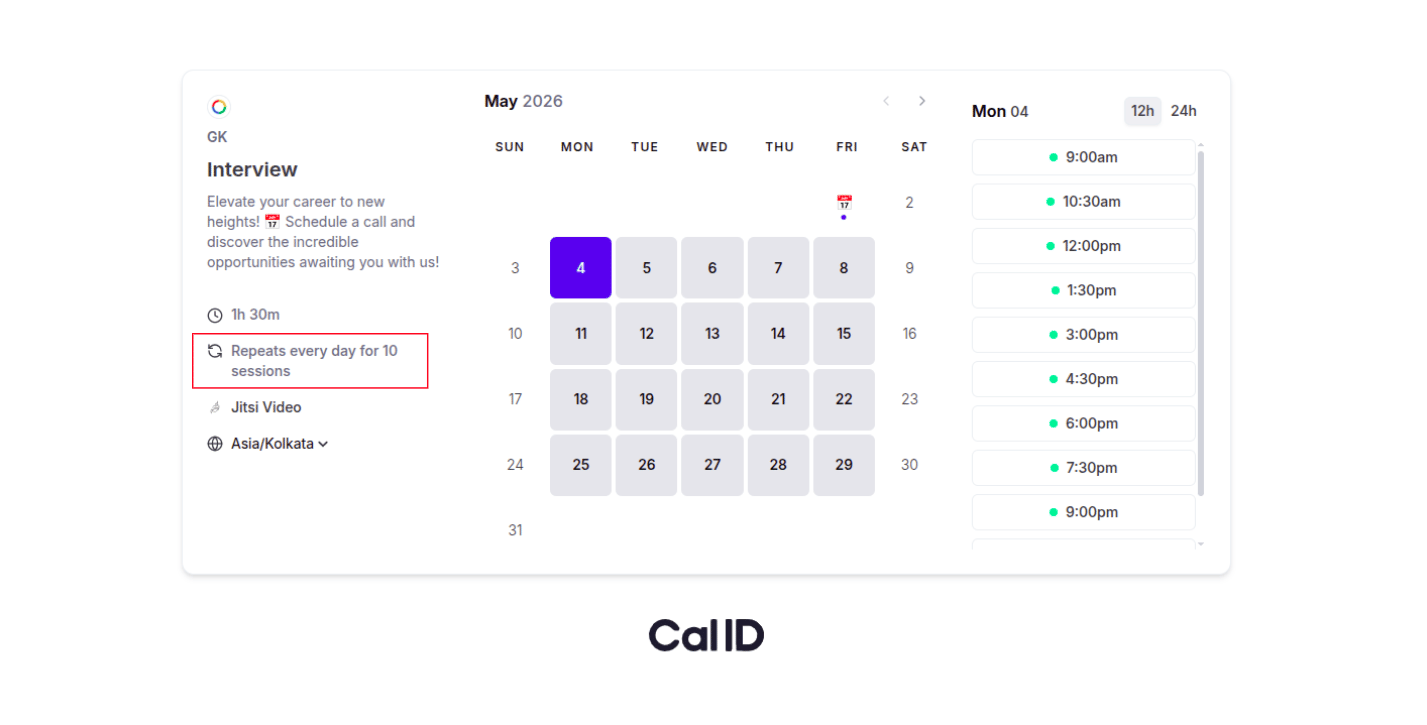
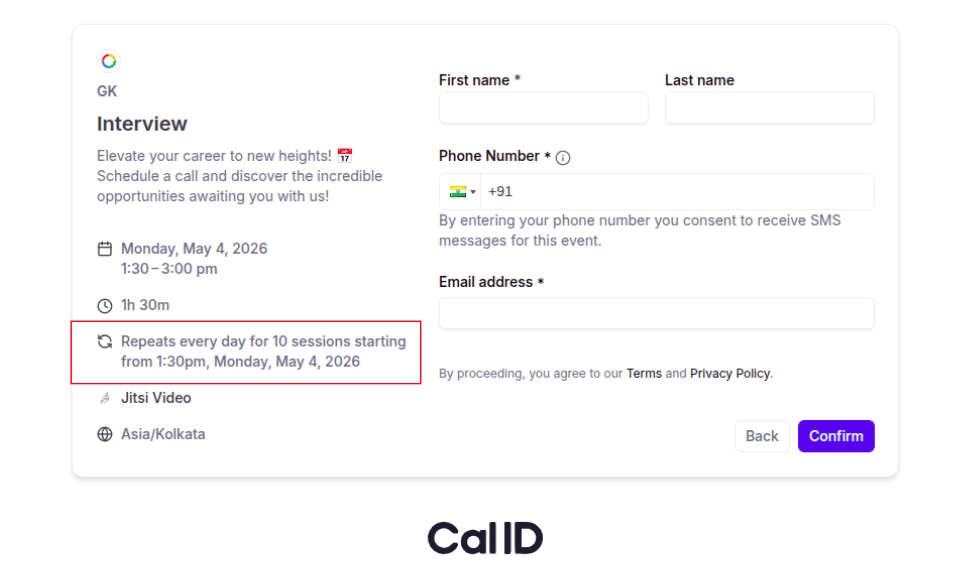
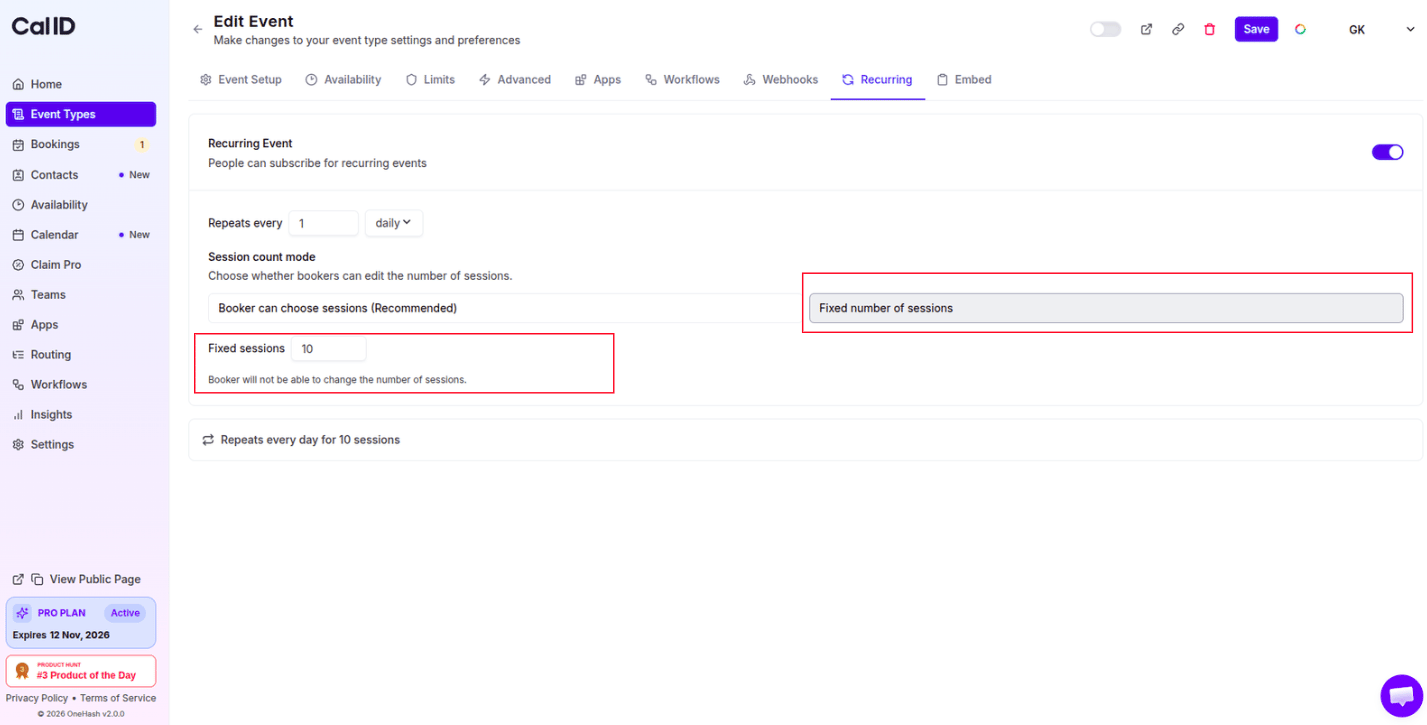 * On your public page, the attendee will see exactly how many times the event occurs (e.g., "Occurs 10 times").
 ## How it works for the attendee
The attendee chooses their starting date and time.
## How it works for the attendee
The attendee chooses their starting date and time.
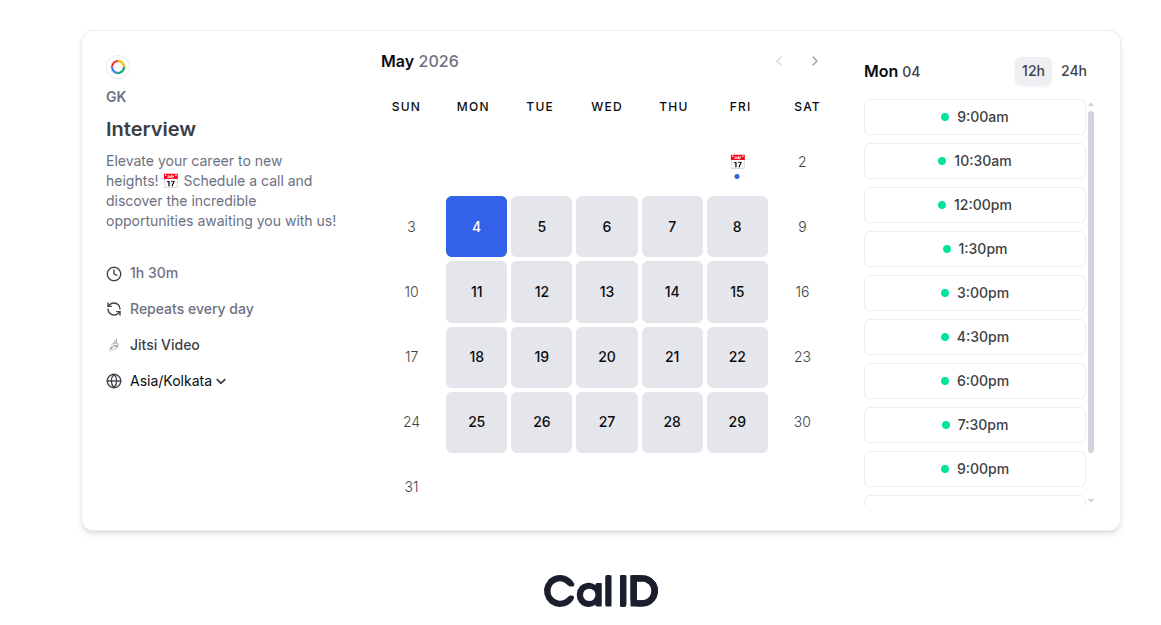 If you enabled "User-Defined" occurrences, the attendee can use a +, - symbol or enter the value to choose how many sessions they want.
* They cannot go below your **Minimum** or above your **Maximum**.
If you enabled "User-Defined" occurrences, the attendee can use a +, - symbol or enter the value to choose how many sessions they want.
* They cannot go below your **Minimum** or above your **Maximum**.
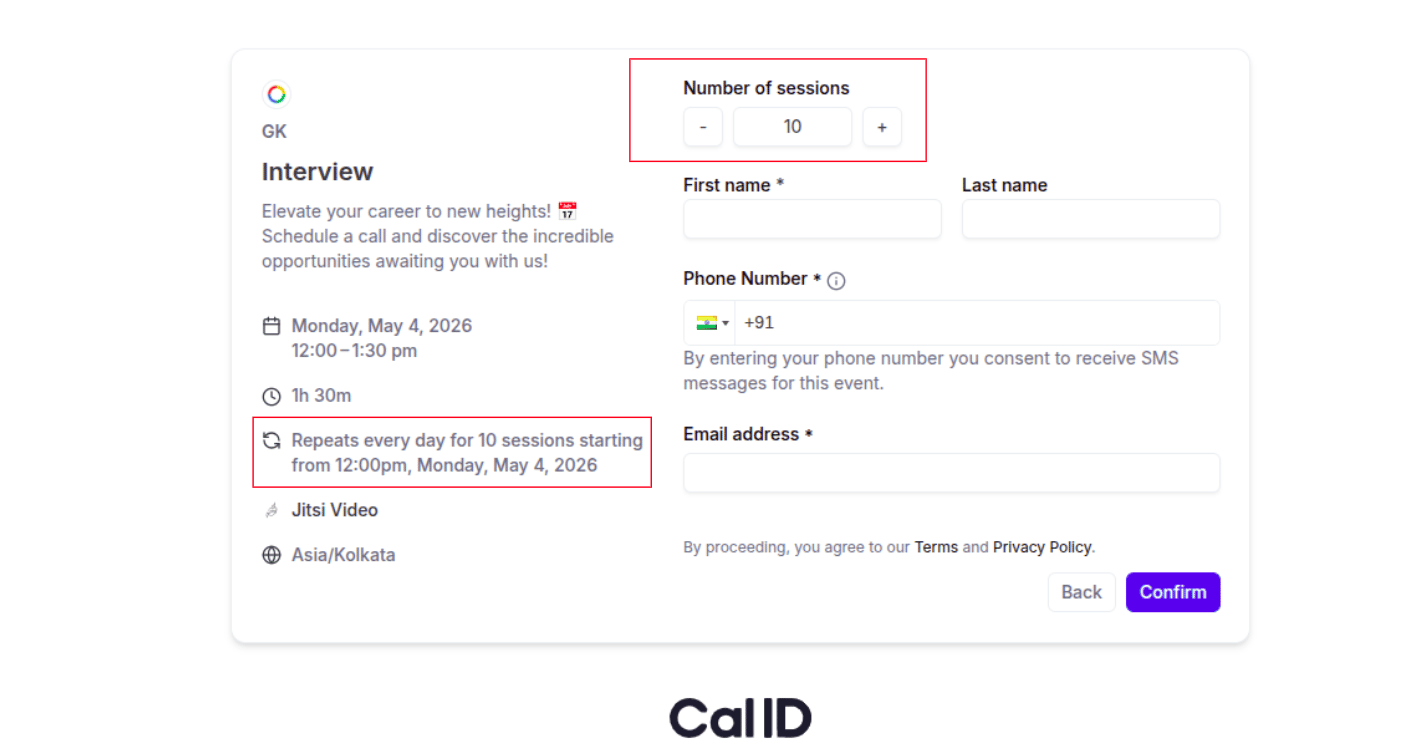 Once they click "Confirm," all sessions are booked simultaneously.
 ## Recurring settings
| Setting | What it does |
| ----------------- | ---------------------------------------------------------------- |
| **Repeats every** | Sets the time gap between meetings (e.g., every 2 weeks). |
| **Minimum** | Ensures the attendee books at least X number of sessions. |
| **Fixed Number** | Forces the attendee to book a specific, non-negotiable amount. |
| **Default** | Pre-fills the session count to make booking faster for the user. |
## Next steps
Host a one-time webinar or GD where many attendees share a single slot.
Let attendees pick from several meeting lengths on the same event type.
## Related topics
- [Scheduling a One-Time Group Event (Webinars & GDs)](/docs/event-types/group-events.md)
- [Embed Meeting Scheduling Link](/docs/event-types/embed.md)
- [Set Multiple Durations](/docs/event-types/setup/multiple-durations.md)
- [Enabling Apps for Specific Event Types](/docs/event-types/enable-apps.md)
## Recurring settings
| Setting | What it does |
| ----------------- | ---------------------------------------------------------------- |
| **Repeats every** | Sets the time gap between meetings (e.g., every 2 weeks). |
| **Minimum** | Ensures the attendee books at least X number of sessions. |
| **Fixed Number** | Forces the attendee to book a specific, non-negotiable amount. |
| **Default** | Pre-fills the session count to make booking faster for the user. |
## Next steps
Host a one-time webinar or GD where many attendees share a single slot.
Let attendees pick from several meeting lengths on the same event type.
## Related topics
- [Scheduling a One-Time Group Event (Webinars & GDs)](/docs/event-types/group-events.md)
- [Embed Meeting Scheduling Link](/docs/event-types/embed.md)
- [Set Multiple Durations](/docs/event-types/setup/multiple-durations.md)
- [Enabling Apps for Specific Event Types](/docs/event-types/enable-apps.md)