> ## Documentation Index
> Fetch the complete documentation index at: https://cal.id/docs/llms.txt
> Use this file to discover all available pages before exploring further.
# Set Event Location
> Choose where your Cal ID meetings happen with video, in-person, or phone locations, and even let guests pick their preferred option at booking time.
Set where each meeting happens—a video call, a physical office, or a phone call—and even let guests choose their preferred option at booking time. In **Cal ID**, the location is defined per event type, so different meetings can meet in different places.
## Supported location types
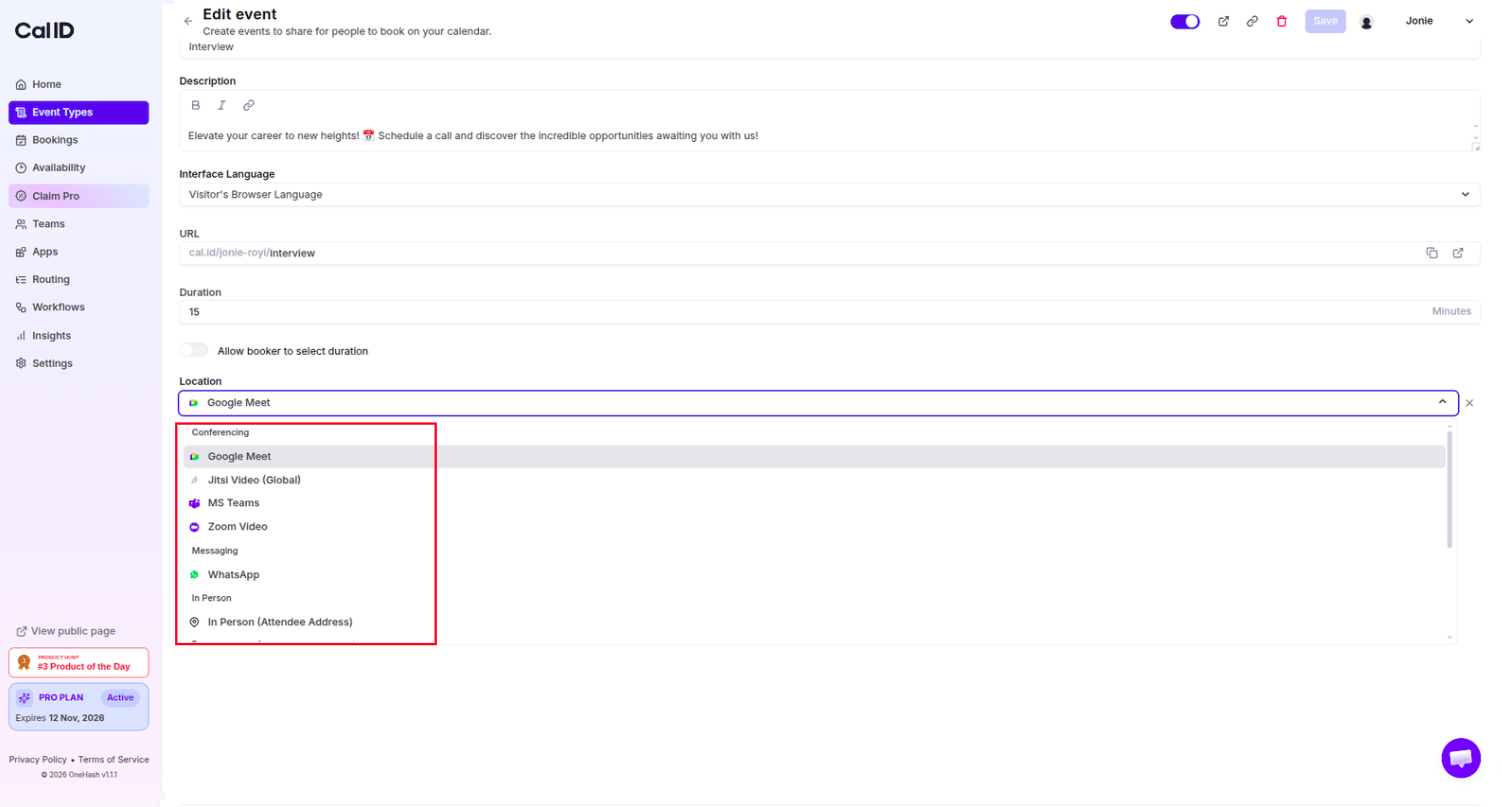
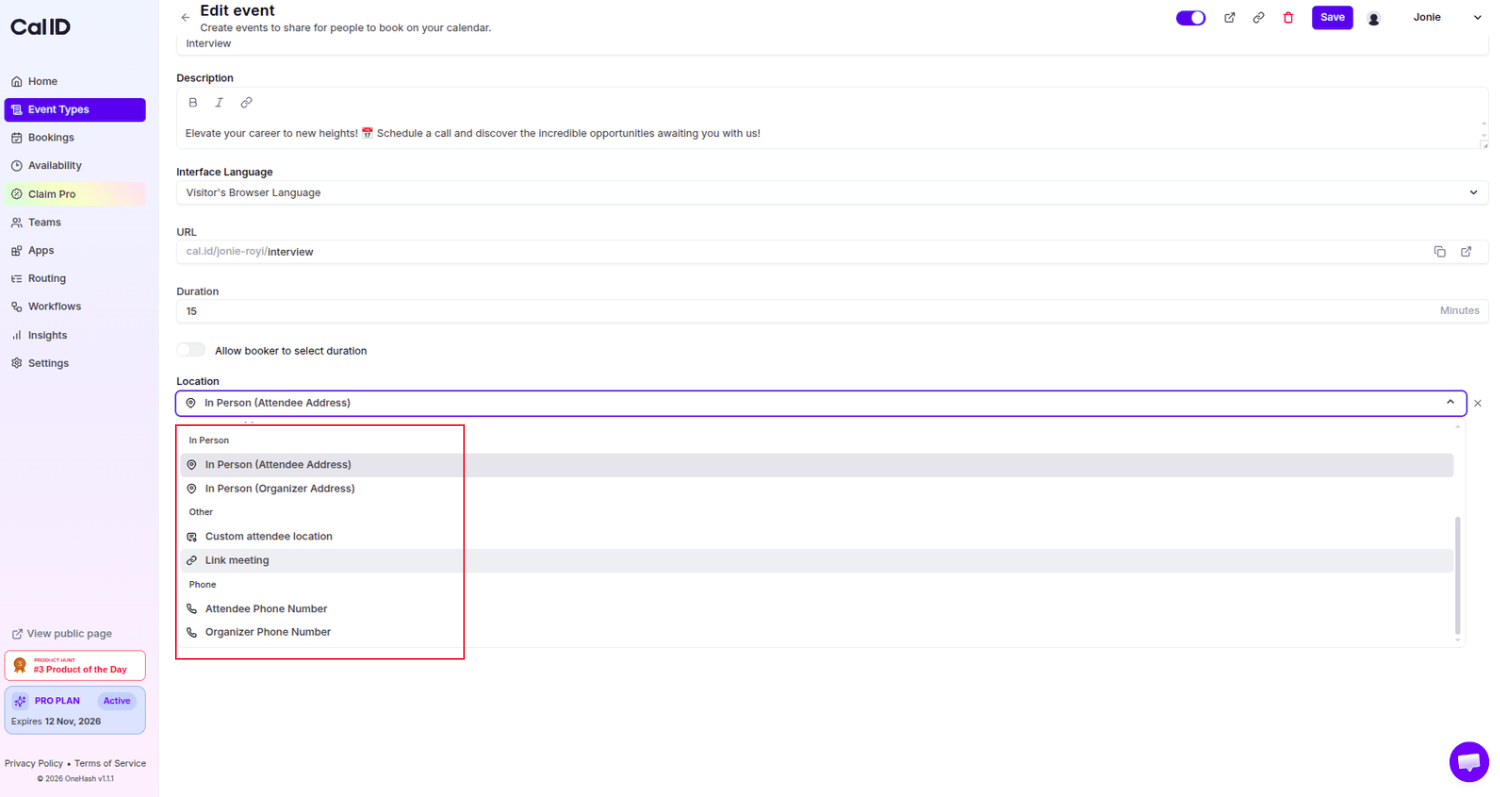
Cal ID offers a wide variety of ways to connect. When setting up your event, you can choose from any of the following:
| Location type | What it does |
| ------------------------------ | ------------------------------------------------------------------------------------------------- |
| **In Person** | Ideal for physical venues. Accepts a text input where you type a specific address or office name. |
| **Link** | Use a custom or permanent meeting link (like a static personal Zoom room or a proprietary URL). |
| **Attendee Phone Number** | Cal ID prompts the guest to provide their phone number during booking so you can call them. |
| **Organizer Phone Number** | You provide your own phone number as the designated meeting spot for the guest to call. |
| **Jitsi Video Global** | Use Jitsi's native global video conferencing as your booking location. |
| **Third-Party Web Conference** | Select from integrated apps like **Google Meet, Zoom, Microsoft Teams**, and more. |
Third-party web conferencing apps must be integrated from the [**Cal ID App Store**](/docs/apps/install-app) before they appear as a location option.
 If you do not select any specific location during the event setup, Cal ID sets the location to **Jitsi** by default.
## How to set or change the location
Navigate to the **Event Types** in your dashboard.
Click on the event you want to customize.
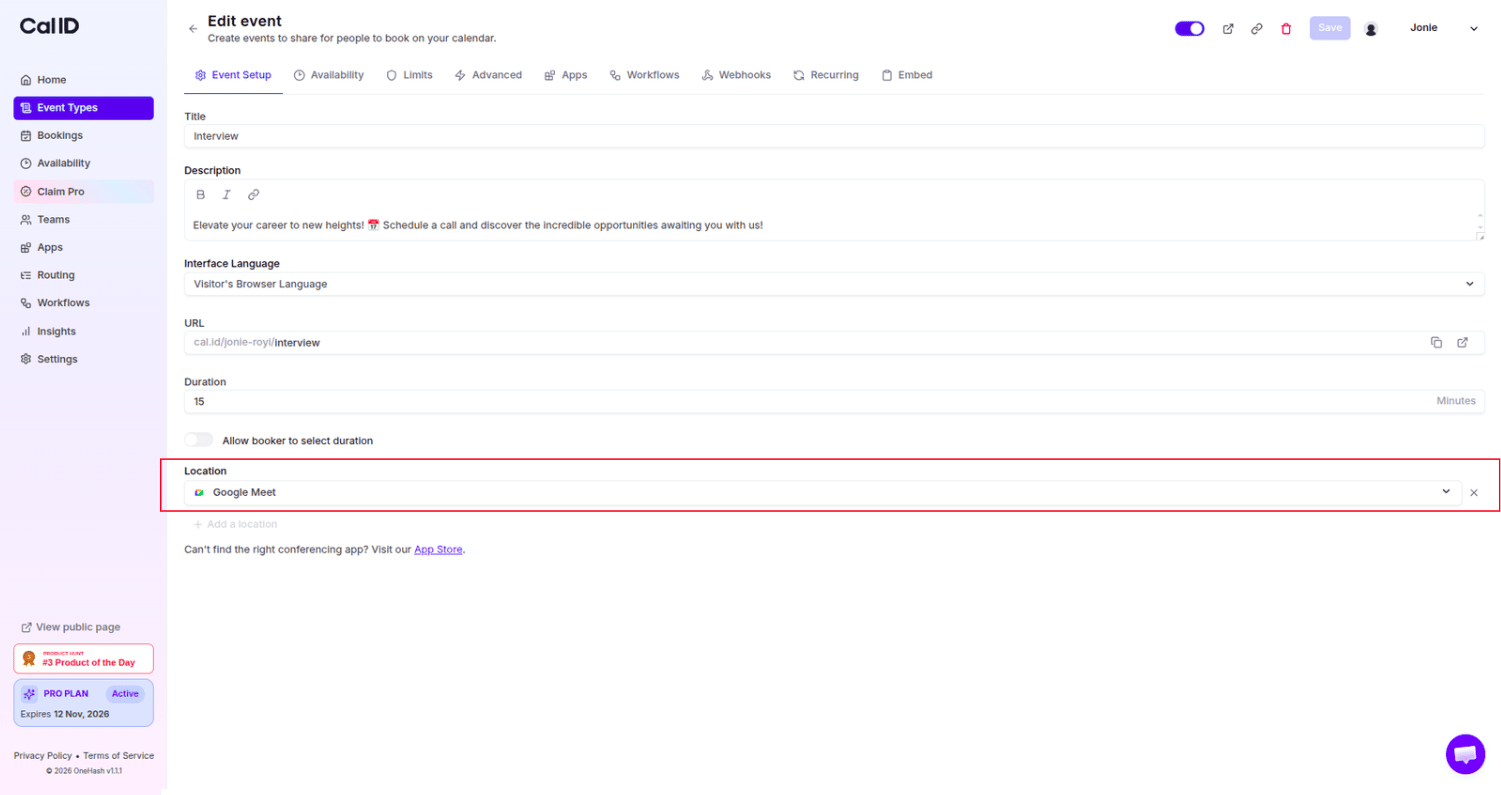
Scroll down to the **Location** section.
Click the **Add Location** button or use the dropdown menu to see your options.
Select your desired location and fill in any required details (like an address or phone number).
Click **Update** or **Save** at the top of the page.
If you do not select any specific location during the event setup, Cal ID sets the location to **Jitsi** by default.
## How to set or change the location
Navigate to the **Event Types** in your dashboard.
Click on the event you want to customize.
Scroll down to the **Location** section.
Click the **Add Location** button or use the dropdown menu to see your options.
Select your desired location and fill in any required details (like an address or phone number).
Click **Update** or **Save** at the top of the page.
 ## Advanced features
### Multiple locations (attendee choice)
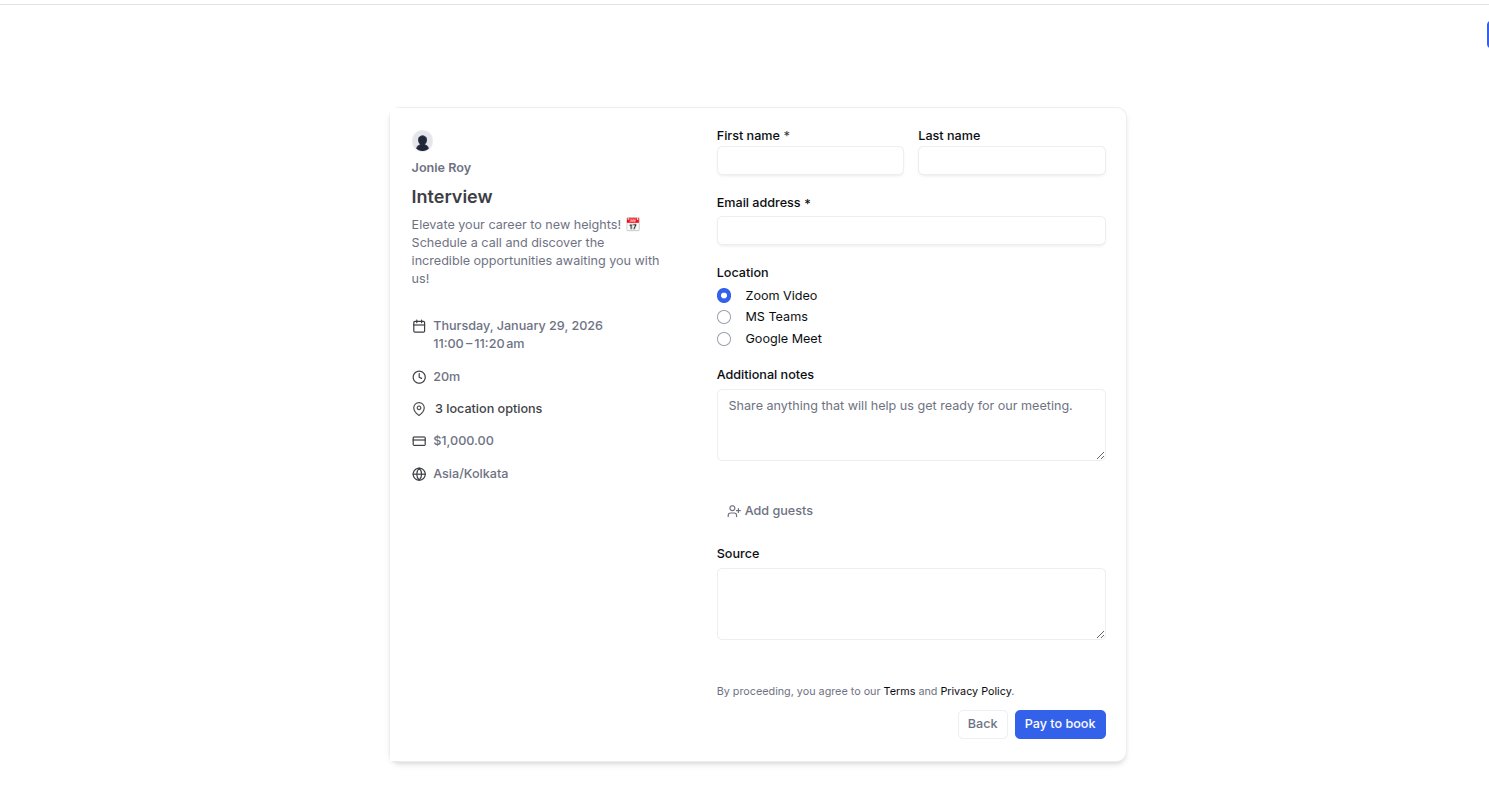
You can offer more than one way to meet for a single event. For example, you can let a guest choose between a "Zoom Call" and an "In-person Meeting." Simply add multiple location options in the event settings.
## Advanced features
### Multiple locations (attendee choice)
You can offer more than one way to meet for a single event. For example, you can let a guest choose between a "Zoom Call" and an "In-person Meeting." Simply add multiple location options in the event settings.
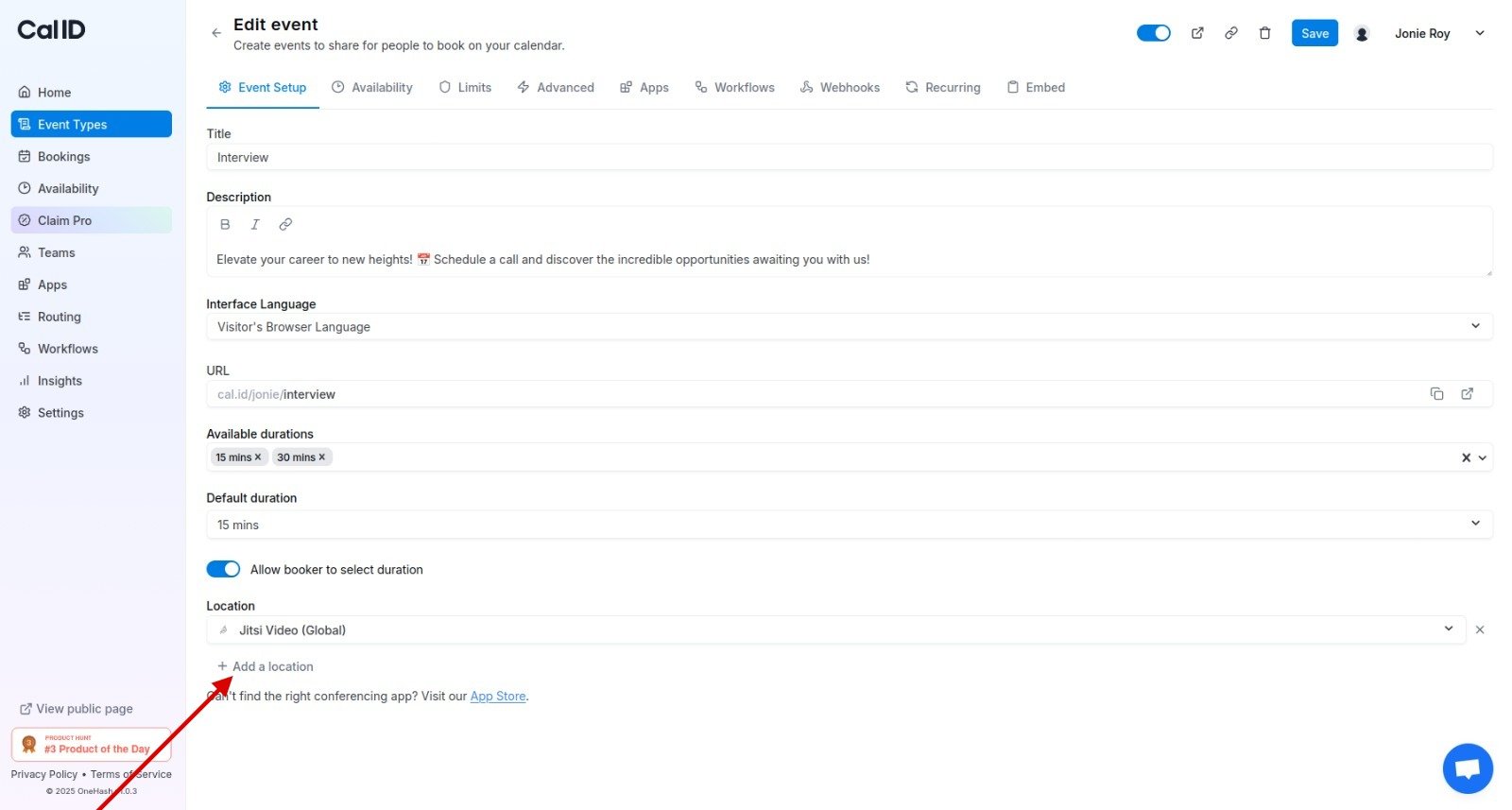 When the guest selects their time slot, they will see an **additional required question** on the booking form. They must pick their preferred location from your list before they can confirm the meeting.
 ### Privacy option: show after booking
For sensitive locations (like a private office or home address), you can choose to hide the details from the public booking page. The full location will only be revealed to the guest in the **Confirmation Email** after they have successfully booked.
## Next steps
Offer several meeting lengths within a single event type.
Control which hours are bookable for this event.
## Related topics
- [Set Multiple Durations](/docs/event-types/setup/multiple-durations.md)
- [How to set Availability for an Event type?](/docs/event-types/setup/event-availability.md)
- [Cal ID to Zoom Integration](/docs/apps/zoom.md)
- [Setting Necessary Permission for Google Calendar Integration](/docs/apps/google-calendar.md)
- [Editing Event Type Details (Title, URL, & Language)](/docs/event-types/basics/edit-details.md)
### Privacy option: show after booking
For sensitive locations (like a private office or home address), you can choose to hide the details from the public booking page. The full location will only be revealed to the guest in the **Confirmation Email** after they have successfully booked.
## Next steps
Offer several meeting lengths within a single event type.
Control which hours are bookable for this event.
## Related topics
- [Set Multiple Durations](/docs/event-types/setup/multiple-durations.md)
- [How to set Availability for an Event type?](/docs/event-types/setup/event-availability.md)
- [Cal ID to Zoom Integration](/docs/apps/zoom.md)
- [Setting Necessary Permission for Google Calendar Integration](/docs/apps/google-calendar.md)
- [Editing Event Type Details (Title, URL, & Language)](/docs/event-types/basics/edit-details.md)