> ## Documentation Index
> Fetch the complete documentation index at: https://cal.id/docs/llms.txt
> Use this file to discover all available pages before exploring further.
# Managing Your Contacts in Cal ID
> Use the Contacts address book in Cal ID to store, search, edit, and book meetings with everyone who schedules time with you across all your events.
The [**Contacts**](https://cal.id/contacts) section is your built-in address book in Cal ID. It automatically saves everyone who books time with you, so you can search, edit, and schedule with them from one place.
## How contacts are created
Contacts land in your address book two ways:
| Method | How it works |
| ------------- | ---------------------------------------------------------------------------------------------------------------------------- |
| **Automatic** | Every time someone schedules via your Cal ID URL, the system creates a contact with their **Name, Email, and Phone Number**. |
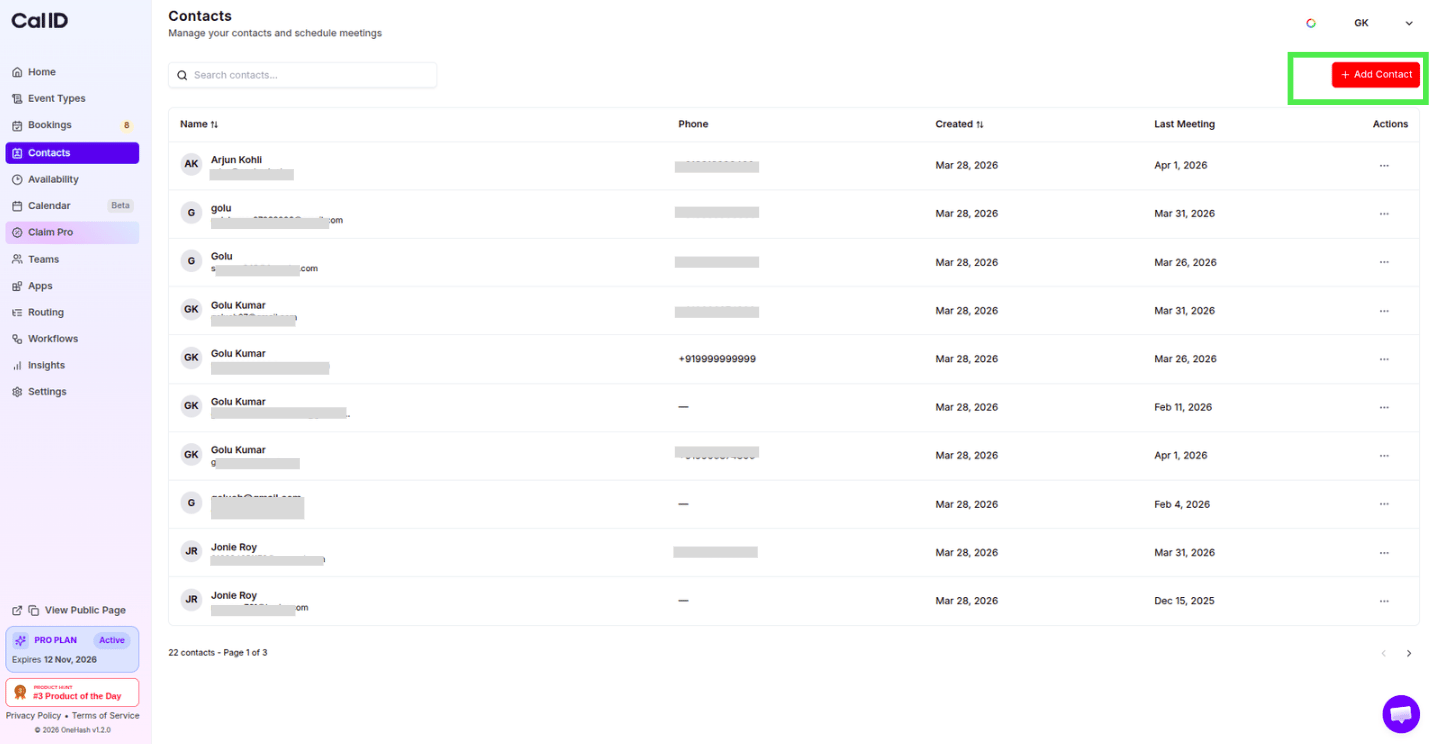
| **Manual** | Click the **"+ Add Contact"** button at the top right to add someone yourself. |
 ### Add a contact manually
Click the **"+ Add Contact"** button at the top right of the Contacts page.
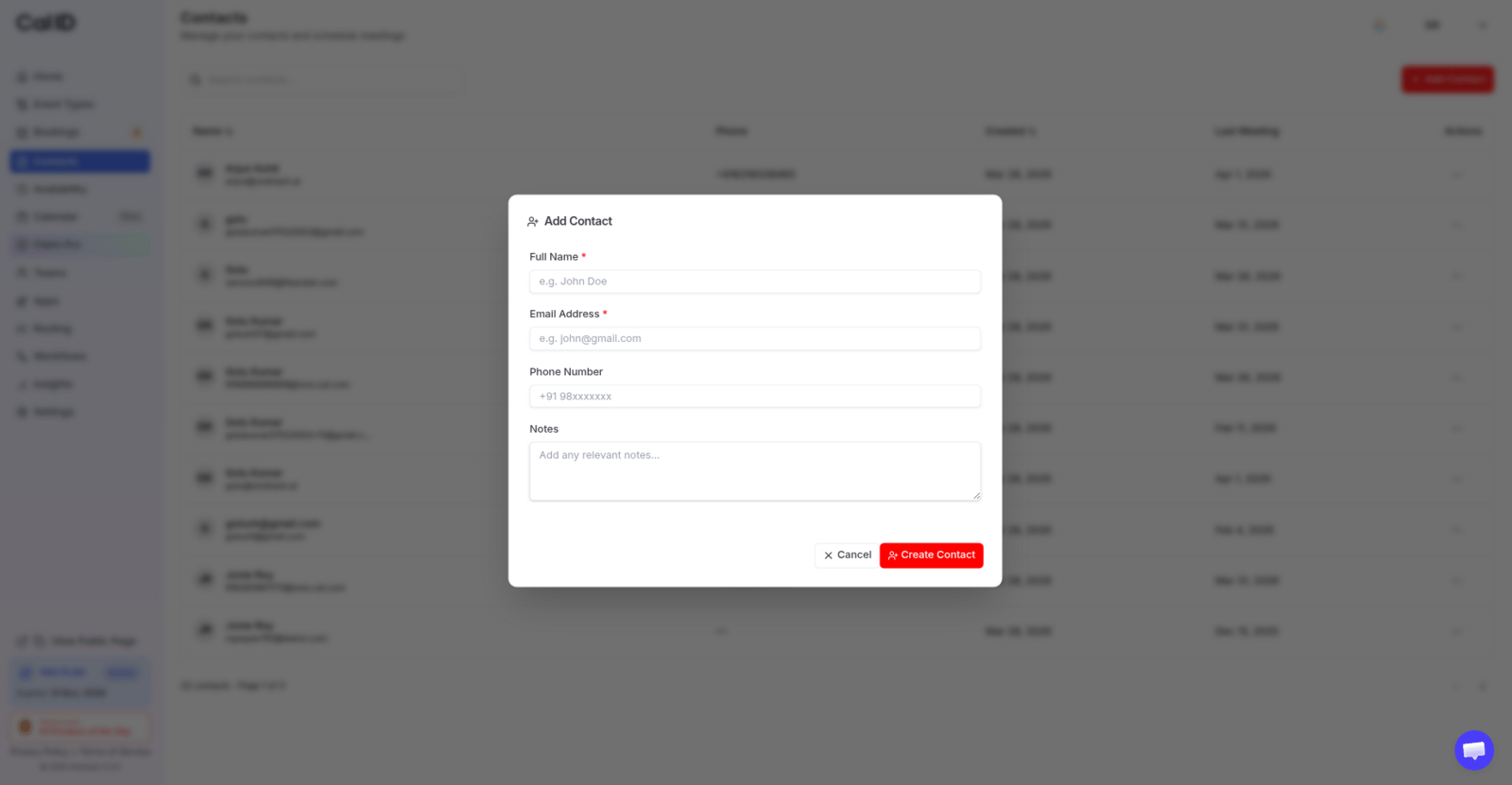
In the pop-up, fill in their **Full Name, Email Address, Phone Number, and private Notes**, then save.
### Add a contact manually
Click the **"+ Add Contact"** button at the top right of the Contacts page.
In the pop-up, fill in their **Full Name, Email Address, Phone Number, and private Notes**, then save.
 ## Finding and viewing contacts
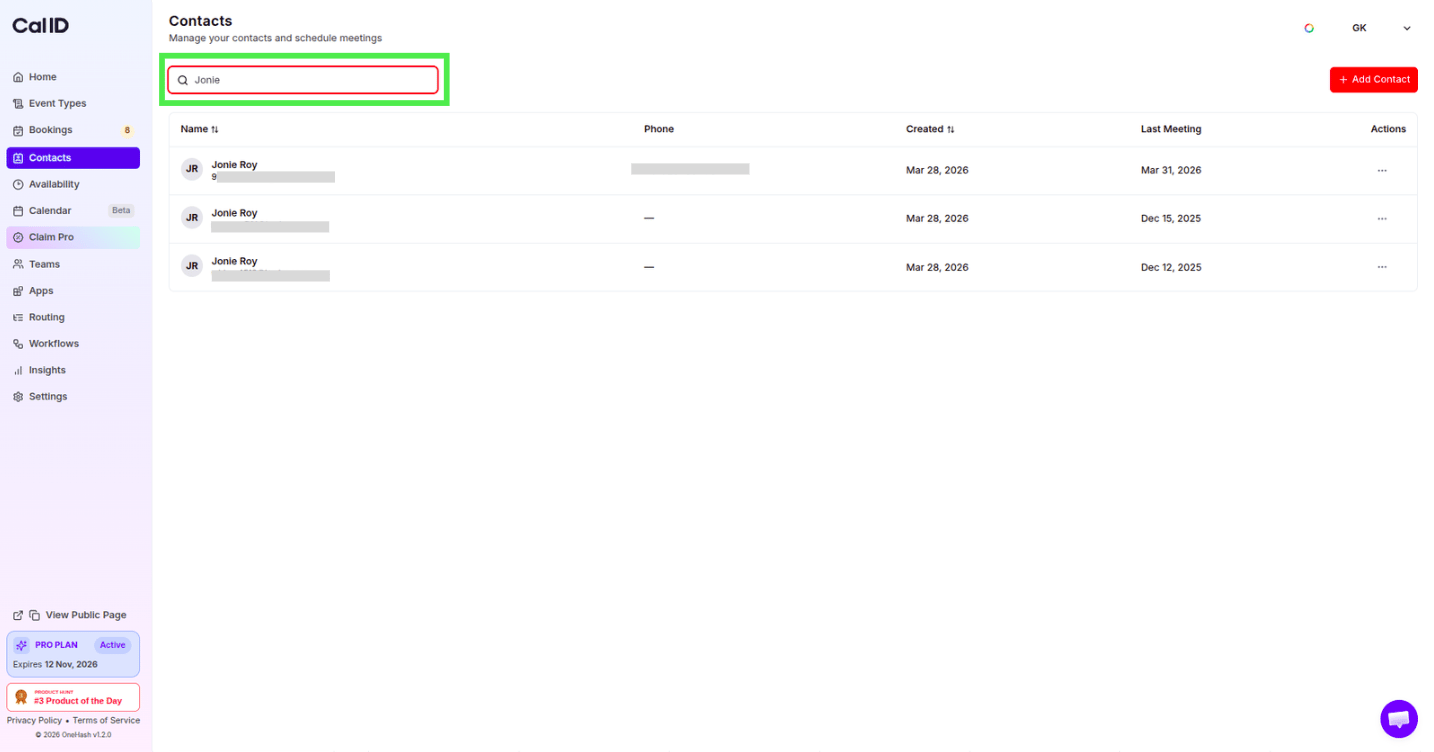
Type a **Name, Email, or Phone Number** into the search bar at the top left to quickly find anyone.
## Finding and viewing contacts
Type a **Name, Email, or Phone Number** into the search bar at the top left to quickly find anyone.
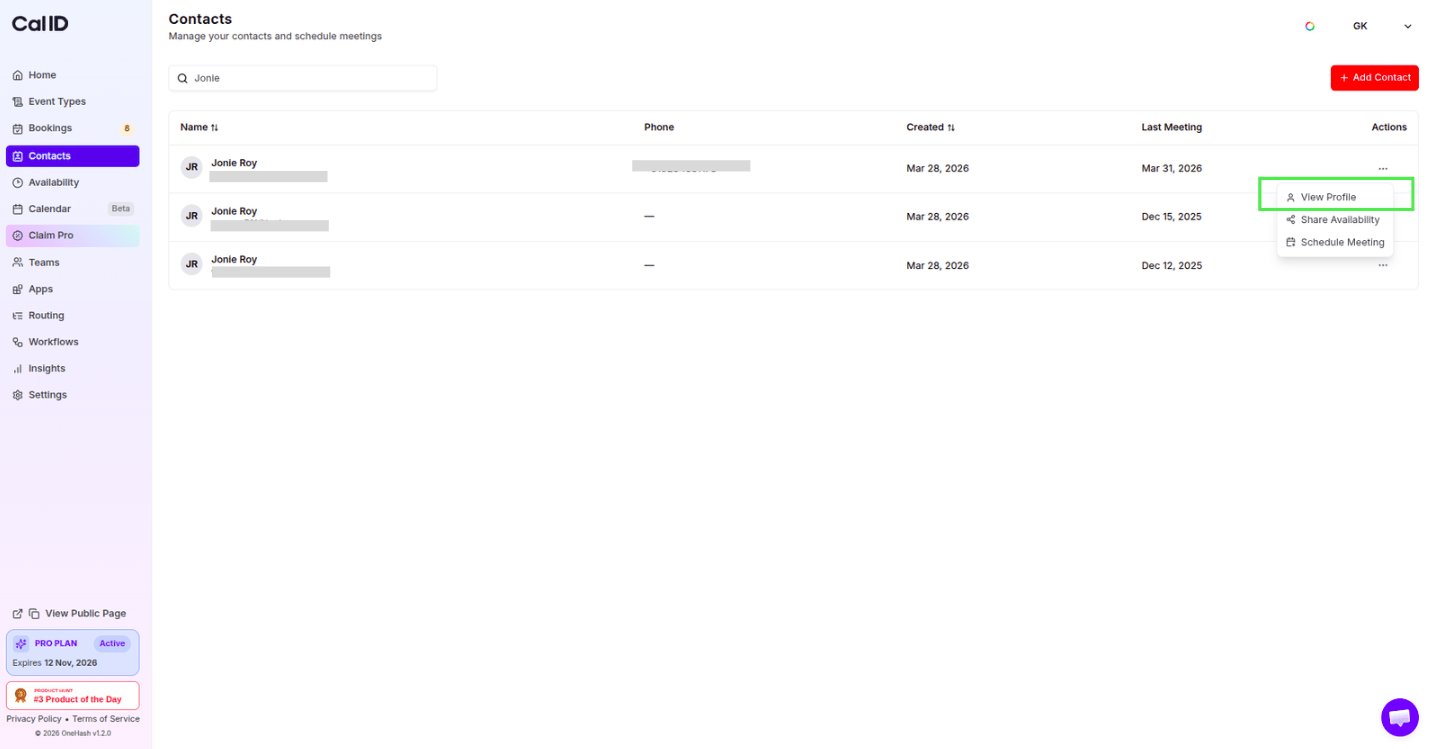
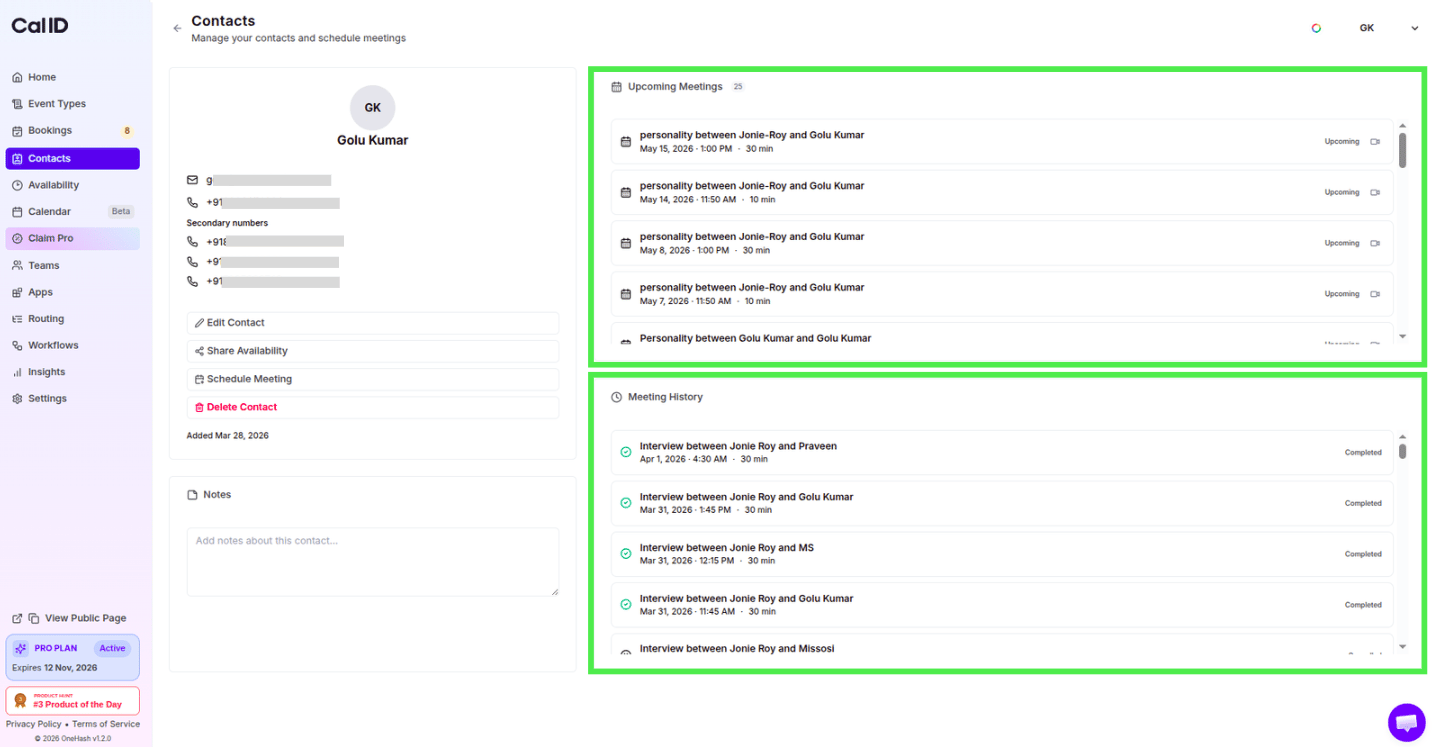
 Click the **three dots (...)** under the **Actions** column and select **View Profile**.
 The profile shows their contact info, your private notes, and a clear list of all **Upcoming Meetings** and **Meeting History** (Past/Cancelled).
 ### Edit a contact
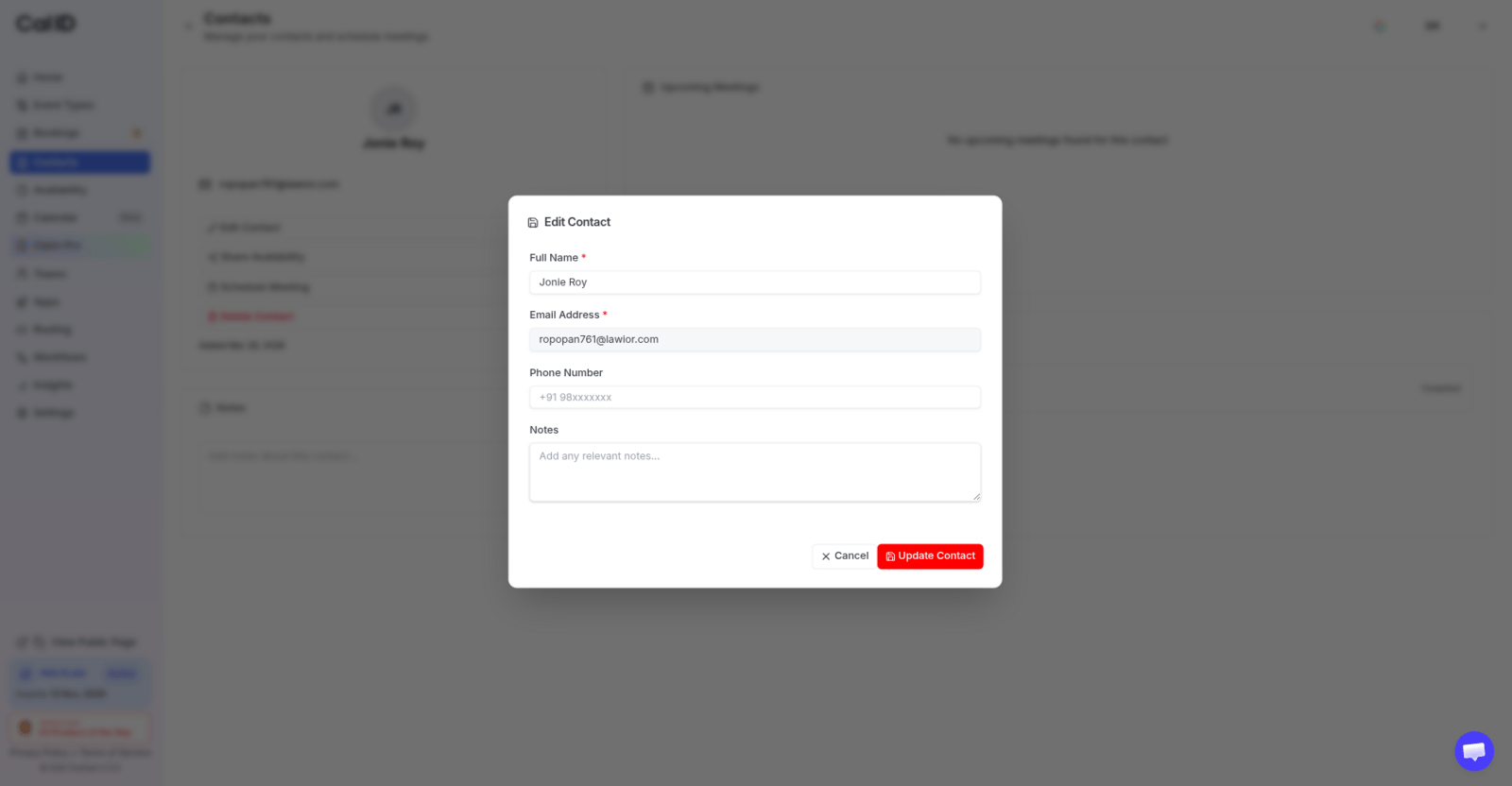
To update someone's details, click **Edit Contact**. A pop-up opens where you can change the contact information. Click **Update Contact** to save your changes.
### Edit a contact
To update someone's details, click **Edit Contact**. A pop-up opens where you can change the contact information. Click **Update Contact** to save your changes.
 ## Taking action with contacts
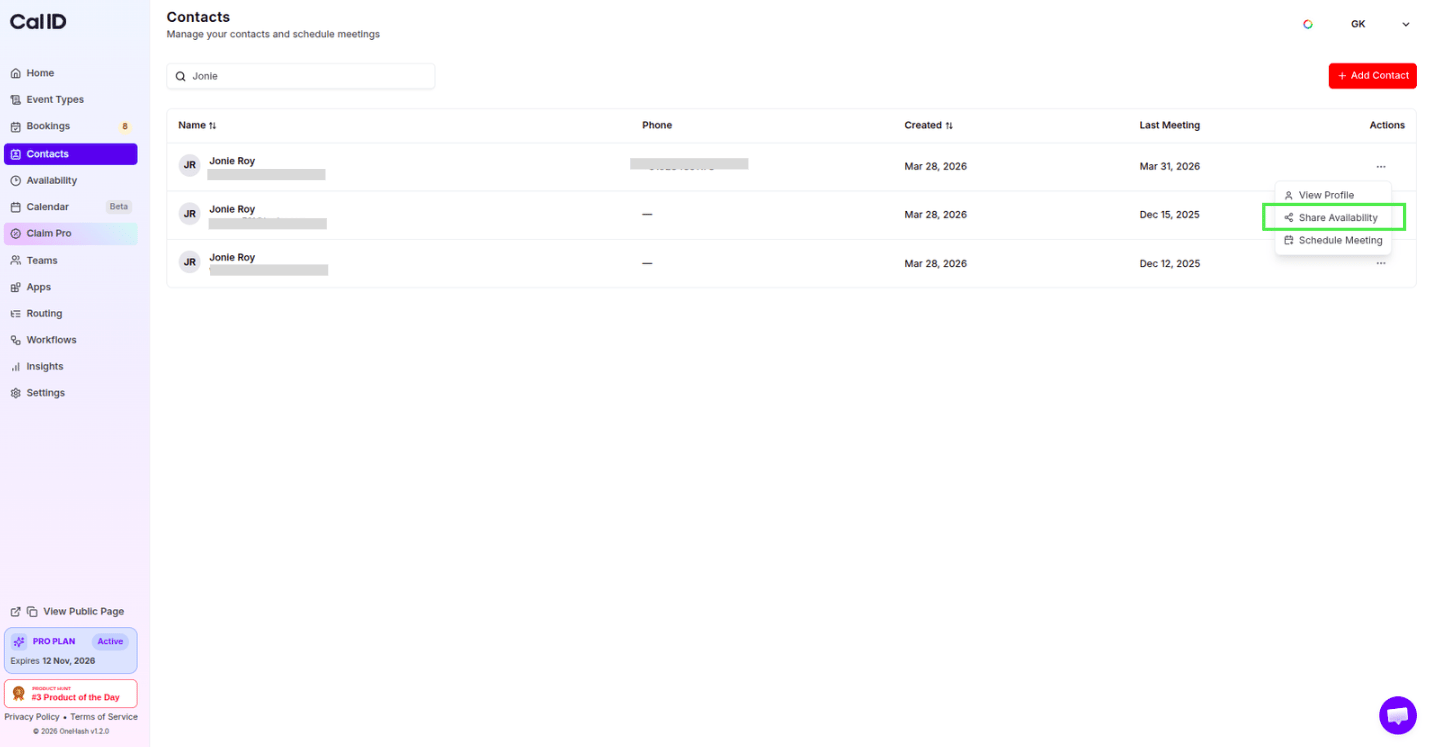
Click the **three dots (...)** under the **Actions** column to perform several quick tasks:
### A. Share availability
If a contact needs to book a new time with you, click **Share Availability**.
## Taking action with contacts
Click the **three dots (...)** under the **Actions** column to perform several quick tasks:
### A. Share availability
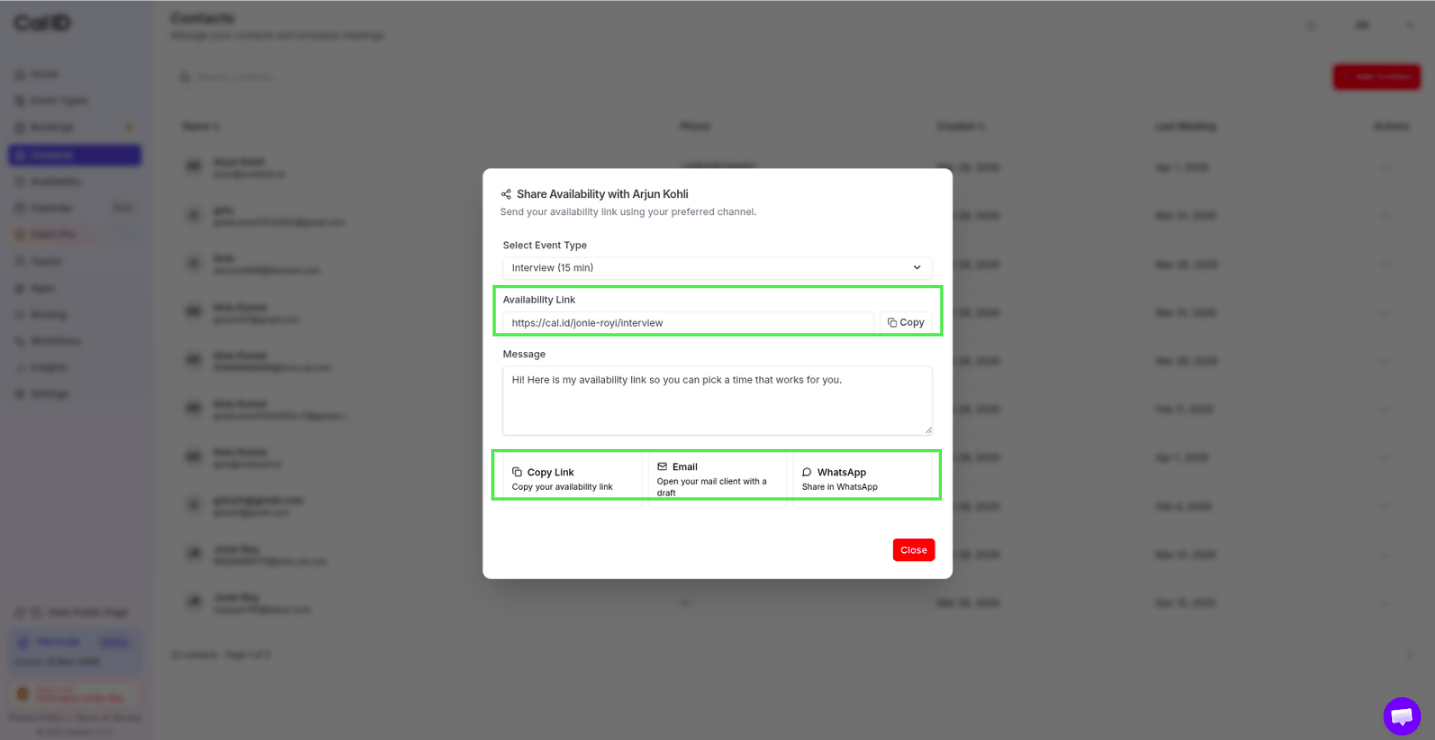
If a contact needs to book a new time with you, click **Share Availability**.
 Select the **Event Type** you want them to book.
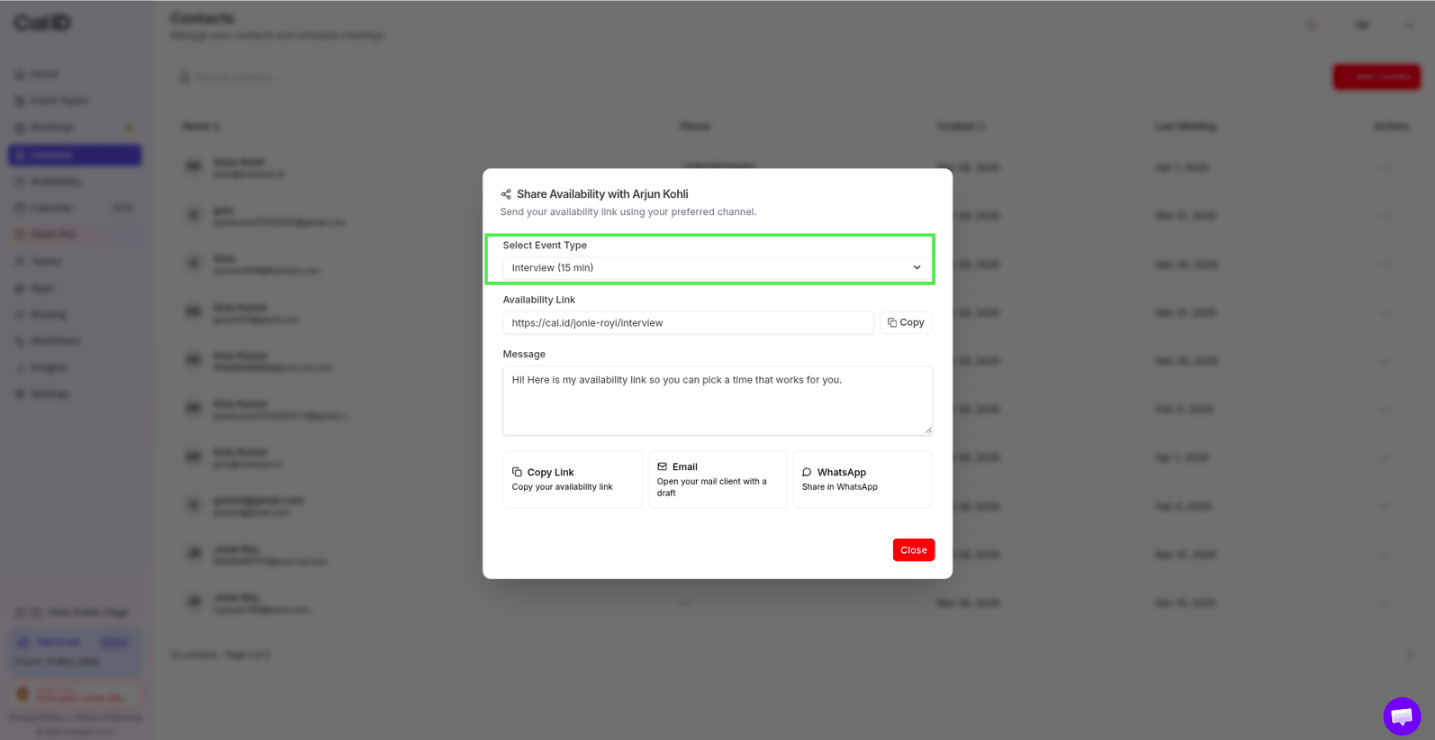 **Copy the Link**, send it directly via **WhatsApp**, or open a **Gmail** draft with the link included.
 ### B. Direct scheduling
You can book a meeting for a contact directly, without sending a link:
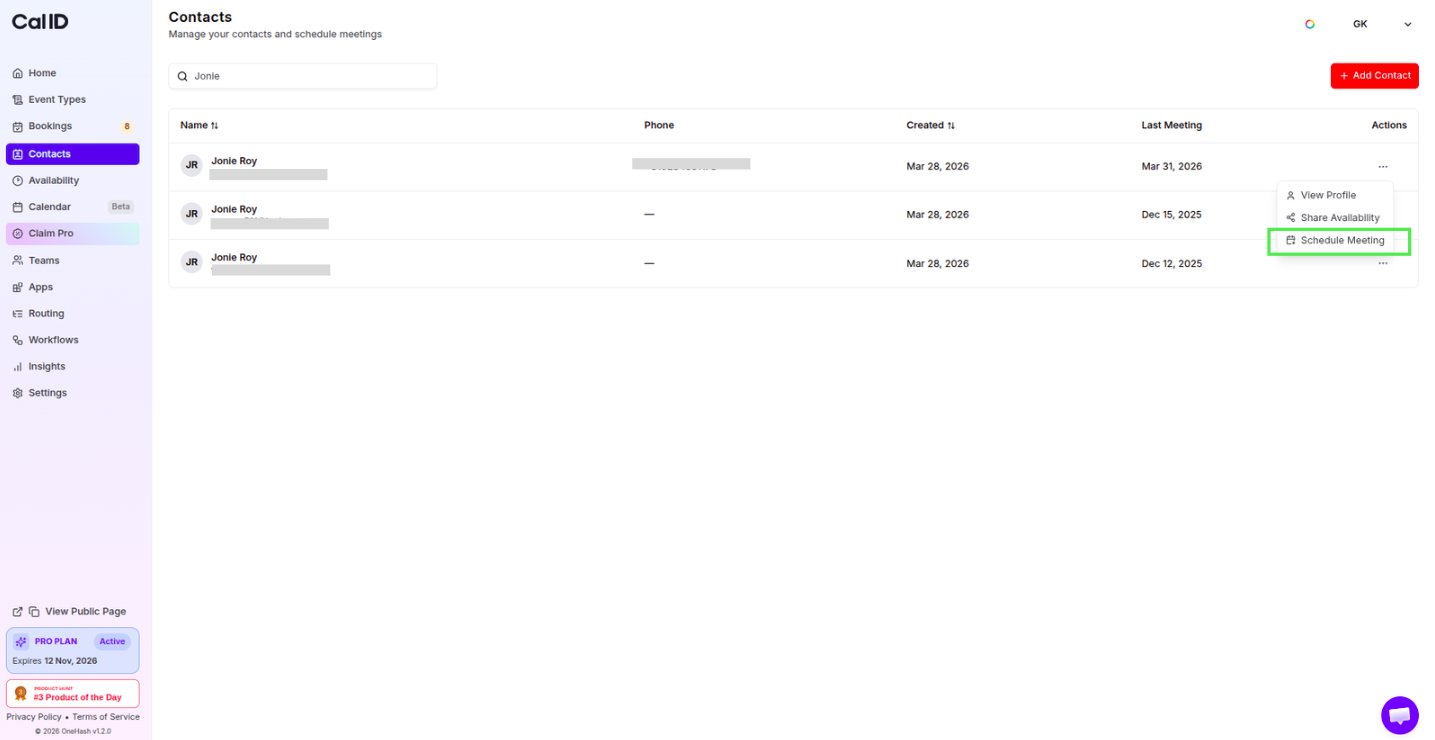
Click **Schedule Meeting** from the Actions menu.
### B. Direct scheduling
You can book a meeting for a contact directly, without sending a link:
Click **Schedule Meeting** from the Actions menu.
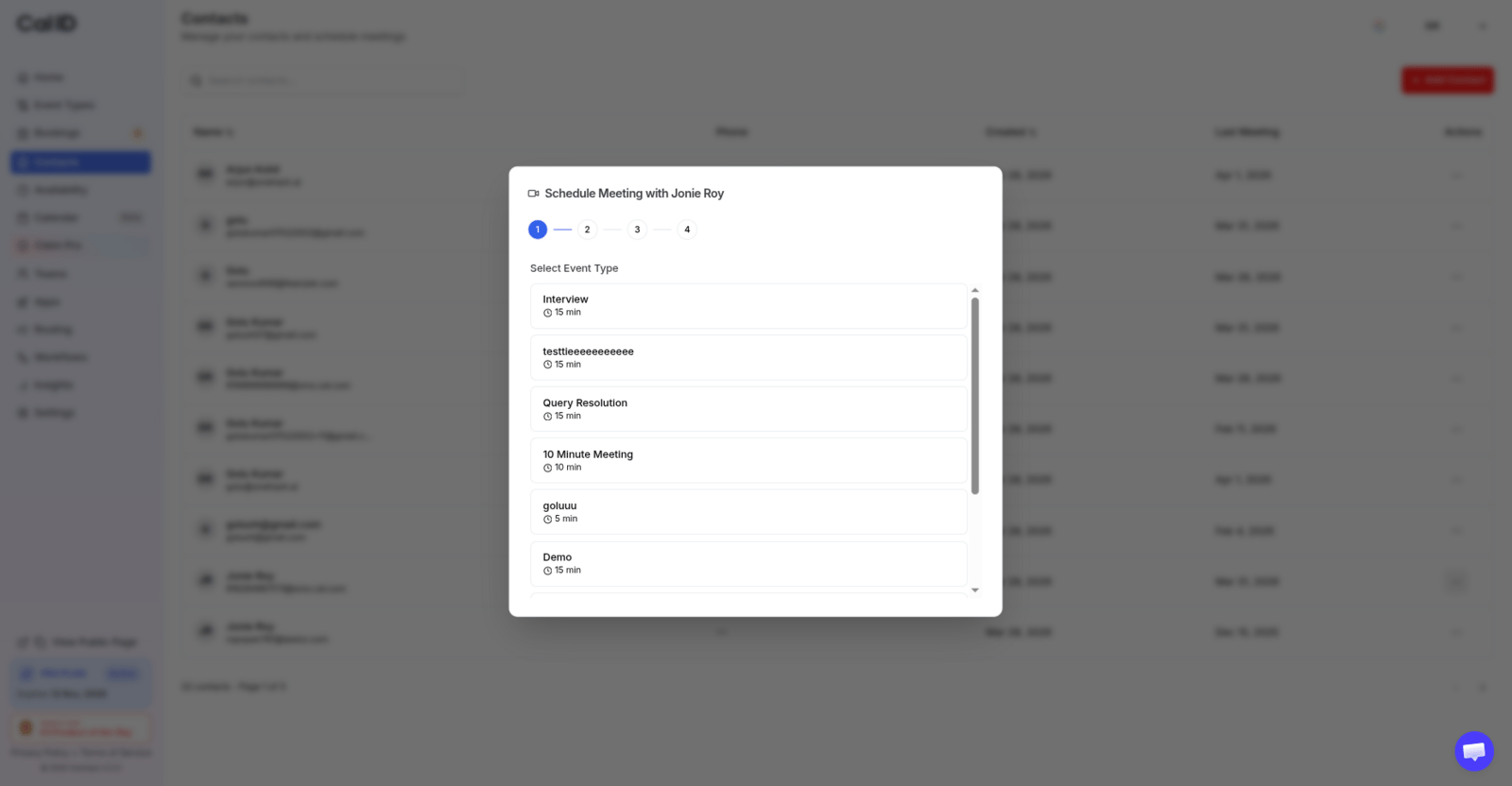
 Choose the **Event Type**.
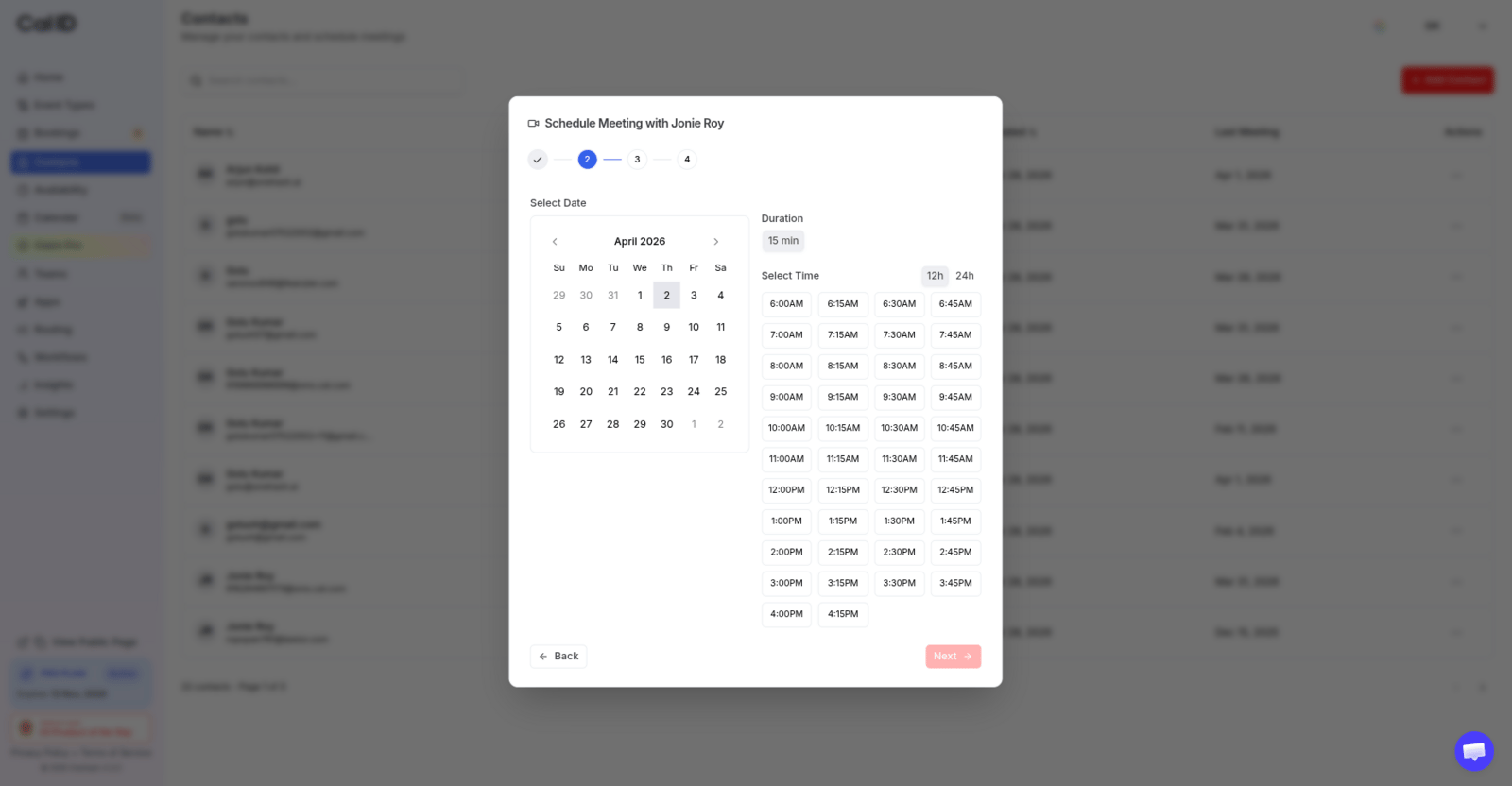
 Select the **Date and Time Slot**.
 Fill in any additional booking questions. The Name and Email are filled automatically from their contact info.
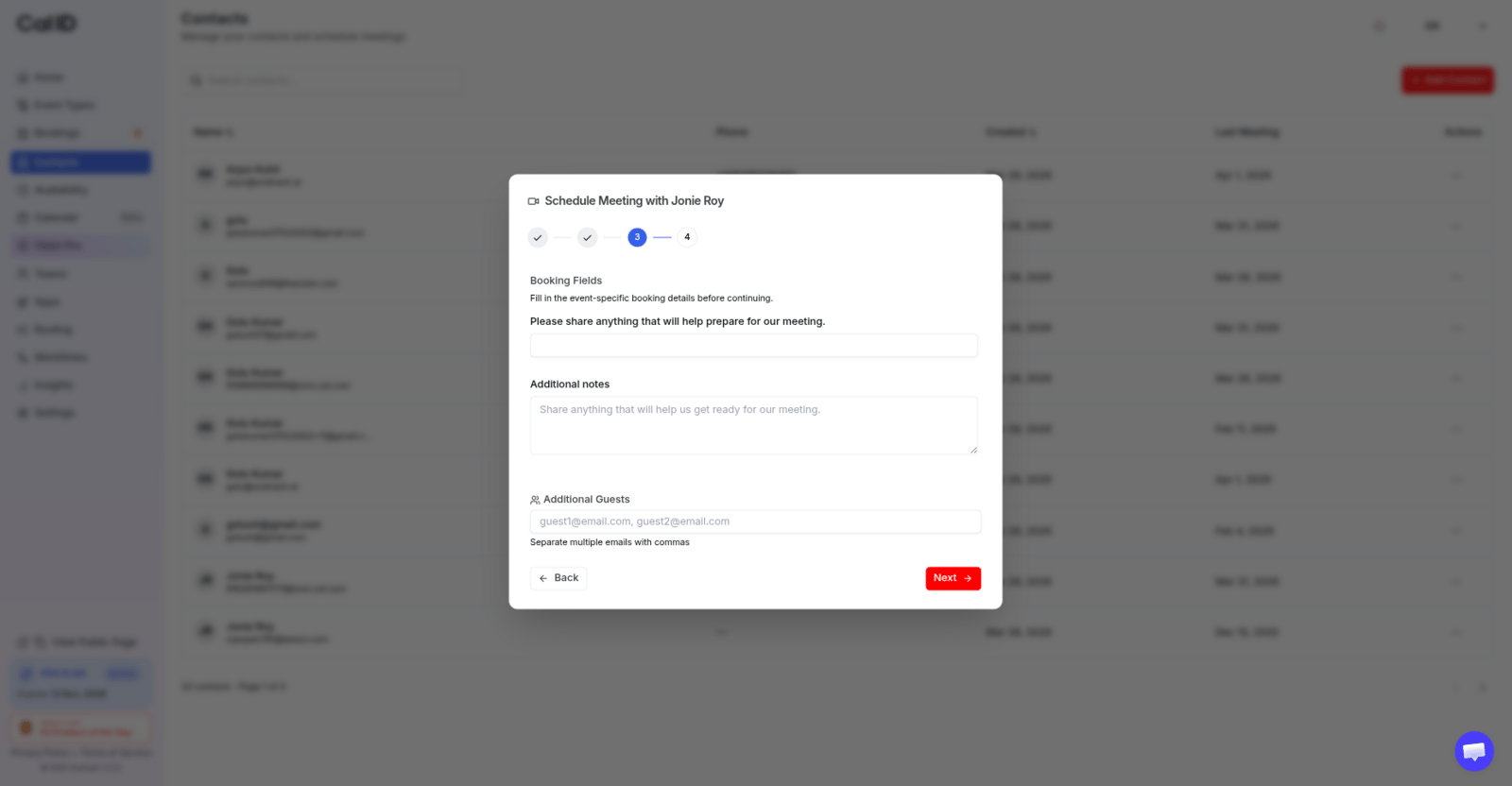 Click **Confirm Booking**. The meeting will now appear in your **Bookings** tab and **Unified Calendar**.
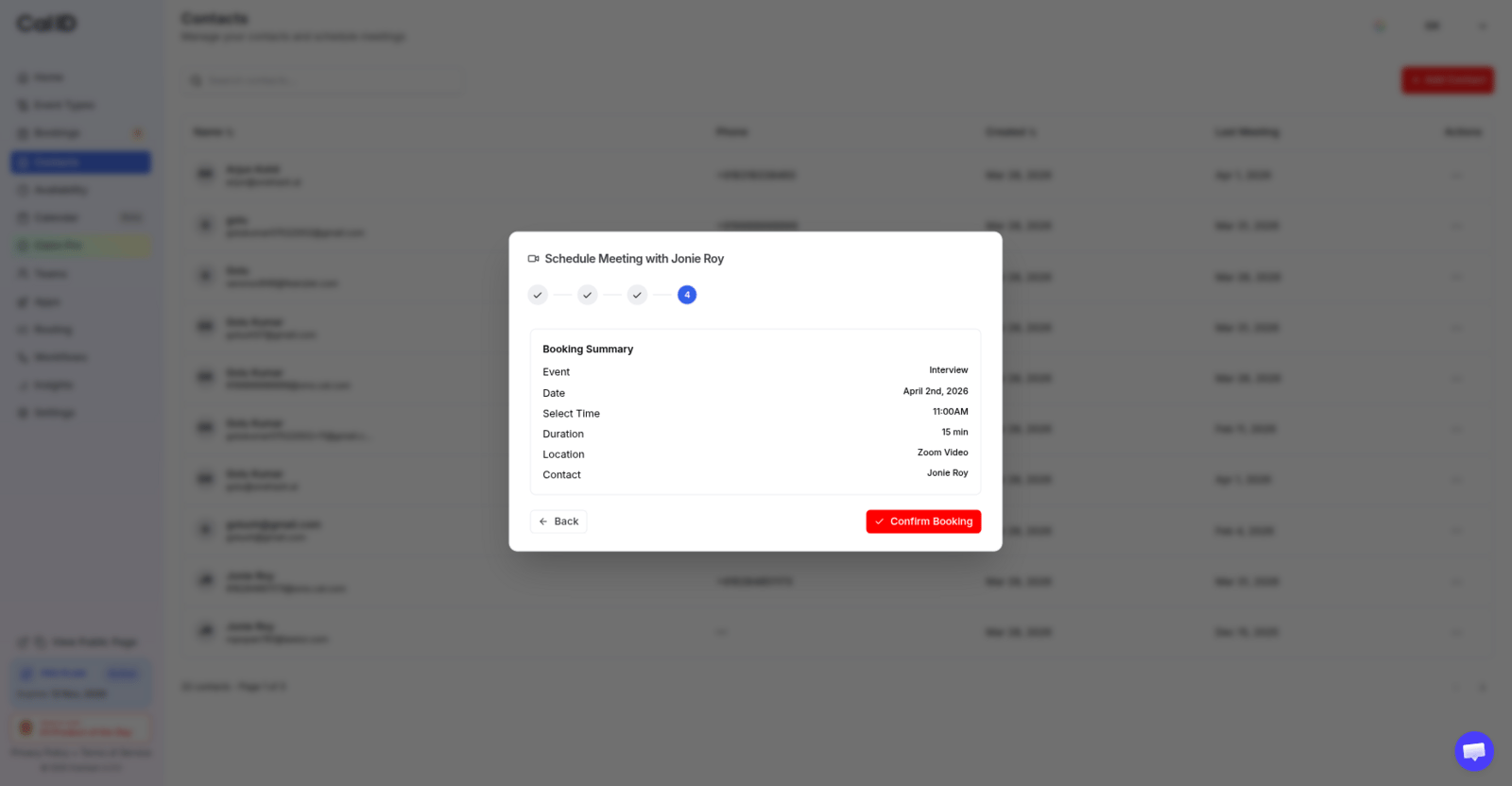 Direct scheduling is ideal when you're on a call and want to lock in a follow-up on the spot — no back-and-forth link needed.
## Deleting a contact
If you no longer need a contact in your list:
Go to **View Profile** for that contact.
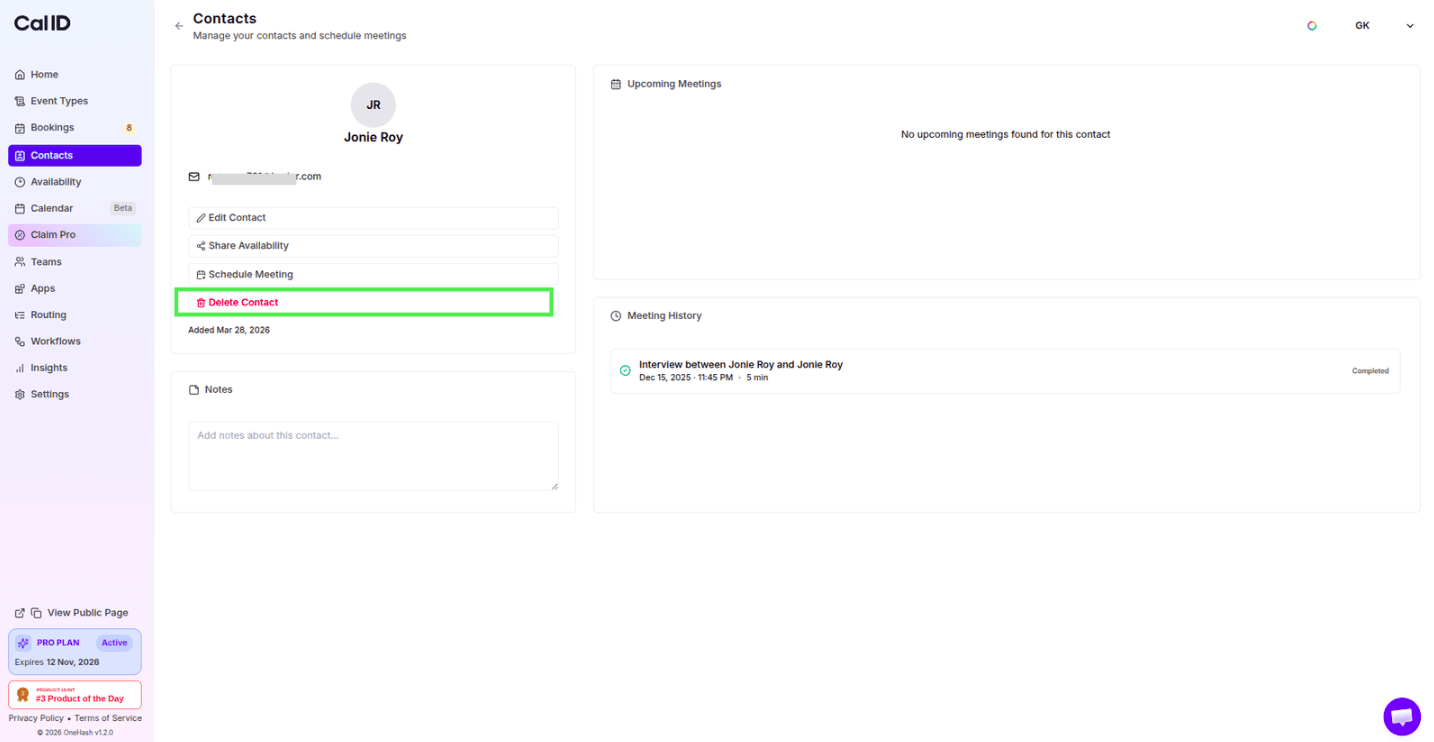
Click the red **Delete Contact** button on the left side of their profile page.
Direct scheduling is ideal when you're on a call and want to lock in a follow-up on the spot — no back-and-forth link needed.
## Deleting a contact
If you no longer need a contact in your list:
Go to **View Profile** for that contact.
Click the red **Delete Contact** button on the left side of their profile page.
 ## Related topics
- [How to Schedule a Meeting through Cal ID](/docs/getting-started/schedule-a-meeting.md)
- [Mastering the Unified Calendar in Cal ID](/docs/getting-started/unified-calendar.md)
- [How to See Booking Details](/docs/bookings/view-details.md)
- [How to Find and Share Your Cal ID URL](/docs/getting-started/share-your-url.md)
- [Add Pre-Booking Questions for Events](/docs/event-types/booking-questions/pre-booking-questions.md)
## Related topics
- [How to Schedule a Meeting through Cal ID](/docs/getting-started/schedule-a-meeting.md)
- [Mastering the Unified Calendar in Cal ID](/docs/getting-started/unified-calendar.md)
- [How to See Booking Details](/docs/bookings/view-details.md)
- [How to Find and Share Your Cal ID URL](/docs/getting-started/share-your-url.md)
- [Add Pre-Booking Questions for Events](/docs/event-types/booking-questions/pre-booking-questions.md)