> ## Documentation Index
> Fetch the complete documentation index at: https://cal.id/docs/llms.txt
> Use this file to discover all available pages before exploring further.
# How to Schedule a Meeting through Cal ID
> Book a meeting through a Cal ID scheduling link by picking a time, providing your details, and confirming the slot for an easy guest booking experience.
Book a meeting on someone's Cal ID in a few quick steps: pick a time, share your details, and confirm your spot on the calendar.
Looking for your own link to send to a client? See [How to Find and Share Your Cal ID URL](/docs/getting-started/share-your-url).
## Book your meeting
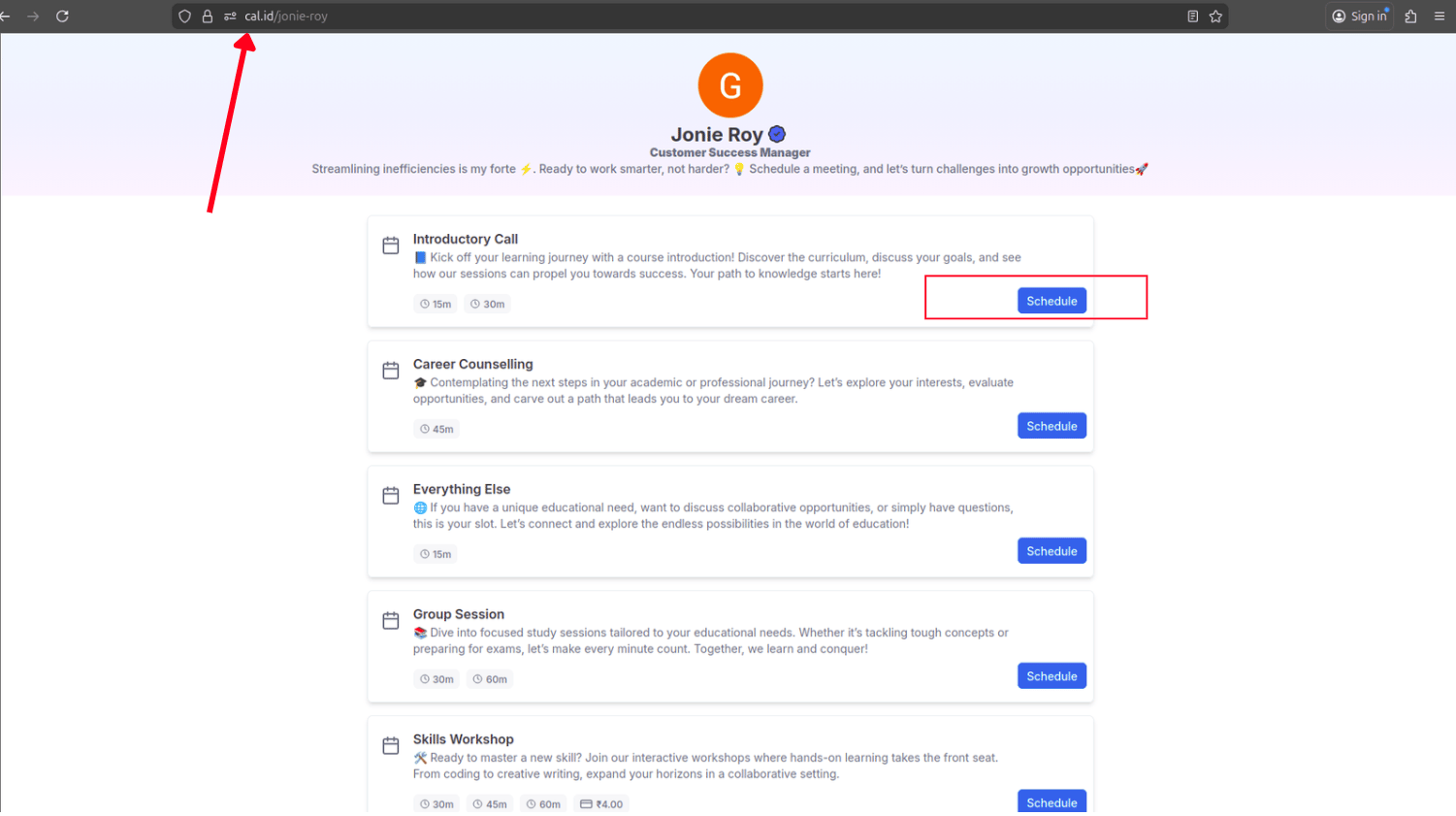
Open the Cal ID URL shared with you (e.g., `cal.id/username`). You'll see all available **Event Types** (such as "Consultation," "Discovery Call," or "Technical Support"). Click the **Schedule** button on the event you wish to book.
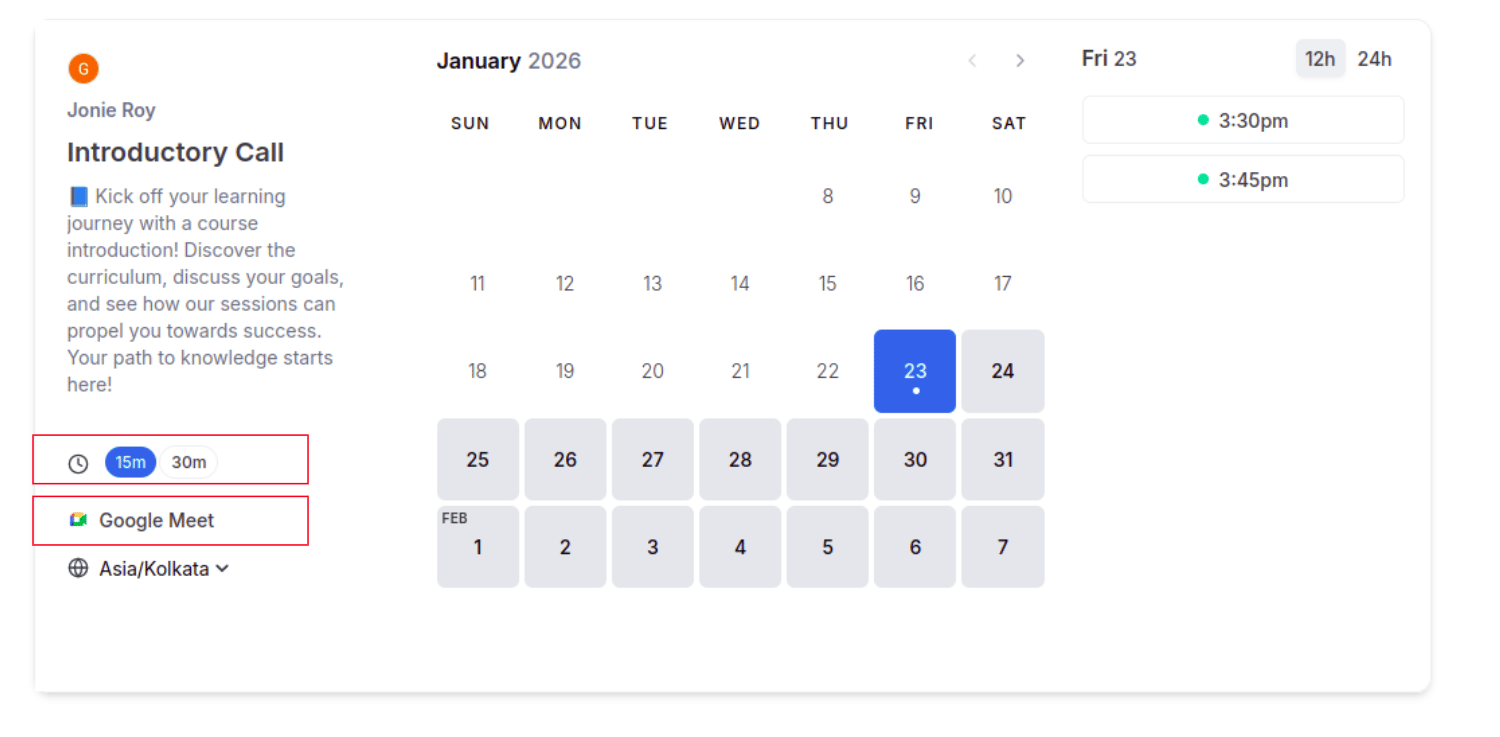
 * **Select a duration:** If the host allows multiple lengths for the meeting (e.g., 15m or 30m), select your preferred duration from the options on the left side of the page.
* **Pick a date:** Select an available date from the calendar.
* **Pick a time:** Choose a specific time slot that works for you.
* **Adjust your timezone:** Cal ID **automatically** detects your location and sets the booking to your local timezone by default. You can manually change it using the timezone dropdown on the left to ensure perfect coordination.
* **Select a duration:** If the host allows multiple lengths for the meeting (e.g., 15m or 30m), select your preferred duration from the options on the left side of the page.
* **Pick a date:** Select an available date from the calendar.
* **Pick a time:** Choose a specific time slot that works for you.
* **Adjust your timezone:** Cal ID **automatically** detects your location and sets the booking to your local timezone by default. You can manually change it using the timezone dropdown on the left to ensure perfect coordination.
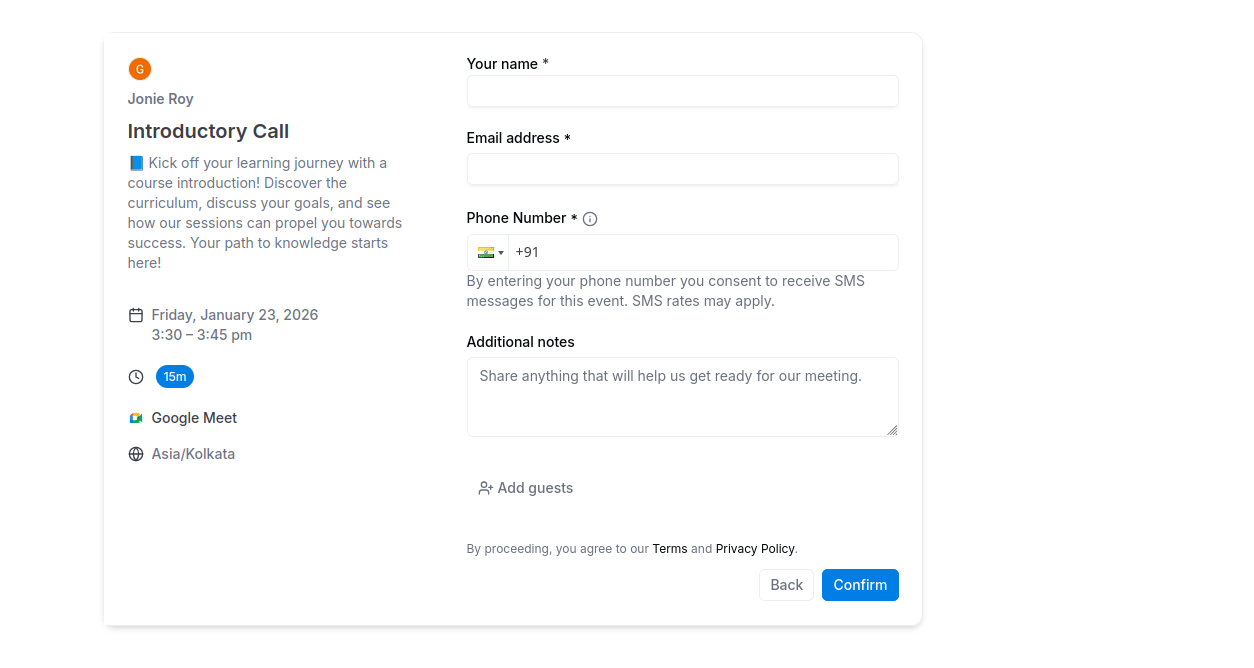
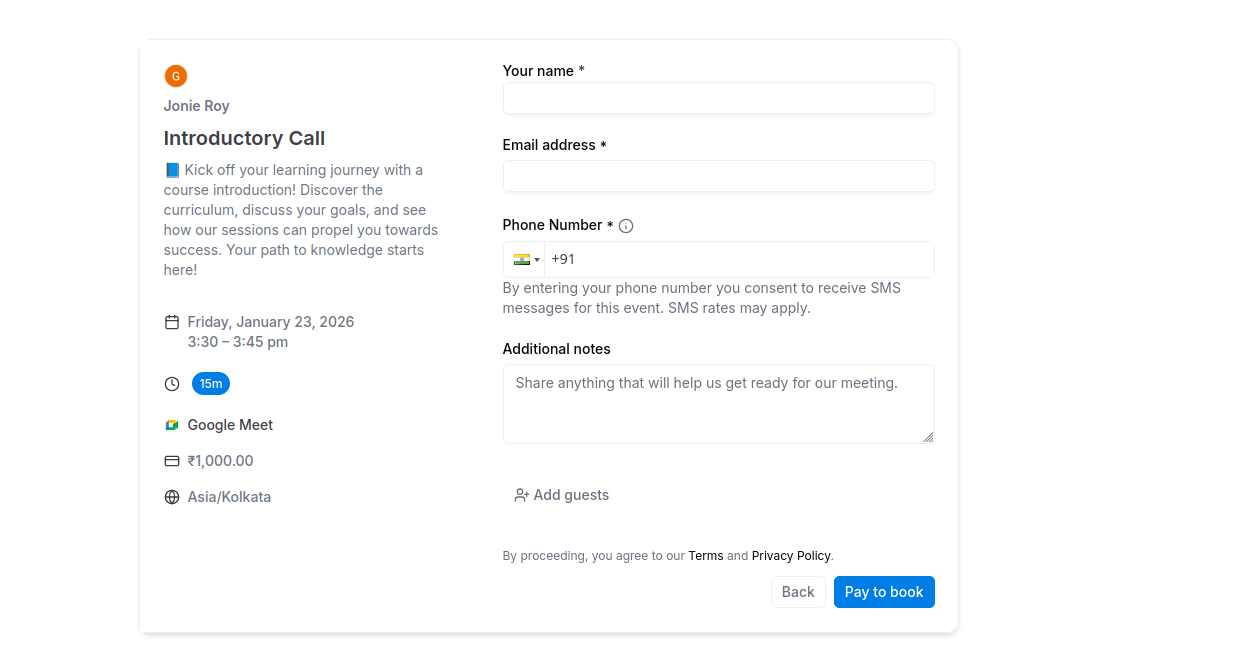
 Answer the specific questions the host has included to help prepare for the meeting.
* **Standard booking:** For free meetings, simply click the **Confirm** button.
* **Payment (if applicable):** If the host has set a fee, click **Pay to Book** to complete your payment securely via the integrated payment gateway.
Answer the specific questions the host has included to help prepare for the meeting.
* **Standard booking:** For free meetings, simply click the **Confirm** button.
* **Payment (if applicable):** If the host has set a fee, click **Pay to Book** to complete your payment securely via the integrated payment gateway.
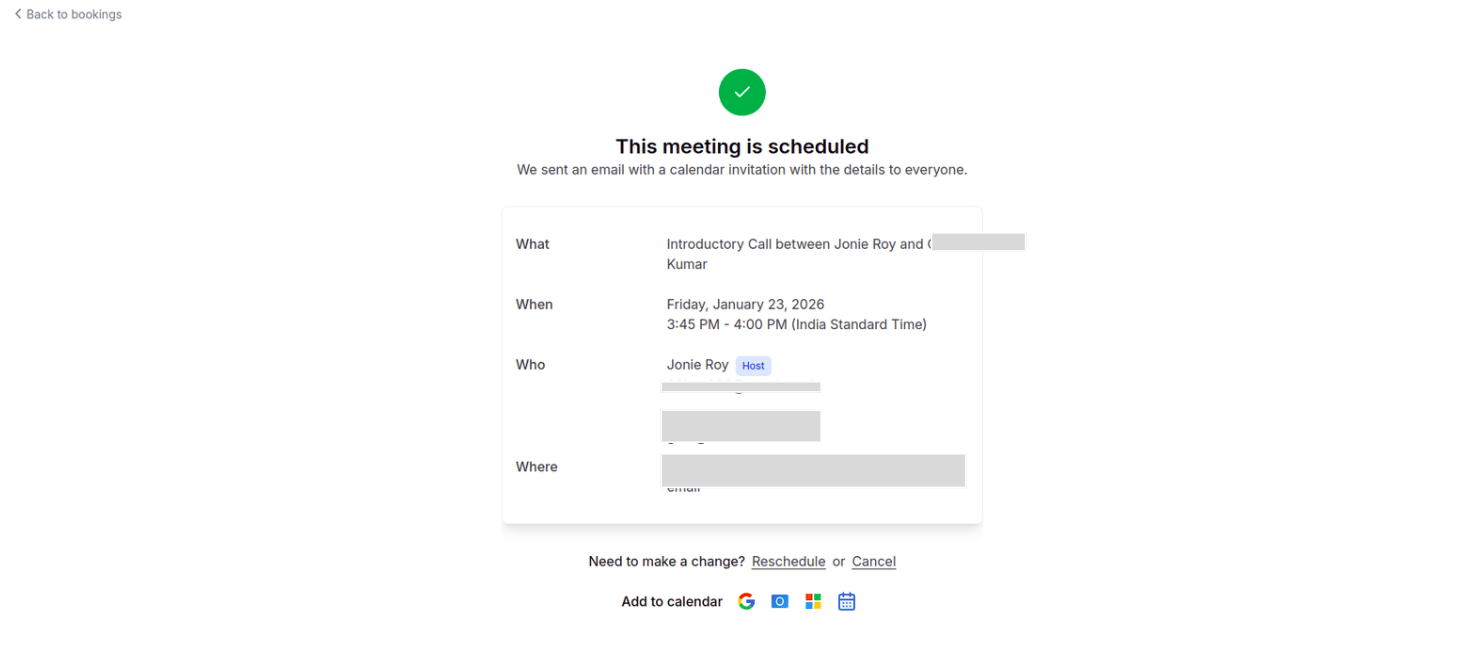
 **Instant confirmation:** You'll immediately see a **"Booking Confirmed"** page, and the Meeting URL (Zoom, Google Meet, etc.) will be sent directly to your confirmation email and added to your calendar invite.
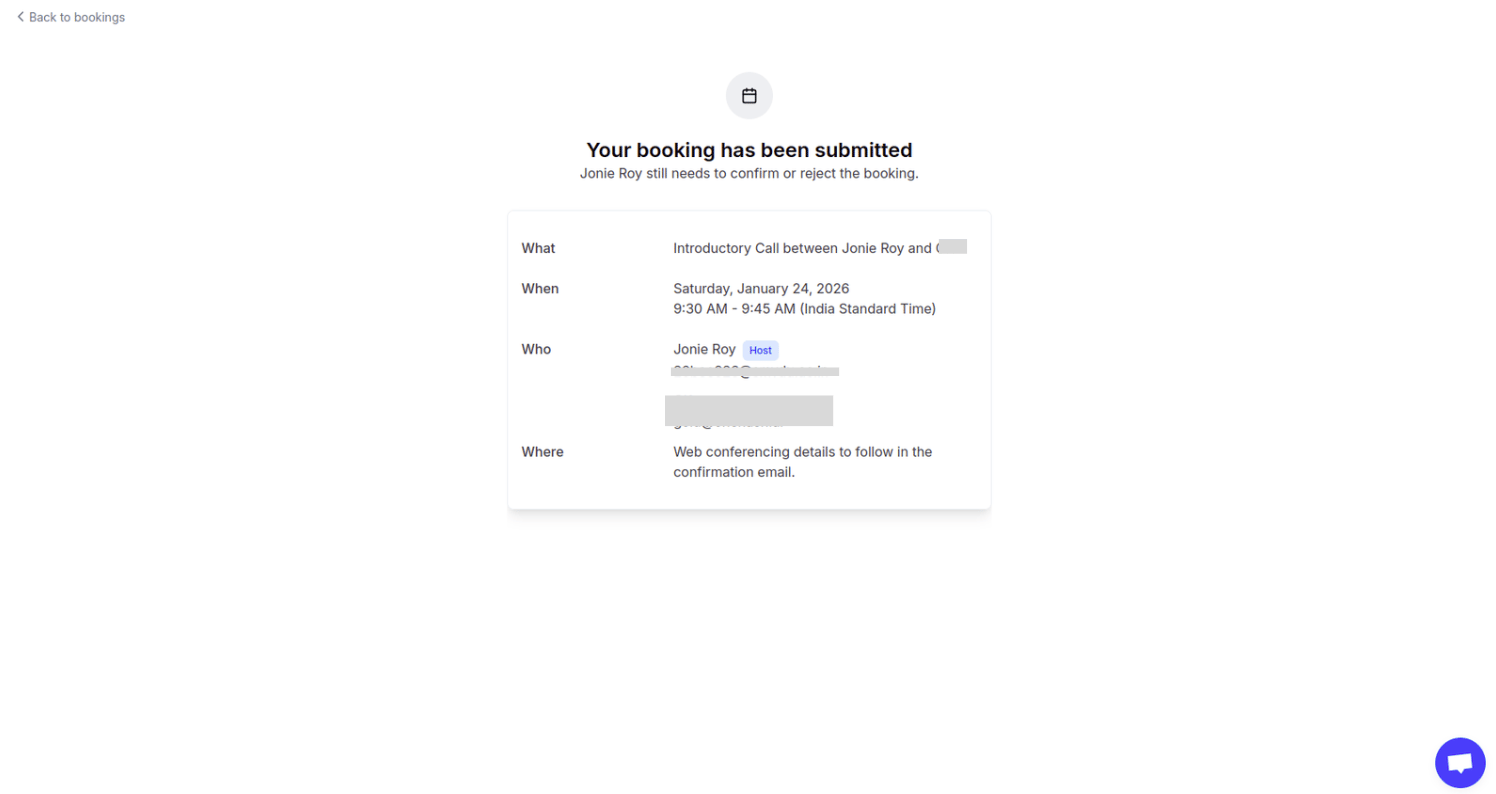
 **Requires confirmation:** If the host has enabled "Requires Confirmation," your booking is submitted as a request. You'll receive a final confirmation or rejection email once the admin reviews it. Once confirmed, your Meeting URL is sent to your confirmation email and added to your calendar invite.
 You're booked. Your spot is on the calendar and the meeting details are in your inbox.
## Managing, cancelling, or rescheduling
Once your booking is finished, you can manage your appointment easily:
* **Two ways to manage:** You can reschedule or cancel your meeting directly from the **Booking Confirmation Page** (shown right after you book) or through the **Confirmation Email** you receive in your inbox.
You're booked. Your spot is on the calendar and the meeting details are in your inbox.
## Managing, cancelling, or rescheduling
Once your booking is finished, you can manage your appointment easily:
* **Two ways to manage:** You can reschedule or cancel your meeting directly from the **Booking Confirmation Page** (shown right after you book) or through the **Confirmation Email** you receive in your inbox.
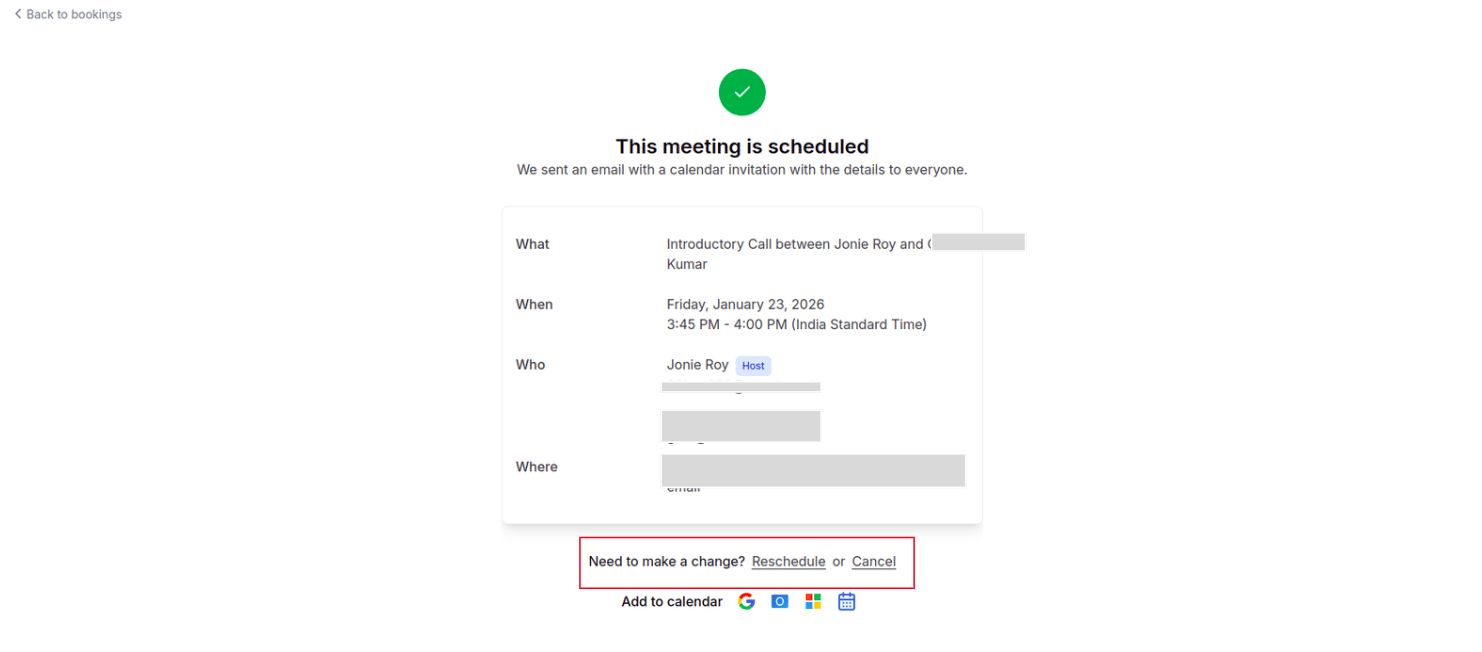 * **How to do it:** Simply click the "Reschedule" or "Cancel" link provided in those locations to choose a new time or notify the host of a cancellation.
To maintain a steady schedule, some hosts disable cancellation and rescheduling. If you don't see these options in your email or on the confirmation page, your booking is considered final, and you must contact the host directly for any changes.
## Next steps
View, reschedule, or cancel your scheduled meetings.
Ready to host your own? Define when people can book you.
## Related topics
- [How to Find and Share Your Cal ID URL](/docs/getting-started/share-your-url.md)
- [Mastering the Unified Calendar in Cal ID](/docs/getting-started/unified-calendar.md)
- [Managing Your Contacts in Cal ID](/docs/getting-started/contacts.md)
- [How to See Booking Details](/docs/bookings/view-details.md)
- [Event Types](/docs/event-types/basics/overview.md)
* **How to do it:** Simply click the "Reschedule" or "Cancel" link provided in those locations to choose a new time or notify the host of a cancellation.
To maintain a steady schedule, some hosts disable cancellation and rescheduling. If you don't see these options in your email or on the confirmation page, your booking is considered final, and you must contact the host directly for any changes.
## Next steps
View, reschedule, or cancel your scheduled meetings.
Ready to host your own? Define when people can book you.
## Related topics
- [How to Find and Share Your Cal ID URL](/docs/getting-started/share-your-url.md)
- [Mastering the Unified Calendar in Cal ID](/docs/getting-started/unified-calendar.md)
- [Managing Your Contacts in Cal ID](/docs/getting-started/contacts.md)
- [How to See Booking Details](/docs/bookings/view-details.md)
- [Event Types](/docs/event-types/basics/overview.md)