> ## Documentation Index
> Fetch the complete documentation index at: https://cal.id/docs/llms.txt
> Use this file to discover all available pages before exploring further.
# How to Find and Share Your Cal ID URL
> Find your personal Cal ID booking link and share it from the dashboard, profile settings, or individual event types across email, chat, and social channels.
Your Cal ID URL is your personal booking link — the address you share with others so they can view your availability and schedule meetings with you. There are several places to find and share it, depending on what you need.
The fastest way to grab and share your link.
View or customize your username.
Copy your main link or open your public page.
Share a link for one meeting type.
## Using the home dashboard
**Log in** to your Cal ID account.
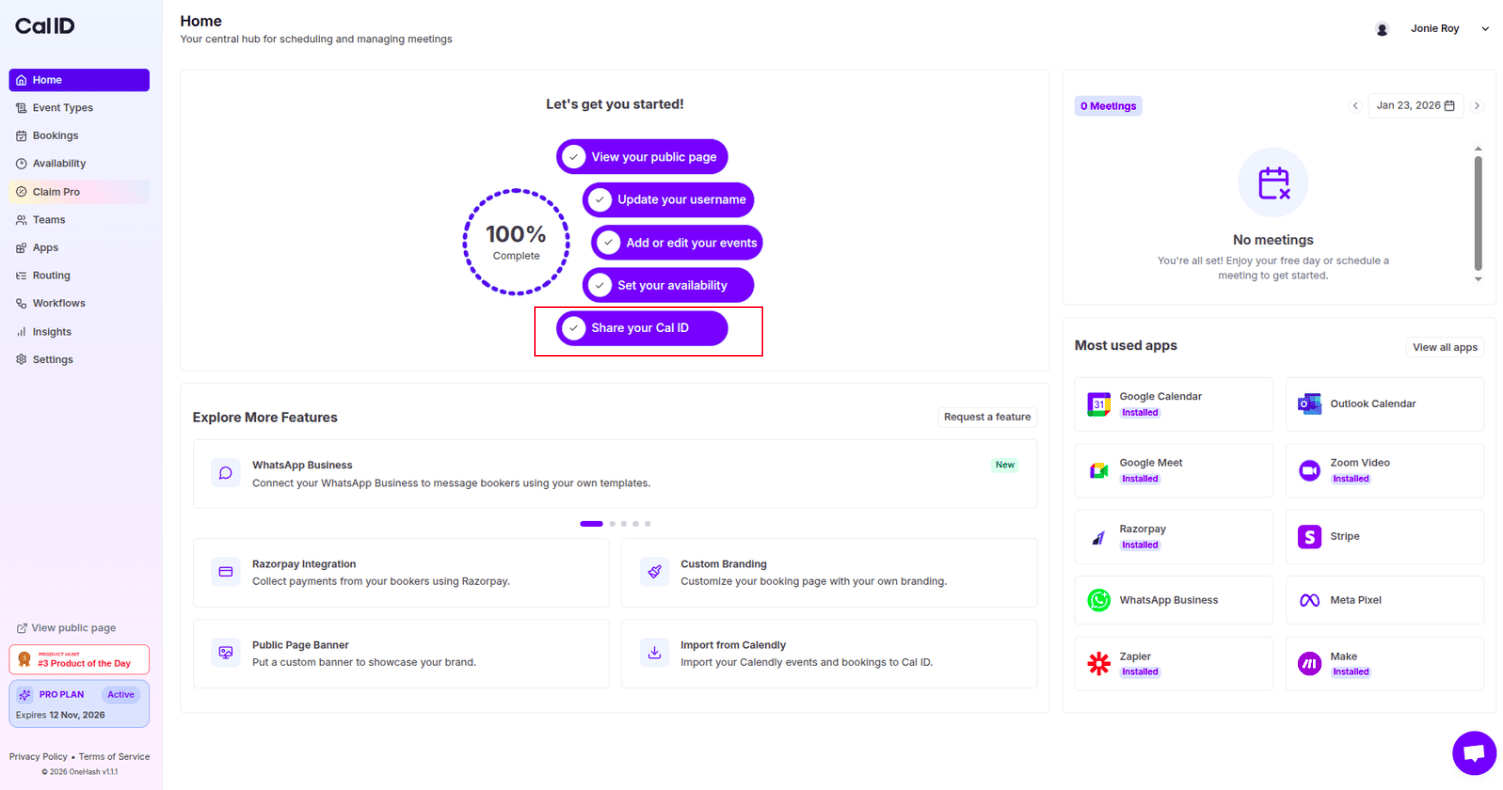
On the **Home** tab, find the **Let's get you started!** checklist.
Click the button labeled **Share your Cal ID**.
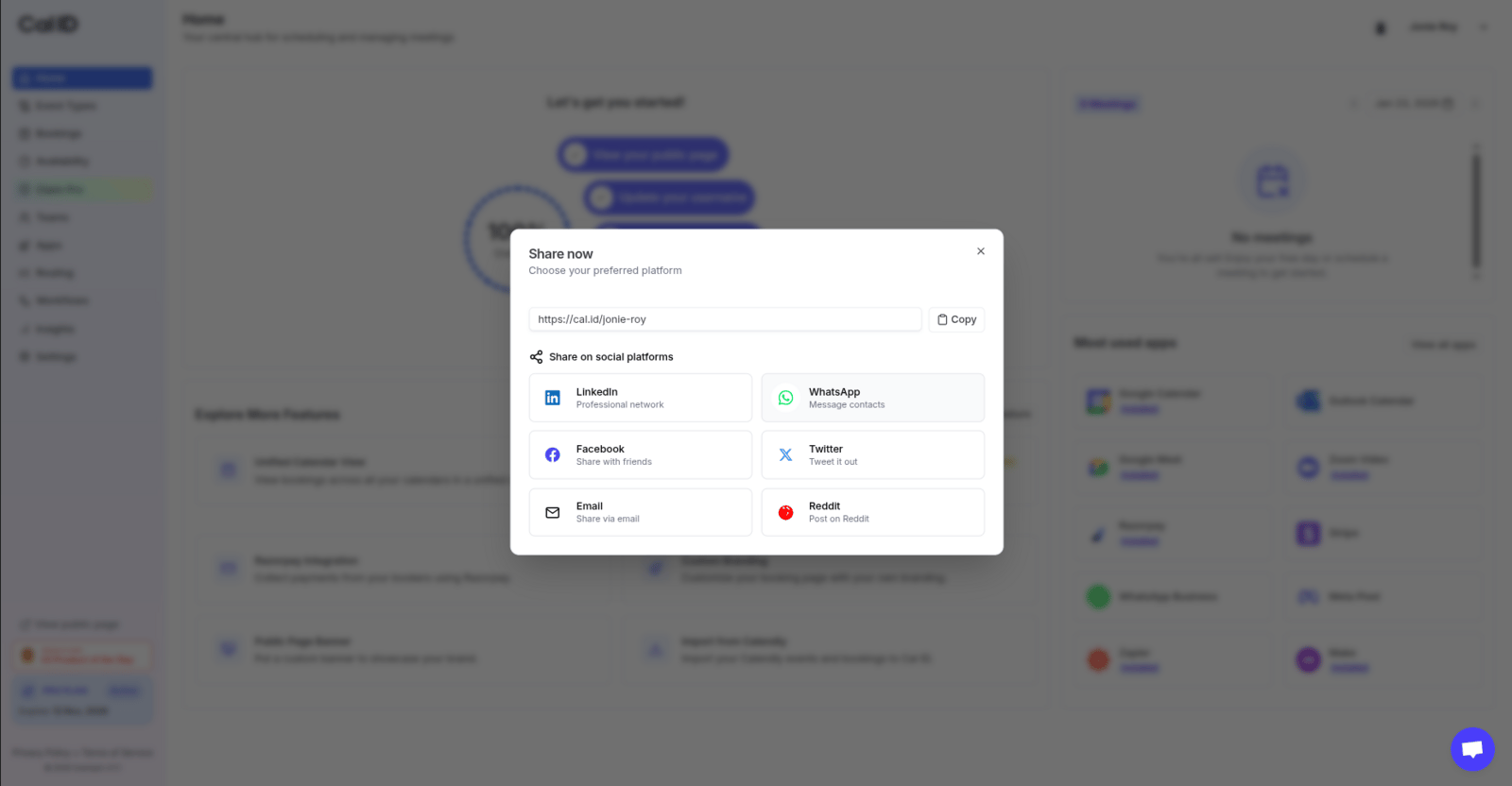
A pop-up window will appear showing your link.
Click **Copy** to save the link, or choose a social platform (like LinkedIn, WhatsApp, or Twitter) to share it directly.
 ## Using profile settings (view or change username)
If you want to see your link or customize it to something more professional, follow these steps.
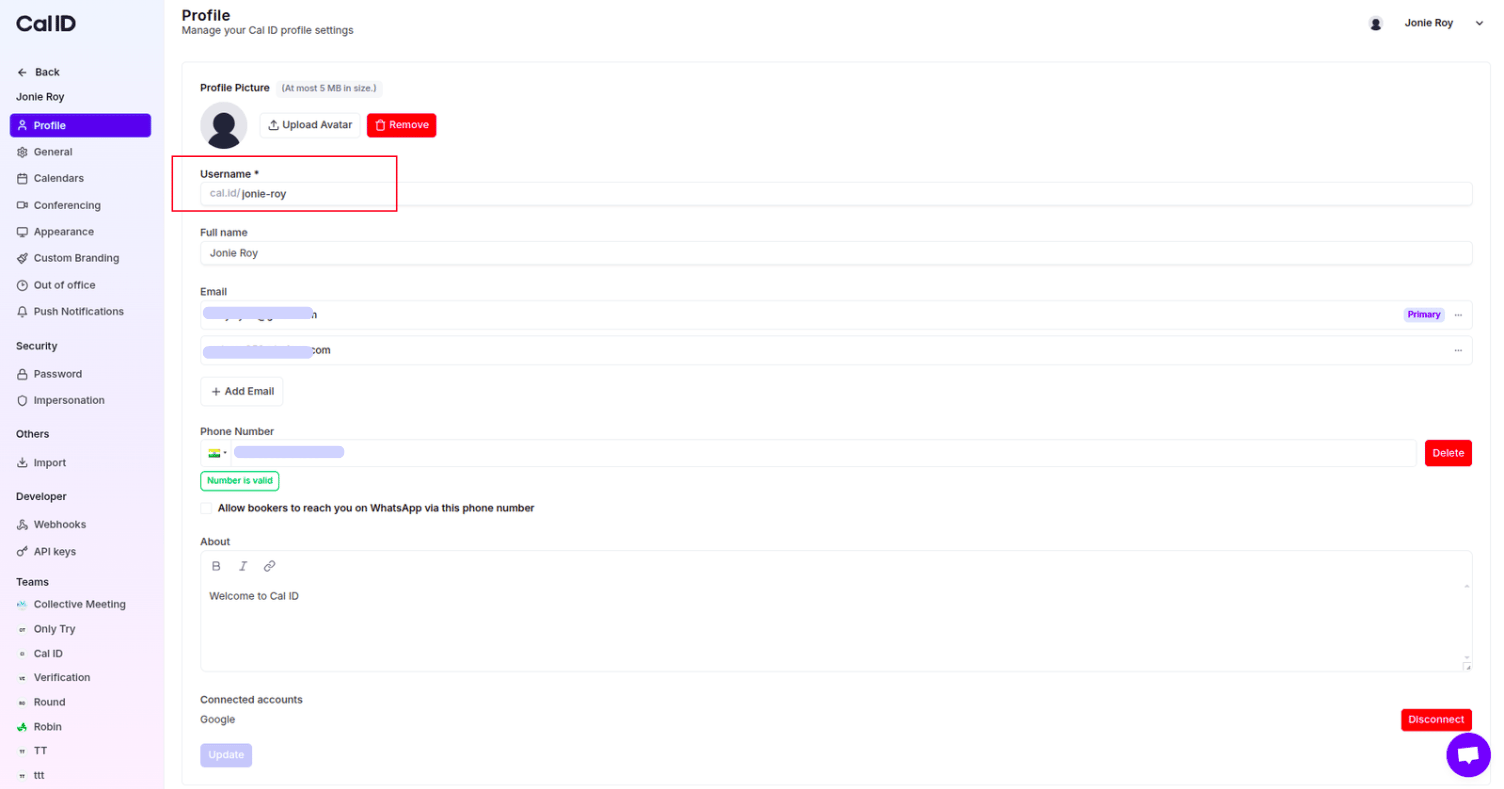
Navigate to **Settings** in the left-hand sidebar.
Select the **Profile** section.
Look for the **Username** field. This name is what appears at the end of your link (e.g., `cal.id/yourname`).
Simply highlight and copy the text in this field.
You can edit this field to update your username.
Changing your username will change your booking URL. Make sure to update any links you have already shared!
## Using profile settings (view or change username)
If you want to see your link or customize it to something more professional, follow these steps.
Navigate to **Settings** in the left-hand sidebar.
Select the **Profile** section.
Look for the **Username** field. This name is what appears at the end of your link (e.g., `cal.id/yourname`).
Simply highlight and copy the text in this field.
You can edit this field to update your username.
Changing your username will change your booking URL. Make sure to update any links you have already shared!
 ## Using the Event Types page
You can also find and copy your main Cal ID URL directly from the dashboard where you manage your event types.
* Navigate to **Event Types** in the left-hand sidebar.
* At the top of the page, next to the search bar, you'll see your general booking link (e.g., `cal.id/your-username`).
* Click the **copy icon** (two overlapping squares) next to the URL to save it to your clipboard.
## Using the Event Types page
You can also find and copy your main Cal ID URL directly from the dashboard where you manage your event types.
* Navigate to **Event Types** in the left-hand sidebar.
* At the top of the page, next to the search bar, you'll see your general booking link (e.g., `cal.id/your-username`).
* Click the **copy icon** (two overlapping squares) next to the URL to save it to your clipboard.
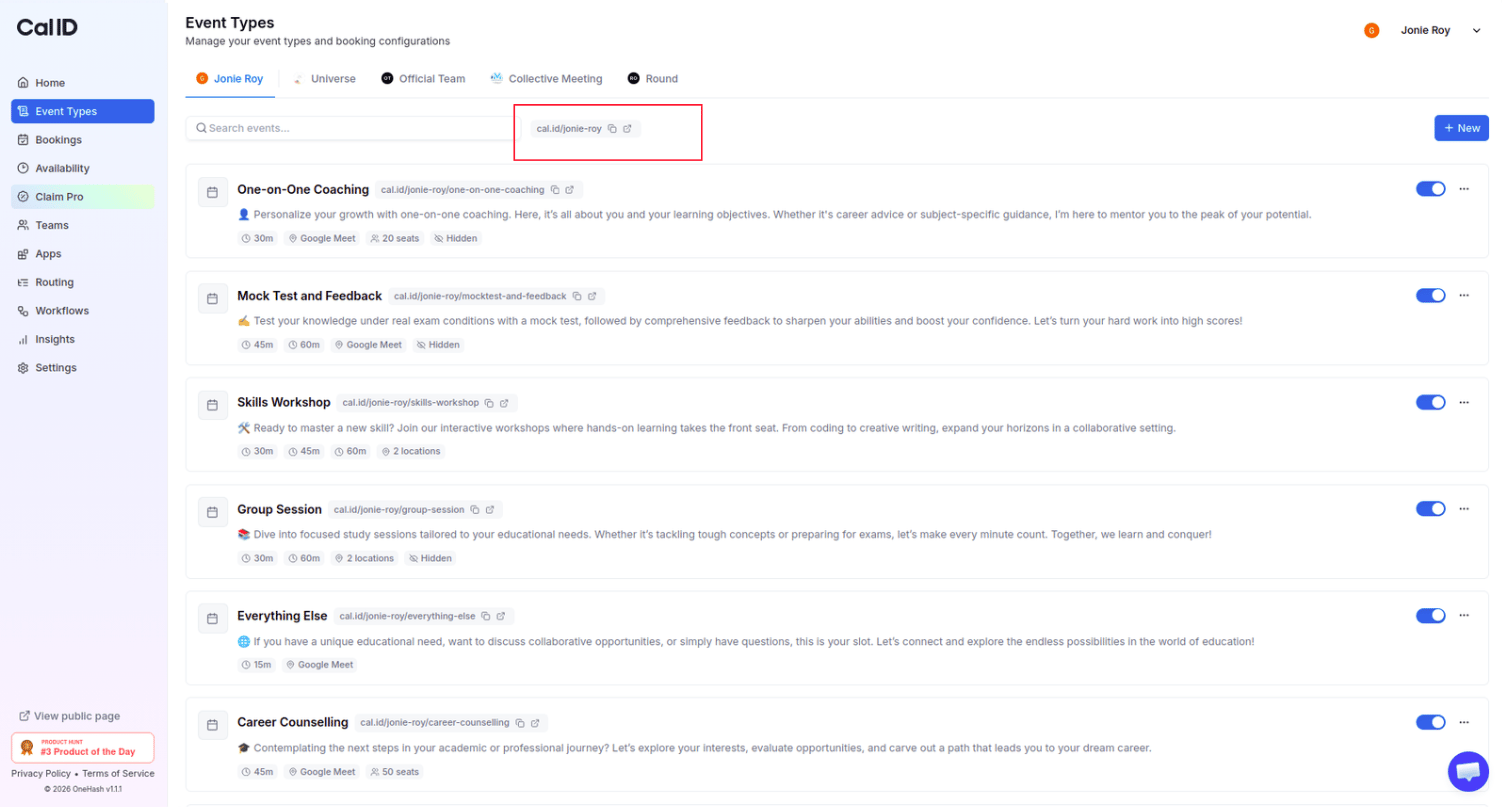 Click the **external link icon** (arrow pointing out of a square) to open your public booking page in a new tab.
## Using specific event types
If you want to share a link for a specific meeting type (like an "Interview" or "Introductory Call") rather than your general profile, follow these steps.
Navigate to the **Event Types** tab in the left-hand sidebar.
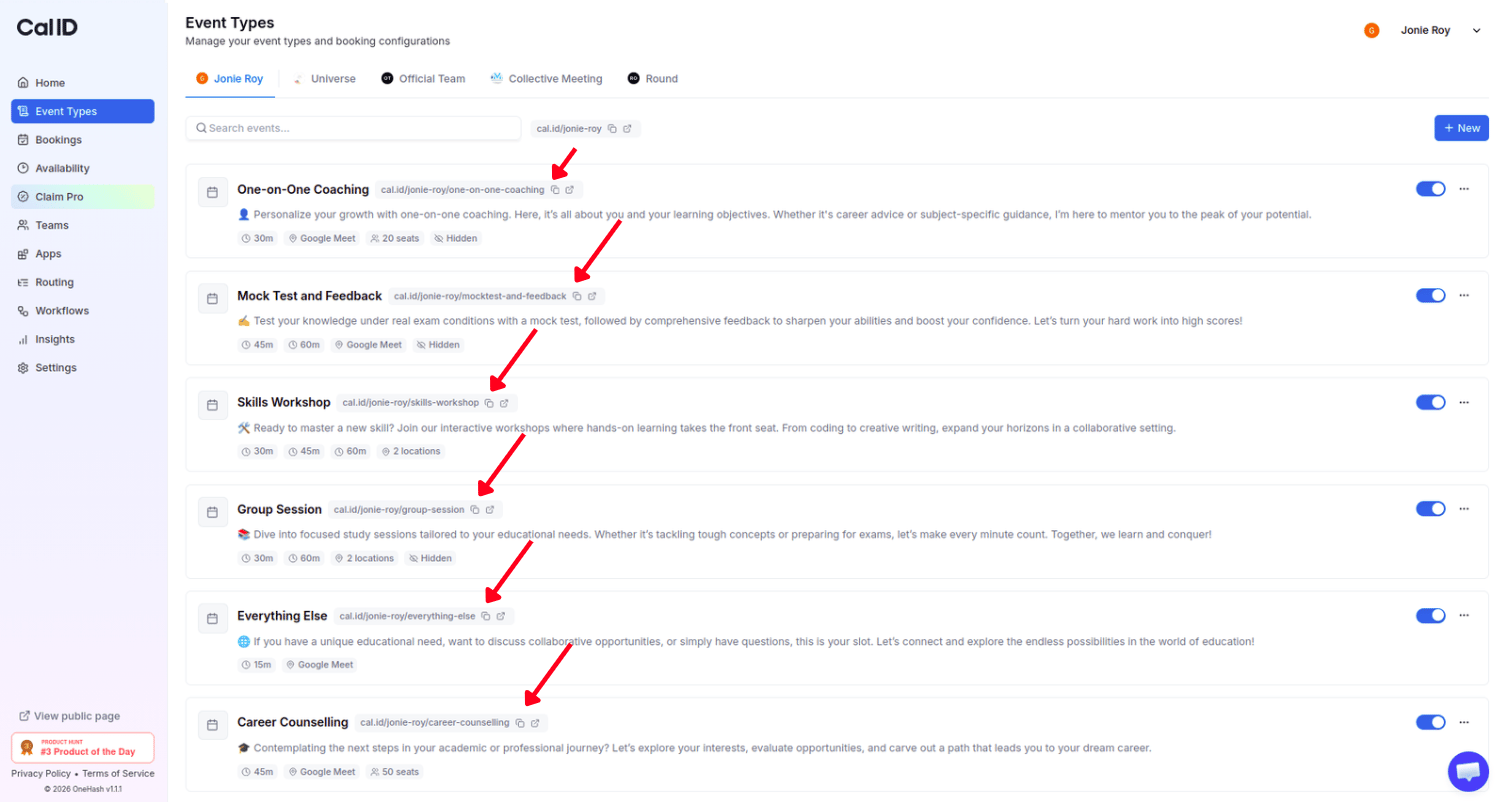
Locate the specific event you wish to share from your list.
Click the **copy icon** (two overlapping squares) located next to the event URL in the event card.
Click the **external link icon** (arrow pointing out of a square) to open your public booking page in a new tab.
## Using specific event types
If you want to share a link for a specific meeting type (like an "Interview" or "Introductory Call") rather than your general profile, follow these steps.
Navigate to the **Event Types** tab in the left-hand sidebar.
Locate the specific event you wish to share from your list.
Click the **copy icon** (two overlapping squares) located next to the event URL in the event card.
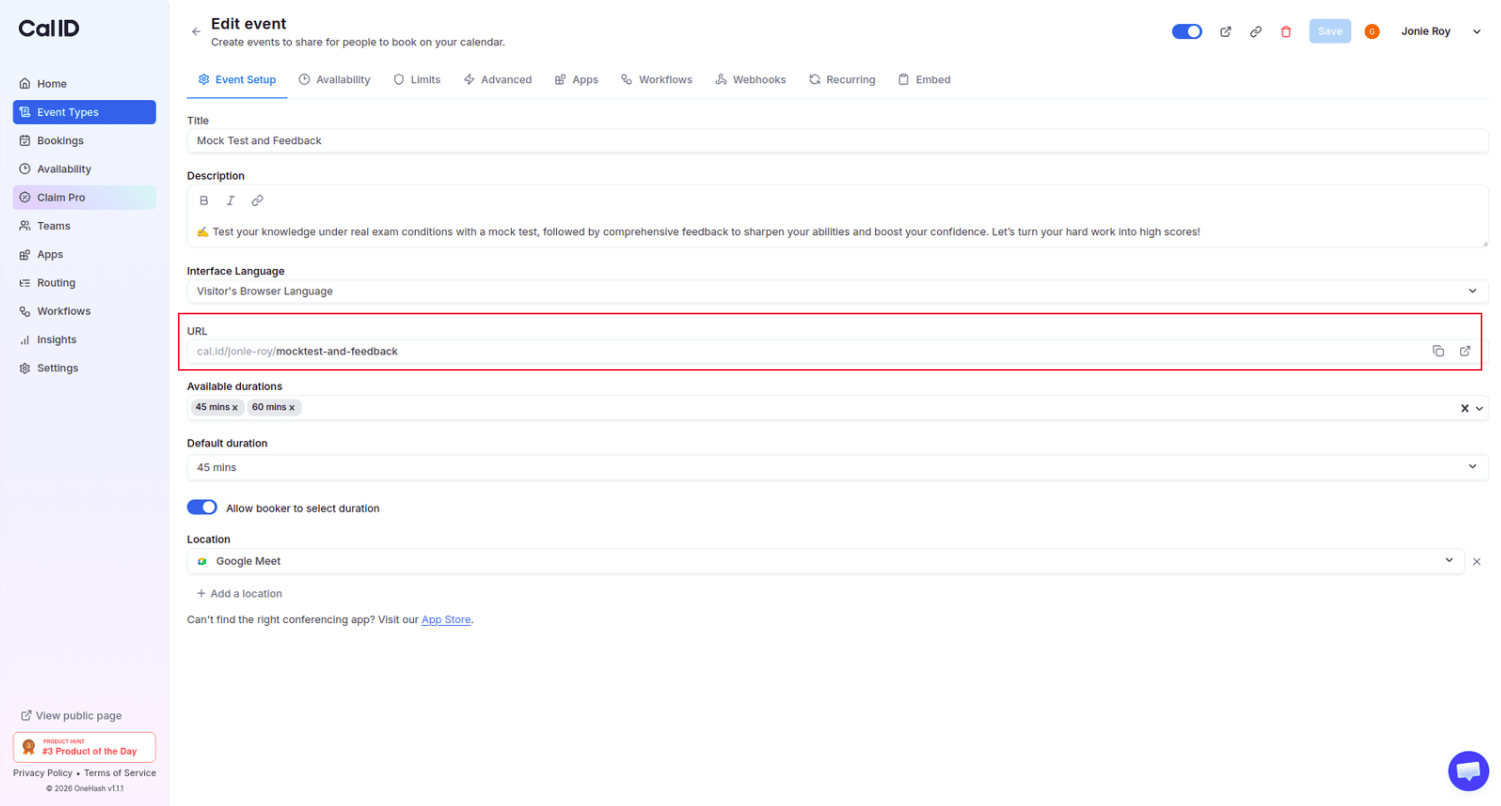
 Click on the **Event Name** to open the editor. You'll find the full URL under the **URL** field within the **Event Setup** tab.
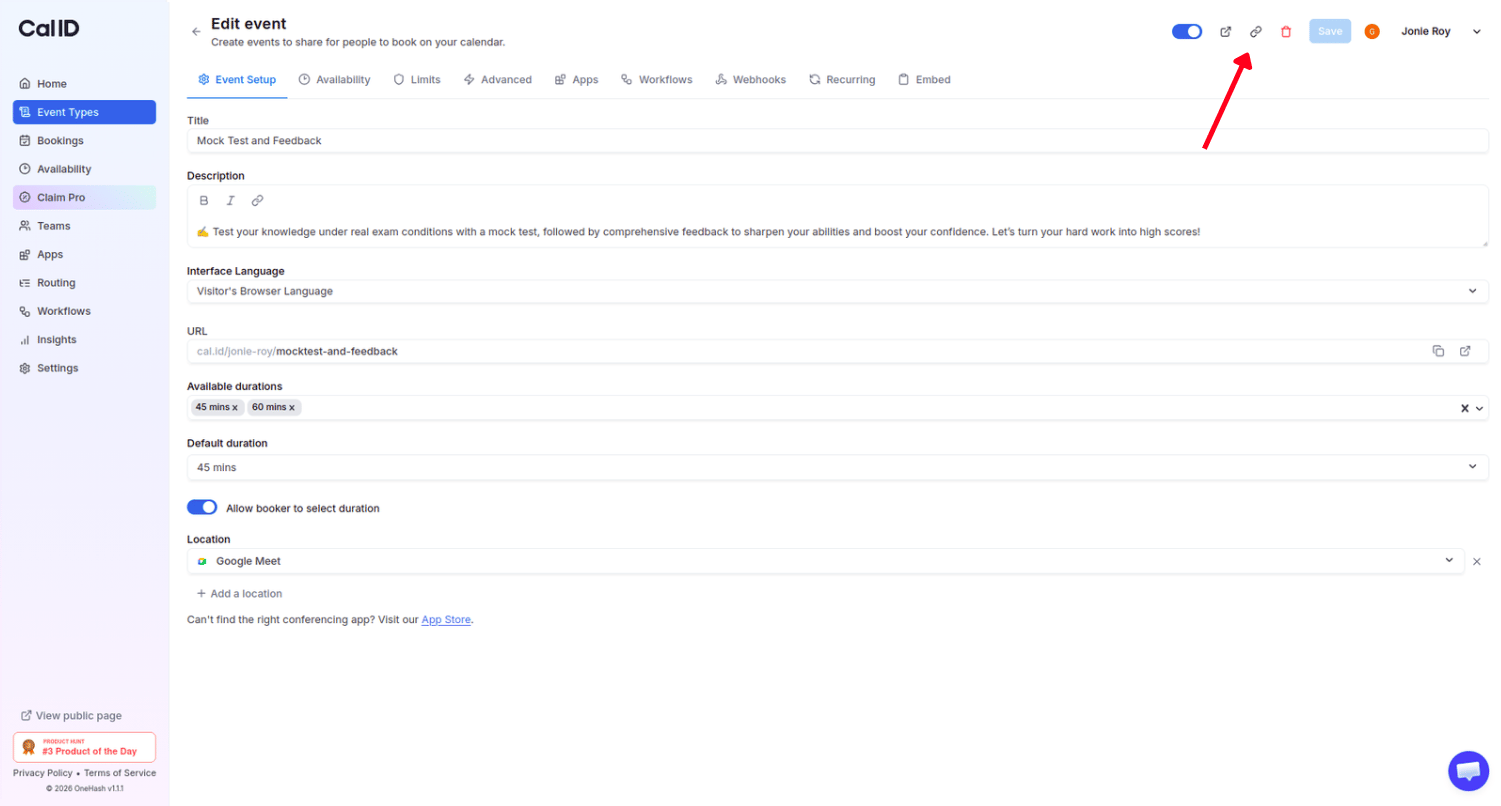
 Click the **copy icon** there, or click the **external link icon** to view the live booking page before sharing.
 ## Next steps
See how bookings work once someone opens your link.
Style your public page to match your brand.
## Related topics
- [How to Schedule a Meeting through Cal ID](/docs/getting-started/schedule-a-meeting.md)
- [Complete your Cal ID Onboarding](/docs/getting-started/onboarding.md)
- [Dynamic Group Links](/docs/settings/dynamic-group-links.md)
- [Custom Branding For Personal](/docs/branding/personal.md)
- [Managing Your Cal ID Profile Settings](/docs/settings/profile.md)
## Next steps
See how bookings work once someone opens your link.
Style your public page to match your brand.
## Related topics
- [How to Schedule a Meeting through Cal ID](/docs/getting-started/schedule-a-meeting.md)
- [Complete your Cal ID Onboarding](/docs/getting-started/onboarding.md)
- [Dynamic Group Links](/docs/settings/dynamic-group-links.md)
- [Custom Branding For Personal](/docs/branding/personal.md)
- [Managing Your Cal ID Profile Settings](/docs/settings/profile.md)