> ## Documentation Index
> Fetch the complete documentation index at: https://cal.id/docs/llms.txt
> Use this file to discover all available pages before exploring further.
# Schedule Meetings Directly Inside WhatsApp
> Let customers book, reschedule, and cancel Cal ID meetings inside a WhatsApp chat with Book on WhatsApp, without sending an external booking link.
**Book on WhatsApp Chat** lets your customers schedule, reschedule, and cancel meetings directly in a WhatsApp conversation, with no external booking page. Instead of sending a link like `cal.id/your-name`, customers complete the whole booking inside WhatsApp.
## How it works
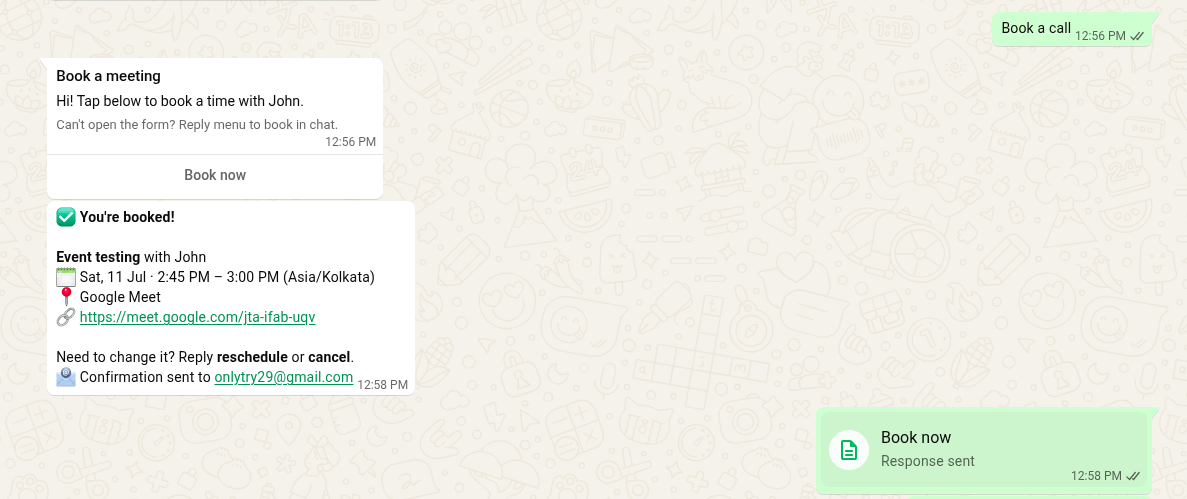
When a customer messages your WhatsApp Business account, they can book in a few steps:
The customer opens a chat with your WhatsApp Business number.
They send a prompt such as *"Book a call"*.
They pick which event type they want to book.
They select an available date and time slot.
They answer the questions attached to that event type.
They confirm the booking.
Once confirmed, the meeting is created in Cal ID, the attendee gets a confirmation card in WhatsApp, and both host and attendee get a confirmation email with the event name, date and time, and location (Google Meet, Zoom, Teams, or in person) — all without leaving WhatsApp.
## Benefits
| Benefit | What it means |
| ------------------ | -------------------------------------------------------------- |
| Faster booking | Fewer steps between the first message and a confirmed meeting. |
| Higher conversions | No jump out to an external browser. |
| One thread | Conversations and scheduling stay in the same chat. |
| Less friction | Better for customers who prefer messaging. |
This is especially useful for businesses that get most of their leads through WhatsApp.
## Before you begin
Make sure your WhatsApp Business account is integrated with Cal ID and active, and that you have at least one active event type. See [Integrate WhatsApp Business](/docs/workflows/whatsapp-business) for the full setup.
## Enable Book on WhatsApp
Go to **Apps → Installed Apps**.
Open the **Messaging** sub-category and find **WhatsApp Business**.
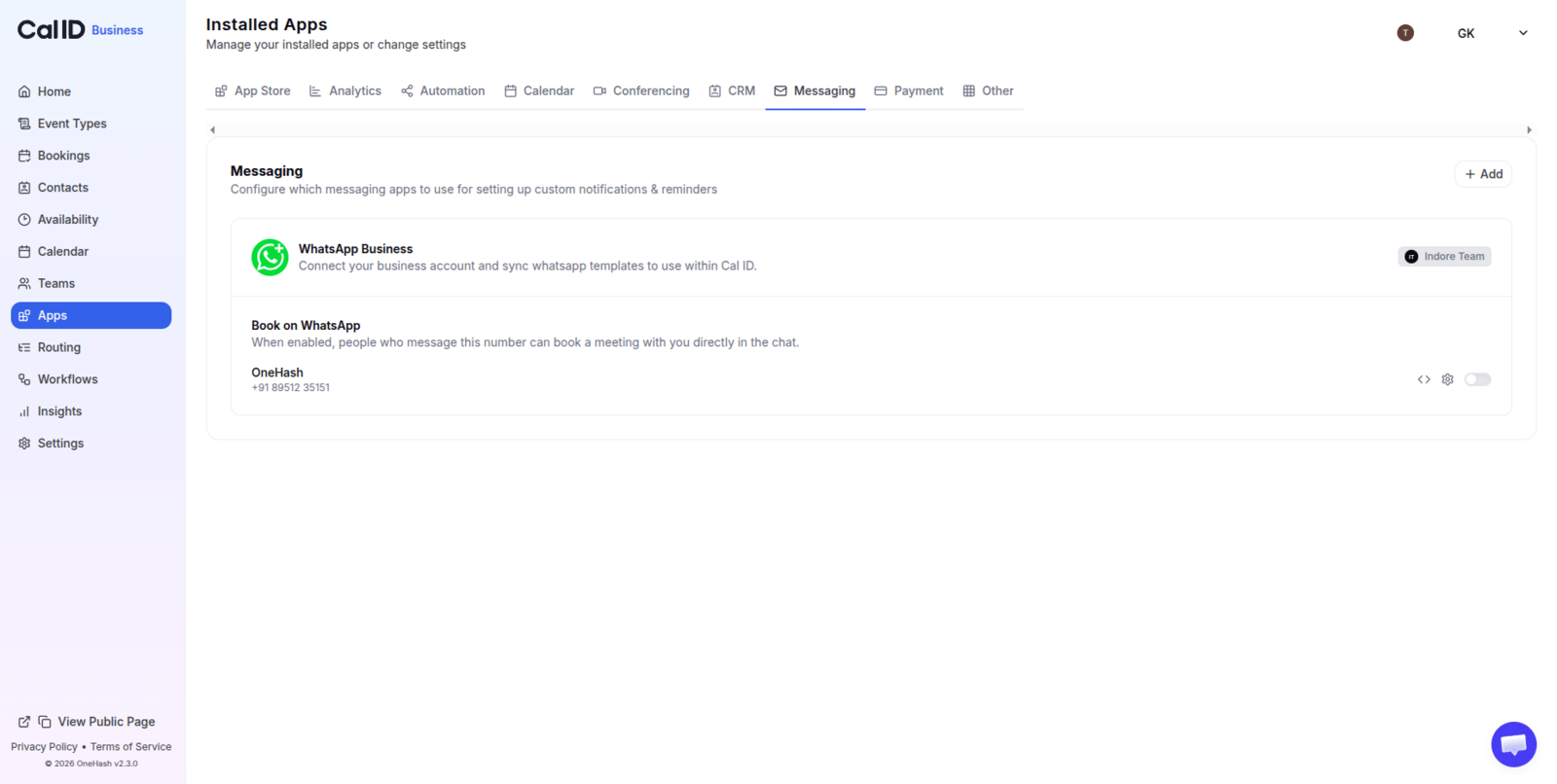 On the **WhatsApp Business** card, turn on the **Book on WhatsApp** toggle.
## Configure the experience
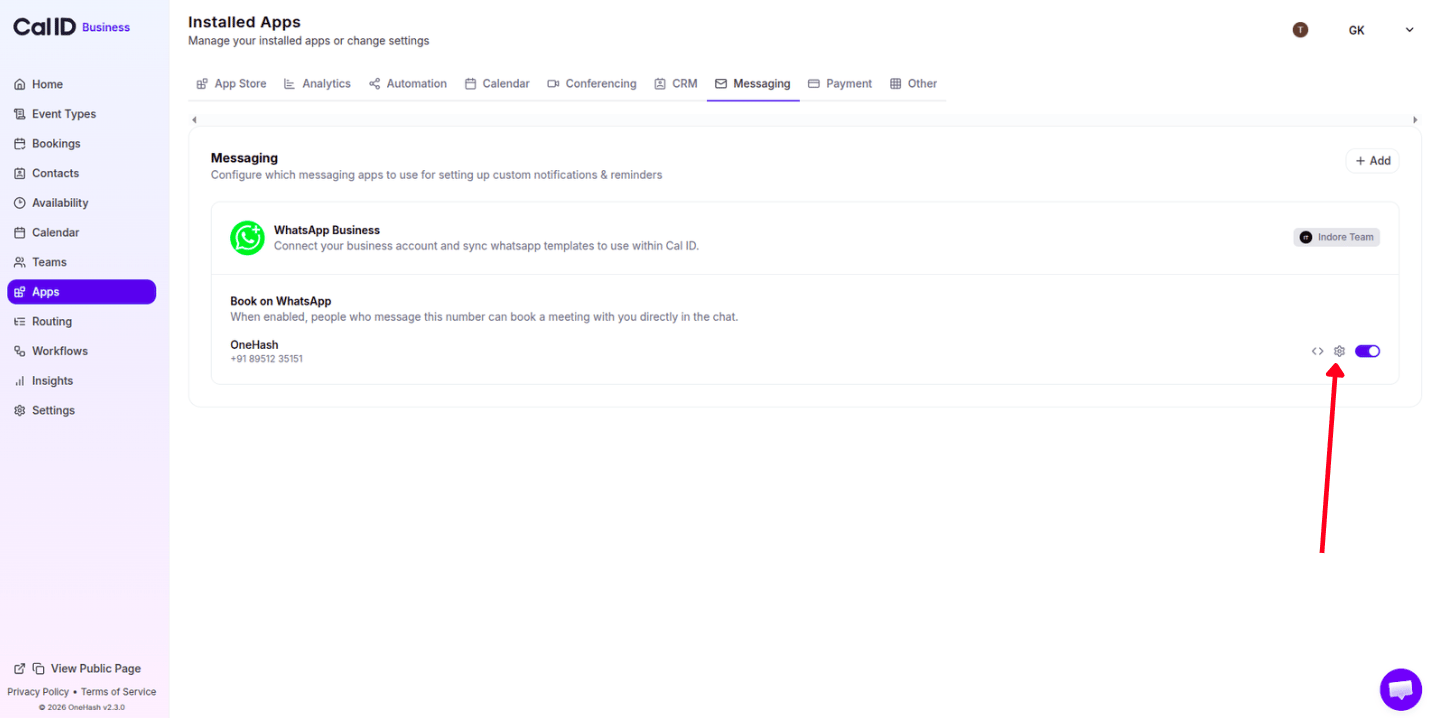
Click the **Settings (⚙️)** icon next to the toggle to customize how booking appears.
On the **WhatsApp Business** card, turn on the **Book on WhatsApp** toggle.
## Configure the experience
Click the **Settings (⚙️)** icon next to the toggle to customize how booking appears.
 | Setting | What it controls |
| ------------------------ | ----------------------------------------------------- |
| **Preview image** | Your logo or banner. |
| **Default meeting type** | One event type, or *"Let attendee pick"*. |
| **Time slots layout** | How slots are displayed, for example a grid of chips. |
| **Greeting message** | The welcome text bookers see. |
| **Booking button label** | Your call to action, for example *"Book now"*. |
Click **Save** at the bottom of the settings panel to go live.
## The customer experience
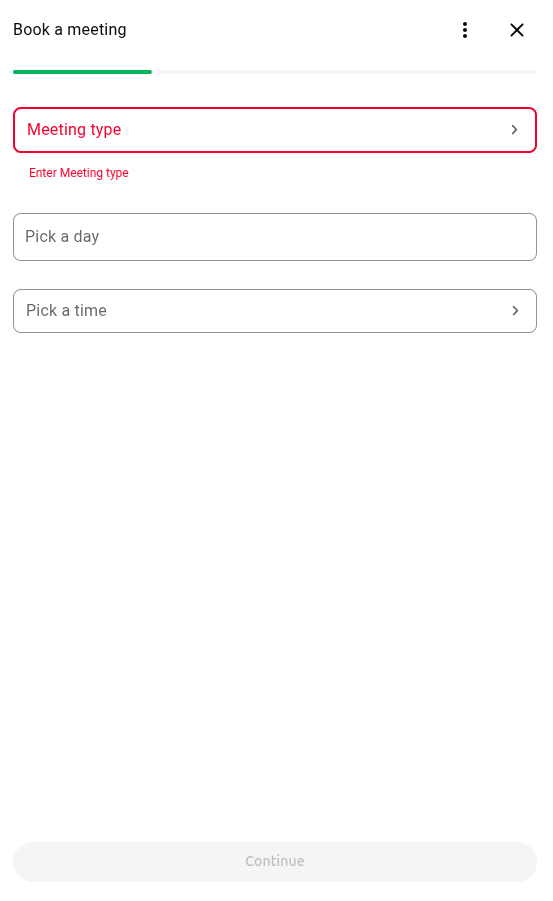
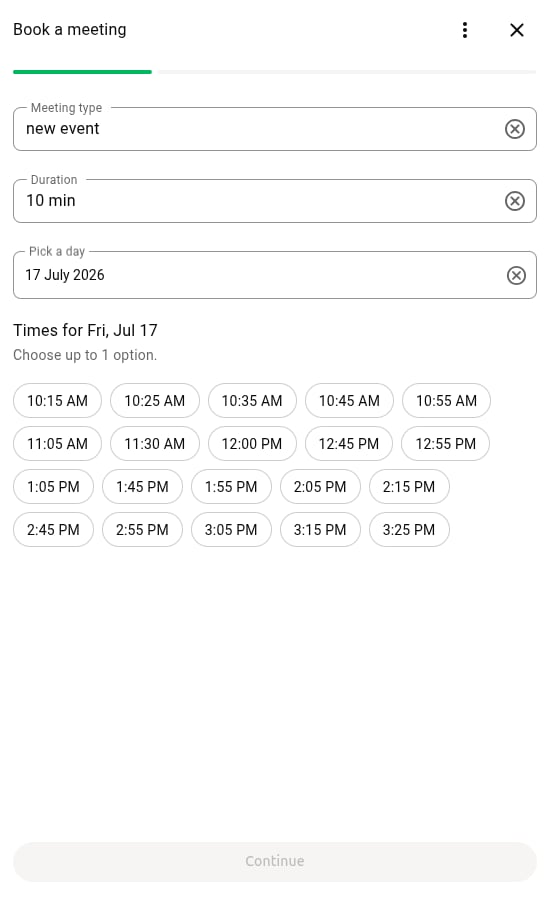
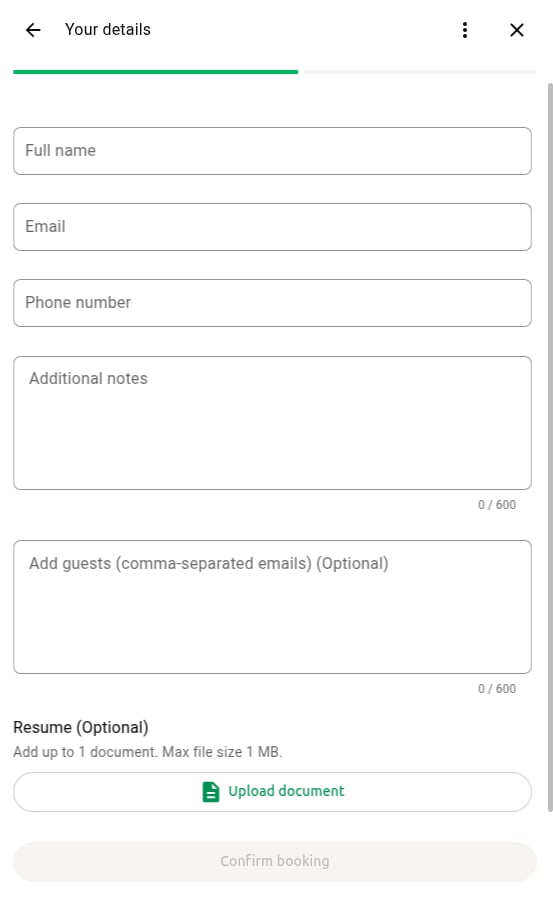
The customer taps the booking button, and the scheduling views open natively in WhatsApp. They select the event type, date, and time, enter their details, and confirm.
| Setting | What it controls |
| ------------------------ | ----------------------------------------------------- |
| **Preview image** | Your logo or banner. |
| **Default meeting type** | One event type, or *"Let attendee pick"*. |
| **Time slots layout** | How slots are displayed, for example a grid of chips. |
| **Greeting message** | The welcome text bookers see. |
| **Booking button label** | Your call to action, for example *"Book now"*. |
Click **Save** at the bottom of the settings panel to go live.
## The customer experience
The customer taps the booking button, and the scheduling views open natively in WhatsApp. They select the event type, date, and time, enter their details, and confirm.
 ## Reschedule or cancel from chat
Customers manage bookings with text commands, with no dashboard login.
**Reschedule:** the customer sends *"Reschedule my booking"*. The bot shows upcoming bookings, and the customer taps one and picks a new slot.
## Reschedule or cancel from chat
Customers manage bookings with text commands, with no dashboard login.
**Reschedule:** the customer sends *"Reschedule my booking"*. The bot shows upcoming bookings, and the customer taps one and picks a new slot.
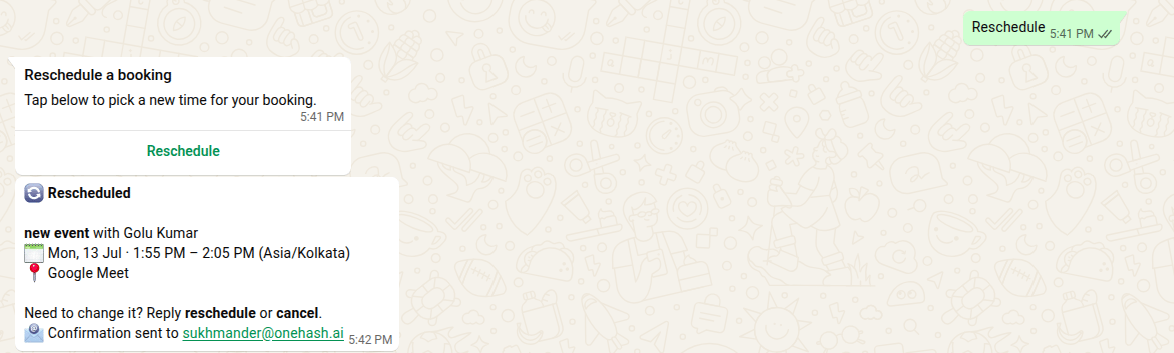 **Cancel:** the customer sends *"Cancel my booking"*. The bot shows active bookings, and the customer taps one to cancel.
 After any change, the attendee gets an updated confirmation card.
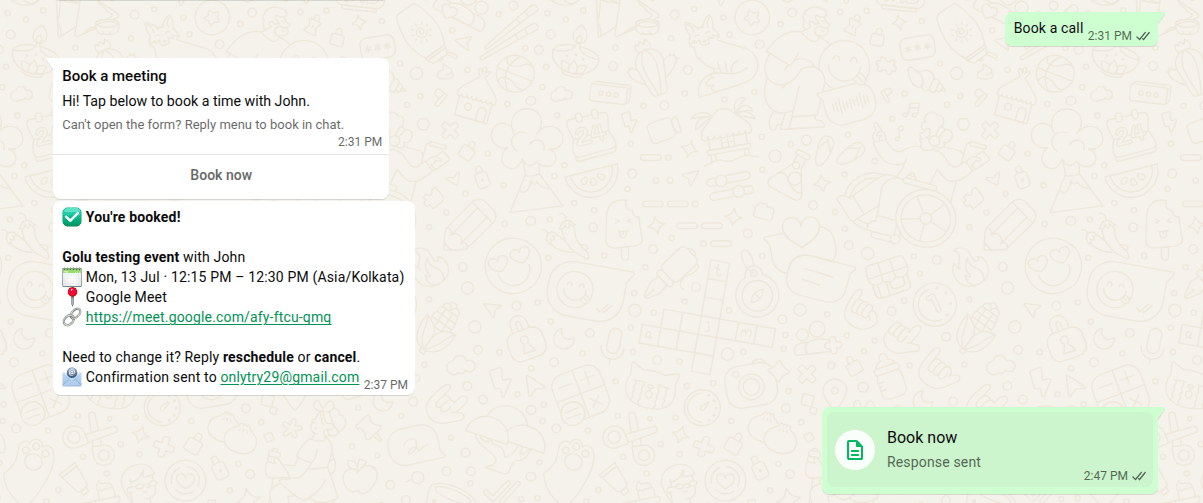 If your event type requires confirmation, the attendee sees a **Booking requested** status first.
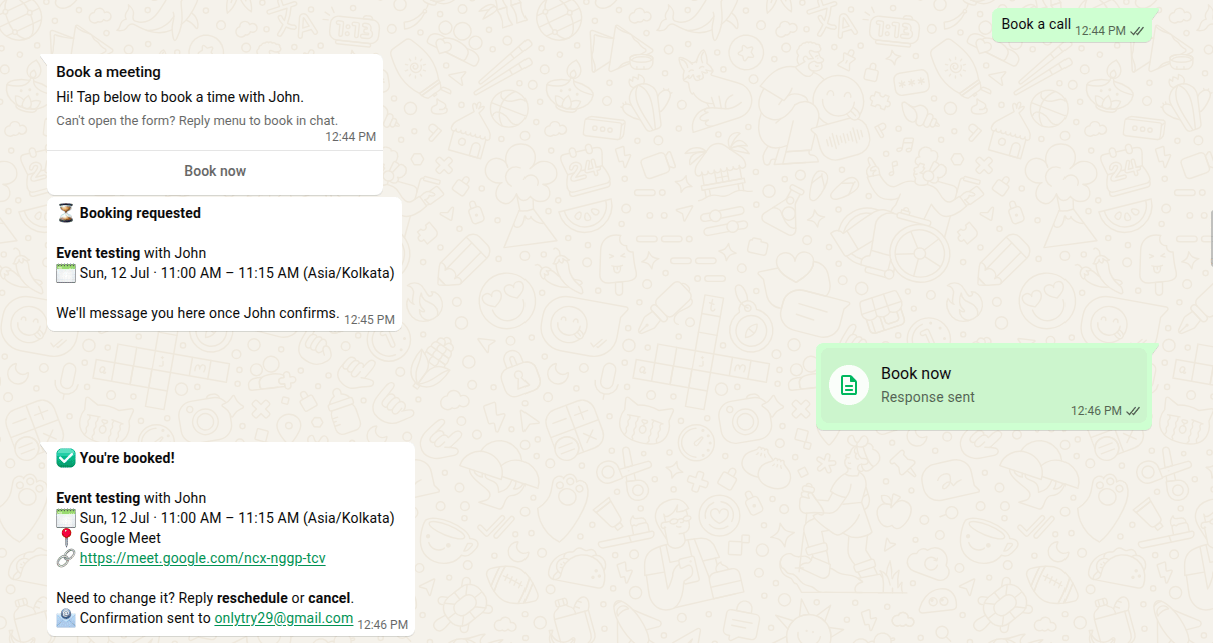 Once confirmed, a receipt card shows the event and host name, date, time and timezone, location or video link, attendee details, and status.
 ## FAQ
No. Everything happens inside WhatsApp.
Yes, using text prompts like *"cancel"* or *"reschedule"*.
Yes. Slots are pulled from Cal ID in real time.
Yes, the moment the customer confirms.
## Troubleshooting
If the booking option doesn't appear:
Confirm WhatsApp Business is connected under **Apps → Installed Apps**.
Make sure **Book on WhatsApp** is on.
Ensure you have at least one active event type.
Click **Save** after any configuration change.
Still stuck? Contact the support team at [support@cal.id](mailto:support@cal.id).
## More WhatsApp setup
Connect your WhatsApp Business number to Cal ID.
Link an existing WhatsApp Business app on your phone.
Automate reminders and follow-ups around your bookings.
Find and share your booking link across other channels.
## Related topics
- [Integrate WhatsApp Business](/docs/workflows/whatsapp-business.md)
- [Connect with WhatsApp Business App](/docs/workflows/connect-whatsapp-app.md)
- [Workflows Setup to Cal ID](/docs/workflows/overview.md)
- [Schedule a Meeting](/docs/getting-started/schedule-a-meeting.md)
- [Find and Share Your Cal ID URL](/docs/getting-started/share-your-url.md)
## FAQ
No. Everything happens inside WhatsApp.
Yes, using text prompts like *"cancel"* or *"reschedule"*.
Yes. Slots are pulled from Cal ID in real time.
Yes, the moment the customer confirms.
## Troubleshooting
If the booking option doesn't appear:
Confirm WhatsApp Business is connected under **Apps → Installed Apps**.
Make sure **Book on WhatsApp** is on.
Ensure you have at least one active event type.
Click **Save** after any configuration change.
Still stuck? Contact the support team at [support@cal.id](mailto:support@cal.id).
## More WhatsApp setup
Connect your WhatsApp Business number to Cal ID.
Link an existing WhatsApp Business app on your phone.
Automate reminders and follow-ups around your bookings.
Find and share your booking link across other channels.
## Related topics
- [Integrate WhatsApp Business](/docs/workflows/whatsapp-business.md)
- [Connect with WhatsApp Business App](/docs/workflows/connect-whatsapp-app.md)
- [Workflows Setup to Cal ID](/docs/workflows/overview.md)
- [Schedule a Meeting](/docs/getting-started/schedule-a-meeting.md)
- [Find and Share Your Cal ID URL](/docs/getting-started/share-your-url.md)